Scroll View ノードを使用する
ユーザー入力や物理ベースのアニメーションからスクロールメッセージを生成する領域を定義するには、Scroll View ノードを使用します。
例えば、マッププレーンを移動したりメッシュを回転させたりするために、Scroll View ノードによって生成されたパラメータを持つスクロールメッセージを使用できます。
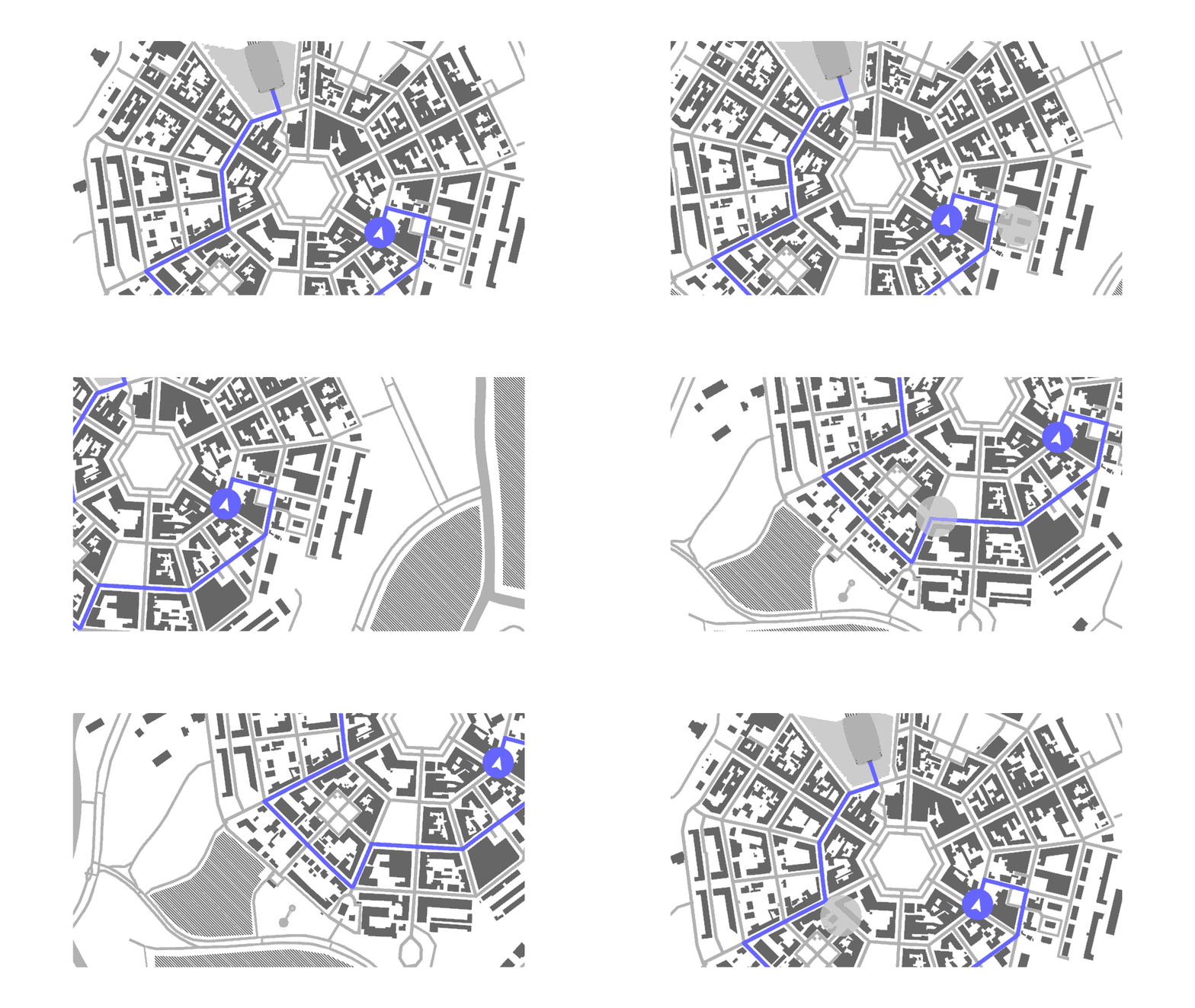
Scroll View はインタラクティブエリアを定義し、スクロール位置の変化を反映するメッセージを送信します。Scroll View ノードの位置とサイズは、Scroll View が入力を登録する場所を定義します。Scroll View ノードを作成した後、スクロール位置の変化に応じて何が起こるかを定義する必要があります。例えば、Scroll View ノードを使用して3Dオブジェクトを移動させることができます。チュートリアル: 3Dモデルを回転させる を参照してください。
Scroll View は、Scrolled トリガーを通じてスクロール位置の変化を報告します。これらのメッセージに反応するためにアクションを使用できます。例えば、スクロール中にノードの外観を設定することができます。
Scroll View 3D は3Dコントロールであるため、視聴者に向けた向きが重要です。Scroll View ノードは、Scroll View ノードの中心にあるフォーカスプレーンに沿ったユーザー入力を追跡します。このフォーカスプレーンを回転させて、視聴者に対して垂直または背を向けないようにしてください。
Scroll View ノードをネストして、アプリケーションの一部を異なる軸でスクロールすることができます。Scroll View ノードのネスト を参照してください。
Kanzi Studio で作成する Scroll View ノードは、Focusable プロパティが有効になっており、デフォルトでフォーカスを受け取ることができます。Scroll View ノードがフォーカスを持っているとき、そのノードをスクロールするには、デフォルトのキーボードキー ←、→、↑、および ↓ を使用できます。
Scroll View ノードの作成
Scroll View ノードを作成するには:
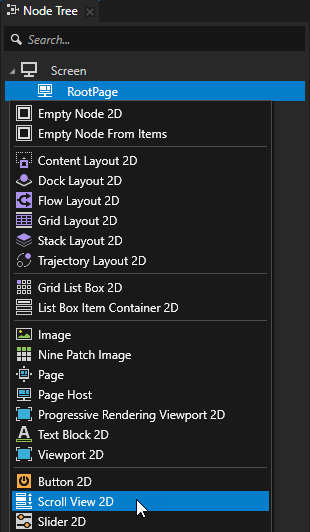
Node Tree で、Scroll View ノードを作成したい Alt を押しながら右クリック ノードを選択し、Scroll View 3D または Scroll View 2D のいずれかを選択します。
3Dノードは、Scene ノードのような3Dノード内でのみ作成でき、2Dノードは2Dノード内でのみ作成できます。
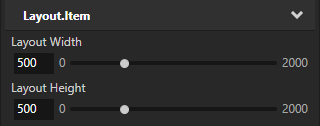
(オプション) Scroll View 2D ノードを作成した場合、Properties で Layout Width と Layout Height プロパティを追加して設定します。
Scroll View 2D ノードはデフォルトで、利用可能なすべてのスペースを占有するようにストレッチします。
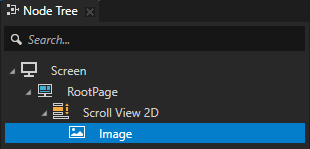
Scroll View ノードで、スクロールジェスチャーで制御したい入力プレーンとして機能するノードを作成します。
例えば、Scroll View 3D ノードを作成した場合、Plane ノードを作成し、Scroll View 2D を作成した場合は、Image ノードを作成します。
前のステップで作成したノードの変換を、Scroll View ノードのスクロール位置にバインドします。
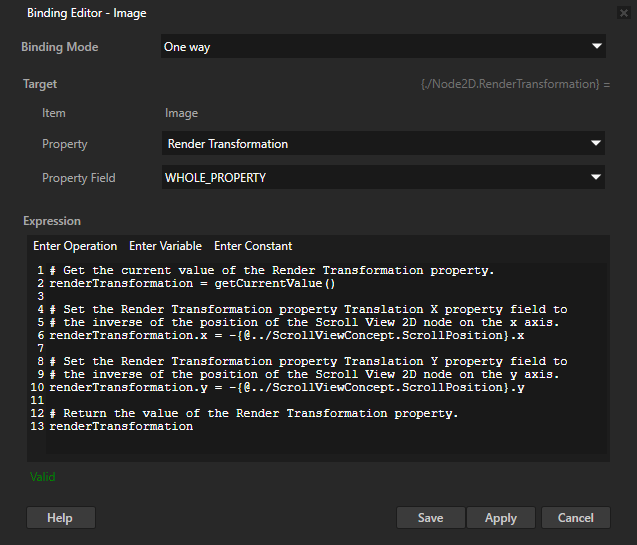
例えば、Node Tree で、Image ノードを選択し、Properties で、+ Add Binding をクリックし、Binding Editor で、設定します。
Property から Render Transformation へ
Expression へ
# Get the current value of the Render Transformation property.
renderTransformation = getCurrentValue()

# Set the Render Transformation property Translation X property field to
# the inverse of the position of the Scroll View 2D node on the x axis.
renderTransformation.x = -{@../ScrollViewConcept.ScrollPosition}.x

# Set the Render Transformation property Translation Y property field to
# the inverse of the position of the Scroll View 2D node on the y axis.
renderTransformation.y = -{@../ScrollViewConcept.ScrollPosition}.y

# Return the value of the Render Transformation property.
renderTransformation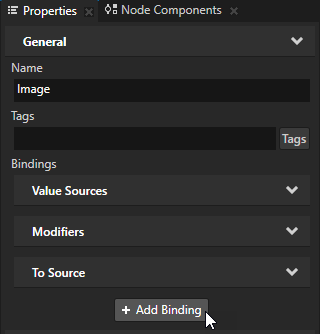
Save をクリックします。
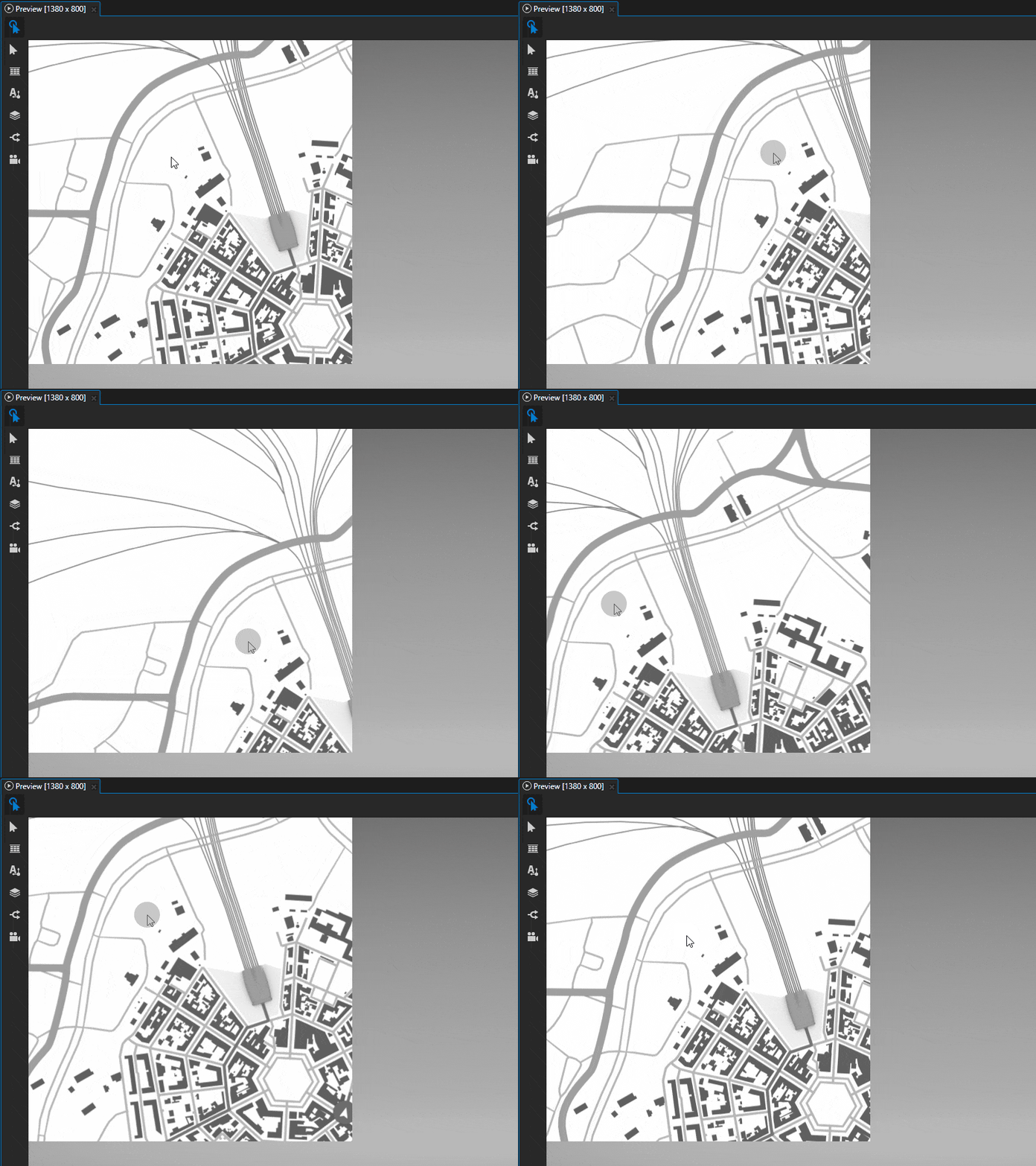
Preview で、Scroll View ノード上でクリックしてポインタをドラッグすると、Image ノードがポインタに沿って移動します。
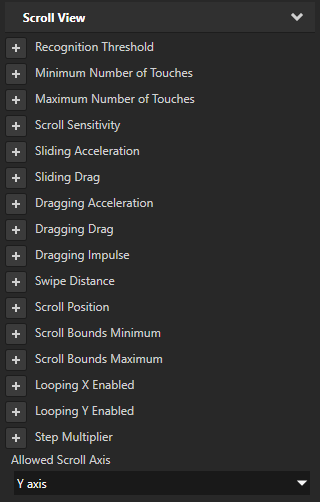
(オプション) Node Tree で、Scroll View ノードを選択します。Properties で、Scroll View プロパティを追加して設定し、Scroll View ノードがユーザー入力にどのように応答するかを制御します。
例:
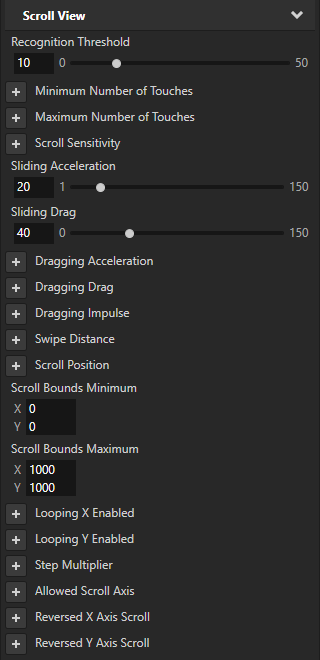
Recognition Threshold プロパティは、Kanzi がスクロールジェスチャーとして認識する前に、ポインターが x 軸と y 軸で移動しなければならないしきい値をピクセル単位で設定します。デフォルト値は両軸ともに5ピクセルです。
Minimum Number of Touches プロパティは、Kanzi がスクロールジェスチャーを認識するためにノード上で必要な最小タッチ数を設定します。デフォルト値は1です。
Maximum Number of Touches プロパティは、Kanzi がスクロールジェスチャーを認識するためにノードで許可される最大タッチ数を設定します。デフォルト値は10です。
Scroll Sensitivity プロパティは、スワイプを開始するポインターの動きに対して、Scroll View ノードによって制御されるノードの位置がどの程度変化するかを設定します。デフォルトで、位置はポインターの移動と同じ量だけ変化します。
Sliding Acceleration プロパティは、スワイプに使用するポインターを離した後のノードの加速度を設定します。Scroll View ノードによって制御されるノードがゆっくりと最終位置に到達するようにしたい場合は低い値を使用します。ノードが素早く最終位置に到達するようにしたい場合は高い値を使用します。
Sliding Drag プロパティは、スワイプに使用するポインターを離した後に、ノードの動きにどれだけドラッグが影響するかを設定します。値が低いほどドラッグが強くなり、Scroll View ノードによって制御されるノードのスライドが速く停止します。
Scroll Bounds Minimum と Scroll Bounds Maximum プロパティは、スクロール境界の最小値と最大値を設定します。スクロール境界は、スクロールが開始される場所と終了する場所を定義します。
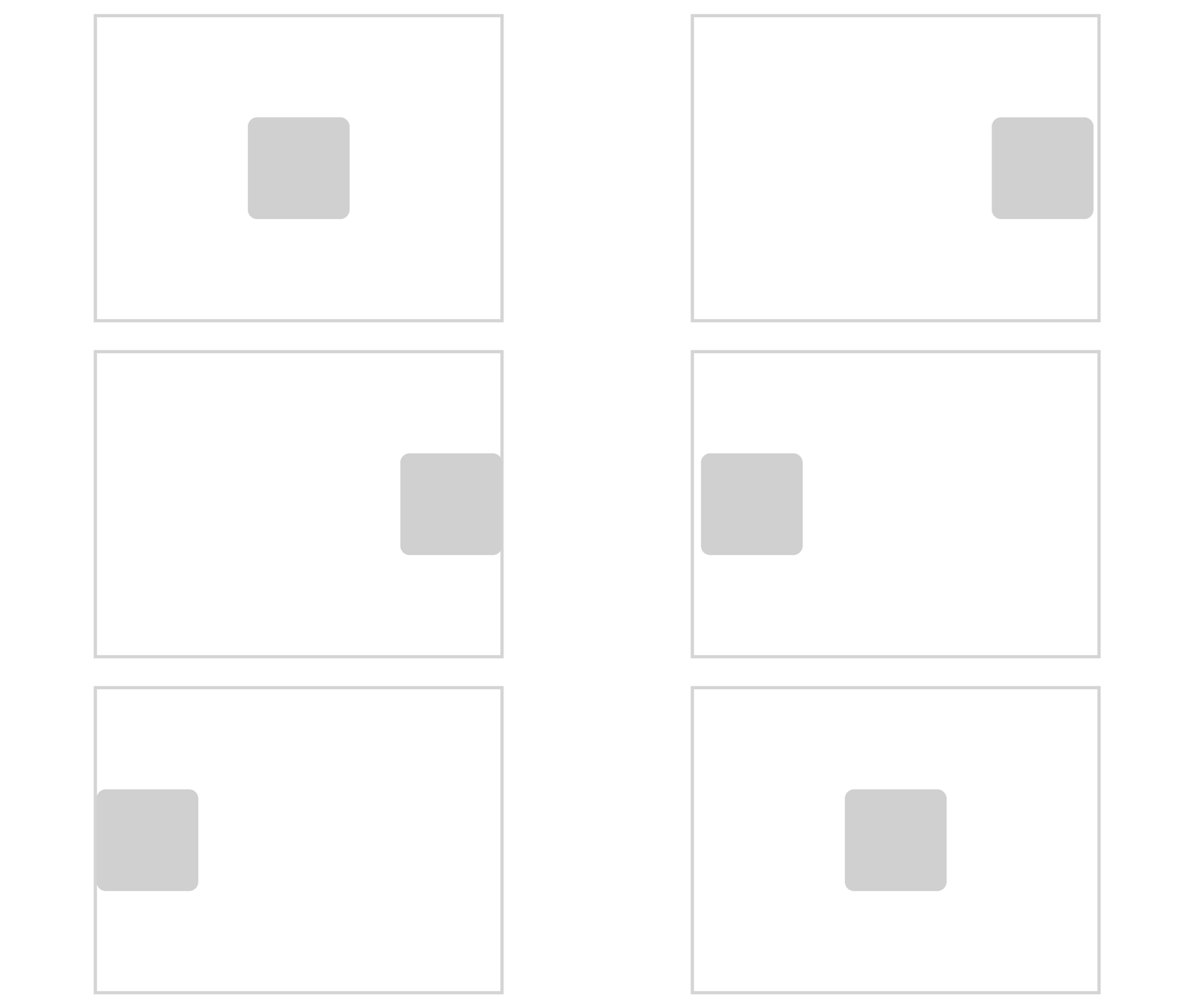
Looping X Enabled と Looping Y Enabled プロパティは、スクロールがx軸またはy軸のスクロール境界に達したときにオブジェクトが最初からスクロールを開始するように設定します。スクロール境界を設定するには、Scroll Bounds Minimum と Scroll Bounds Maximum プロパティを使用します。
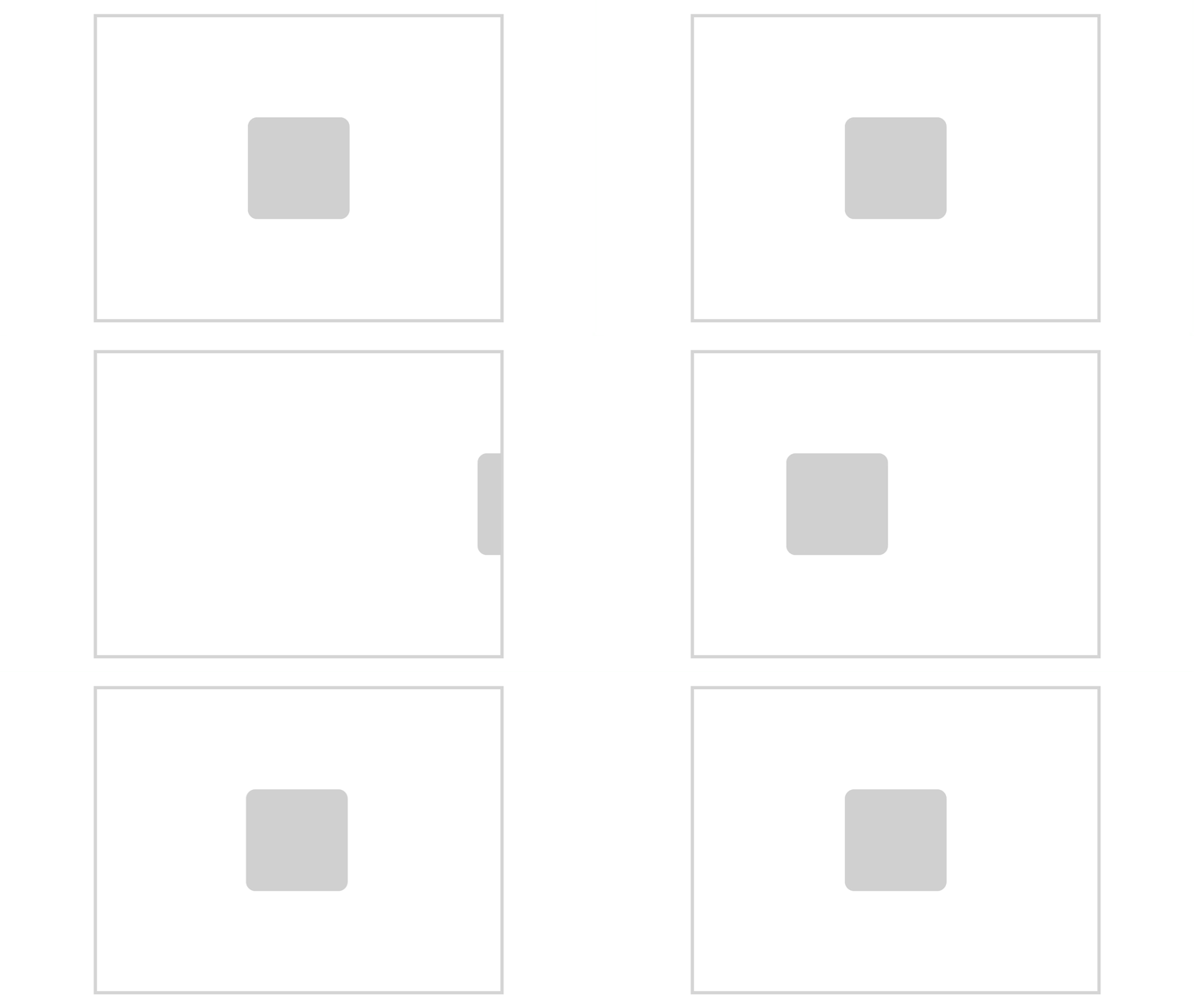
Allowed Scroll Axis は、Scroll View がスクロールする軸を設定します。
例えば、アプリケーションの一部を異なる軸でスクロールするために、Scroll View ノードをネストすることができます。Scroll View ノードのネスト を参照してください。
Reversed X Axis Scroll と Reversed Y Axis Scroll プロパティは、スクロールジェスチャーに関連して Scroll View のスクロール位置が x 軸または y 軸で増加するかどうかを設定します。これにより、スクロールの方向が逆になります。
Scroll View のスクロールに反応する
Scroll View は、メッセージトリガーを通じてその状態とスクロール位置の変化を報告します。これらのメッセージに反応するためにアクションを使用できます。
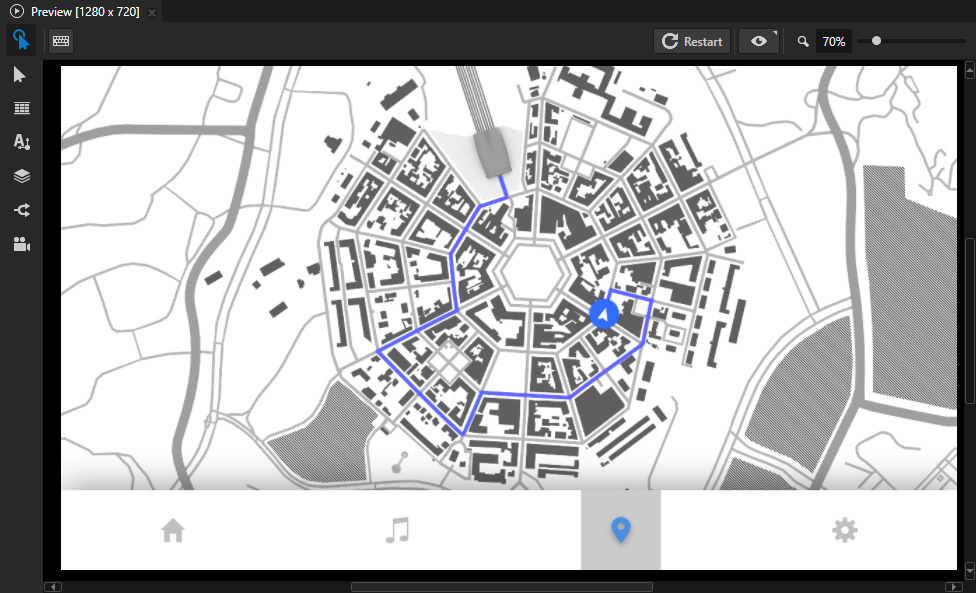
例えば、Scroll View ノードでユーザーが地図をスクロールしている間にアプリケーションメニューを非表示にすることができます。
Scroll View のスクロールに反応するには、
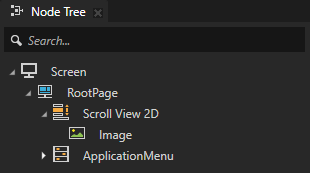
Scroll View ノードと入力プレーンとして機能するノードを作成します。アプリケーションメニューなどのコンテンツを作成し、それを Scroll View ノードの上にレンダリングします。Scroll View ノードの作成 を参照してください。
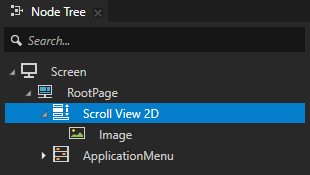
例えば、Scroll View を作成し、マップとアプリケーションメニューを含め、ユーザーがマップをスクロールしている間にメニューを非表示にします。
Scroll View のスクロールに反応するために使用したいトリガーとアクションを作成します。
例:
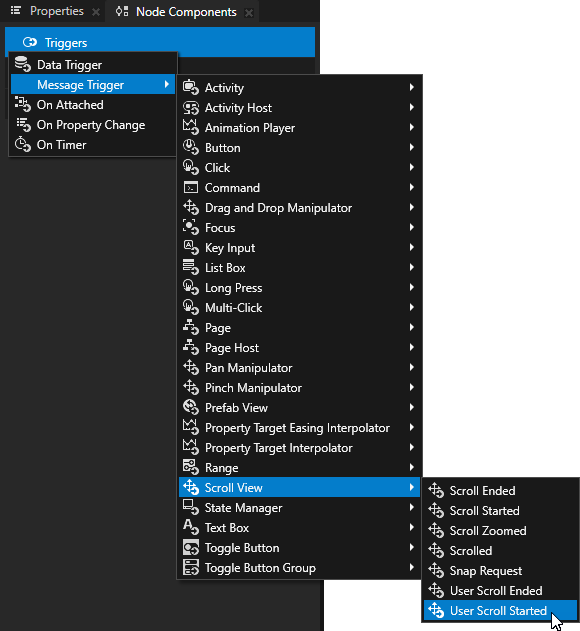
Node Tree で、Scroll View ノードを選択します。Node Components で、Alt を押しながら右クリック Triggers を行い、Message Trigger > Scroll View でトリガーを選択します。
例えば、ユーザーが Scroll View のスクロールを開始したときに反応するには、User Scroll Started トリガーを作成します。
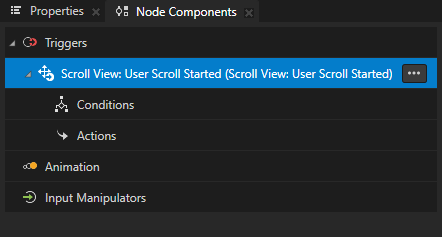
作成したトリガー内で、トリガーに実行させたいアクションを作成して設定します。
例えば、ユーザーが Scroll View をスクロールし始めたときにアプリケーションメニューを非表示にするには、User Scroll Started トリガーで、Alt を押しながら右クリック Actions を選択し、アクションセットで Set Property アクションを選択します。
Target Item から Screens/Screen/RootPage/ApplicationMenu へ
Target Property から Layout Height へ
Fixed Value を 0 に
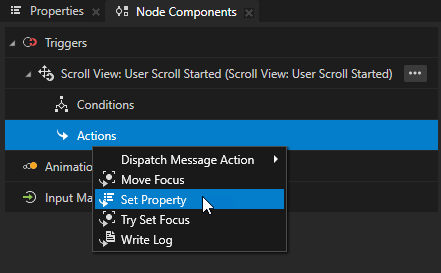
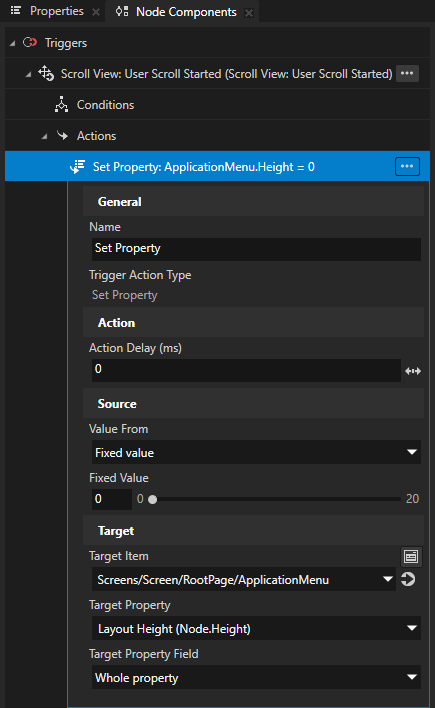
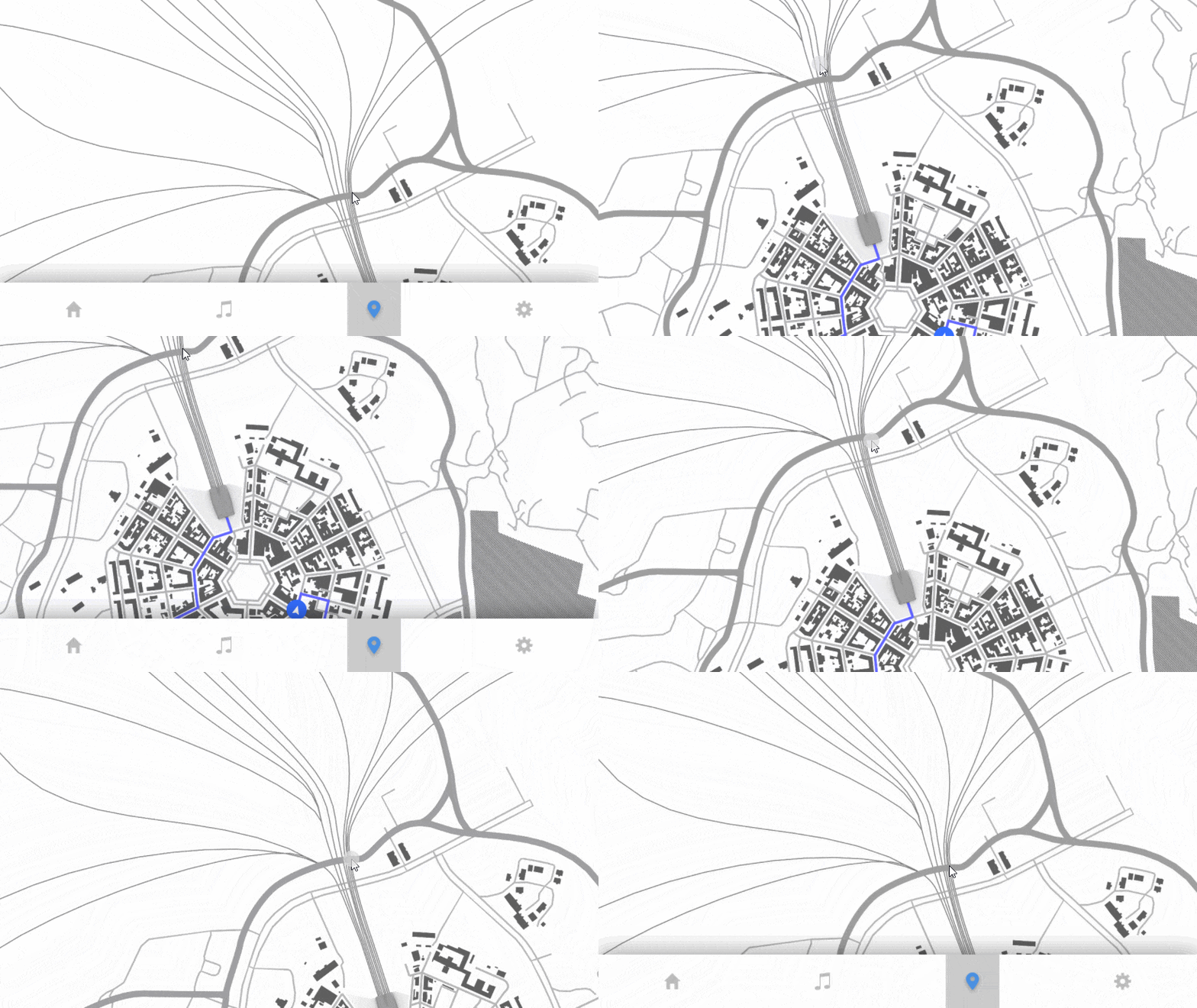
ユーザーがスクロールを開始すると、User Scroll Started トリガーが Set Property アクションを実行します。このアクションは、ApplicationMenu ノードの高さを0に設定し、メニューを非表示にします。
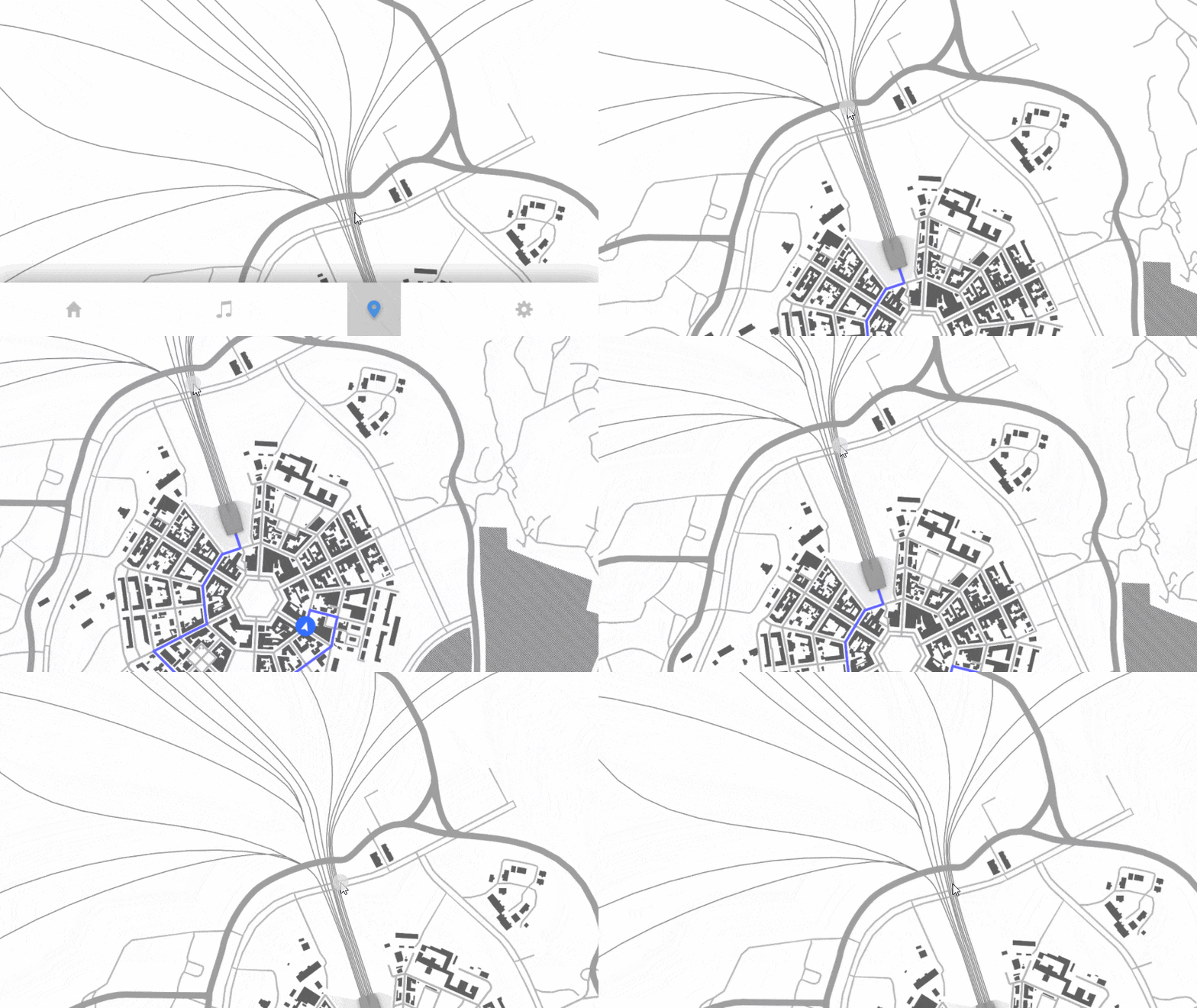
Scroll View に機能を追加するには、前のステップを繰り返します。
例えば、ユーザーがスクロールを停止したときに ApplicationMenu ノードを表示するには:
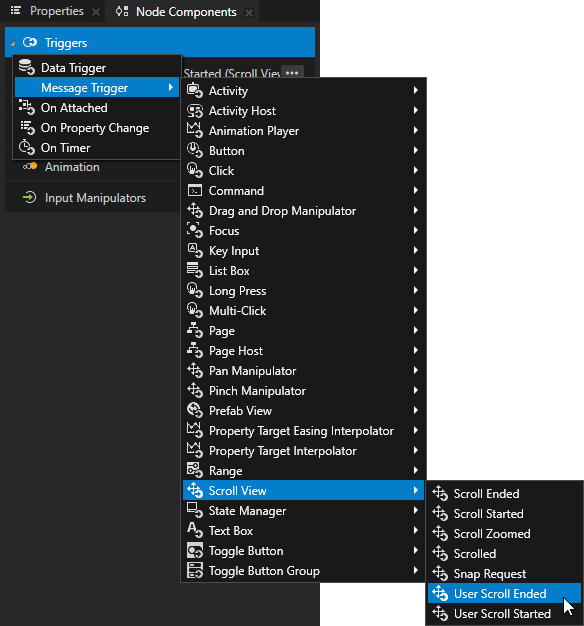
Node Components で、Alt を押しながら右クリック Triggers を行い、Message Trigger > Scroll View > User Scroll Ended を選択します。
Kanzi は、ユーザーが Scroll View ノードのスクロールを停止したときに User Scroll Ended トリガーを発動します。
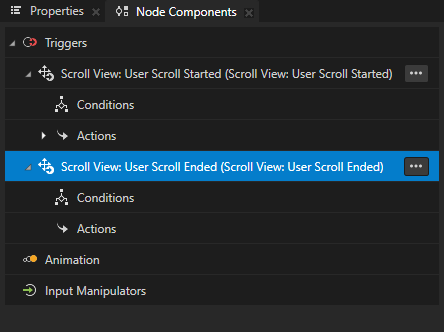
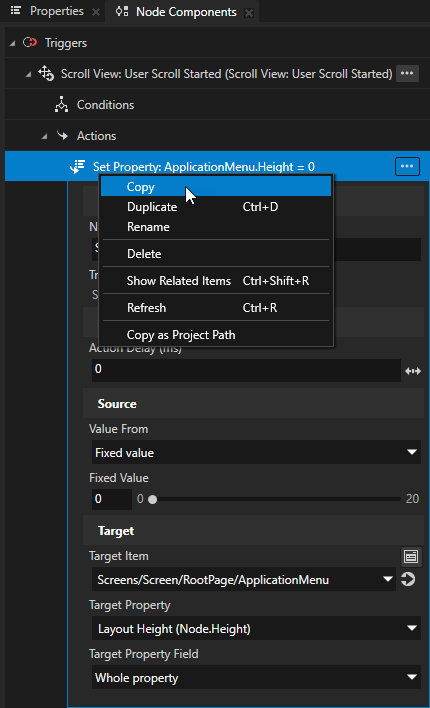
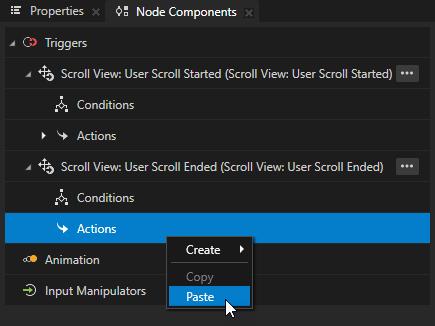
User Scroll Started トリガーで、Set Property アクションを右クリックし、Copy を選択します。User Scroll Ended トリガーで、Actions を右クリックし、Paste を選択します。
User Scroll Ended トリガー内で、Set Property アクションにおいて、Fixed Value プロパティを ApplicationMenu ノードの高さに設定します。
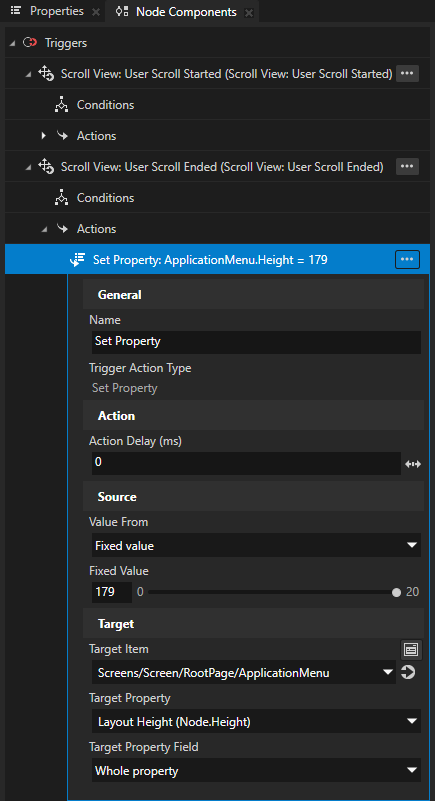
ユーザーがスクロールを開始すると、User Scroll Started トリガーが Set Property アクションを実行します。このアクションはメニューの高さを0に設定し、メニューを非表示にします。ユーザーがスクロールを停止すると、User Scroll Stopped トリガーが Set Property アクションを実行し、ApplicationMenu ノードの高さを以前の値に設定します。
Scroll View ノードのネスト
Scroll View ノードをネストして、異なる軸でスクロールするように設定できるスクロールビューを作成できます。また、Grid List Box ノードと Trajectory List Box 3D ノードをネストすることもできます。Grid List Box ノードのネスト と Trajectory List Box 3D ノードのネスト を参照してください。
各 Scroll View ノードに対して、Allowed Scroll Axis プロパティを使用して、各 Scroll View がスクロールする軸を設定します。
Scroll View ノードをネストするには:
Node Tree で、Scroll View ノードを作成します。Scroll View ノードの作成 を参照してください。
例えば、Scroll View 2D ノードを作成します。その中に、Image ノードを作成します。
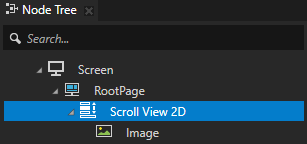
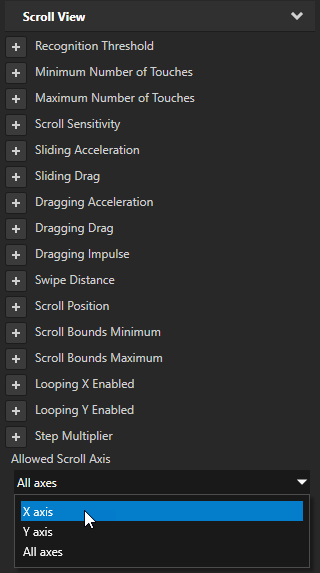
Node Tree で、作成した Scroll View ノードを選択します。Properties で、Allowed Scroll Axis プロパティを追加し、そのノードをスクロールさせたい軸に設定します。
例えば、Scroll View ノードをx軸でスクロールするように設定するには、Allowed Scroll Axis プロパティを X axis に設定します。
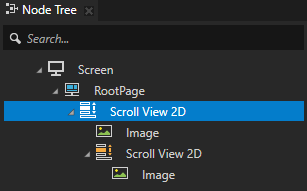
Scroll View ノードにネストしたい Scroll View ノードを作成します。
例えば、画像内で画像をスクロールするには、Image ノードを持つ別の Scroll View 2D ノードを作成します。
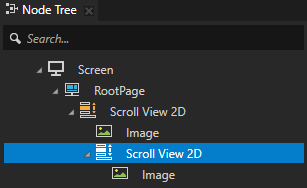
ネストされた Scroll View ノードを選択します。Properties で、Allowed Scroll Axis プロパティを追加し、そのノードをスクロールさせたい軸に設定します。
例えば、ネストされた Scroll View をy軸でスクロールするには、Allowed Scroll Axis プロパティを Y axis に設定します。
Scroll View ノードが使用中かどうかを制御する
Scroll View ノードが使用中かどうかを制御するには、Input > Enabled プロパティを使用します。無効化された Scroll View ノードはユーザー入力に反応しません。Scroll View ノードを無効化すると、Kanzi は進行中のジェスチャーを停止し、その Scroll View ノードのスクロール位置とズーム値を保持します。
ノードの Enabled プロパティを無効にすると、そのノードとその子孫ノードが同じオーバーレイフォーカススコープ内で実質的に無効になります。
ノードが効果的に有効になっているかどうかを確認するには、ステートマネージャーまたはバインディングで Input > Effectively Enabled プロパティを使用します。たとえば、ノードが使用中であるかどうかをユーザーに視覚的に示すために、ステートマネージャーを作成し、そのコントローラープロパティとして Effectively Enabled プロパティを使用します。
ノードが入力にどのように反応するかを制御する を参照してください。
Scroll View のデバッグ
スクロールビューが正しく動作しているかどうかをテストするには、使用しているスクロールビュートリガーに Write Log アクションを追加します。スクロールビューを使用するたびに、Kanzi Studio が Log ウィンドウにメッセージを書き込みます。Scroll View のスクロールに反応する を参照してください。
Scroll View 2D の外観を設定する
2D ノードの外観を設定するには:
2Dノードを単色、テクスチャ、またはマテリアルで塗りつぶすことができます。2Dノードの外観の調整 を参照してください。



2Dノードにポストプロセッシングエフェクトを適用できます。2Dノードのエフェクト を参照してください。




2Dノードを3つの軸すべてで回転させて、3Dのパースペクティブ効果を作成できます。2Dノードに3Dパースペクティブ効果を作成する を参照してください。

2Dノードにカスタムレンダリングを適用して、ポストプロセッシングエフェクトを作成できます。2Dノードにカスタムレンダリングを適用する を参照してください。
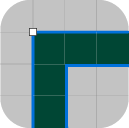
2Dノードをピクセルパーフェクトとしてレンダリングできます。ピクセルパーフェクトな2Dノードのレンダリング を参照してください。
APIで Scroll View 3D ノードを使用する
Scroll View 3D ノードを使用してノードをパンするには、ScrollViewConcept::ScrolledMessage メッセージを使用します。
// Declare the variables you use to store the nodes in this example.
ScrollView3DSharedPtr scrollView;
Node3DSharedPtr box;

// Define the handler function for the ScrollView3D.ScrolledMessage message which a Scroll View generates when it scrolls.
void onScrollViewScrolled(ScrollView3D::ScrollMessageArguments& messageArguments)
{
    // Make a 3D vector out of the scroll position x and y axis coordinates of the Scroll View node. Set value for z to 0.
    Vector3 translation = Vector3(-messageArguments.getScrollPositionX(), messageArguments.getScrollPositionY(), 0.0f);

    // Set the above 3D vector as a render translation of the Box node that you pan with a Scroll View node.
    box->setRenderTransformation(SRTValue3D::createTranslation(translation));
}

// Create the Scroll View which uses the ScrollView3D.ScrolledMessage message handler.
void exampleSetupScrollView3D()
{
    // Create a Scroll View 3D node and set its size.
    scrollView = ScrollView3D::create(domain, "Scroll View");
    scrollView->setSize(100.0f, 100.0f, 10.0f);

    // Create a Box node and attach it to the Scroll View 3D node.
    box = Model3D::createBox(domain, "Box", Vector3(2.0f, 2.0f, 2.0f), ThemeOrange);
    scrollView->addChild(box);

    // Add a message handler for the ScrollView3D.ScrolledMessage message from the Scroll View 3D node.
    scrollView->addMessageHandler(ScrollView3D::ScrolledMessage, bind(&ScrollView3DScrollSnippet::onScrollViewScrolled, this, placeholders::_1));
}
Scroll View 3D ノードを使用してノードをスケーリングするには、ScrollViewConcept::ZoomedMessage メッセージを使用します。
// Declare the variables you use to store the nodes in this example.
ScrollView3DSharedPtr scrollView;
Node3DSharedPtr box;
// Declare the variable you use to store the Render Transformation property.
SRTValue3D baseTransform;

// Define the handler function for the ScrollView3D.ZoomedMessage message which a Scroll View generates when it zooms.
void onScrollViewZoomed(ScrollView3D::ZoomedMessageArguments& arguments)
{
    // Get the value for the amount of zoom from the ScrollView3D.ZoomedMessage message arguments.
    float zoom = arguments.getZoom();

    // Make a copy of the saved base Render Transformation of the Box node.
    SRTValue3D transformCopy(baseTransform);

    // Scale the copied transform on every axis for the zoom amount.
    transformCopy.scale(Vector3(zoom, zoom, zoom));

    // Apply the scaled transform to the Render Transformation property of the Box node.
    box->setRenderTransformation(transformCopy);
}

// Create the Scroll View which uses the ScrollView3D.Zoomed message handler.
void exampleSetupScrollView3D()
{
    // Create Scroll View 3D node and set a size for it.
    scrollView = ScrollView3D::create(domain, "Scroll View");
    scrollView->setSize(100.0f, 100.0f, 10.0f);

    // Create a Box node and attach it to the Scroll View 3D node.
    box = Model3D::createBox(domain, "Box", Vector3(2.0f, 2.0f, 2.0f), ThemeOrange);
    scrollView->addChild(box);

    // Get the value of the Render Transformation property of the Box node.
    baseTransform = box->getRenderTransformation();

    // Add a message handler for the ScrollView3D.ZoomedMessage message from the Scroll View 3D node.
    scrollView->addMessageHandler(ScrollView3D::ZoomedMessage, bind(&ScrollView3DZoomSnippet::onScrollViewZoomed, this, placeholders::_1));
}
詳細については、ScrollView3D クラスを参照してください。
APIで Scroll View 2D ノードを使用する
Scroll View 2D ノードを使用してノードをパンするには、ScrollViewConcept::ScrolledMessage メッセージを使用します。
// Declare the variables you use to store the nodes in this example.
ScrollView2DSharedPtr scrollView;
Node2DSharedPtr textNode;

// Define the handler function for the ScrollView2D.ScrolledMessage message which a Scroll View generates when it scrolls.
void onScrollViewScrolled(ScrollView2D::ScrollMessageArguments& messageArguments)
{
    // Make a 2D vector out of the scroll position x and y axis coordinates of the Scroll View node.
    Vector2 translation = Vector2(-messageArguments.getScrollPositionX(), -messageArguments.getScrollPositionY());

    // Set the above 2D vector as a render translation of the Text Block 2D node that you pan with a Scroll View node.
    textNode->setRenderTransformation(SRTValue2D::createTranslation(translation));
}

// Create the Scroll View which uses the ScrollView2D.ScrolledMessage message handler.
void exampleSetupScrollView2DScroll()
{
    // Create a Scroll View 2D node and set its size.
    scrollView = ScrollView2D::create(domain, "Scroll View");
    scrollView->setLayoutSize(100.0f, 100.0f);

    // Create a Text Block 2D node and attach it to the Scroll View 2D node.
    textNode = TextBlock2D::create(domain, "Hello world!");
    scrollView->addChild(textNode);

    // Add a message handler for the ScrollView2D.ScrolledMessage message from the Scroll View 2D node.
    scrollView->addMessageHandler(ScrollView2D::ScrolledMessage, bind(&ScrollView2DSnippet::onScrollViewScrolled, this, placeholders::_1));
}
Scroll View 2D ノードを使用してノードをスケーリングするには、ScrollViewConcept::ZoomedMessage メッセージを使用します。
// Define the handler function for the ScrollView2D.ZoomedMessage message which a Scroll View generates when it zooms.
void onScrollViewZoomed(ScrollView2D::ZoomedMessageArguments& messageArguments)
{
    // Get the value for the amount of zoom from the ScrollView2D.ZoomedMessage message arguments.
    float zoom = messageArguments.getZoom();

    // Scale the Text Block 2D node based on the zoom read from the ZoomedMessage message.
    textNode->setRenderTransformation(SRTValue2D::createScale(Vector2(zoom, zoom)));
}

// Create the Scroll View which uses the ScrollView2D.ZoomedMessage handler.
void exampleSetupScrollView2DZoom()
{
    // Create Scroll View 2D node and set a size for it.
    scrollView = ScrollView2D::create(domain, "Scroll View");
    scrollView->setLayoutSize(100.0f, 100.0f);

    // Create a Text Block 2D node and attach it to the Scroll View 2D node.
    textNode = TextBlock2D::create(domain, "Hello world!");
    scrollView->addChild(textNode);

    // Add a message handler for the ScrollView2D.ZoomedMessage message from the Scroll View 2D node.
    scrollView->addMessageHandler(ScrollView2D::ZoomedMessage, bind(&ScrollView2DSnippet::onScrollViewZoomed, this, placeholders::_1));
}
スクロール位置を設定するには:
// Create the scroll position message arguments.
ScrollViewConcept::SetScrollMessageArguments args;
args.setScrollPosition(Vector2(50.0f, 25.0f));

// Send the message to set the scroll position.
scrollView2D->dispatchMessage(ScrollViewConcept::SetScrollMessage, args);
スクロールターゲットを設定し、ターゲットによって設定された位置までスクロールを開始するには:
// Create the scroll target message arguments.
ScrollViewConcept::SetScrollTargetMessageArguments args;
args.setScrollTarget(Vector2(50.0f, 25.0f));

// Send the message to set the scroll target.
scrollView2D->dispatchMessage(ScrollViewConcept::SetScrollTargetMessage, args);
ScrollViewConcept::ScrollPositionProperty を使用してスクロール位置を設定するには:
// Set the ScrollViewConcept.ScrollPositionProperty.
scrollView2D->setProperty(ScrollViewConcept::ScrollPositionProperty, Vector2(100.0f, 100.0f));
詳細については、ScrollView2D クラスを参照してください。
Scroll View プロパティタイプとメッセージ
Scroll View ノードの利用可能なプロパティタイプとメッセージのリストについては、Scroll View 2D と Scroll View 3D を参照してください。