ステップ5 - ウィジェット説明パネルのインタラクションを作成する
このチュートリアルのこのステップでは、アプリケーションの説明パネルでのインタラクションを処理する機能を実装します。
Widget Description Layer ノードの Back button のイベントハンドラーを作成し、ウィジェットハイライトアニメーションを逆に実行します。
ユーザーが Back button をクリックしたときに、ウィジェット説明パネルを表す Widget Description Layer を非表示にします。
ウィジェット説明パネルのインタラクションを作成するには:
Application::onProjectLoaded関数に Back button のイベントハンドラを追加します。void onProjectLoaded() override { ... // Add the handler for the Back button. m_backButton->addMessageHandler(Button3D::PressedMessage, bind(&ProgrammerTutorialApplication::onBackButtonClicked, this, placeholders::_1)); }
ProgrammerTutorialApplicationクラス内で、onListBoxItemSelected()関数の後に、Back button クリックメッセージのイベントハンドラを実装します。ユーザーが Back button をクリックすると、イベントハンドラーはカメラとウィジェットのハイライトアニメーションを逆順で実行し、Widget Description Layer ノードを非表示にします。
説明パネルのコンテナであることに加えて、Widget Description Layer ノードは、表示されている間、Widget Grid List Box ノードとの相互作用を防ぎます。
最初にアニメーションを実行し、アニメーションが終了したときにノードの可視性を
falseに設定します。次に、不透明度を0.0fに設定してノードを透明にします。Widget Description Layer ノードは非表示になりますが、アニメーションが終了するまでユーザー入力をブロックするために可視のままです。class ProgrammerTutorialApplication : public ExampleApplication { ... // The handler for the Button.Pressed message from the Back button. // Moves the selected list box item back to its position. void onBackButtonClicked(ButtonConcept::PressedMessageArguments& /*messageArguments*/) { // De-select the previously selected list box item. m_widgetList->selectItem(nullopt); // Remove old playbacks to reset the values. removePlaybacks(); // Start the animation for the camera in reverse direction. PropertyAnimationTimelineSharedPtr cameraTimeline = PropertyAnimationTimeline::create(getDomain(), ".", Node3D::RenderTransformationProperty, m_cameraAnimation); cameraTimeline->setDirectionBehavior(Timeline::DirectionBehaviorReverse); SceneGraphTimelinePlaybackContext cameraContext(*m_camera); m_cameraPlayback = cameraTimeline->createPlayback(cameraContext); getDomain()->getRootTimelineClock()->addTimelinePlayback(m_cameraPlayback); // Start the animation for the selected item in reverse direction. PropertyAnimationTimelineSharedPtr selectedItemTimeline = PropertyAnimationTimeline::create(getDomain(), ".", Node3D::LayoutTransformationProperty, m_selectedItemAnimation); selectedItemTimeline->setDirectionBehavior(Timeline::DirectionBehaviorReverse); SceneGraphTimelinePlaybackContext selectedItemContext(*m_selectedItem); m_widgetHighlightPlayback = selectedItemTimeline->createPlayback(selectedItemContext); getDomain()->getRootTimelineClock()->addTimelinePlayback(m_widgetHighlightPlayback); // Start the animation to hide the Widget Description Layer. PropertyAnimationTimelineSharedPtr widgetDescriptionVisibilityTimeline = PropertyAnimationTimeline::create(getDomain(), ".", Node::VisibleProperty, m_widgetDescriptionVisibilityAnimation); SceneGraphTimelinePlaybackContext listBoxContext(*m_widgetDescriptionNode); m_widgetDescriptionVisibilityPlayback = widgetDescriptionVisibilityTimeline->createPlayback(listBoxContext); getDomain()->getRootTimelineClock()->addTimelinePlayback(m_widgetDescriptionVisibilityPlayback); // Make the Widget Description Layer transparent. m_widgetDescriptionNode->setProperty(Node::OpacityProperty, 0.0f); } };
前のステップで Widget Description Layer ノードを透明にしたため、イベントハンドラで再び不透明にして、ユーザーがウィジェットを選択できるようにします。
void onListBoxItemSelected(ListBoxConcept::itemSelectedMessageArguments& messageArguments)
{
...
    if (selectedItemIndex)
    {
    ...
        // Show the widget description by setting the Widget Description Layer visible.
        if (m_widgetDescriptionVisibilityPlayback)
        {
        ...

        }
        ...
        // Make the Widget Description Layer opaque.
        m_widgetDescriptionNode->setProperty(Node::OpacityProperty, 1.0f);
    }
}
onBackButtonClicked()関数の後に、タイムラインクロックから古い再生を削除してカメラの値をリセットする関数を追加します。// Remove old playbacks from the timeline clock. void removePlaybacks() { TimelineClockSharedPtr timelineClock = getDomain()->getRootTimelineClock(); if (m_cameraPlayback) { timelineClock->removeTimelinePlayback(*m_cameraPlayback); m_cameraPlayback.reset(); } if (m_widgetHighlightPlayback) { timelineClock->removeTimelinePlayback(*m_widgetHighlightPlayback); m_widgetHighlightPlayback.reset(); } if (m_backButtonEnablePlayback) { timelineClock->removeTimelinePlayback(*m_backButtonEnablePlayback); m_backButtonEnablePlayback.reset(); } if (m_widgetDescriptionVisibilityPlayback) { timelineClock->removeTimelinePlayback(*m_widgetDescriptionVisibilityPlayback); m_widgetDescriptionVisibilityPlayback.reset(); } }
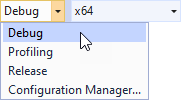
使用したいソリューション構成を選択し、アプリケーションを実行します。
開発中は、Debug 構成を選択します。製品版を作成する準備ができたら、Release 構成を選択します。
Widget Description Layer ノードの Back button をクリックすると、アプリケーションはハイライトアニメーションを逆再生し、Camera ノードを元に戻して Widget Grid List Box 全体を表示するアニメーションを開始します。このチュートリアルでは、購入ボタンの機能については説明していないことに注意してください。