ステップ2 - マップをズームおよび回転する
Pinch Manipulator を使用して、ユーザーが Kanzi アプリケーション内のノードをズームおよび回転できるようにします。
ノードをズームおよび回転させる量を計算するために、ピンチジェスチャーはデバイスの画面上で動く2本の指の位置と距離を継続的に追跡します。
Kanzi アプリケーションでユーザーがノードをマルチクリックできるようにするには、Multi-Click Manipulator を使用します。
マルチクリックマニピュレータで、クリックの回数とクリック間の最大時間を設定することで、Kanzi がクリックをマルチクリックジェスチャーとして解釈できるようにします。
Kanzi Studio では、Multi-Click Manipulator コンポーネントを使用してノードにマルチクリックマニピュレータをインストールし、そのマルチクリックマニピュレータの動作を制御できます。
このステップでは、まずピンチマニピュレータを使用して、マップのズームと回転を有効にします。次に、Multi-Click Manipulator コンポーネントとマルチクリックマニピュレータを使用して、マップの位置、ズームレベル、および回転角度のリセットを有効にします。
チュートリアルアプリケーションをAndroidデバイスにデプロイします。なぜなら、ピンチジェスチャーにはマルチタッチサポートが必要だからです。
マップをズームおよび回転
このセクションでは、ユーザーがマップをピンチしたときにマップをズームおよび回転させるために、ピンチマニピュレータを作成して使用します。
マップをズームおよび回転するには:
PanZoomTapクラスのプライベートセクションにあるpan_zoom_tap.cppファイルで、ピンチメッセージのハンドラを定義します。private: ... // Define the handler for the PinchManipulator::StartedMessage message from the 2D nodes // that have an input manipulator which generates pinch messages. // This handler prepares a 2D node for a pinch gesture. void onPinchStarted(PinchManipulator::StartedMessageArguments& messageArguments) { // Get from the message arguments the node that the user pinches. Node2DSharedPtr mapNode = dynamic_pointer_cast<Node2D>(messageArguments.getSource()); // Store the initial value of the Render Transformation property Scale property field. SRTValue2D nodeTransform = mapNode->getRenderTransformation(); m_pinchInitialScaleFactor = nodeTransform.getScale().getX() - 1.0f; // Calculate a minimum scale value based on the size of the application screen. ScreenSharedPtr screen = getScreen(); m_minScale = max(getScreen()->getActualWidth() / mapNode->getActualWidth(), screen->getActualHeight() / mapNode->getActualHeight()); } // Define the handler for the PinchManipulator::MovedMessage message from the 2D nodes // that have an input manipulator which generates pinch messages. // This scales and rotates a 2D node for the amount of the pinch gesture. void onPinchMoved(PinchManipulator::MovedMessageArguments& messageArguments) { // Get from the message arguments the node that the user pinches. Node2DSharedPtr mapNode = dynamic_pointer_cast<Node2D>(messageArguments.getSource()); // Get the scale and rotation from the message arguments. float scaleDelta = messageArguments.getScale(); float rotateDelta = messageArguments.getRotation(); // Calculate the scale by adding the initial scale to the pinch value. // Restrict the scale so that the map cannot be smaller than the application screen size. float scale = max(m_minScale, scaleDelta + m_pinchInitialScaleFactor); // Get the Render Transformation property of the Map node. SRTValue2D mapRenderSRT = mapNode->getRenderTransformation(); // Apply the rotation. mapRenderSRT.rotate(rotateDelta); // Apply the scale. mapRenderSRT.setScale(Vector2(scale, scale)); // Get the world transformation of the Map node. // You use this in the next step of the tutorial. Matrix3x3 mapWorldTransform = mapNode->getWorldTransform(); optional<SRTValue2D> mapWorldSRT = SRTValue2D::create(mapWorldTransform); kzAssert(mapWorldSRT); // Apply the new render transformation to the Map node. mapNode->setRenderTransformation(mapRenderSRT); } // Define a member variable for the initial scale factor of the pinch gesture. float m_pinchInitialScaleFactor; // Define a member variable for the minimum scale value. float m_minScale; };
PanZoomTapクラスのパブリックセクションの冒頭にコンストラクタを追加し、ピンチジェスチャーの初期スケールファクターを設定します。public: PanZoomTap() : m_pinchInitialScaleFactor(0.0f) { } ...
Application::onProjectLoaded関数内でPinchManipulatorマニピュレータを作成し、Map ノードでそのメッセージを購読します。void onProjectLoaded() override { ... // Create an input manipulator that generates pinch messages. PinchManipulatorSharedPtr pinchManipulator = PinchManipulator::create(domain); // Add the input manipulator to the Map node. mapNode->addInputManipulator(pinchManipulator); // Subscribe to the PinchManipulator::StartedMessage message at the Map node. // The PinchManipulator generates this message when the user presses two fingers on the Map node. mapNode->addMessageHandler(PinchManipulator::StartedMessage, bind(&PanZoomTap::onPinchStarted, this, placeholders::_1)); // Subscribe to the PinchManipulator::MovedMessage message at the Map node. // The PinchManipulator generates this message when the scale or rotation threshold is exceeded // and when the tracked touches move between updates. mapNode->addMessageHandler(PinchManipulator::MovedMessage, bind(&PanZoomTap::onPinchMoved, this, placeholders::_1)); }
アプリケーションをAndroidデバイスにデプロイしてください。ピンチジェスチャーはマルチタッチサポートを必要とするためです。
Android デバイスをコンピュータに接続します。
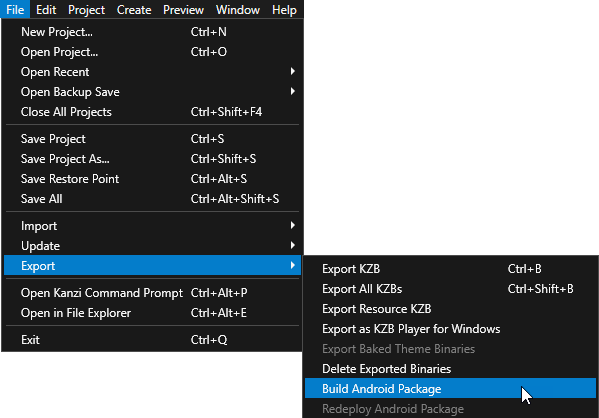
Kanzi Studio のメインメニューで、File > Export > Build Android Package を選択します。
Kanzi Studio は、Kanzi Studio プロジェクトから Android パッケージを作成し、それを Android デバイスにデプロイして実行します。
Androidデバイスでピンチジェスチャーを使用して、地図をズームおよび回転します。
マップはその中心点を中心に回転します。これは、Map ノードの原点が中心に設定されているためです。
位置、ズームレベル、および回転をリセットする
このセクションでは、Multi-Click Manipulator コンポーネントとマルチクリックマニピュレータを作成して使用し、ユーザーがマップをダブルタップしたときにマップの位置、ズームレベル、および回転角度をリセットします。
位置、ズームレベル、および回転をリセットするには:
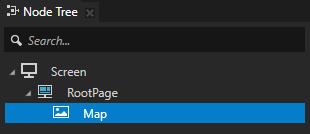
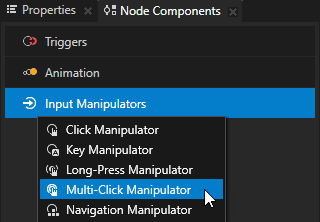
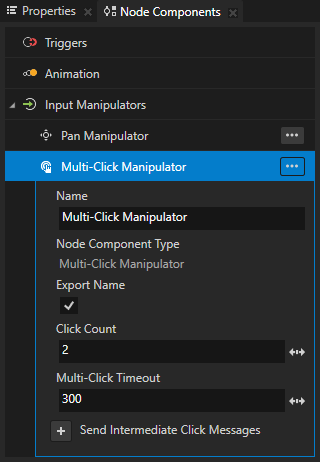
Kanzi Studio の Node Tree で Map ノードを選択し、Node Components Alt を押しながら右クリック Input Manipulators で Multi-Click Manipulator を選択します。
この方法で、ユーザーは Map ノードをマルチクリックできるようになります。ノードに Multi-Click Manipulator コンポーネントを追加することで、そのノードにマルチクリックマニピュレータをインストールします。
デフォルトで、マルチクリックマニピュレータは2回の素早いクリックをダブルクリックジェスチャーとして認識します。Multi-Click Manipulator コンポーネントでは、Click Count プロパティを使用して、インストールされたマルチクリックマニピュレータがマルチクリックジェスチャーを認識し、マルチクリックメッセージを送信するために必要なクリック数を設定できます。
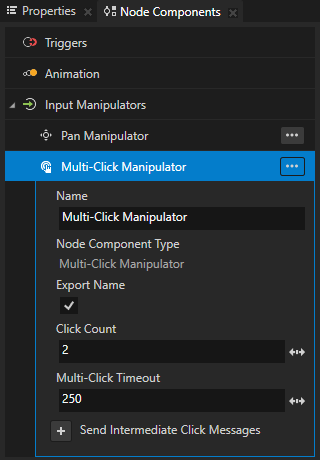
Multi-Click Manipulator コンポーネントで Multi-Click Timeout プロパティを300に設定します。
Multi-Click Timeout は、マルチクリックマニピュレータがそれらをマルチクリックジェスチャーとして認識し続けるために、2回の連続したクリックが発生しなければならない時間をミリ秒単位で設定します。
File > Export > Export KZB を選択します。
Visual Studioで、
pan_zoom_tap.cppファイルのPanZoomTapクラスのプライベートセクションに、マルチクリックメッセージのハンドラーを定義します。private: ... // Define the handler for the MultiClickManipulator::MultiClickMessage message from the nodes that have // an input manipulator which generates the multi-click message when the user double-taps the node. void onNodeDoubleTapped(MultiClickManipulator::MultiClickMessageArguments& messageArguments) { // Get from the message arguments the node that the user double-taps. Node2DSharedPtr mapNode = dynamic_pointer_cast<Node2D>(messageArguments.getSource()); // Remove the Render Transformation property of the node. // This way you reset the position, zoom level, and rotation angle of the Map node. mapNode->removeLocalValue(Node2D::RenderTransformationProperty); } ... };
Application::onProjectLoaded関数で、Map ノードのマルチクリックメッセージを購読します。void onProjectLoaded() override { ... // Subscribe to the MultiClickManipulator::MultiClickMessage message at the Map node. // The MultiClickManipulator manipulator generates this message when the user double-taps the node. mapNode->addMessageHandler(MultiClickManipulator::MultiClickMessage, bind(&PanZoomTap::onNodeDoubleTapped, this, placeholders::_1)); }
アプリケーションをビルドして、Androidデバイスにデプロイします。
アプリケーションでは、最初にピンチジェスチャーを使用してマップをズームおよび回転し、パンジェスチャーを使用してマップを移動します。次に、マップをダブルタップして、初期位置、ズームレベル、および回転角度に設定します。
関連項目
ピンチマニピュレータについて詳しく知るには、Pinch Manipulator を使用する を参照してください。
マルチクリックマニピュレータについて詳しく知るには、Multi-Click Manipulator を使用する を参照してください。
Kanzi アプリケーションを Android にデプロイする方法について詳しくは、Kanzi アプリケーションをAndroidにデプロイする を参照してください。