第 3 步 - 定义并使用静态列表数据源
在本教程的这一步骤中,首先为数据源插件中的静态列表定义数据源,然后在 Kanzi Studio 项目中使用它,从数据源中获取 Grid List Box 节点中项目的数据。
添加功能来生成列表数据对象
在本节中,您可以添加使数据源插件可以生成列表数据对象的功能。
要添加功能来生成列表数据对象:
在文件资源管理器中,从
<KanziWorkspace>/Tutorials/Data sources/Assets/Static list目录复制data_object_static_list.cpp和data_object_static_list.hpp文件到<KanziWorkspace>/Tutorials/Data sources/Start/Application/src/plugin/src目录。这些文件提供为静态列表创建数据对象的功能。
在
<KanziWorkspace>/Tutorials/Data sources/Start/Application/src/plugin/CMakeLists.txt中,将data_object_static_list.cpp和data_object_static_list.hpp文件添加到set命令中。set(sources_plugin src/data_object_static_list.cpp src/data_object_static_list.hpp src/tinyxml2.cpp src/tinyxml2.h src/xmldatasource.cpp src/xmldatasource.hpp src/xmldatasource.rc src/xmldatasource_module.cpp src/xmldatasource_module.hpp)
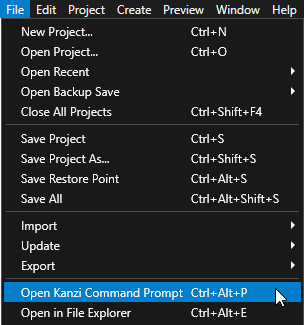
在 Kanzi Studio 中,选择 File > Open Kanzi Command Prompt。
Kanzi Command Prompt 打开 Windows 命令提示符,并为您打开 Kanzi Command Prompt 的 Kanzi 版本设置 Kanzi 环境变量。
使用 Kanzi Command Prompt 访问 Kanzi 实用程序和构建工具,例如 Gradle、SCons 和 CMake,而无需使用绝对路径或设置环境变量。
小技巧
您可以在 Windows 开始菜单的 Rightware 目录中找到 Kanzi Command Prompt。
当您安装了多个版本的 Kanzi 时,确保将您要在该命令提示符下使用的 Kanzi 版本的 Kanzi Command Prompt 启动。
在
<KanziWorkspace>/Tutorials/Data sources/Start/Application目录中的 Kanzi Command Prompt 中运行generate_cmake_vs2019_solution.bat
在从应用程序中添加或删除文件后,您必须重新生成 Visual Studio 解决方案。
在 Visual Studio 中重新加载所有项目。
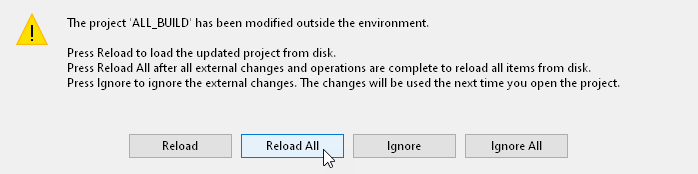
在 Visual Studio 中,对
xmldatasource.cpp进行以下更改:包含
data_object_static_list.hpp头文件。// Provides the functionality for creating data objects for a static list. #include "data_object_static_list.hpp"
在
addDataObject函数之前,创建一个函数,将内存中 XML 结构的内容转换为静态列表数据对象中的列表项。// Use this function to add list items to a list data object. static void addListItems(Domain* domain, DataObjectStaticListSharedPtr list, const tinyxml2::XMLElement* itemsElement) { for (const tinyxml2::XMLElement* child = itemsElement->FirstChildElement(); child; child = child->NextSiblingElement()) { // Create the root data object for the list item hierarchy. DataObjectSharedPtr rootObject = DataObject::create(domain, "Item root"); // Create the list item tree recursively. addDataObjectsRecursively(domain, rootObject, child); // Add the first child from the root data object as a list item. Discard the root object. list->addItem(rootObject); } }
在
addDataObject函数中添加一个条件,以从列表类型属性创建列表类型数据对象。// Add a data object of the type specified by the type attribute in the XML element. Get the initial value // from the text parameter. DataObjectSharedPtr addDataObject(Domain *domain, const char* type, const char* name, const char* text) { ... // Create a list data object from the list type attributes. else if (type && strcmp(type, "list") == 0) { object = make_shared<DataObjectStaticList>(domain, name); } ... }
更改
addDataObjectsRecursively函数以添加功能,在列表数据对象中创建数据对象,如果列表类型中的 XML 元素名称为 items。替换 (Replace)
static void addDataObjectsRecursively(Domain* domain, DataObjectSharedPtr parent, const tinyxml2::XMLElement* xml)
{

...

    // Traverse the tree in the XML file to add data objects for each child element of the current XML element.
    for (const tinyxml2::XMLElement* child = xml->FirstChildElement(); child; child = child->NextSiblingElement())
    {
        // Recurse.
        addDataObjectsRecursively(domain, object, child);
    }
}
通过
static void addDataObjectsRecursively(Domain* domain, DataObjectSharedPtr parent, const tinyxml2::XMLElement* xml)
{

...
    // Check whether the type of the current data object is list.
    DataObjectStaticListSharedPtr list = dynamic_pointer_cast<DataObjectStaticList>(object);
    // Traverse the tree in the XML file to add data objects for each child element of the current XML element.
    for (const tinyxml2::XMLElement* child = xml->FirstChildElement(); child; child = child->NextSiblingElement())
    {
        // If the name of the XML element within the list type is items, create data objects inside that list data object.
        if (list && strcmp(child->Name(), "items") == 0)
        {
            addListItems(domain, list, child);
        }
        else
        {
            // Recurse.
            addDataObjectsRecursively(domain, object, child);
        }
    }
}
在 Kanzi Studio 中按 F8 退出 Preview。
在 Visual Studio 的 Solution Explorer 中,右键点击 XML_data_source_start 项目并选择 Build 以构建插件。
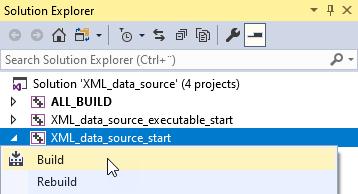
在 Visual Studio 构建插件后,在 Kanzi Studio 中按 F5 启动 Preview。
从数据源获取列表数据
在本节中,您在项目中设置一个 Grid List Box 2D 节点,以从列表数据对象获取其项目的数据,该对象由插件从数据源生成。
要从数据源获取列表数据:
在 Data Sources 窗口中,紧邻 Cluster 数据源,点击
 ,并将 XML Data Source File 属性设置为
 ClusterWithList.xml文件。您可以在Application/bin目录中找到该文件。除了
Cluster.xml文件中包含的数据外,ClusterWithList.xml文件还包含列表项的数据。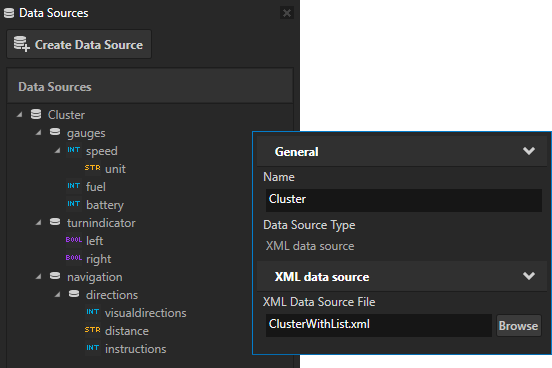
单击
 ,位于 Cluster 数据源旁边,以根据
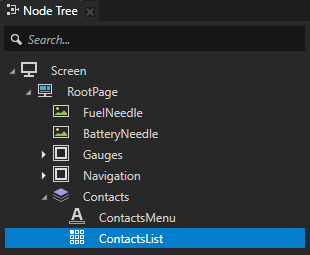
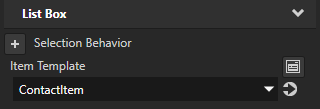
 ClusterWithList.xml文件的内容创建数据对象。在 Node Tree 中,选择 Grid List Box 节点 Contacts > ContactsList,并在 Properties 中添加并设置 Item Template 属性为 ContactItem 预设。
使用 Item Template 属性,您可以设置要为其列表中的项目使用哪个预设模板的 Grid List Box 节点。
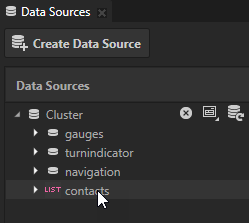
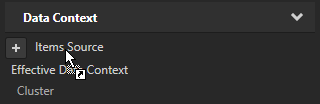
从 Data Sources 窗口中将 Cluster > contacts 列表数据对象拖到 ContactsList 节点的 Items Source 属性。
使用 Items Source 属性可以设置数据对象,该对象为 Grid List Box 节点中的列表项提供数据。
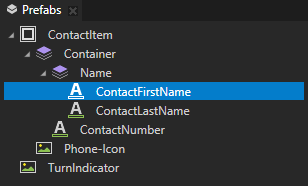
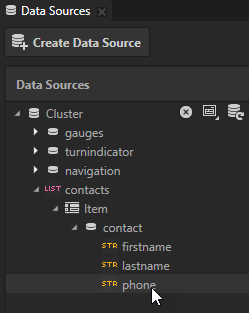
在 ContactItem 预设中的 Prefabs 中,选择 ContactFirstName 节点,从 Data Sources 窗口中拖动 Cluster > contacts > Item > contact > firstname 数据对象,并将其放在 Properties 中的 Text 属性上。
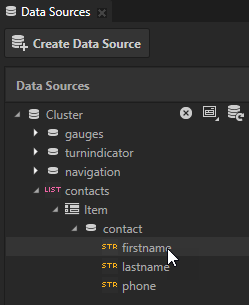
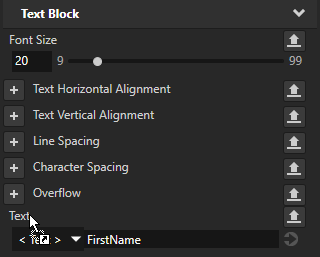
对 ContactLastName 和 ContactNumber 重复上一步骤:
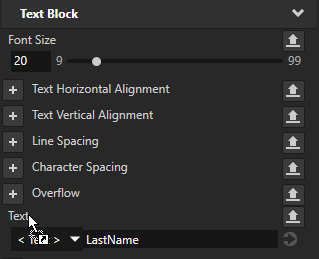
对于来自 Data Sources 的 ContactLastName 节点,将 Cluster > contacts > Item > contact > lastname 数据对象拖放到 Text 属性上。
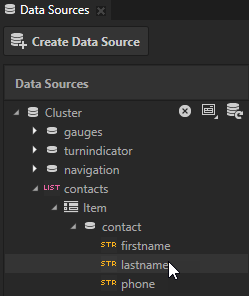
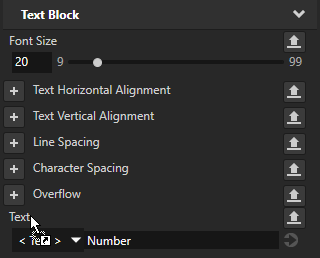
对于来自 Data Sources 的 ContactNumber 节点,将 Cluster > contacts > Item > contact > phone 数据对象拖放到 Text 属性上。

联系人列表现在从
ClusterWithList.xml数据源接收数据。使用文本编辑器更改ClusterWithList.xml文件中的值,保存ClusterWithList.xml文件,并且 Kanzi Studio Preview 和 Data Sources 窗口显示更新的数据对象及其值。
接下来该做什么?
在本教程中,您学习了如何定义 XML 数据源以及如何在 Kanzi Studio 项目中使用该数据源的数据,以便为 Kanzi 应用程序提供数据。现在您可以:
了解更多关于使用 Kanzi Engine API 的信息。请参阅 教程:Hello world! 和 教程:Kanzi Engine API 高级使用。
了解有关 Kanzi Engine 插件的更多信息。请参阅 Kanzi Engine 插件。
了解如何异步加载资源。请参阅 教程:异步加载和部署资源。
另请参阅
要了解有关 Kanzi 中数据源的更多信息,请参阅 数据源 (Data Sources)。