使用缓动函数插值属性值
当您想要动态设置属性的目标值,并希望使用缓动函数将当前值随时间插值到目标值时,使用 Property Target Easing Interpolator。缓动函数使您能够创建逼真的动画,从而提供更愉悦的用户体验。
Kanzi 中可用的缓动函数:
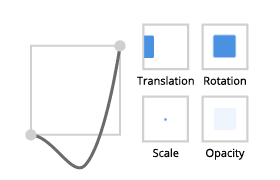
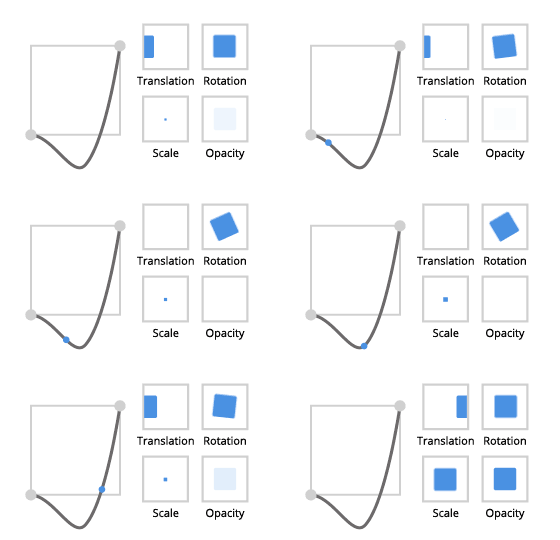
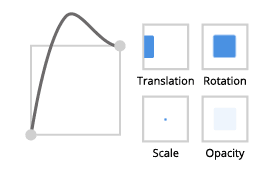
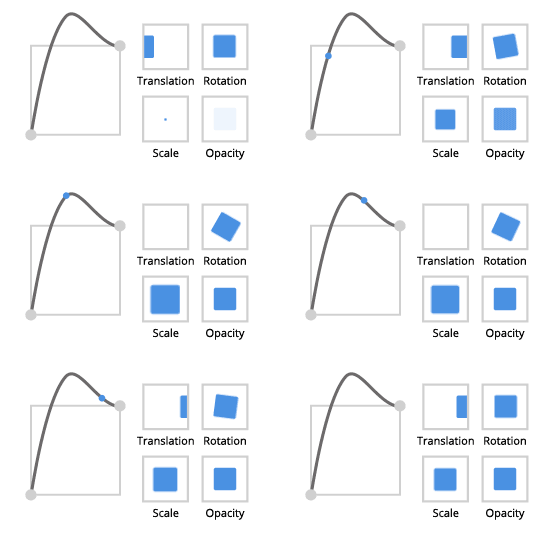
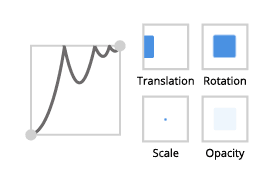
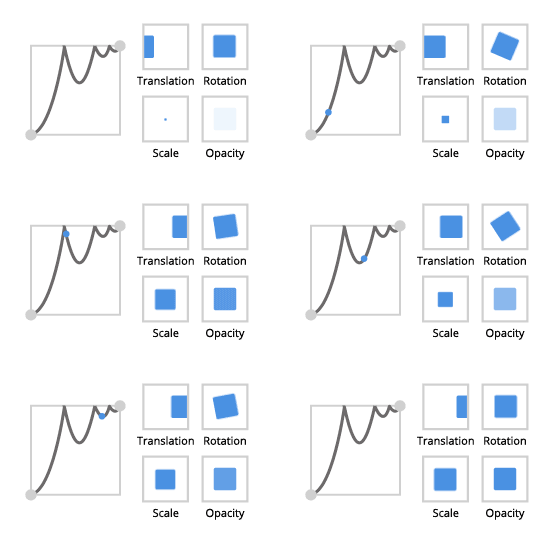
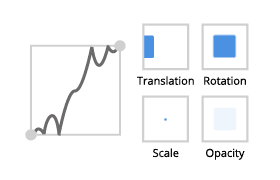
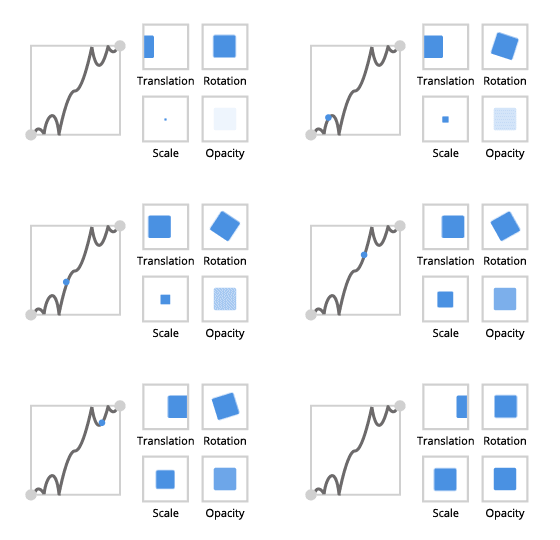
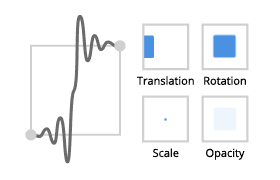
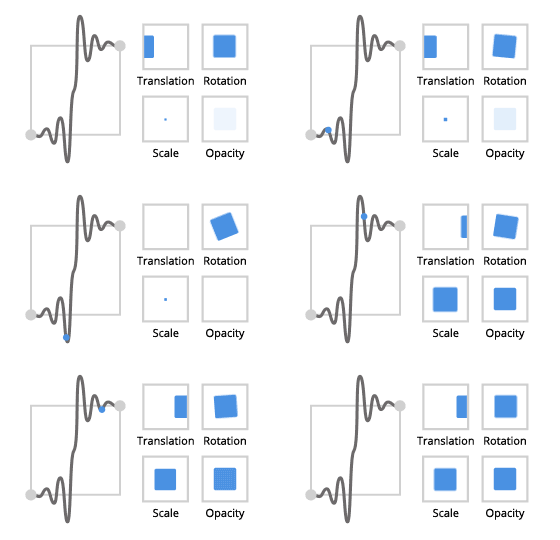
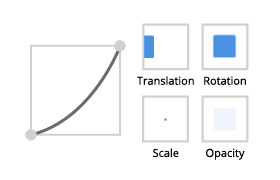
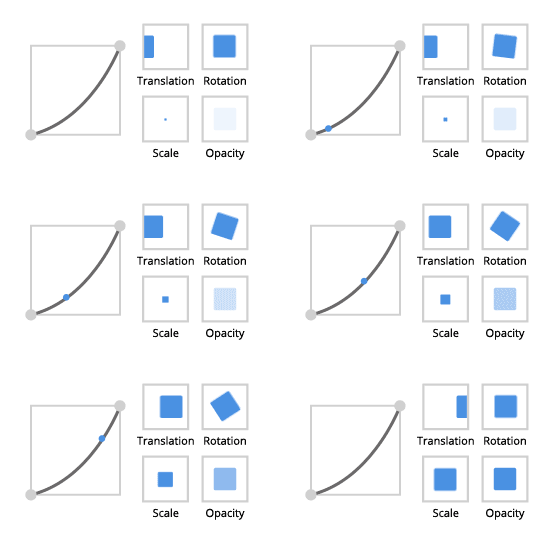
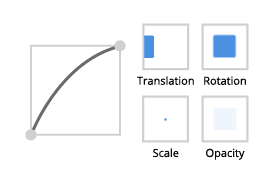
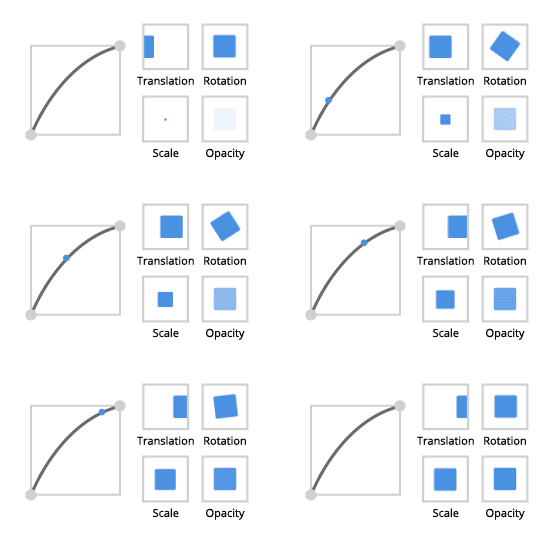
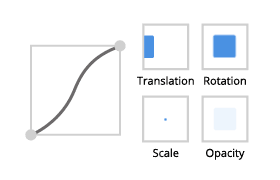
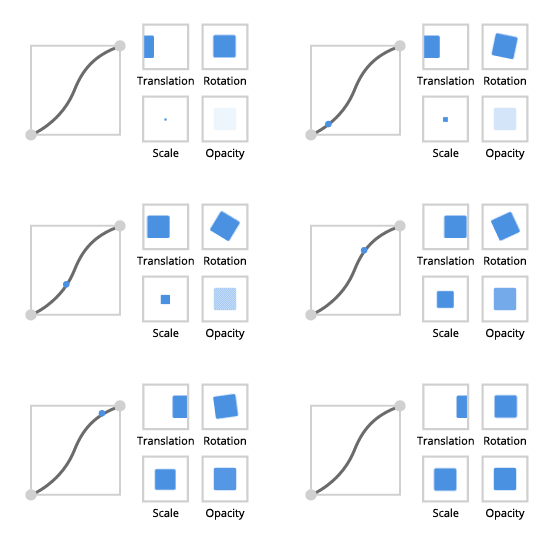
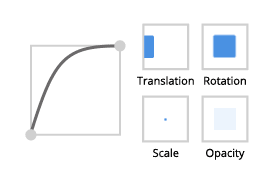
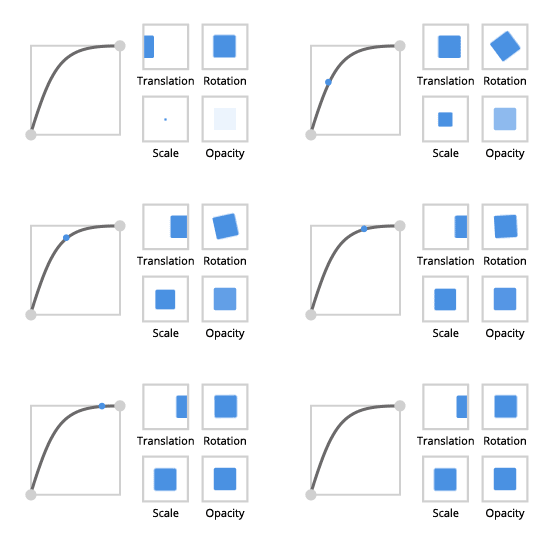
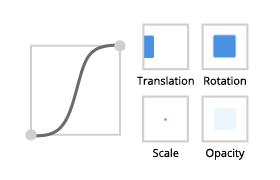
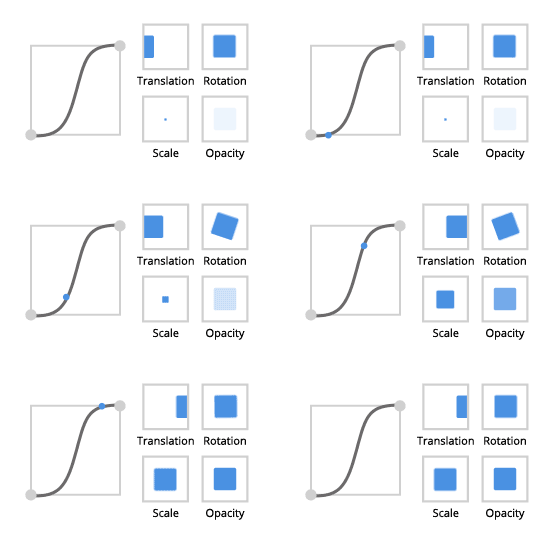
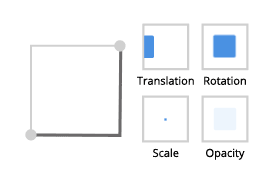
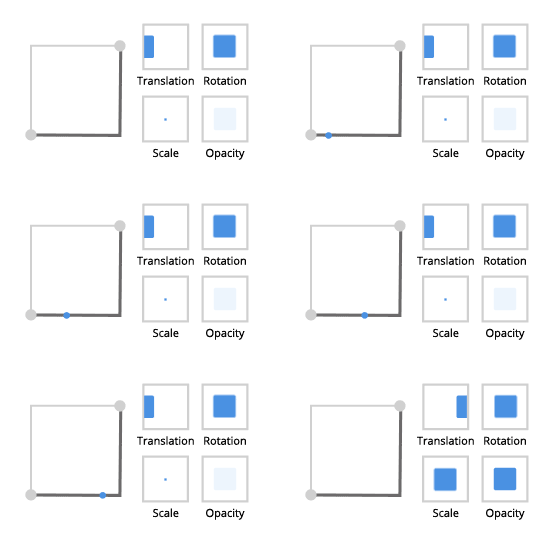
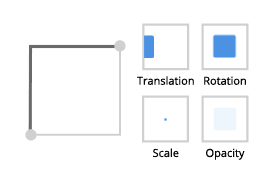
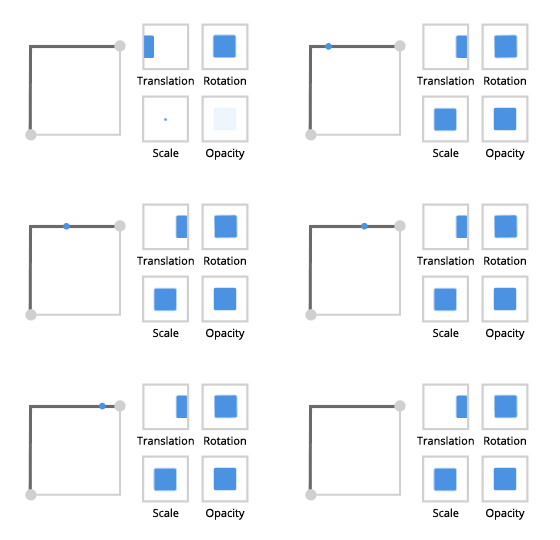
将鼠标悬停在缓动函数的图像上查看其创建的动画类型。
返回 |
||
缓入 (Ease in) |
缓出 (Ease out) |
缓入缓出 |
|
|
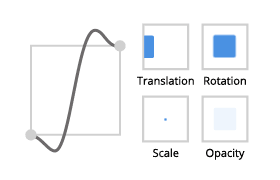
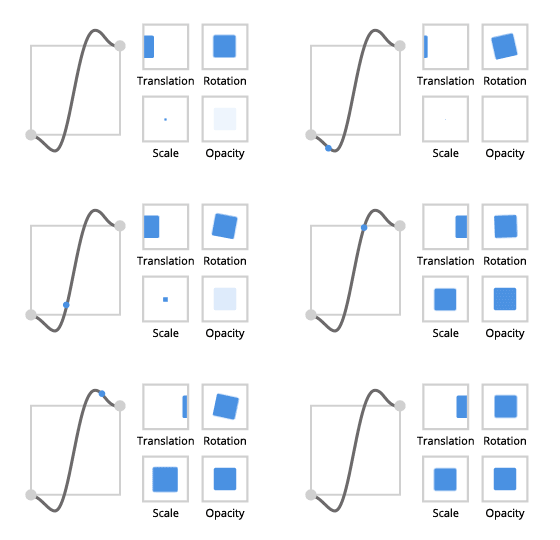
|
Bounce |
||
缓入 (Ease in) |
缓出 (Ease out) |
缓入缓出 |
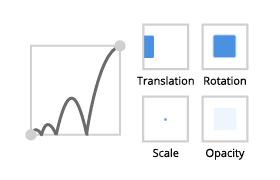
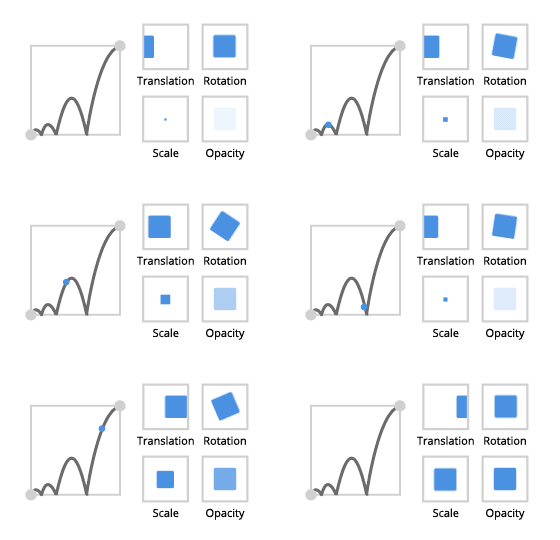
|
|
|
Circle |
||
缓入 (Ease in) |
缓出 (Ease out) |
缓入缓出 |
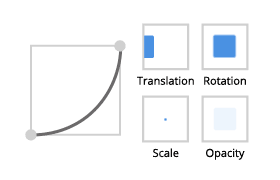
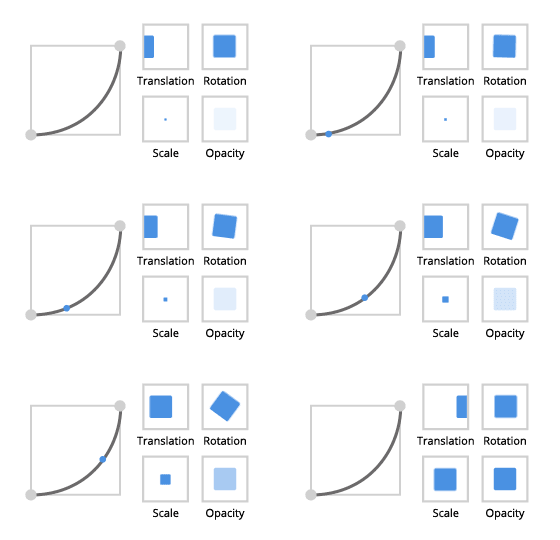
|
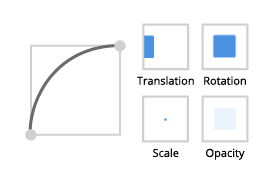
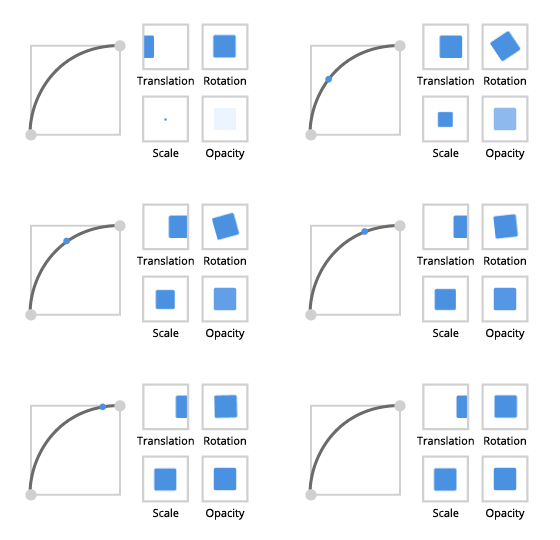
|
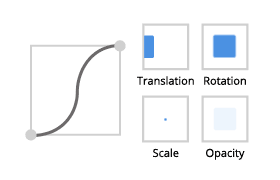
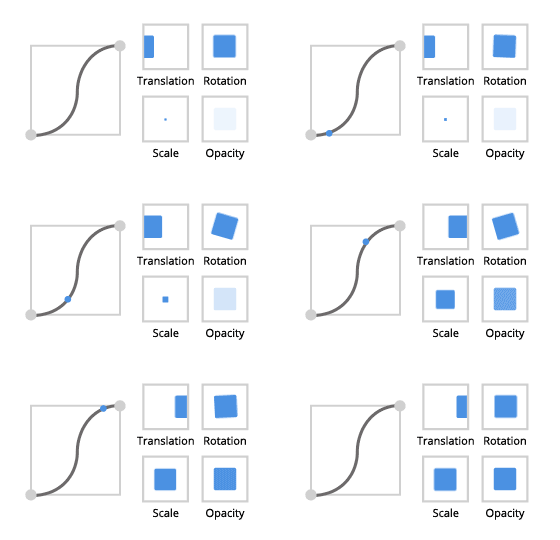
|
Cubic |
||
缓入 (Ease in) |
缓出 (Ease out) |
缓入缓出 |
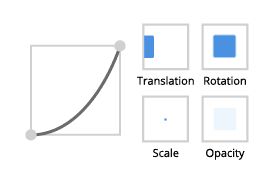
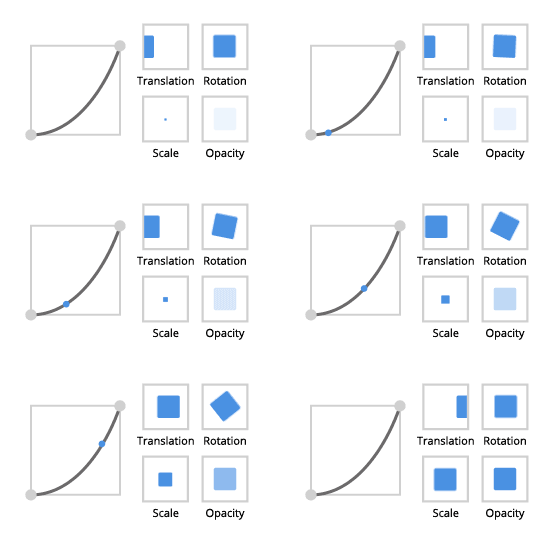
|
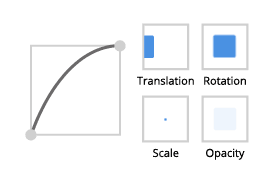
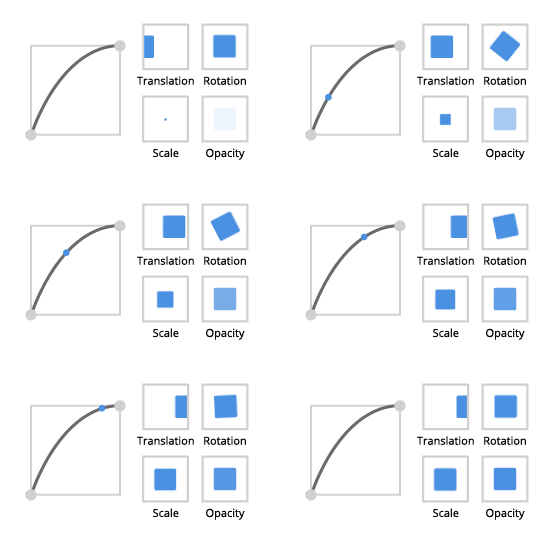
|
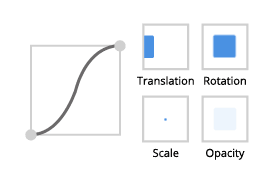
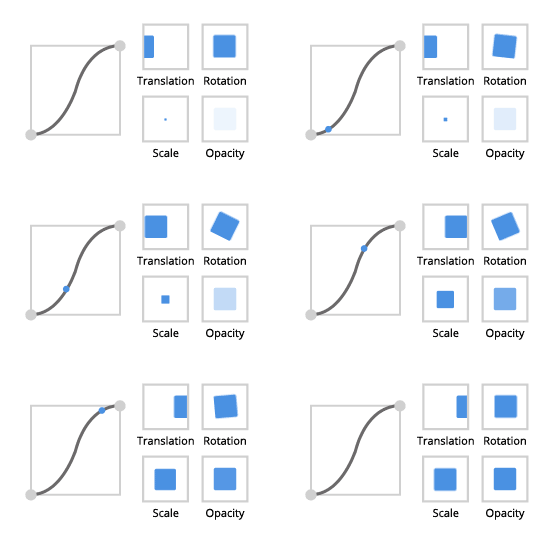
|
Elastic |
||
缓入 (Ease in) |
缓出 (Ease out) |
缓入缓出 |
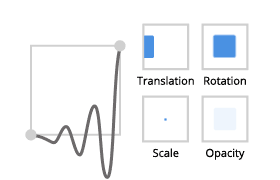
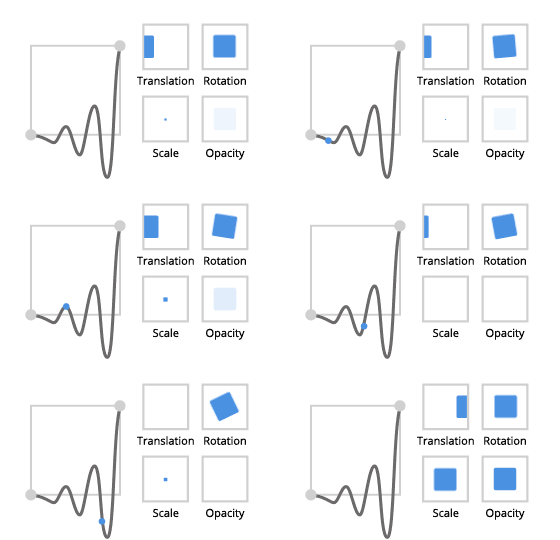
|
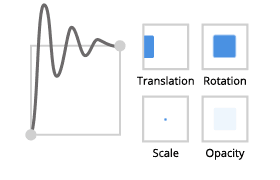
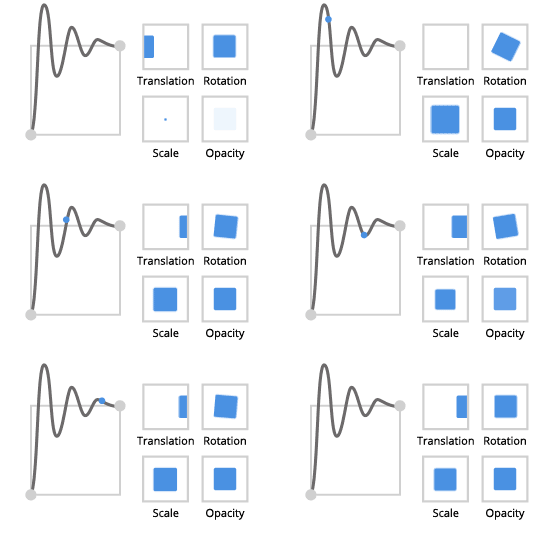
|
|
Exponential |
||
缓入 (Ease in) |
缓出 (Ease out) |
缓入缓出 |
|
|
|
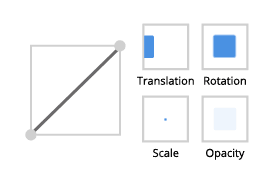
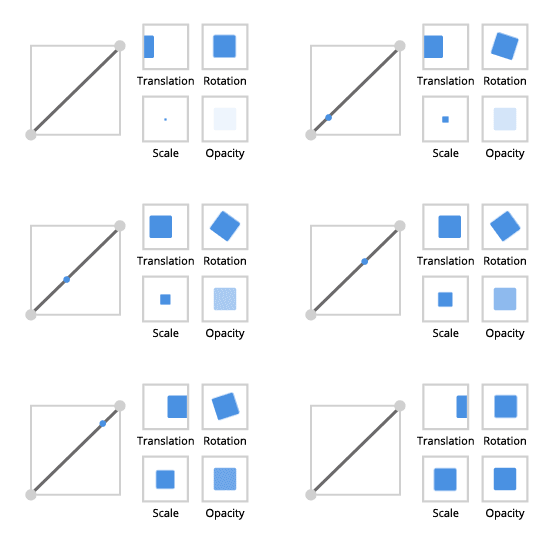
Linear |
||
缓入,缓出,缓入缓出 |
||
|
||
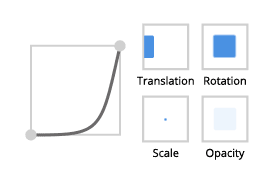
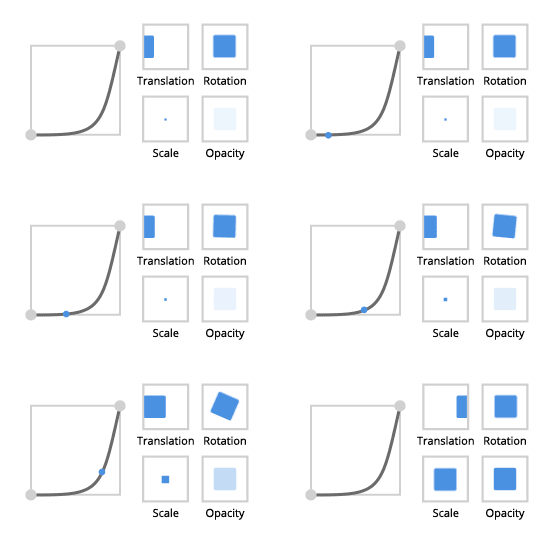
Power |
||
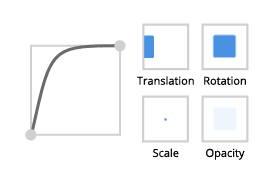
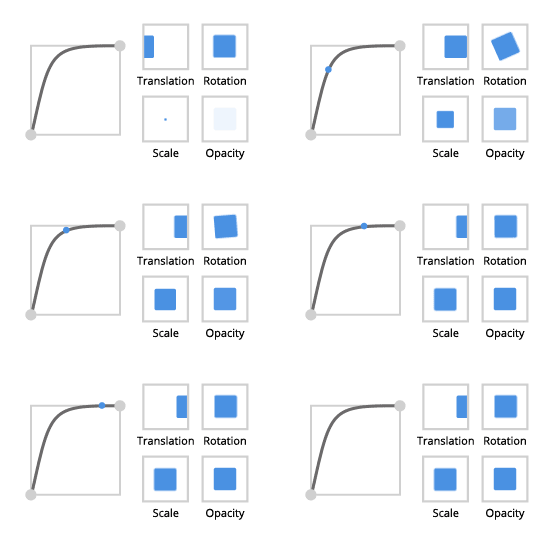
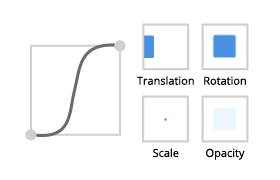
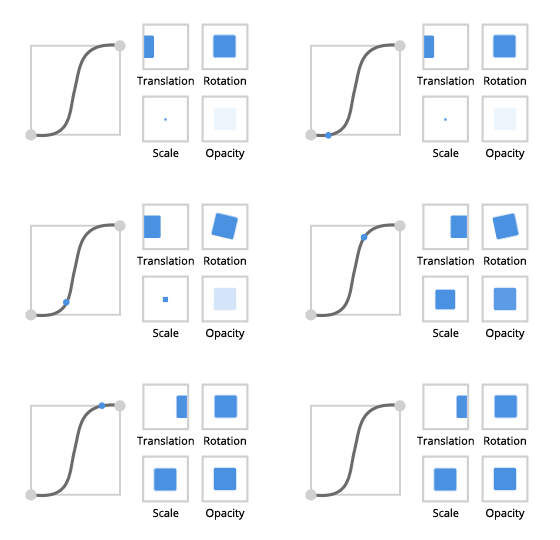
缓入 (Ease in) |
缓出 (Ease out) |
缓入缓出 |
|
|
|
Quadratic |
||
缓入 (Ease in) |
缓出 (Ease out) |
缓入缓出 |
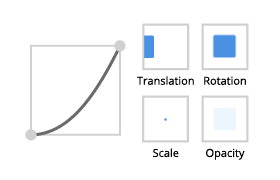
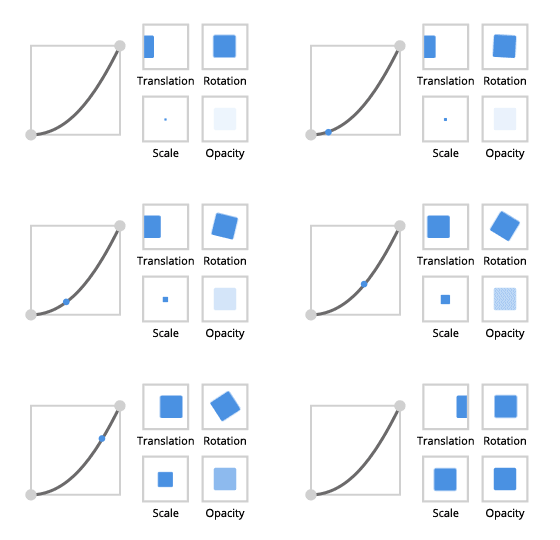
|
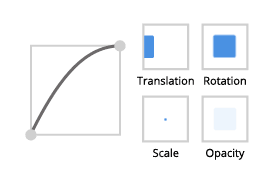
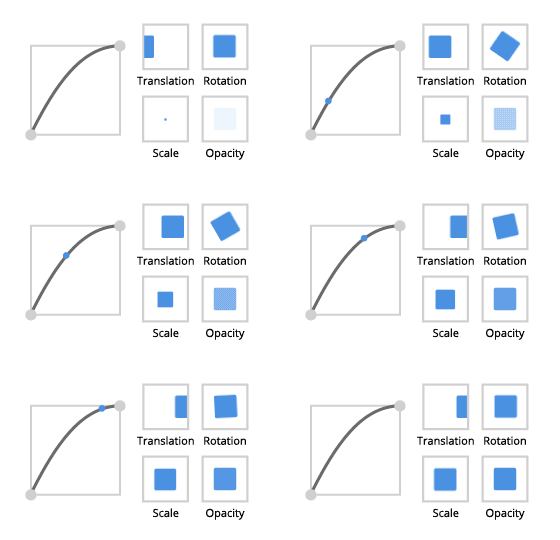
|
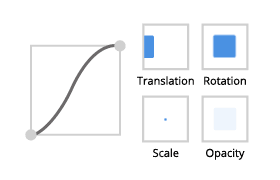
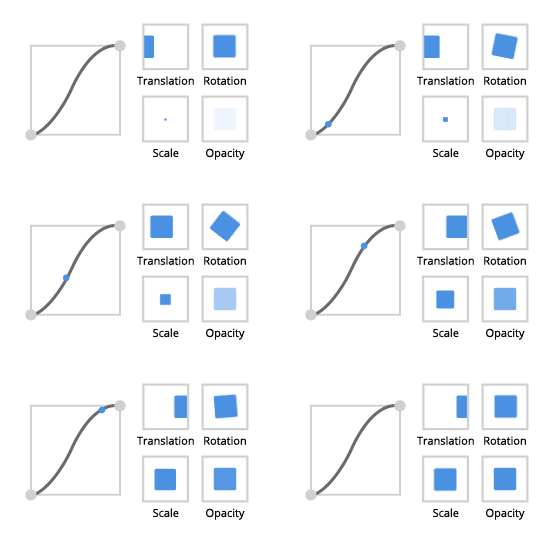
|
Quartic |
||
缓入 (Ease in) |
缓出 (Ease out) |
缓入缓出 |
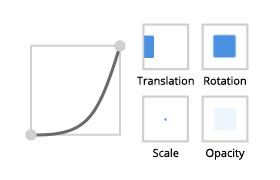
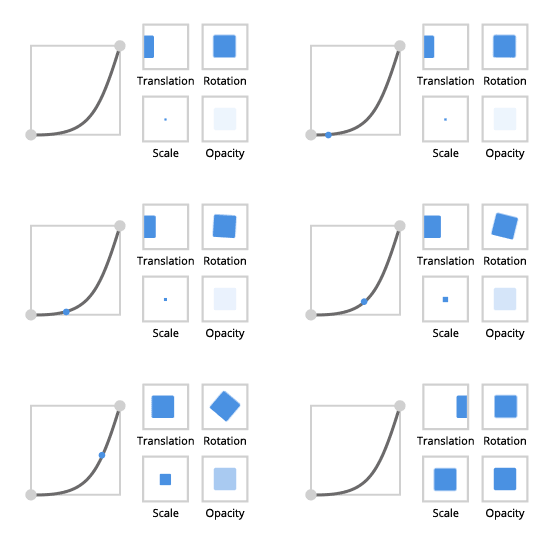
|
|
|
Quintic |
||
缓入 (Ease in) |
缓出 (Ease out) |
缓入缓出 |
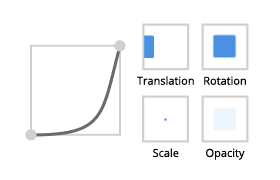
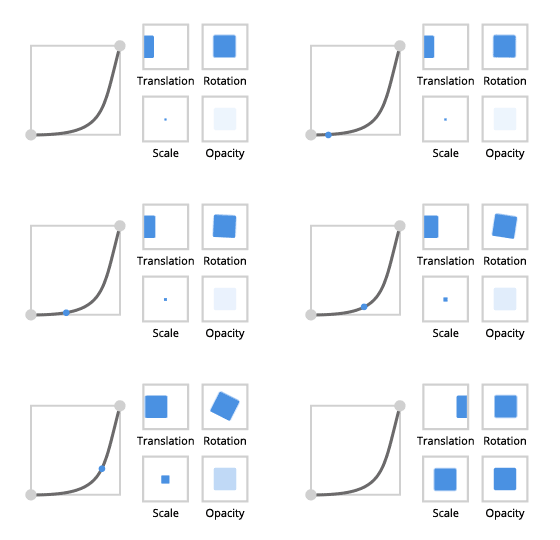
|
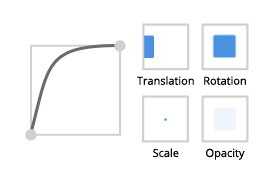
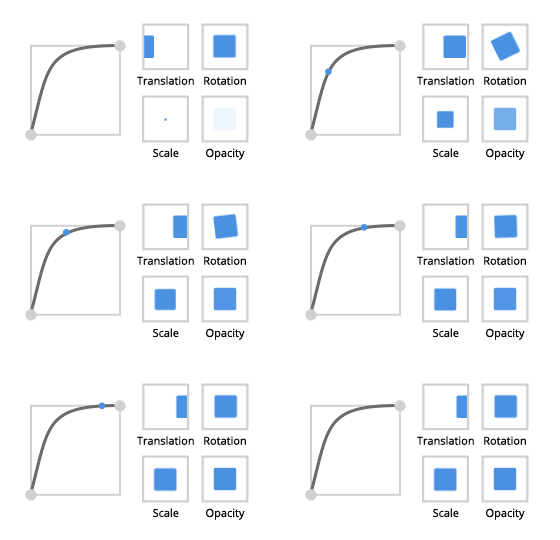
|
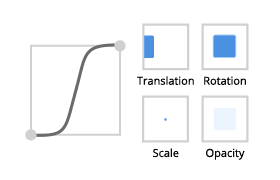
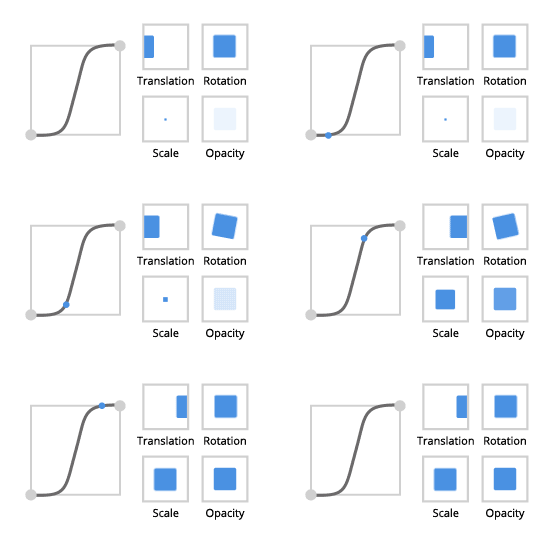
|
Sine |
||
缓入 (Ease in) |
缓出 (Ease out) |
缓入缓出 |
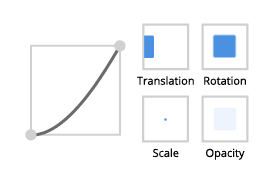
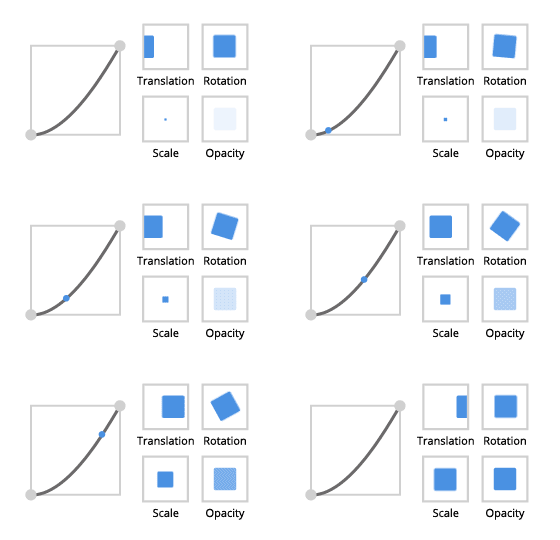
|
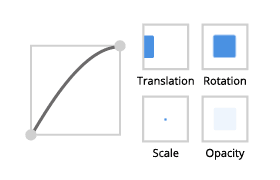
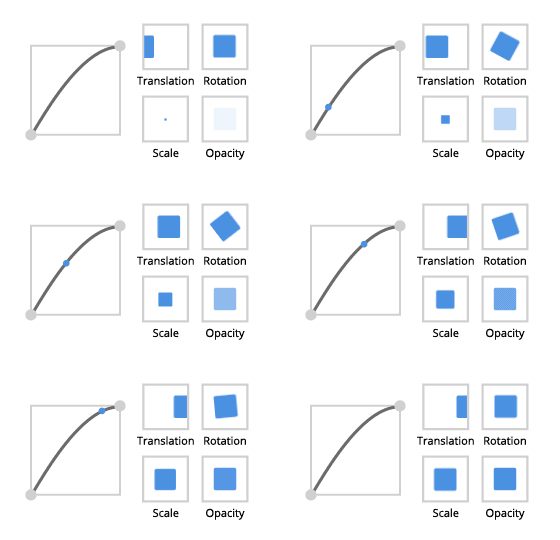
|
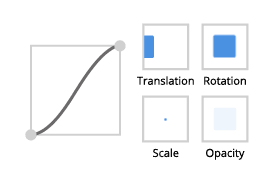
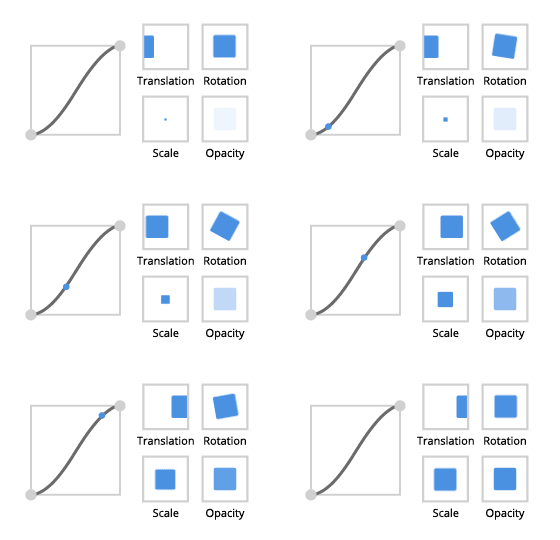
|
Smoother step |
||
缓入,缓出 |
缓入缓出 |
|
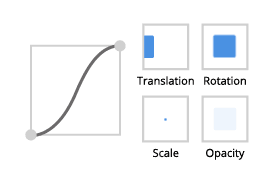
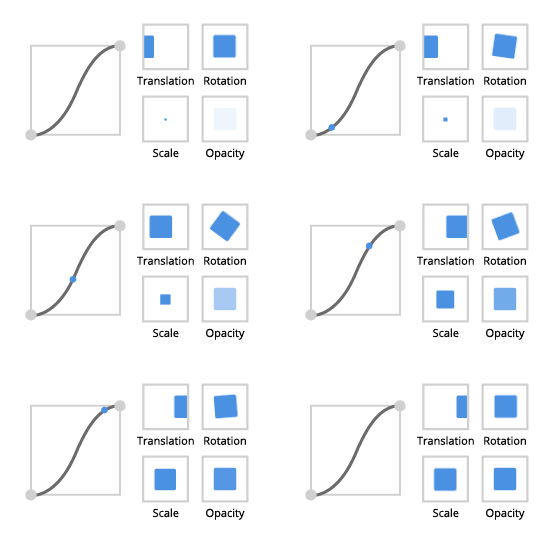
|
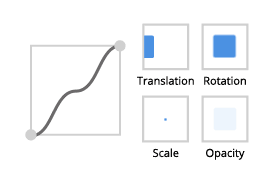
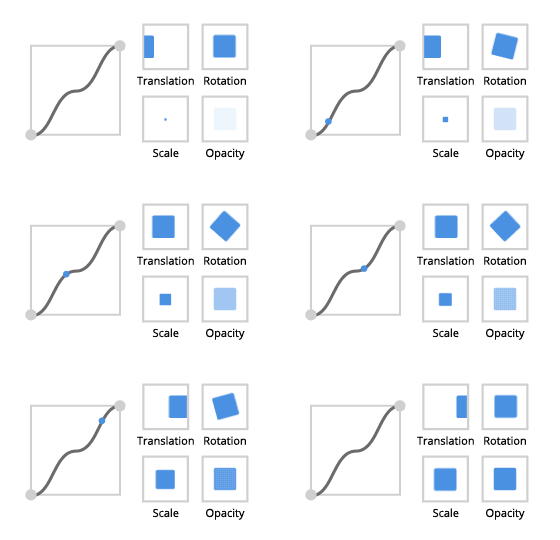
|
|
平滑步进 |
||
缓入,缓出 |
缓入缓出 |
|
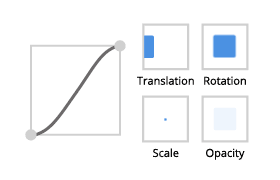
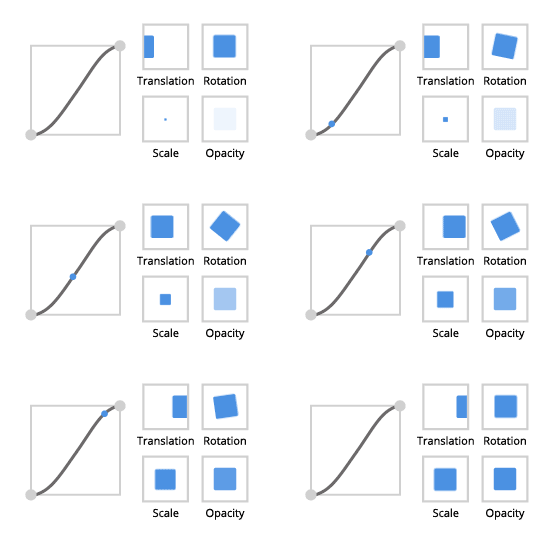
|
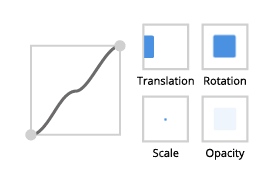
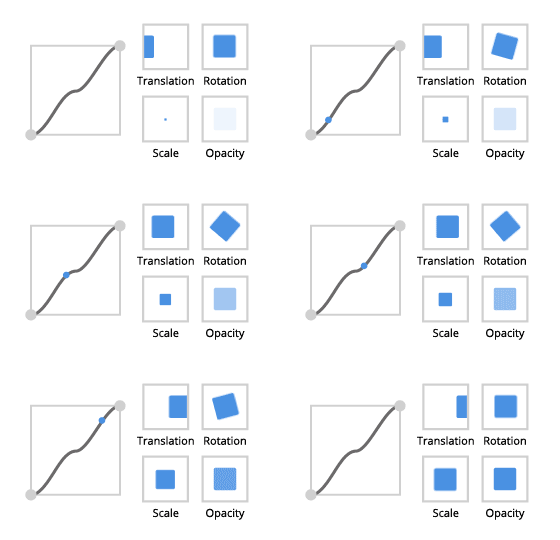
|
|
步骤 |
||
缓入,缓出 |
缓入缓出 |
|
|
|
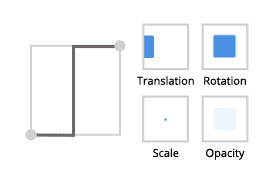
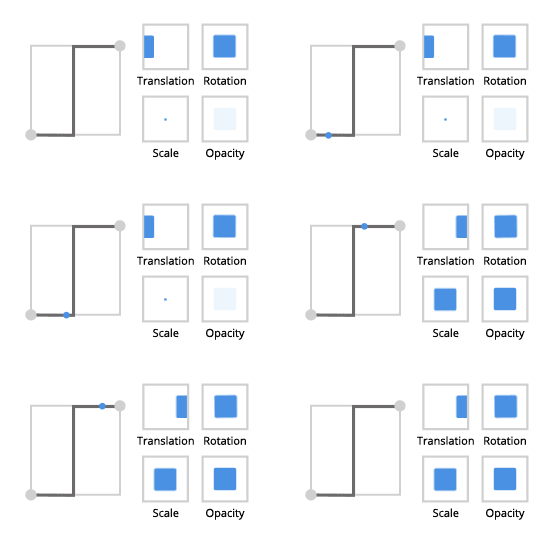
|
例如,使用 Property Target Easing Interpolator 创建一个欢迎动画,该动画首先将燃料和电池指针移动到其最大位置,然后移动到当前位置。
使用缓动函数插值属性值
要使用缓动函数插值属性值:
在 Node Tree 中选择包含您要插值的属性的节点。
例如:
在 Quick Start 窗口中,点击 Examples。在 Data source 教程旁边,点击
 。
。在 Data source 教程旁边,点击 Open 并选择 Completed project。
在 Node Tree 中选择 RootPage > BatteryNeedle 节点。
当数据源中的电池电量值发生变化时,您可以使用 Property Target Easing Interpolator 将 BatteryNeedle 节点从其上一个位置逐渐移到当前位置。
要了解如何创建该工程,请参阅 教程:创建仪表 和 教程:从数据源获取应用程序数据。
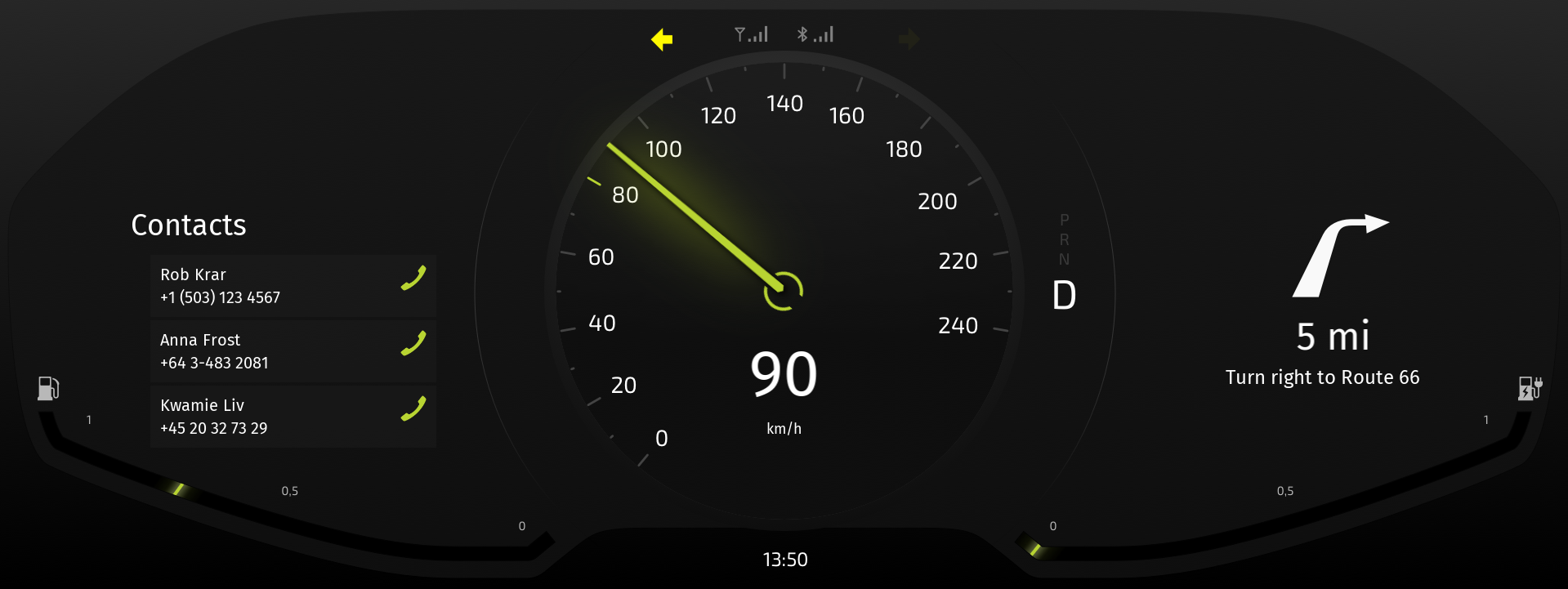
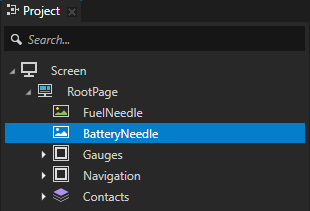
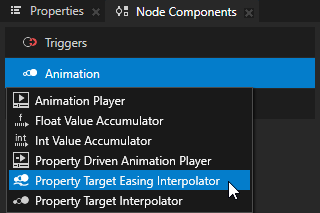
在 Node Components 按 Alt 并右键单击 Animation 中,选择 Property Target Easing Interpolator。
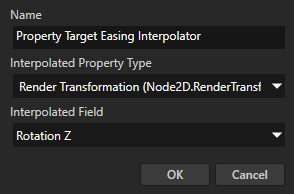
在 Create Property Target Easing Interpolator 对话框中设置:
将 Interpolated Property Type 到您想要插值的属性。
例如,选择 Transform 2D > Render Transformation 属性。
Interpolated Field 到您在 Interpolated Property Type 中选择的属性的属性字段。
例如,选择 Rotation Z 属性字段。
在您创建的 Property Target Easing Interpolator 中设置:
将 Interpolation Duration 设置为您希望插值动画持续的时间(以毫秒为单位)。
Easing Function 用于设置定义插值曲线的函数。
使用缓动函数使 UI 元素更逼真。因为现实生活中的物体从不立即开始或停止,适当的缓动函数可以帮助您创造更愉悦的用户体验。
选择最适合的缓动函数。
将鼠标悬停在缓动函数的图像上查看其创建的动画类型。
返回
缓入 (Ease in)
缓出 (Ease out)
缓入缓出
Bounce
缓入 (Ease in)
缓出 (Ease out)
缓入缓出
Circle
缓入 (Ease in)
缓出 (Ease out)
缓入缓出
Cubic
缓入 (Ease in)
缓出 (Ease out)
缓入缓出
Elastic
缓入 (Ease in)
缓出 (Ease out)
缓入缓出
Exponential
缓入 (Ease in)
缓出 (Ease out)
缓入缓出
Linear
缓入,缓出,缓入缓出
Power
缓入 (Ease in)
缓出 (Ease out)
缓入缓出
Quadratic
缓入 (Ease in)
缓出 (Ease out)
缓入缓出
Quartic
缓入 (Ease in)
缓出 (Ease out)
缓入缓出
Quintic
缓入 (Ease in)
缓出 (Ease out)
缓入缓出
Sine
缓入 (Ease in)
缓出 (Ease out)
缓入缓出
Smoother step
缓入,缓出
缓入缓出
平滑步进
缓入,缓出
缓入缓出
步骤
缓入,缓出
缓入缓出
Easing Mode 定义如何将缓动函数应用于插值:
Ease in 按原样应用缓动函数。
Ease out 应用缓动函数的负值。
Ease in-out 适用于插值的前半部分的缓动函数,并将缓动函数的负值应用于插值的后半部分。
Interpolation If Interrupted 用于设置插值行为,当插值属性类型在完成到先前值的插值之前获得新值时:
Start from current interpolated value 使用正在进行的缓动插值的当前值作为新插值的起始值。这是默认值。
Start from current target value 使用正在进行的缓动插值的目标值作为新插值的起始值。
Notify Interpolation Completed 用于设置 Property Target Easing Interpolator 在完成缓动插值时是否分派消息。请参阅 获取关于完成缓动插值的信息。
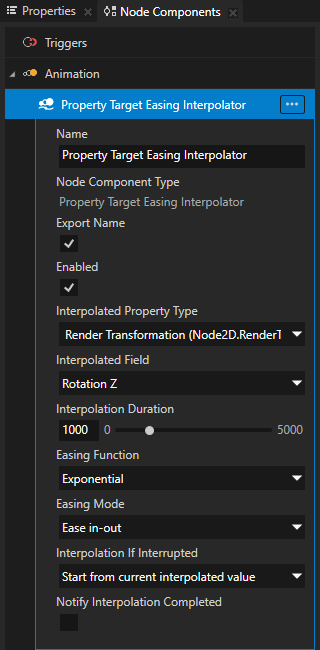
当您更改在 Interpolated Property Type 中设置的属性值时,Property Target Easing Interpolator 会在您在 Interpolation Duration 属性中设置的时间内,将当前值插值到目标值,并使用您设置的 Easing Function 和 Easing Mode。
获取关于完成缓动插值的信息
当 Property Target Easing Interpolator 完成其插值的属性的插值时,它会发送一条消息。您可以拦截该消息以确定其插值的属性何时达到最终值。
要获取关于缓动插值完成的信息:
创建并配置 Property Target Easing Interpolator 以用于您想要插值的属性。请参阅 使用缓动函数插值属性值。
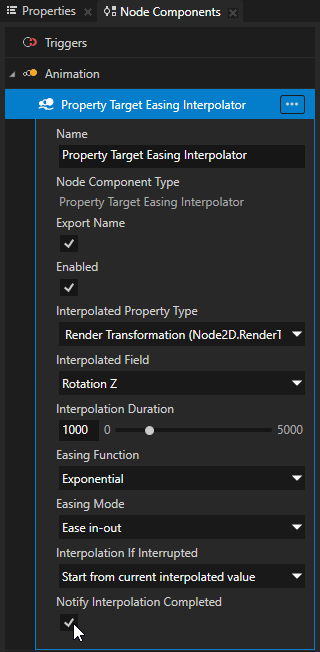
在您创建的 Property Target Easing Interpolator 中的 Node Components > Animation 中,启用 Notify Interpolation Completed 属性。
通过这种方式,您可以设置 Property Target Easing Interpolator 以在每次完成缓动插值时分派一条消息。
在 Node Tree 中选择一个节点,您希望在该节点获取有关该 Property Target Easing Interpolator 的缓动插值完成的信息。
例如,如果您在 BatteryNeedle 节点中使用 Property Target Easing Interpolator,但想要获取有关 RootPage 节点中缓动插值完成的信息,请选择 RootPage 节点。
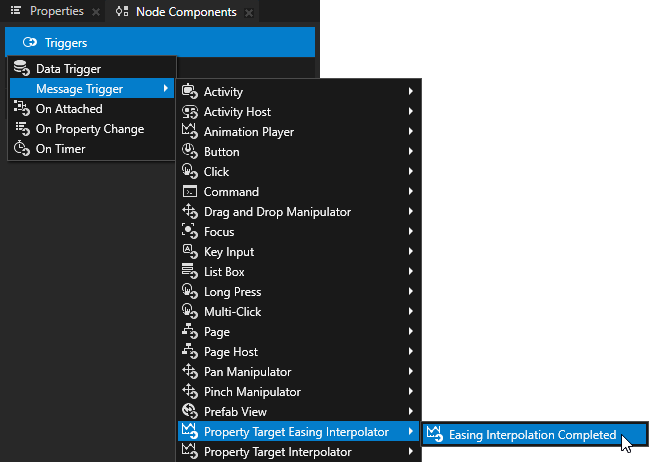
在 Node Components 按 Alt 并右键单击 Triggers 中,选择 Message Trigger > Property Target Easing Interpolator > Easing Interpolation Completed。
Easing Interpolation Completed 触发器拦截 Property Target Easing Interpolator 在完成插值其插值的属性值时发送的消息。
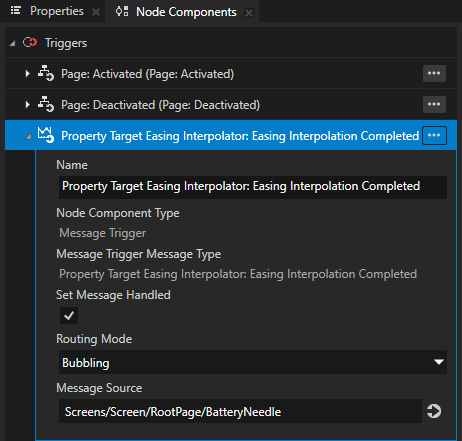
在您创建的 Easing Interpolation Completed 触发器中,将 Message Source 属性设置为具有 Property Target Easing Interpolator 的节点,以便您想知道它何时完成插值。
例如,如果您想在 RootPage 节点中找出 Property Target Easing Interpolator 何时在 BatteryNeedle 中完成插值属性,请将 Message Source 设置为 BatteryNeedle 节点。
在 Easing Interpolation Completed 触发器中创建您要执行的操作。
当 Property Target Easing Interpolator 发送有关缓动插值完成的消息时,此触发器将执行您选择的操作。
例如,添加 Set Property 操作以设置另一个属性的值。
在 API 中使用 Property Target Easing Interpolator
要使用 Property Target Easing Interpolator 插值属性值:
// Create a Property Target Easing Interpolator.
auto interpolator = PropertyTargetEasingInterpolator::create(domain, "interpolator");
// Set the property type whose value you want the Property Target Easing Interpolator to interpolate.
interpolator->setInterpolatedPropertyType(Node2D::OpacityProperty.getName());
// Set the easing function to Linear.
interpolator->setEasingFunction(PropertyTargetEasingInterpolator::EasingFunction::Linear);
// Set the easing mode to Ease in-out.
interpolator->setEasingMode(AnimationEaseInOut);
// Set the duration of the interpolation to 500 milliseconds.
interpolator->setInterpolationDuration(chrono::milliseconds(500));
// Add the Property Target Easing Interpolator to a node.
node->addNodeComponent(interpolator);
要创建属性目标缓动时间线,并设置其目标属性和插值设置,请执行以下步骤:
// Create a property target easing timeline.
auto timeline = PropertyTargetEasingTimeline::create(domain, ".", Node2D::OpacityProperty, PropertyFieldWhole);
// Adjust easing interpolation settings.
timeline->setInterpolationDuration(chrono::milliseconds(500));
timeline->setEasingFunction(LinearEasingFunction());
timeline->setEasingMode(AnimationEaseIn);
要为属性目标缓动时间线创建回放,请执行以下代码:
// Create a context which resolves path to the node.
SceneGraphTimelinePlaybackContext context(*node);
// Create playback for property target easing timeline.
auto playback = timeline->createPlayback(context);
要将属性目标缓动时间线的回放添加到时钟:
// Add playback to the clock. Once playback is added to the clock it starts
// to interpolate its target property whenever the property changes.
domain->getRootTimelineClock()->addTimelinePlayback(playback);
有关详细信息,请参阅 Kanzi Engine C++ API 参考 中的 PropertyTargetEasingInterpolator、PropertyTargetEasingTimeline 和 PropertyTargetEasingTimelinePlayback 类。