第 2 步 - 缩放和旋转地图
使用 Pinch Manipulator 使用户能够在您的 Kanzi 应用程序中缩放和旋转节点。
要计算缩放和旋转节点的量,捏合手势会持续跟踪在设备屏幕上移动的两根手指之间的位置和距离。
使用 Multi-Click Manipulator 使用户能够在您的 Kanzi 应用程序中多次点击节点。
您可以在多击操控器中设置点击次数和点击之间的最大时间间隔,以便 Kanzi 将这些点击解释为多击手势。
在 Kanzi Studio 中,您可以使用 Multi-Click Manipulator 组件将多击操控器安装到节点,并控制该多击操控器的行为。
在此步骤中,您首先使用捏合操控器来启用地图的缩放和旋转。然后,您使用 Multi-Click Manipulator 组件和多次点击操控器来启用重置地图的位置、缩放级别和旋转角度。
在 Android 设备上部署该教程应用程序,因为捏合手势需要多击支持。
缩放和旋转地图
这一节中,您将创建和使用捏合操纵器,在用户捏合地图时缩放和旋转地图。
要缩放和旋转地图:
在
PanZoomTap类的私有部分的pan_zoom_tap.cpp文件中定义捏合消息的处理程序:private: ... // Define the handler for the PinchManipulator::StartedMessage message from the 2D nodes // that have an input manipulator which generates pinch messages. // This handler prepares a 2D node for a pinch gesture. void onPinchStarted(PinchManipulator::StartedMessageArguments& messageArguments) { // Get from the message arguments the node that the user pinches. Node2DSharedPtr mapNode = dynamic_pointer_cast<Node2D>(messageArguments.getSource()); // Store the initial value of the Render Transformation property Scale property field. SRTValue2D nodeTransform = mapNode->getRenderTransformation(); m_pinchInitialScaleFactor = nodeTransform.getScale().getX() - 1.0f; // Calculate a minimum scale value based on the size of the application screen. ScreenSharedPtr screen = getScreen(); m_minScale = max(getScreen()->getActualWidth() / mapNode->getActualWidth(), screen->getActualHeight() / mapNode->getActualHeight()); } // Define the handler for the PinchManipulator::MovedMessage message from the 2D nodes // that have an input manipulator which generates pinch messages. // This scales and rotates a 2D node for the amount of the pinch gesture. void onPinchMoved(PinchManipulator::MovedMessageArguments& messageArguments) { // Get from the message arguments the node that the user pinches. Node2DSharedPtr mapNode = dynamic_pointer_cast<Node2D>(messageArguments.getSource()); // Get the scale and rotation from the message arguments. float scaleDelta = messageArguments.getScale(); float rotateDelta = messageArguments.getRotation(); // Calculate the scale by adding the initial scale to the pinch value. // Restrict the scale so that the map cannot be smaller than the application screen size. float scale = max(m_minScale, scaleDelta + m_pinchInitialScaleFactor); // Get the Render Transformation property of the Map node. SRTValue2D mapRenderSRT = mapNode->getRenderTransformation(); // Apply the rotation. mapRenderSRT.rotate(rotateDelta); // Apply the scale. mapRenderSRT.setScale(Vector2(scale, scale)); // Get the world transformation of the Map node. // You use this in the next step of the tutorial. Matrix3x3 mapWorldTransform = mapNode->getWorldTransform(); optional<SRTValue2D> mapWorldSRT = SRTValue2D::create(mapWorldTransform); kzAssert(mapWorldSRT); // Apply the new render transformation to the Map node. mapNode->setRenderTransformation(mapRenderSRT); } // Define a member variable for the initial scale factor of the pinch gesture. float m_pinchInitialScaleFactor; // Define a member variable for the minimum scale value. float m_minScale; };
在
PanZoomTap类的公共部分的开头添加构造函数,并为捏合手势设置初始缩放因子:public: PanZoomTap() : m_pinchInitialScaleFactor(0.0f) { } ...
在
Application::onProjectLoaded函数中创建一个PinchManipulator操作器,并在 Map 节点订阅其消息:void onProjectLoaded() override { ... // Create an input manipulator that generates pinch messages. PinchManipulatorSharedPtr pinchManipulator = PinchManipulator::create(domain); // Add the input manipulator to the Map node. mapNode->addInputManipulator(pinchManipulator); // Subscribe to the PinchManipulator::StartedMessage message at the Map node. // The PinchManipulator generates this message when the user presses two fingers on the Map node. mapNode->addMessageHandler(PinchManipulator::StartedMessage, bind(&PanZoomTap::onPinchStarted, this, placeholders::_1)); // Subscribe to the PinchManipulator::MovedMessage message at the Map node. // The PinchManipulator generates this message when the scale or rotation threshold is exceeded // and when the tracked touches move between updates. mapNode->addMessageHandler(PinchManipulator::MovedMessage, bind(&PanZoomTap::onPinchMoved, this, placeholders::_1)); }
在 Android 设备上部署该应用程序,因为捏合手势需要多击支持:
将 Android 设备连接到计算机。
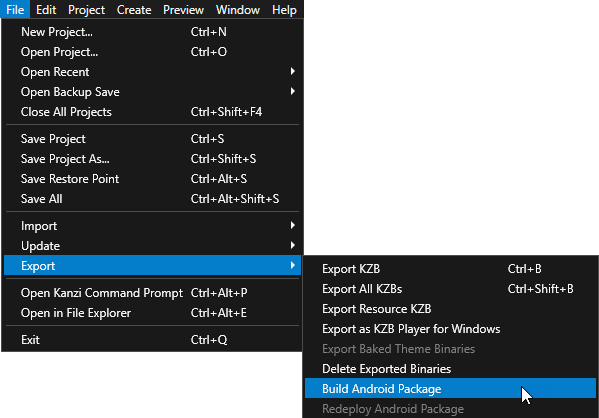
在 Kanzi Studio 主菜单中选择 File > Export > Build Android Package。
Kanzi Studio 从您的 Kanzi Studio 项目创建一个 Android 包,并将其部署并运行在您的 Android 设备上。
在您的 Android 设备上使用捏合手势缩放和旋转地图。
地图围绕其中心点旋转,因为 Map 节点的原点设置为中心。
重置位置、缩放水平和旋转
在本节中,您将创建并使用 Multi-Click Manipulator 组件和多击操纵器在用户双敲地图时重置地图的位置、缩放水平和旋转角度。
要重置位置、缩放水平和旋转:
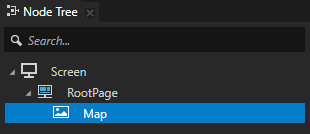
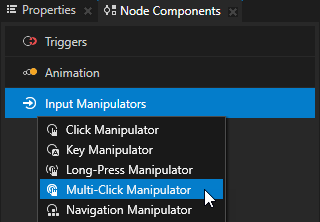
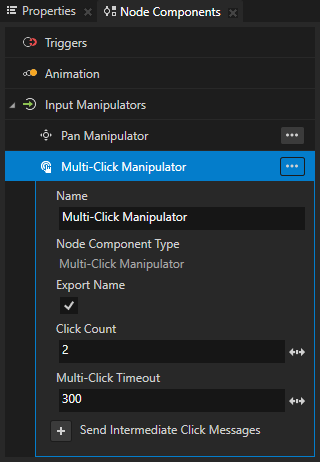
在 Node Tree 的 Kanzi Studio 中,选择 Map 节点,在 Node Components 按 Alt 并右键单击 Input Manipulators 中,选择 Multi-Click Manipulator。
通过这种方式,您可以使用户多次点击 Map 节点。通过向节点添加 Multi-Click Manipulator 组件,您可以为该节点安装一个多次点击操控器。
默认情况下,多击操控器将两个快速点击识别为双击手势。在 Multi-Click Manipulator 组件中,您可以使用 Click Count 属性设置所需的点击次数,以便已安装的多击操控器识别多击手势并发送多击消息。
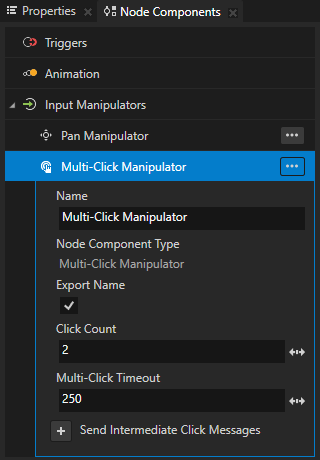
在 Multi-Click Manipulator 组件中,将 Multi-Click Timeout 属性设置为 300。
Multi-Click Timeout 设置连续两次点击必须在多少毫秒内发生,以便多击操控器继续将其识别为多击手势。
选择 File > Export > Export KZB。
在 Visual Studio 中,在
PanZoomTap类的私有部分的pan_zoom_tap.cpp文件中定义多次点击消息的处理程序:private: ... // Define the handler for the MultiClickManipulator::MultiClickMessage message from the nodes that have // an input manipulator which generates the multi-click message when the user double-taps the node. void onNodeDoubleTapped(MultiClickManipulator::MultiClickMessageArguments& messageArguments) { // Get from the message arguments the node that the user double-taps. Node2DSharedPtr mapNode = dynamic_pointer_cast<Node2D>(messageArguments.getSource()); // Remove the Render Transformation property of the node. // This way you reset the position, zoom level, and rotation angle of the Map node. mapNode->removeLocalValue(Node2D::RenderTransformationProperty); } ... };
在
Application::onProjectLoaded函数中,订阅 Map 节点的多次点击消息:void onProjectLoaded() override { ... // Subscribe to the MultiClickManipulator::MultiClickMessage message at the Map node. // The MultiClickManipulator manipulator generates this message when the user double-taps the node. mapNode->addMessageHandler(MultiClickManipulator::MultiClickMessage, bind(&PanZoomTap::onNodeDoubleTapped, this, placeholders::_1)); }
构建应用程序并将其部署到 Android 设备。
在该应用程序中,首先使用捏合手势缩放和旋转地图,再使用平移手势移动地图。然后双击地图以将其设置为初始位置、缩放级别和旋转角度。
另请参阅
要详细了解捏合操纵器,请参阅 使用 Pinch Manipulator。
要详细了解多击操纵器,请参阅 使用 Multi-Click Manipulator。
要了解有关将 Kanzi 应用程序部署到 Android 的更多信息,请参阅 将 Kanzi 应用程序部署到 Android。