使用 Kanzi Studio 渲染通道预设
使用渲染通道来定义 Kanzi 应用程序中 3D 内容的渲染。
为了帮助您入门,Kanzi Studio 提供了以下渲染通道预设:
Default Render Pass 包含一组基本的渲染通道,首先渲染不透明节点,然后渲染透明节点。
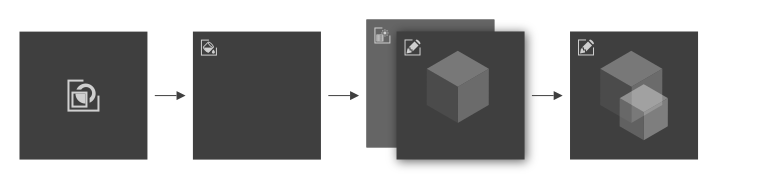
Render to Texture Pass 包含使您能够渲染到纹理的渲染通道。请参阅 渲染到纹理。
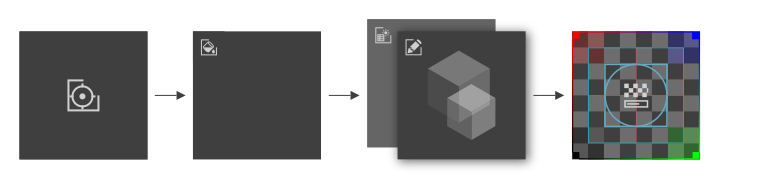
Compose and Blit Pass 包含渲染通道结构,使您能够使用特定材质将 Composition Target Render Pass 渲染通道或纹理传输到屏幕。
请参阅 将内容渲染到合成目标。
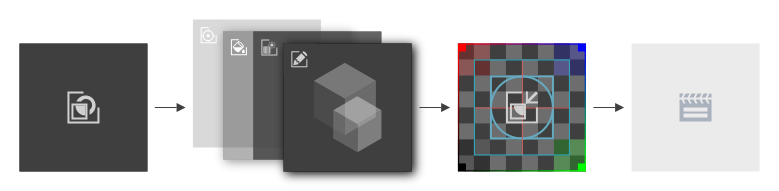
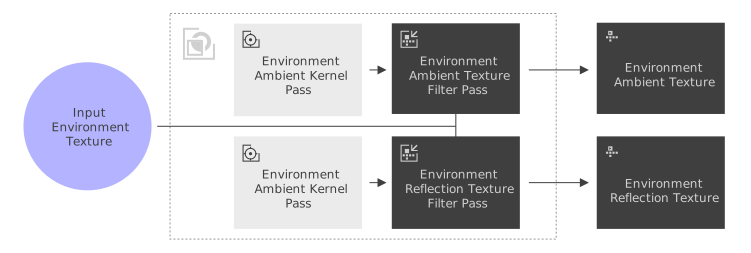
Image-Based Lighting Filter Pass 包含一些渲染通道,使您可以为实时基于图像的光照创建动态 Environment Ambient Texture 和 Environment Reflection Texture 立方体贴图纹理。
请参阅 为动态基于图像的光照渲染立方体贴图。
使用 Default Render Pass
使用 Default Render Pass 预设来创建您开始所需的一组基本渲染通道。
要使用 Default Render Pass:
在 Library > Rendering 按 Alt 并右键单击 Render Pass Prefabs 中选择 Default Render Pass。
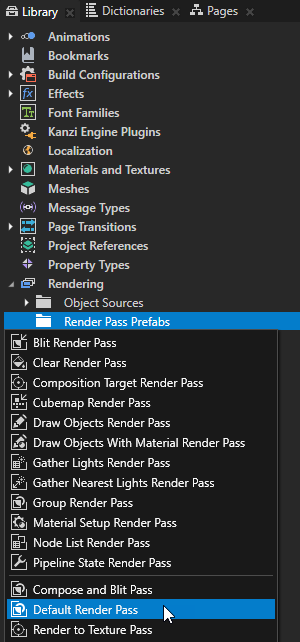
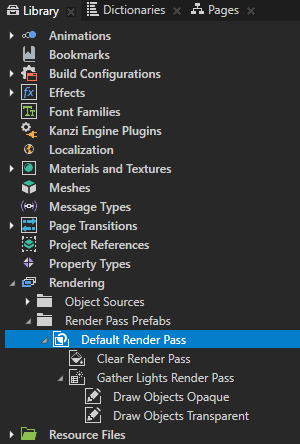
Kanzi Studio 在 Library > Rendering 中创建所需的过滤器和渲染通道,以先渲染不透明节点,然后再渲染透明节点:
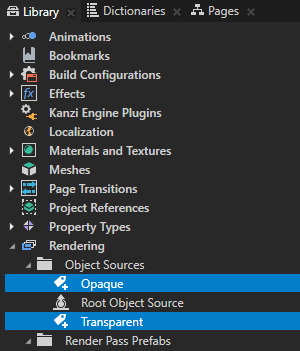
在 Object Sources 中这些 Tag Filter 过滤器:
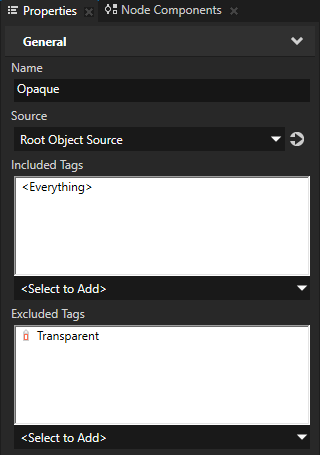
Opaque 选择没有 Transparent 标签的节点。
Transparent 选择具有 Transparent 标签的节点。
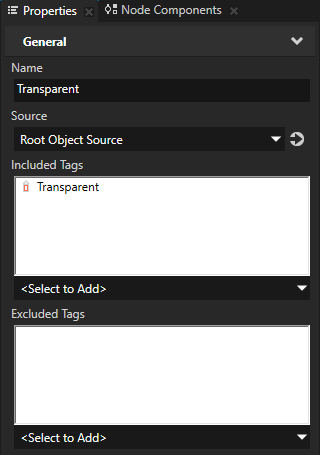
在 Render Pass Prefabs 中,一个名为 Default Render Pass 的 Group Render Pass,并在其中:
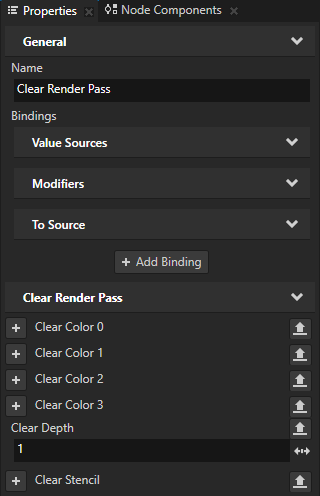
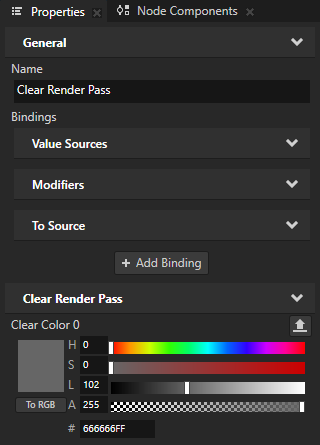
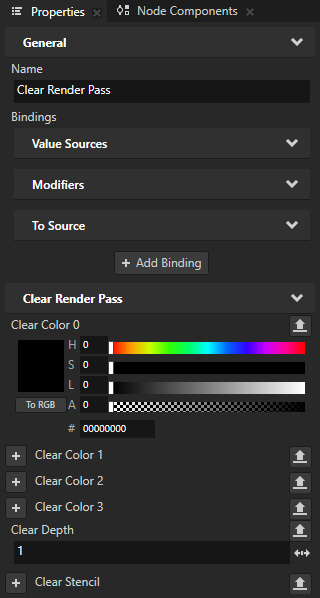
Clear Render Pass 清除当前渲染背景的若干或所有缓冲区。
默认情况下,Default Render Pass 中的 Clear Render Pass 会清除深度缓冲区。
Gather Lights Render Pass 收集您设置为使用 Default Render Pass 的 Viewport 2D 节点中的 Light 节点,并将它们传递给其子 Draw Objects Render Pass 渲染通道。
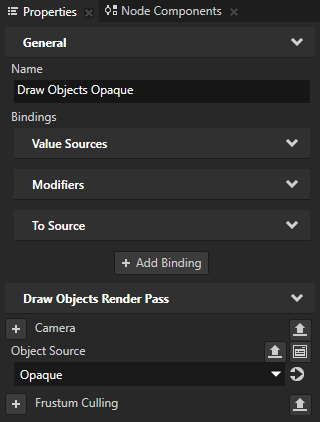
Draw Objects Render Pass 名为 Draw Objects Opaque 渲染由 Opaque 过滤器选择的节点。
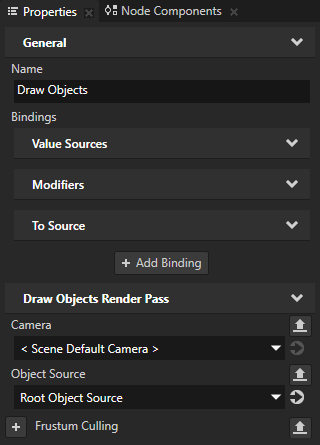
Draw Objects Render Pass 允许您设置一个 Camera 节点来渲染特定的节点列表,过滤这些节点,并控制视锥体裁剪。Draw Objects Render Pass 默认情况下使用其最近的祖先 Gather Lights Render Pass 提供的灯光来渲染节点。
Draw Objects Render Pass 名为 Draw Objects Transparent 渲染由 Transparent 过滤器选择的节点。
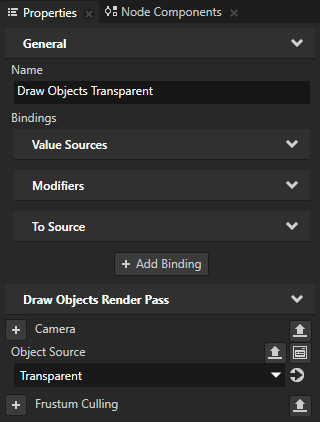
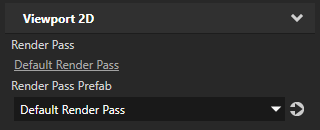
在 Node Tree 中,选择您要渲染其内容的 Viewport 2D 节点,并在 Properties 中将 Render Pass Prefab 属性设置为您创建的 Default Render Pass。
Kanzi Studio 使用 Default Render Pass 渲染 Viewport 2D 节点。
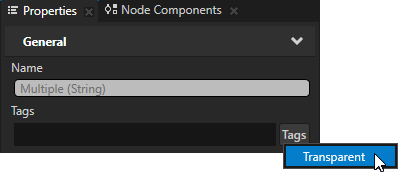
(可选) 如果您的 Viewport 2D 节点包含透明节点,在 Node Tree 中选择节点,在 Properties 中,Tags 属性旁边点击 Tags 按钮,并选择 Transparent。
通过这种方式,您可以将 Default Render Pass 设置为首先渲染透明节点,然后渲染不透明节点。
(可选) 要设置您想要渲染内容的 Viewport 2D 节点的背景,在您创建的 Default Render Pass 中选择 Clear Render Pass,并在 Properties 中添加并设置 Clear Color 0 属性。
备注
在为动态批处理调整默认渲染通道 (Default Render Pass) 时,请将不透明网格和透明网格保留在不同的批次中,并将渲染动态批处理网格的绘图对象渲染通道 (Draw Objects Render Pass) 替换为相应的动态批处理渲染通道。
请参阅 使用动态批处理。
渲染到纹理
使用 Render to Texture Pass 预设来创建将内容渲染到纹理所需的渲染通道。
要使用 Render to Texture Pass:
在 Library > Rendering 按 Alt 并右键单击 Render Pass Prefabs 中选择 Render to Texture Pass。
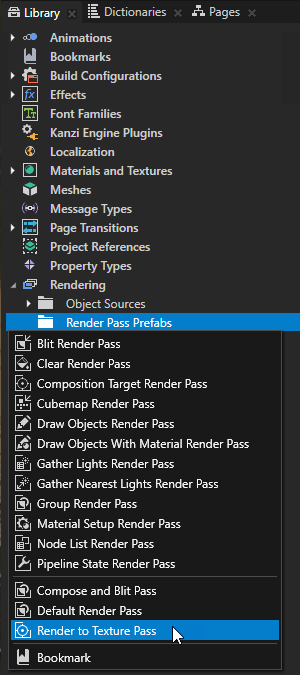
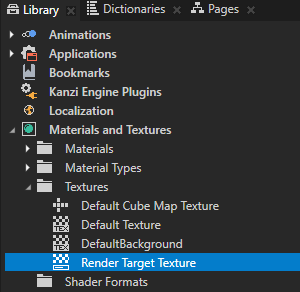
Kanzi Studio 在 Library 中创建:
在 Materials and Textures > Textures 中的 Render Target Texture
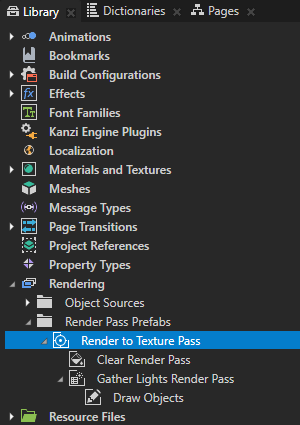
在 Rendering > Render Pass Prefabs 中,一个名为 Render to Texture Pass 的 Composition Target Render Pass,将自身渲染到 Render Target Texture 资源,并在其中:
Clear Render Pass 清除当前渲染背景的若干或所有缓冲区。
默认情况下,Render to Texture Pass 中的 Clear Render Pass 使用透明黑色清除第一个颜色缓冲区,并使用值 1 清除深度缓冲区。
Gather Lights Render Pass 收集您设置为使用 Render to Texture Pass 的 Viewport 2D 节点中的 Light 节点,并将它们传递给其子 Draw Objects Render Pass 渲染通道。
Draw Objects Render Pass 名为 Draw Objects 允许您设置一个 Camera 节点来渲染特定的节点列表,过滤这些节点,并控制视锥体裁剪。默认情况下,Draw Objects Render Pass 使用其最近的祖先 Gather Lights Render Pass 提供的灯光来渲染节点。默认情况下,Draw Objects Render Pass 使用默认的 Camera 节点来渲染 Viewport 2D 节点中的所有节点。
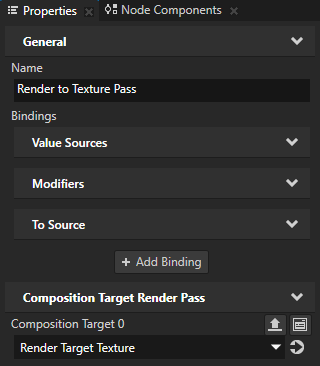
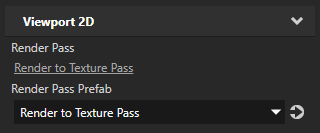
在 Node Tree 中,选择您想要渲染到纹理的内容的 Viewport 2D 节点,并在 Properties 中将 Render Pass Prefab 属性设置为您创建的 Render to Texture Pass。
Kanzi Studio 使用 Render to Texture Pass 渲染 Viewport 2D 节点。
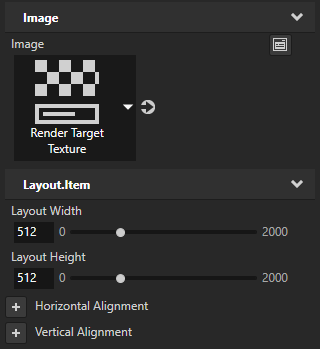
将您在第一步中创建的 Render Target Texture 应用于您希望显示在上一步中选择的 Viewport 2D 节点内容的节点。
例如:
在 Node Tree 中,按 Alt 并右键单击 并选择 Image。
在 Node Tree 中,选择 Image 节点。在 Properties 中,将 Image 属性设置为您想在 Image 节点中显示的 Render Target Texture。
为动态基于图像的光照渲染立方体贴图
使用 Image-Based Lighting Filter Pass 预设为实时基于图像的光照创建动态立方体贴图纹理。您只能将此预设用作渲染场景内容的渲染通道树的一部分,而不能直接在 Viewport 2D 节点中使用。
Image-Based Lighting Filter Pass 使用 Cubemap Render Pass 捕获环境贴图。请参阅 创建立方体贴图反射。
要为动态基于图像的光照渲染立方体贴图:
创建天空盒:
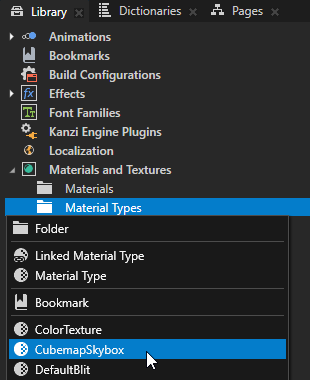
在 Library > Materials and Textures 中,按 Alt 并右键单击 Material Types,并选择 CubemapSkybox。
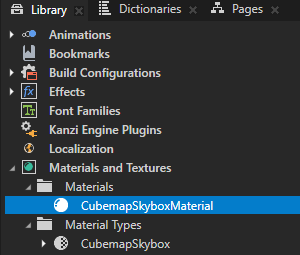
Kanzi Studio 在 Library > Materials and Textures 中创建了 CubemapSkybox 材质类型和 CubemapSkyboxMaterial,支持将立方体贴图纹理显示为天空盒。
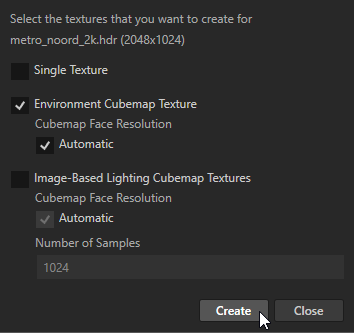
导入要用于天空盒的 HDR 图像。导入图像时,将 Kanzi Studio 设置为仅创建环境立方体贴图纹理。
为获得最佳效果,请使用高动态范围 (HDR) 像素格式,例如 R16G16B16A16_SFLOAT。
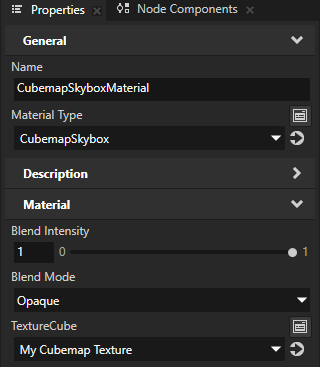
在 Library 中,选择 CubemapSkyboxMaterial 材质。在 Properties 中,将 TextureCube 属性设置为您导入的立方体贴图纹理。
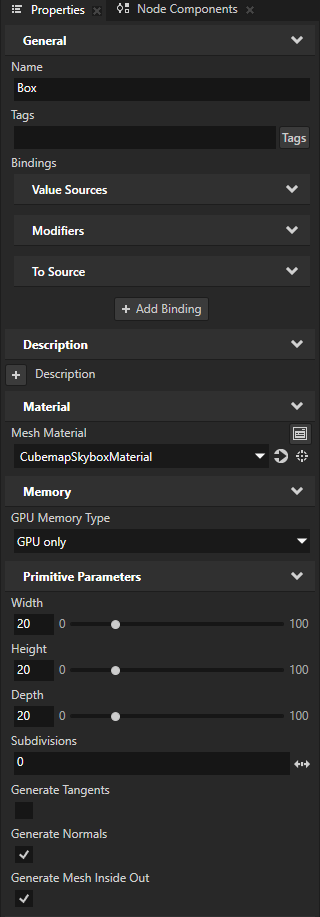
创建一个 Box 或 Sphere 节点,用于渲染天空盒。在 Properties 中,设置:
Mesh Material 到 CubemapSkyboxMaterial
节点的大小应足够大,以容纳您想要在其中显示的内容:
对于 Box,设置 Width、Height 和 Depth 属性。
对于 Sphere,设置 Radius 属性。
将 Generate Mesh Inside Out 设置为 enabled。
当启用此属性时,Kanzi 在网格内渲染立方体贴图纹理。
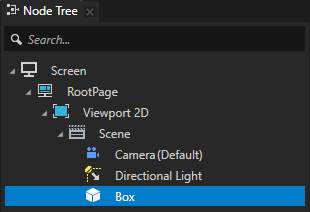
创建要在其上通过基于图像的光照显示动态反射的内容:
在 Library > Materials and Textures 中,按 Alt 并右键单击 Material Types,并选择 PhysicallyBased。
Kanzi Studio 在 Library > Materials and Textures 中创建 PhysicallyBased 材质类型和 PhysicallyBasedMaterial。
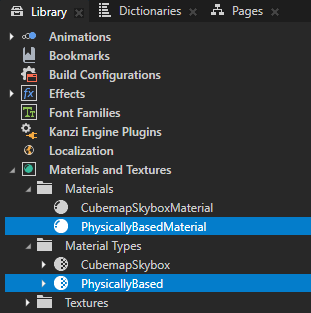
在 Library > Materials and Textures > Material Types 中,选择 PhysicallyBased,然后按 Ctrl D。
之所以复制该材质类型,是因为稍后您要将同一材质类型的变体用于在环境中移动、且需要动态显示其反射的内容。
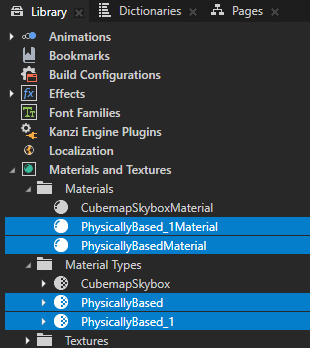
重命名复制的内容:
将材质类型重命名为 PhysicallyBased Image-Based Lighting
将材质重命名为 PhysicallyBased Image-Based Lighting Material
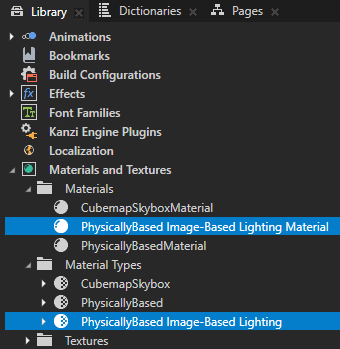
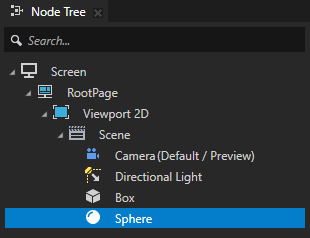
创建要在其中显示反射的节点。
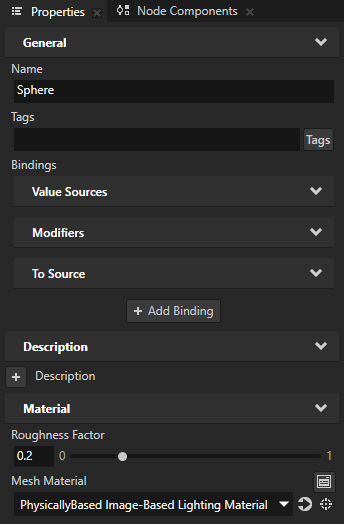
例如,创建一个 Sphere 节点。在 Properties 中,添加并设置:
将 Mesh Material 设置为 PhysicallyBased Image-Based Lighting Material
将 Material > Roughness Factor 设置为 0.2
创建用于渲染环境和内容的渲染通道树:
在 Library > Rendering 中,按 Alt 并右键单击 Render Pass Prefabs,然后选择 Group Render Pass。
在 Group Render Pass 中创建:
Cubemap Render Pass
Default Render Pass
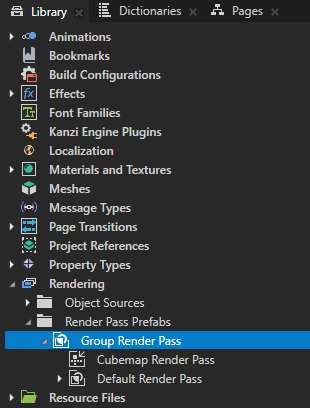
在 Node Tree 中选择 Viewport 2D 节点。在 Properties 中将 Render Pass Prefab 设置为 Group Render Pass。
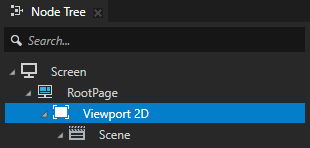
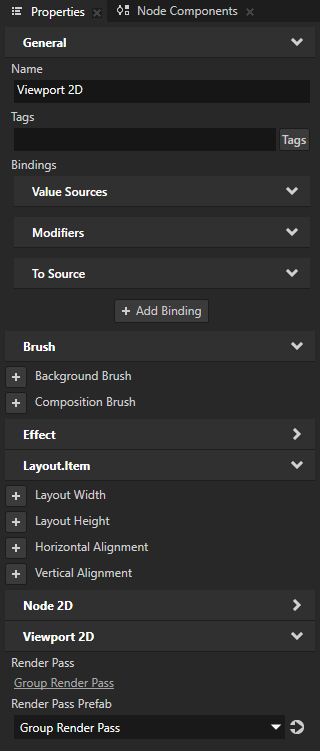
调整 Cubemap Render Pass:
在 Node Tree 中 按 Alt 并右键单击 Scene,选择 Camera,并将其命名为 Cubemap Render Pass Camera。
此摄像机仅在 Cubemap Render Pass 中使用。
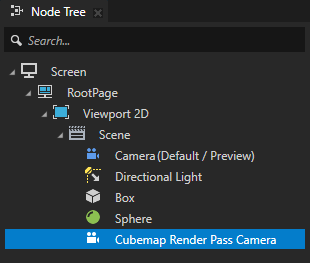
在 Cubemap Render Pass 中设置:
将 Override Camera 设置为立方体贴图渲染通道摄像机
将 Resolution 设置为 256
该值越高,渲染质量越高。
将 Pixel Format 设置为 R16G16B16A16_FLOAT
将 Mipmap Mode 设置为 Linear
使用 Linear 是因为 Nearest 会产生像素化的结果。
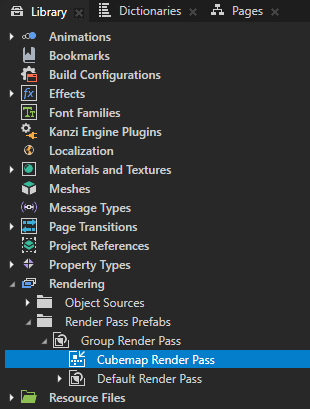
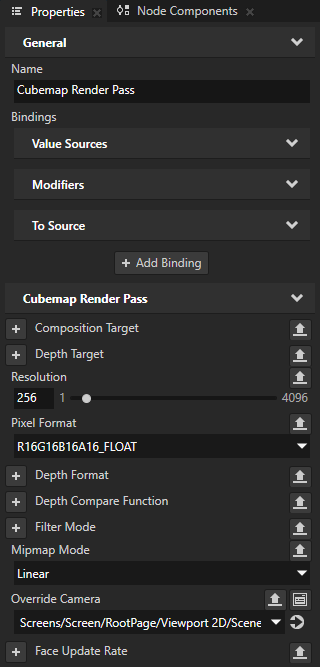
在 Cubemap Render Pass 中:
创建一个 Clear Render Pass,并添加 Clear Color 0 属性。
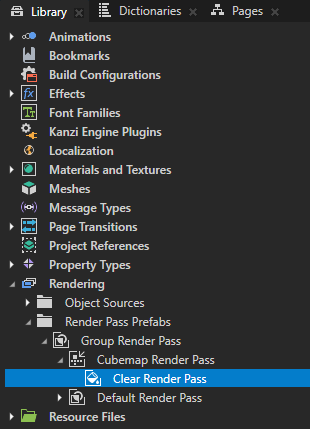
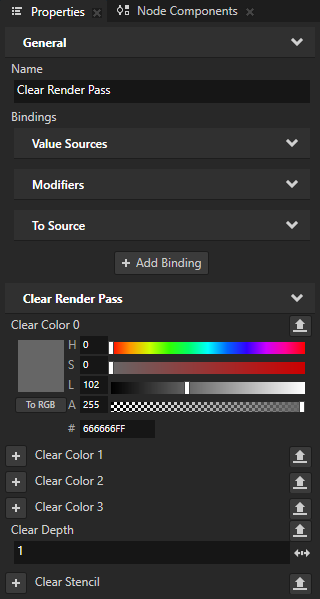
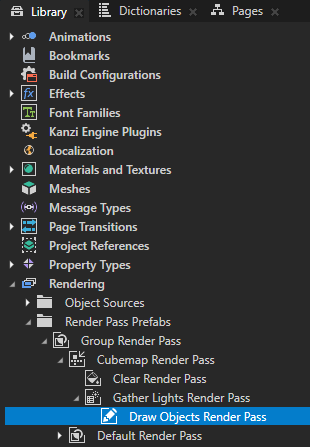
创建一个 Gather Lights Render Pass,并在其下创建一个 Draw Objects Render Pass。
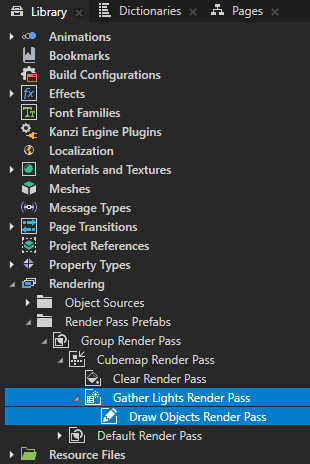
选择要在 Cubemap Render Pass 中渲染的内容:
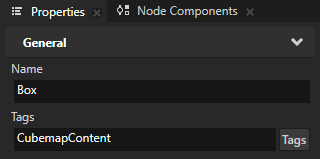
在 Node Tree 中选择用作天空盒的 Box。在 Properties 中将 Tag 设置为 CubemapContent。
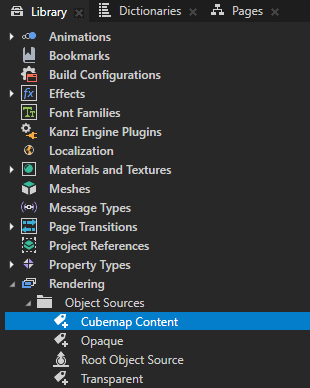
在 Library > Rendering 按 Alt 并右键单击 Object Sources 中,选择 Tag Filter,并将其命名为 Cubemap Content。
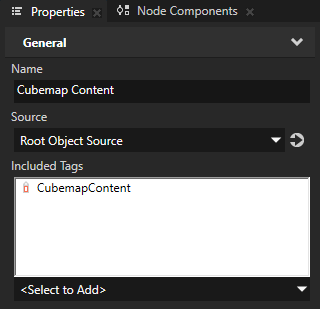
在 Properties 中将 Included Tags 设置为 CubemapContent 标签。
在 Draw Objects Render Pass 中,将 Object Source 属性设置为 Cubemap Content 标签过滤器。
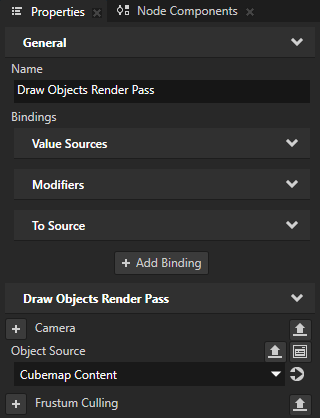
创建并调整 Image-Based Lighting Filter Pass:
在 Library > Rendering 按 Alt 并右键单击 Render Pass Prefabs 中选择 Image-Based Lighting Filter Pass。
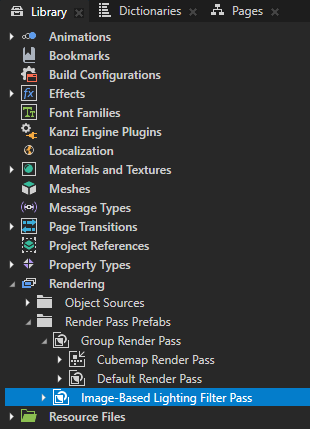
Kanzi Studio 在 Library 中创建:
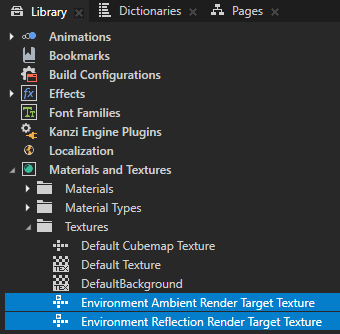
在 Materials and Textures > Textures 中创建以下 Cubemap Render Target Textures:
Environment Ambient Texture,作为用于漫反射照明的辐照度纹理
Environment Reflection Texture,作为用于反射光照的反射纹理
要了解如何在使用 Physically-Based Rendering 材质的工程中使用生成的立方体贴图纹理,请参阅 使用基于图像的光照立方体贴图纹理。
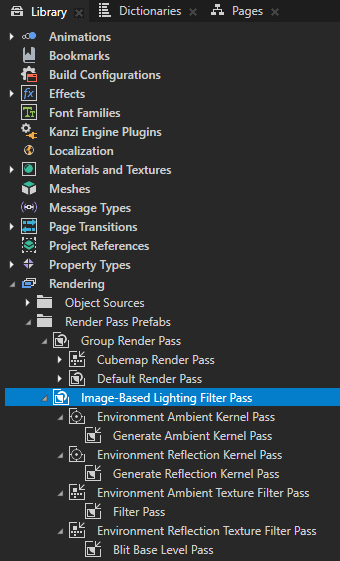
在 Rendering > Render Pass Prefabs 中创建一个名为 Image-Based Lighting Filter Pass 的 Group Render Pass,其中包含以下渲染通道:
- 名为 Environment Ambient Kernel Pass 的 Composition Target Render Pass,用于创建 2D 查找纹理并渲染到该纹理。此通道在启动期间执行一次。其结果供 Environment Ambient Texture Filter Pass 使用。
名为 Generate Environment Ambient Kernel Pass 的 Blit Render Pass,用于渲染 2D 查找纹理。
- 名为 Environment Reflection Kernel Pass 的 Composition Target Render Pass,用于渲染 2D 查找纹理。此通道在启动期间执行一次。其结果供 Environment Reflection Texture Filter Pass 使用。
名为 Generate Environment Reflection Kernel Pass 的 Blit Render Pass,用于渲染 2D 查找纹理。
- 名为 Environment Ambient Texture Filter Pass 的 Cubemap Target Render Pass,用于渲染到 Environment Ambient Texture 立方体贴图纹理。
名为 Filter Pass 的 Blit Render Pass,用于渲染最终的 Environment Ambient Texture。
- 名为 Environment Reflection Texture Filter Pass 的 Cubemap Target Render Pass,用于渲染到 Environment Reflection Texture 立方体贴图纹理,并使用 mipmap 材质将不同的粗糙度值渲染为预过滤的 mipmaps。
名为 Blit Base Level Pass 的 Blit Render Pass,用于渲染 Environment Reflection Texture 的基础 mipmap 级别。
将 Image-Based Lighting Filter Pass 拖到 Group Render Pass 中,并将其放在 Cubemap Render Pass 和 Default Render Pass 之间。
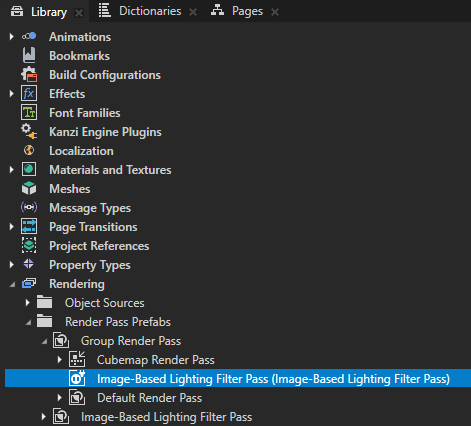
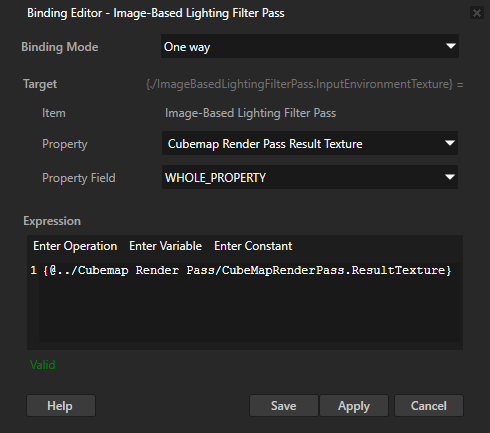
选择 Image-Based Lighting Filter Pass 的实例,在 Properties 中点击 Add Binding,并在 Binding Editor 中:
将 Property 设置为 Image-Based Lighting Render Pass 的 Cubemap Render Pass Result Texture 属性。
在 Library > Rendering > Render Pass Prefabs 中选择 Cubemap Render Pass,然后从 Properties 中将 Result Texture 拖放到 Binding Editor 中的 Expression 编辑器上。
单击 Save。
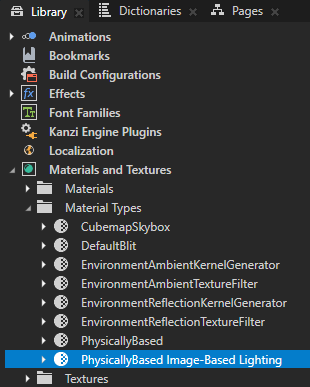
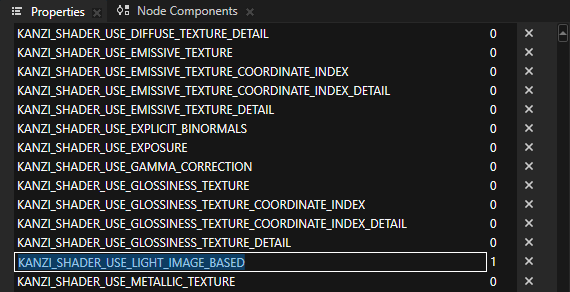
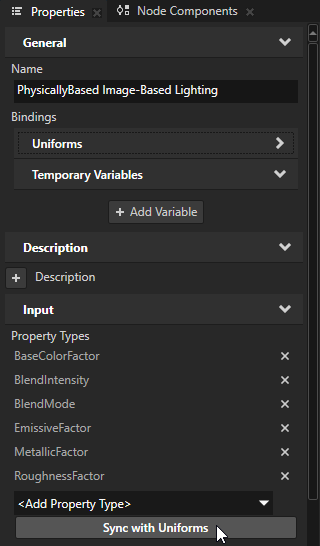
在 Library > Materials and Textures > Material Types 中,选择 PhysicallyBased Image-Based Lighting 材质类型。在 Properties 的 Preprocessor Defines 中,将 KANZI_SHADER_USE_LIGHT_IMAGE_BASED 键设置为 1,然后点击 Sync with Uniforms。
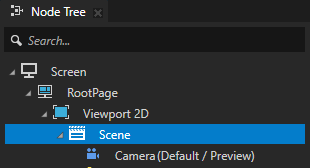
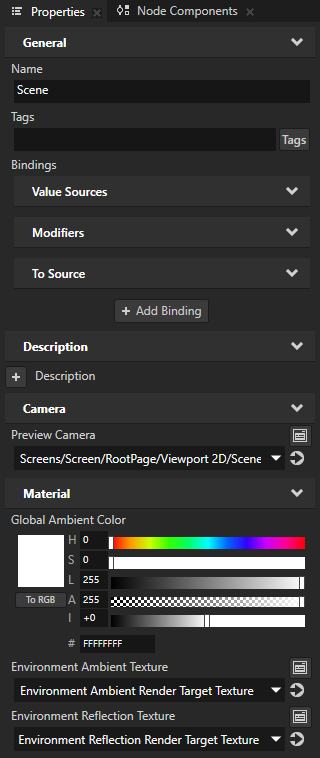
在 Node Tree 中选择 Scene 节点。在 Properties 中添加并设置:
将 Material > Environment Ambient Texture 设置为 Environment Ambient Render Target Texture
将 Material > Environment Reflection Texture 设置为 Environment Reflection Render Target Texture
Image-Based Lighting Filter Pass 会创建并动态更新这些纹理。
添加您希望看到被动态反射的内容。
例如:
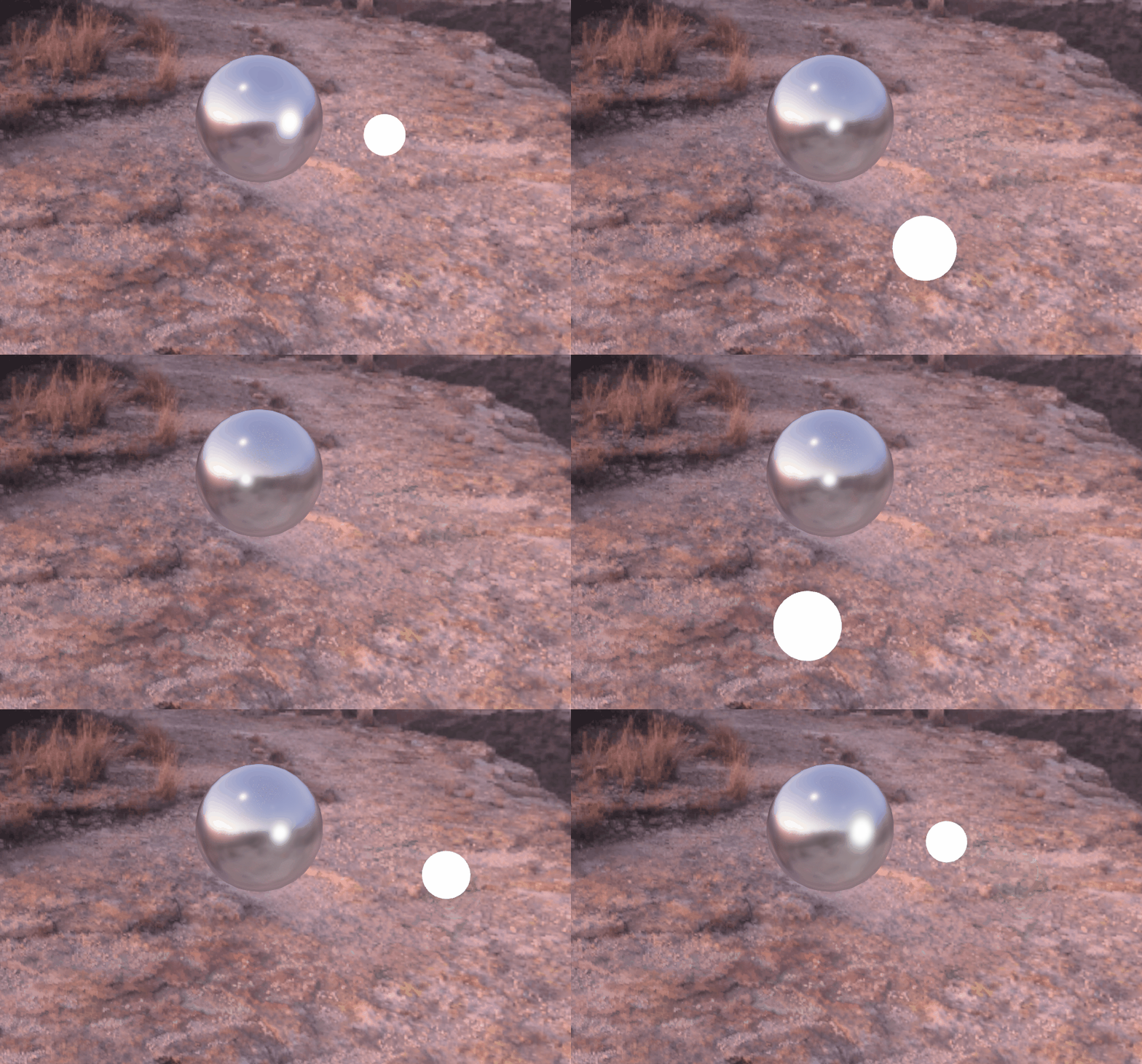
在 Node Tree 中创建一个包含 Sphere 的 Empty Node 3D。
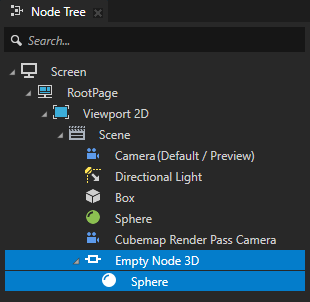
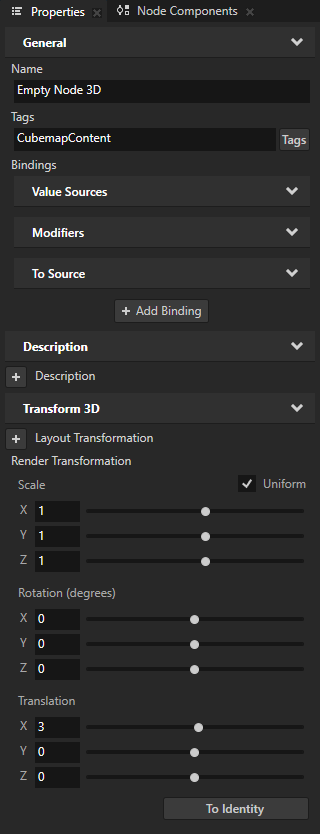
选择 Empty Node 3D,并在 Properties 中添加并设置:
将 Tag 设置为 CubemapContent
将 Render Transformation Translation X 设置为 3
这样,Kanzi 会将该节点及其子节点作为环境的一部分进行渲染,同时您将其移离反射表面。
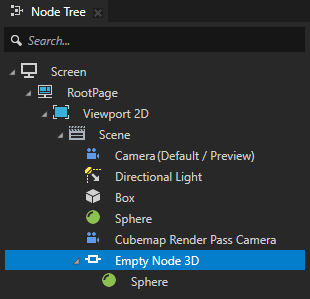
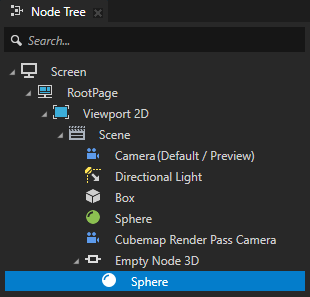
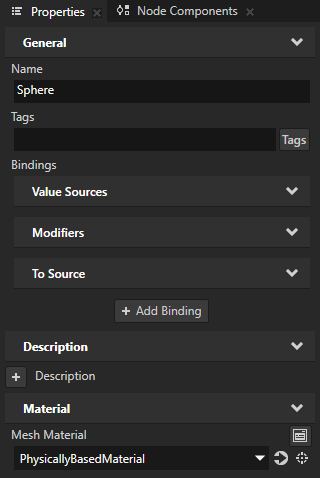
选择 Sphere,并在 Properties 中将 Mesh Material 设置为 PhysicallyBasedMaterial。
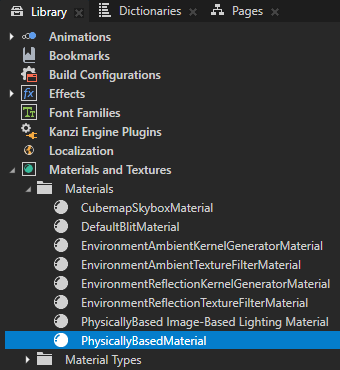
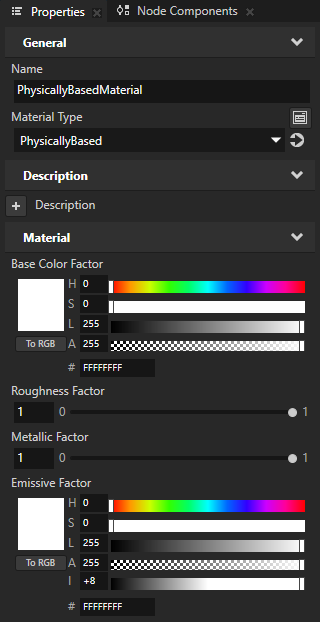
在 Library > Materials and Textures > Materials 中,选择 PhysicallyBasedMaterial。在 Properties 中设置:
将 Base Color Factor 设置为白色
将 Emissive Factor 设置为白色和高强度
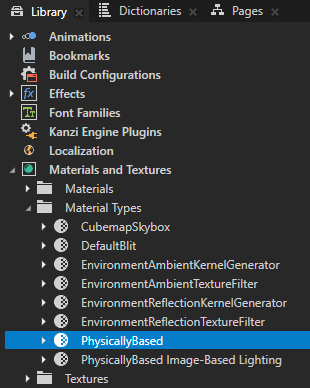
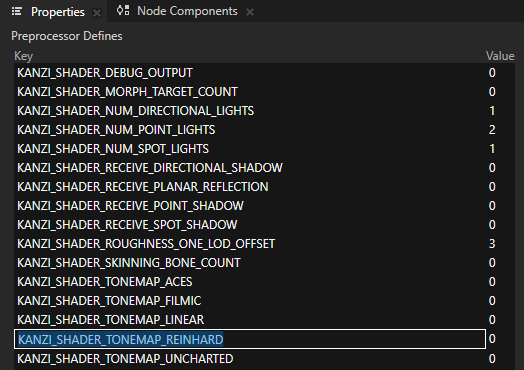
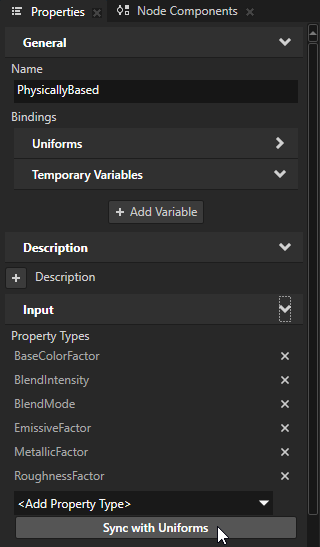
在 Library > Materials and Textures > Material Types 中,选择 PhysicallyBased。在 Properties 中禁用 KANZI_SHADER_TONEMAP_REINHARD,然后点击 Sync with Uniforms。
这样即可禁用色调映射。
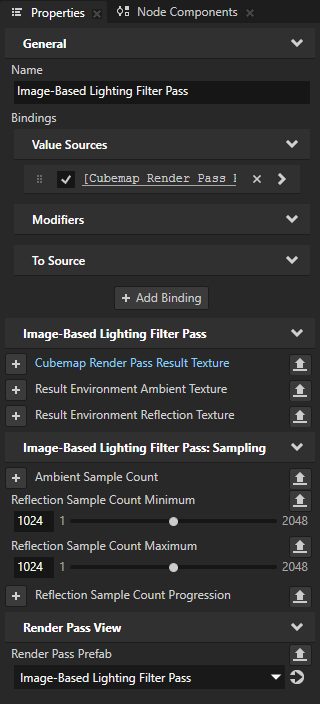
要更改反射的质量,请通过设置 Ambient Sample Count 来调整 Environment Ambient Texture。这样可以调整该立方体贴图纹理的分辨率。较低的分辨率会降低质量,但可以提高性能。
在 Image-Based Lighting Filter Pass 中添加并设置 Reflection Sample Count Minimum 和 Reflection Sample Count Maximum。采样数越大,质量越高,但性能越低。
例如,将这两个属性都设置为 1024。
以下属性控制 Environment Reflection Texture 的采样数:
Reflection Sample Count Minimum 是基础级别之后第一个 mipmap 级别的采样数。由于该级别对应的粗糙度较低,因此所需的采样数最少。
Reflection Sample Count Progression 控制采样数如何从 Reflection Sample Count Minimum 开始递增。在基础级别之后的第一个 mipmap 级别之后,每个 mipmap 级别的采样数都会增加该值乘以 \(2^{mipmap - 1} - 1\) 的量。
Reflection Sample Count Maximum 将采样数的递增限制在该值以内。
例如,如果最小值、递增值和最大值分别为 32、32 和 128,则以下级别的采样数为:
基础级别之后的第一个 mipmap 级别为 32
第二个 mipmap 级别为 64
第三个 mipmap 级别为 128
第四个 mipmap 级别为 128
在第四个 mipmap 级别之后,采样数不再增加。
当您移动为被反射而创建的对象时,其反射会相应地移动。