步骤 1 - 准备项目中的节点
在您可以创建反射之前,您必须准备要为其创建反射的节点。在此步骤中,您使用 Instantiator 节点创建要为其创建反射的节点的视觉副本,并创建一个反射平面。您使用标签将项目中的节点标记为原点或反射。在教程的下一步中,您将使用这些标签通过两个标签过滤器收集节点,并将每个节点传递给不同的渲染通道进行渲染和剔除。
获取教程
要获取本教程,请在 Kanzi Studio Quick Start 窗口中点击 Examples。在 Reflections 教程旁边,点击  。
。
Kanzi Studio 会将教程下载到 <KanziWorkspace>/Tutorials 目录。您可以找到:
位于
<KanziWorkspace>/Tutorials/Reflections/Start目录中的教程起点工程。位于
<KanziWorkspace>/Tutorials/Reflections/Completed目录中的已完成教程。
准备工程中的节点
要准备项目中的节点,请执行以下操作:
在 Kanzi Studio Quick Start 窗口中,点击 Examples。在 Reflections 教程旁边,点击 Open 并选择 Start project。
在该工程中,Empty Node 3D 节点 Content 包含一个 Trajectory List Box 3D 节点(其中有若干包含 3D 模型的 Empty Node 3D 节点)以及光源。在本教程中,您将创建这些节点的反射。
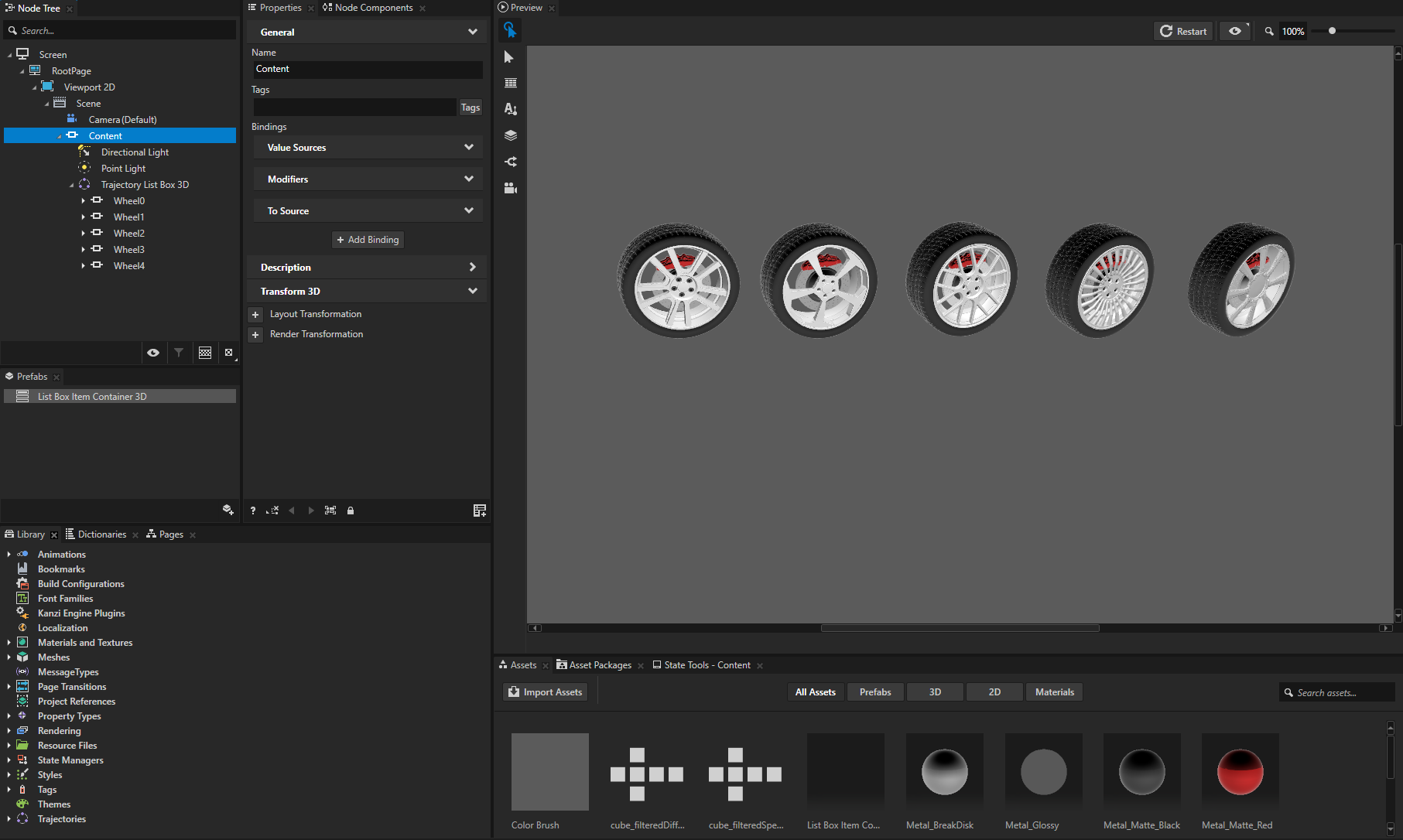
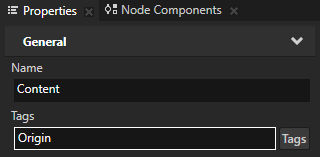
在 Node Tree 中选择 Content 节点,该节点将 Trajectory List Box 3D 和灯光分组,并在 Properties 中将 Tags 属性设置为 Origin。
在这里,您标记要为其创建反射的节点。
当您有多个节点并且想为所有节点创建反射时,可以将它们分组在同一个节点下,并标记它们的父节点。例如,通过标记 Content 节点,您可以标记其所有子节点。
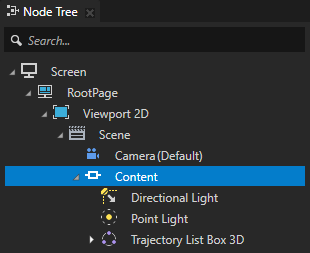
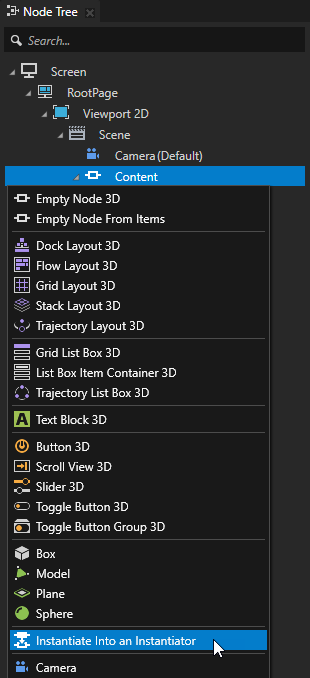
从您要为其创建反射的节点创建 Instantiator 节点:
在 Node Tree 按 Alt 并右键单击 的 Content 节点中,选择 Instantiate Into an Instantiator,并将其重命名为 Reflection。
使用 Instantiator 节点来创建 Content 节点中您想要创建反射的节点的视觉副本。
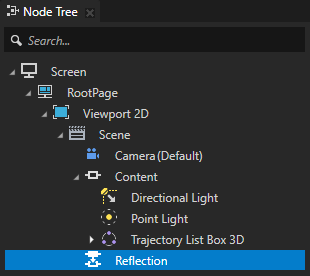
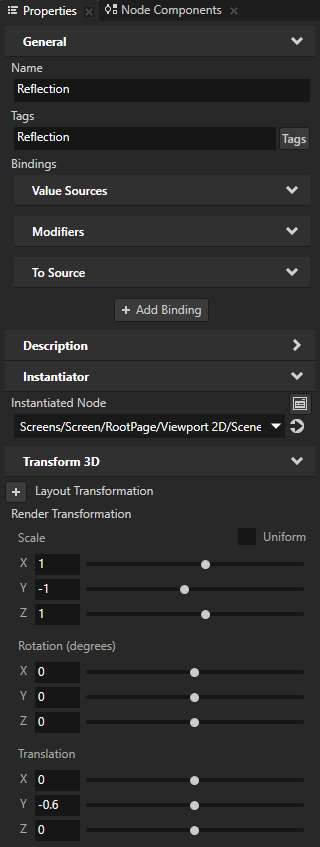
在 Node Tree 中选择 Reflection 节点,并在 Properties 中添加并设置:
Tags 到 Reflection
在本教程的下一步中,您将使用 Reflection 标签来选择仅渲染表示反射的 Instantiator 节点 Reflection。
Render Transformation 属性字段:
Scale Uniform 为禁用。
Scale Y 到 -1
通过设置 Scale Y 属性字段,您可以通过在 y 轴上翻转 Reflection 节点来创建 Content 节点中节点的镜像反射。
Translation Y 到 -0.6
使用 Translation Y 属性字段可以控制原点与其反射之间的距离。
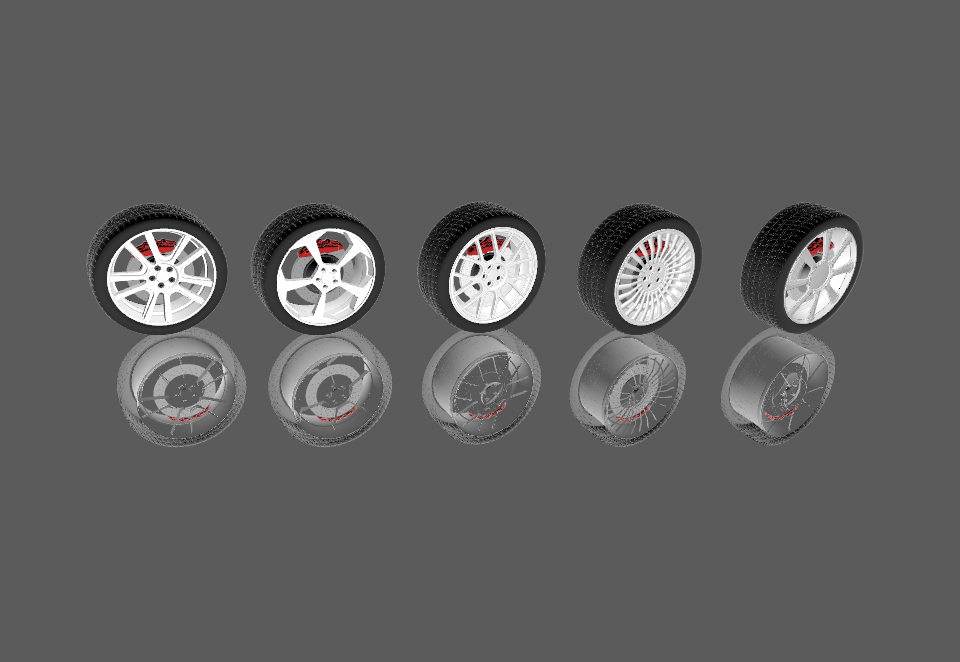
创建反射平面:
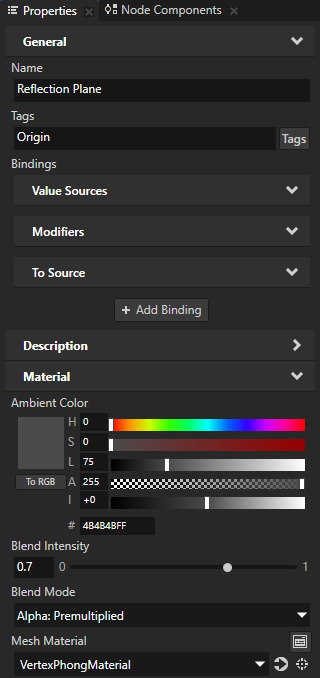
在 Scene 节点中的 Node Tree 中创建一个 Plane 节点,将其命名为 Reflection Plane,并在 Properties 中添加并设置:
Tags 到 Origin
Mesh Material 到 VertexPhongMaterial
Blend Intensity 到 0.7
使用 Blend Intensity 可以调整反射级别:值越低,反射越强。
Blend Mode 到 Alpha: Premultiplied
将 Ambient Color 设置为您想要用于 Reflection Plane 的颜色。
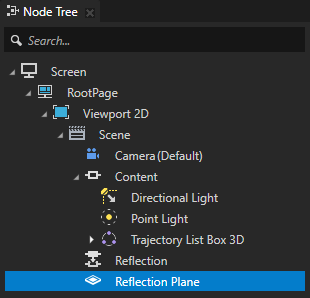
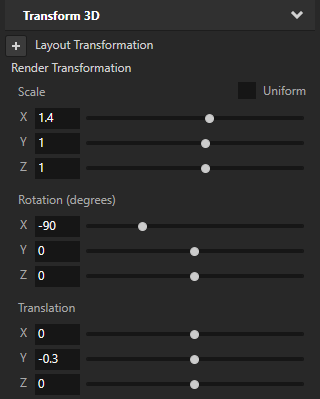
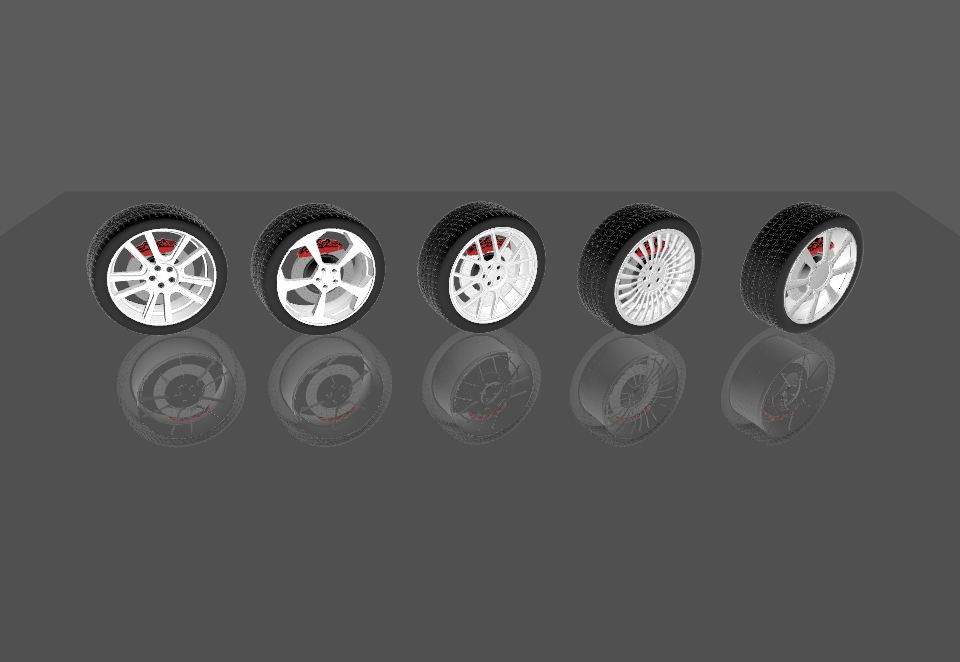
在原点和反射节点之间旋转、缩放和定位 Reflection Plane。
您可以在 Preview 中使用 Node tool
 来执行此操作,或者在 Properties 中通过添加和设置 Render Transformation 属性来实现。 例如,在 Properties 中添加 Render Transformation 属性并设置这些属性字段:
Scale Uniform 为禁用。
Scale X 到 1.4。
Rotation X 到 -90。
Translation Y 到 -0.3
另请参阅
要了解有关如何在 Kanzi Studio 中使用标签的更多信息,请参阅 使用标签。