使用 Viewport 3D 节点
使用 Viewport 3D 节点将2D节点添加到3D场景中。
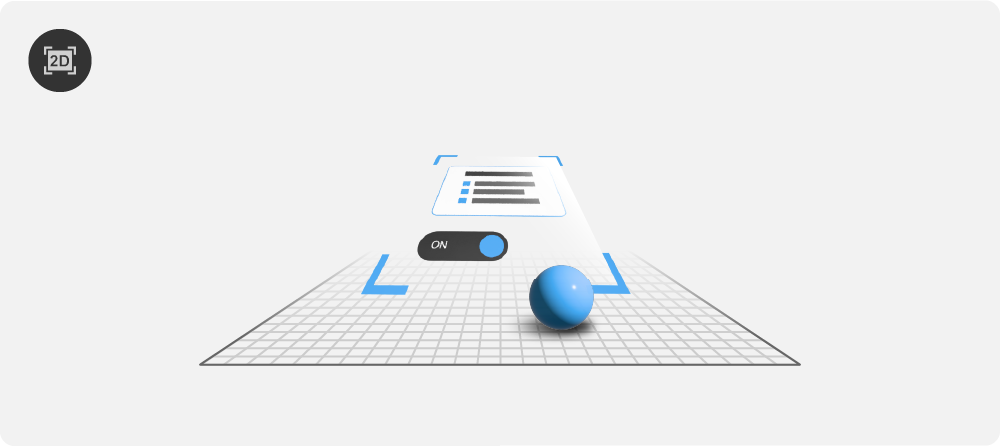
创建一个 Viewport 3D 节点
要创建 Viewport 3D 节点:
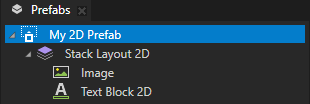
在 Prefabs 中,创建一个2D预设,其内容您想添加到3D场景中。
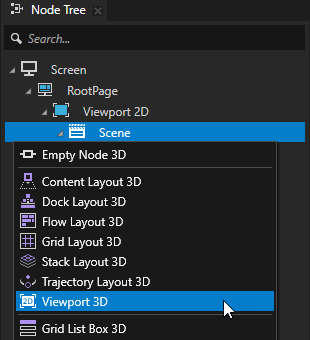
在 Node Tree 或 Prefabs 中,按 Alt 并右键单击 一个要添加 2D 节点的 3D 节点,并选择 Viewport 3D。
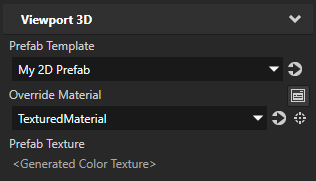
选择 Viewport 3D 节点。在 Properties 中,添加 Prefab Template 属性,并将其设置为您创建的2D预设。
Kanzi 首先将预设的内容渲染到纹理,然后使用无光照的 alpha 混合纹理材质将该纹理渲染到 3D 平面上。
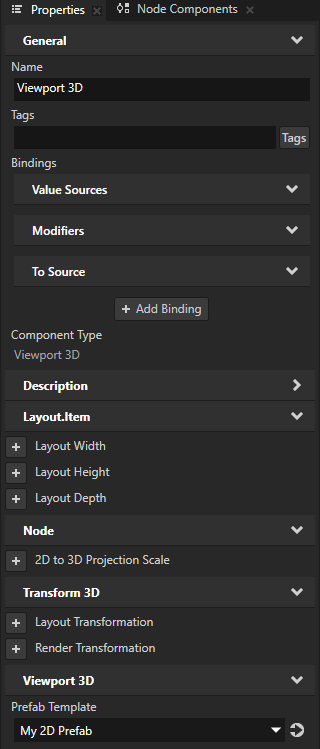
(可选) 要设置您想要用于渲染2D预设内容的材质,请在 Properties 中:
将 2D UI 控件添加到 3D 场景中
要将 2D UI 控件添加到 3D 场景中:
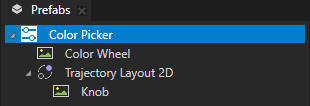
在 Prefabs 中,创建一个2D预设,其中包含您要添加到3D场景中的2D节点。
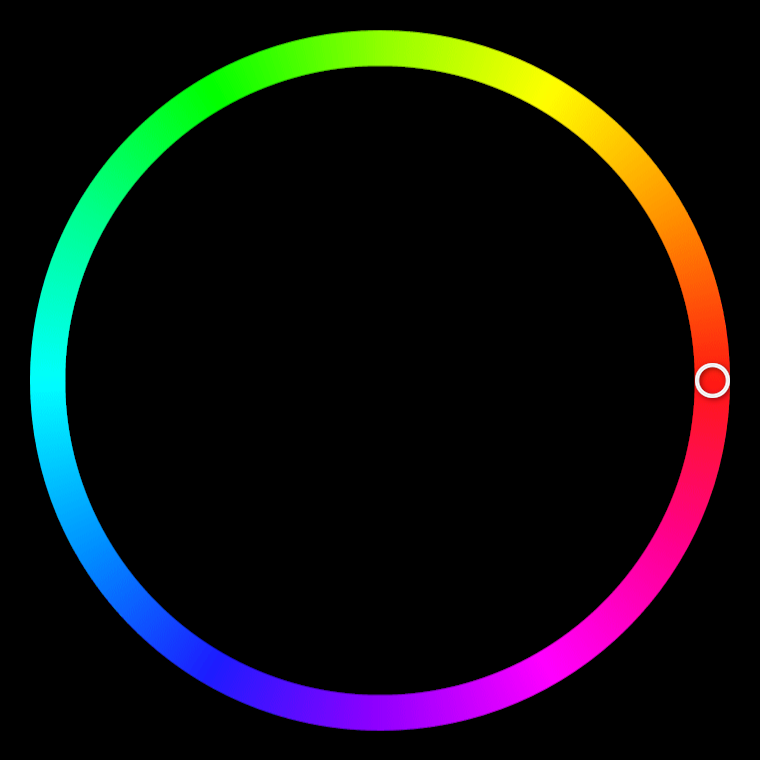
例如,创建一个带有滑块的颜色选择器。请参阅 使用滑块创建颜色选择器。
在 Node Tree 或 Prefabs 中,创建一个您想要添加2D节点的3D场景。
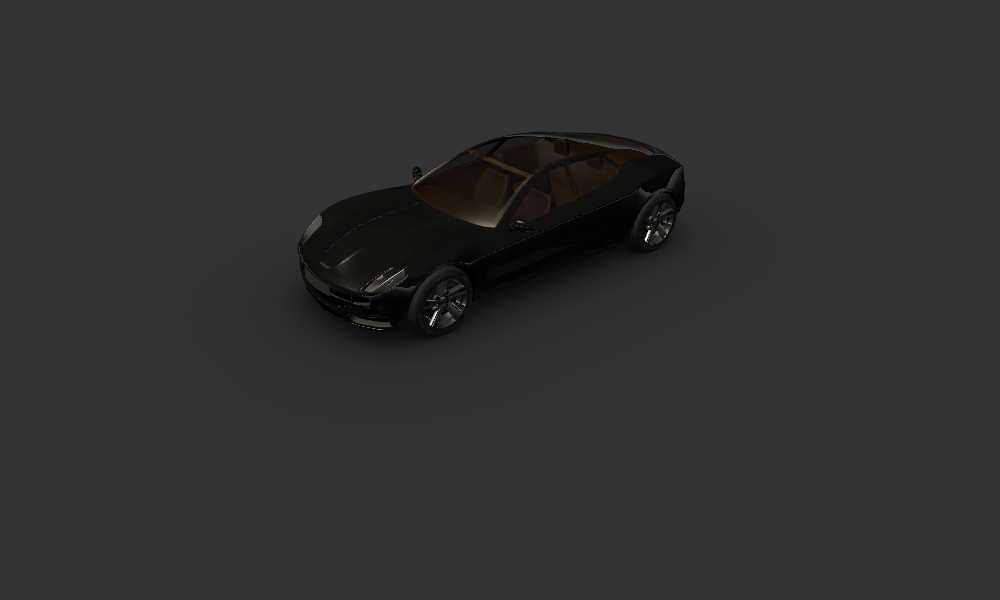
例如,使用 Factory Content 中的 Car。
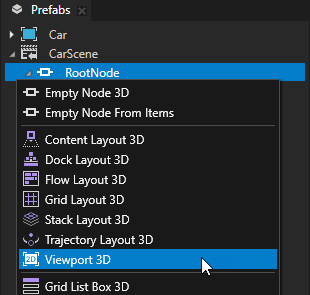
在 Node Tree 或 Prefabs 中,按 Alt 并右键单击 您要添加 2D 节点的 3D 节点并选择 Viewport 3D。
例如,在 Prefabs > CarScene > RootNode 节点中创建一个 Viewport 3D 节点。
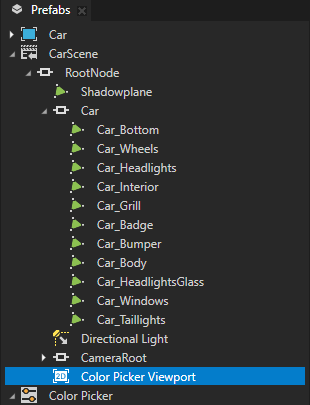
选择 Viewport 3D 节点,并在 Properties 中添加并设置:
将 Prefab Template 属性应用到您想要添加到3D场景的2D预设。
例如,选择 Color Picker 预设。
Kanzi 首先将预设的内容渲染到纹理,然后将该纹理渲染到3D平面上。
Render Transformation 或 Layout Transformation 用于在 3D 场景中定位和定向 2D 预设。
例如,添加 Render Transformation 属性并设置:
将 Rotation X 属性字段设置为 -90。
将 Rotation Y 属性字段设置为 90。
将 Translation Y 属性字段设置为 0.1。
这样一来,您可以将2D预设放置在汽车下方的地板正上方。
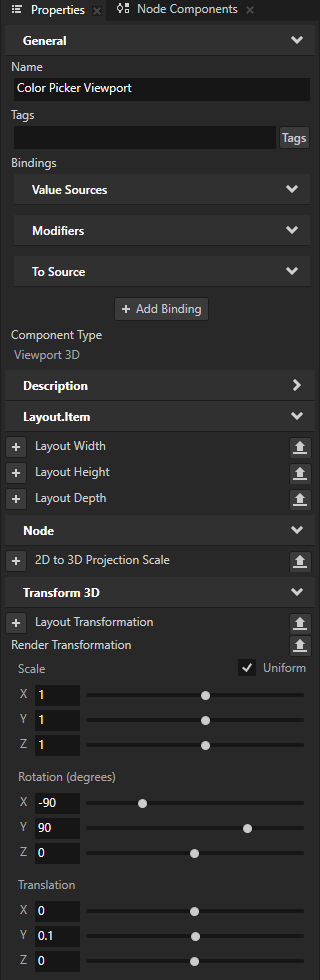
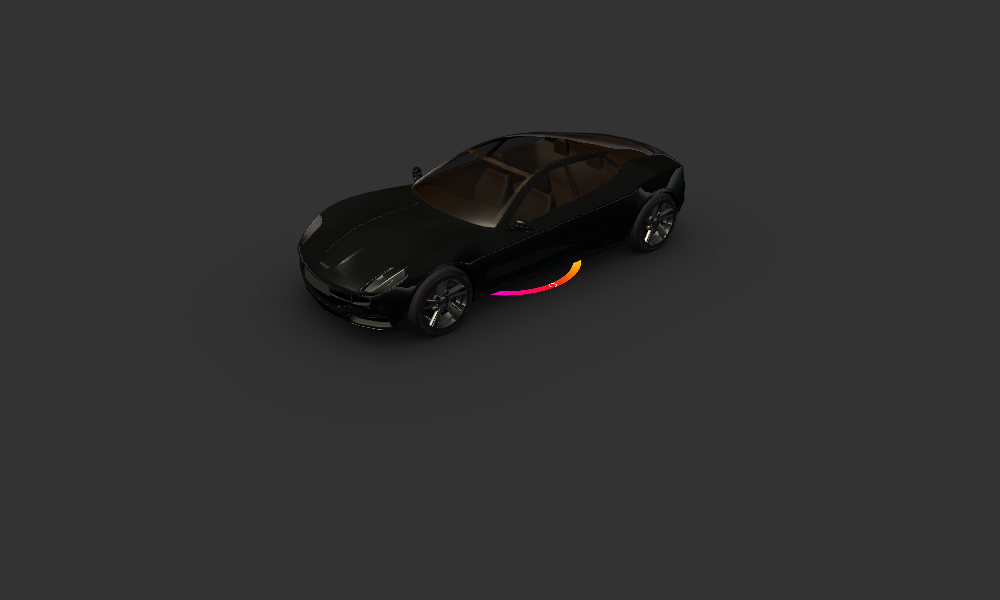
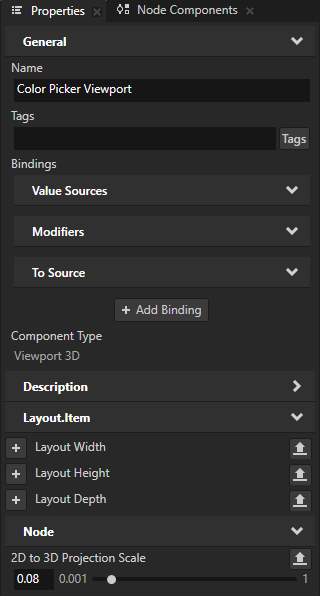
要设置3D场景中2D内容的大小,请在 Properties 中添加并设置:
2D to 3D Projection Scale 到您要用于将2D内容投影到3D空间的缩放因子。
例如,如果您的2D预设的宽度为710像素,并且将 2D to 3D Projection Scale 属性设置为0.08,则该预设在3D空间中的宽度为56.8单位。
(可选) Layout Width 和 Layout Height
例如,当您未设置预设的布局大小并且其拉伸到父节点的大小时,设置这些属性。
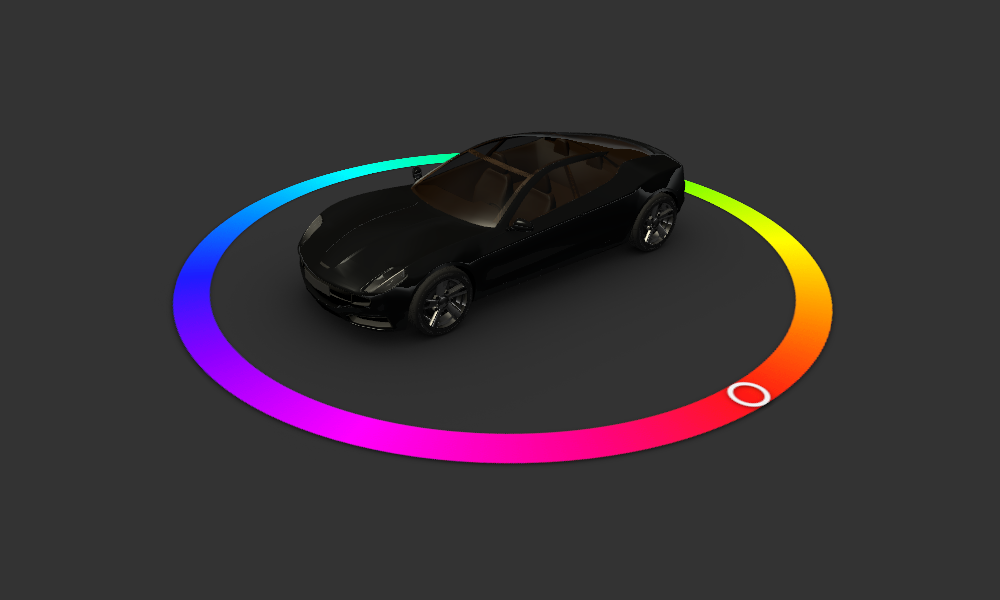
默认情况下,Kanzi 使用未点亮的 alpha 混合纹理材质在 Viewport 3D 节点中渲染内容。
要设置您想要用于渲染内容的材质,请在 Properties 中:
添加 Override Material 属性并将其设置为任何纹理材质。
例如,将其设置为 VertexPhongTexturedMaterial 材质。该材质使用灯光。
小技巧
如果您的项目不包含 VertexPhongTextured 材质类型,请在 Library > Materials and Textures 按 Alt 并右键单击 Material Types 中,选择 VertexPhongTextured。
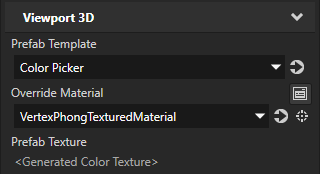
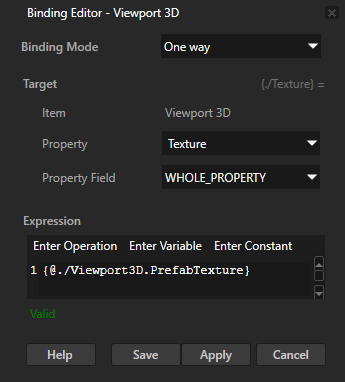
单击 + Add Binding,并在 Binding Editor 中设置:
将 Property 应用于您在 Override Material 属性中设置的材质的纹理属性。
Expression 到
{@./Viewport3D.PrefabTexture}
单击 Save。
通过这种方式,您可以设置覆盖材质以将纹理渲染到 Kanzi 渲染 2D 预设内容的纹理。
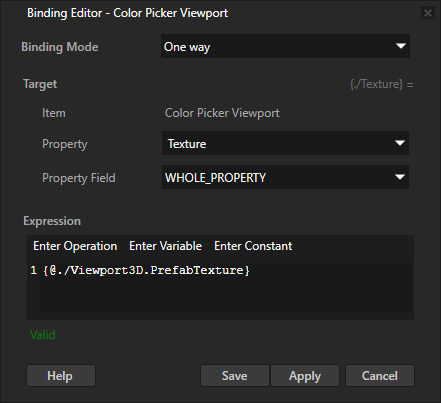
调整您在 Override Material 属性中设置的材料属性。
例如,添加并设置:
将 Material > Diffuse Color 属性 Lightness (L) 属性字段设置为 255。
Material > Blend Mode 到 Alpha: Premultiplied
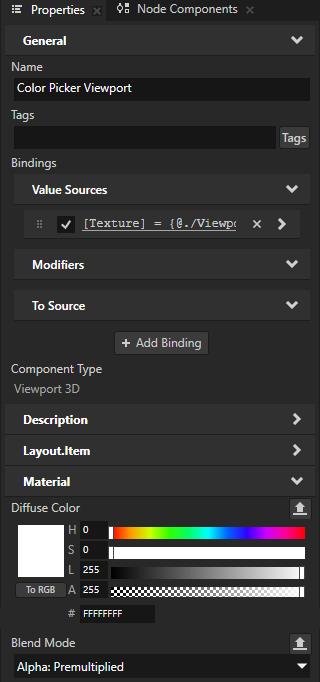
当您关闭场景中的灯光时,Kanzi 会以较暗的颜色渲染颜色选择器。
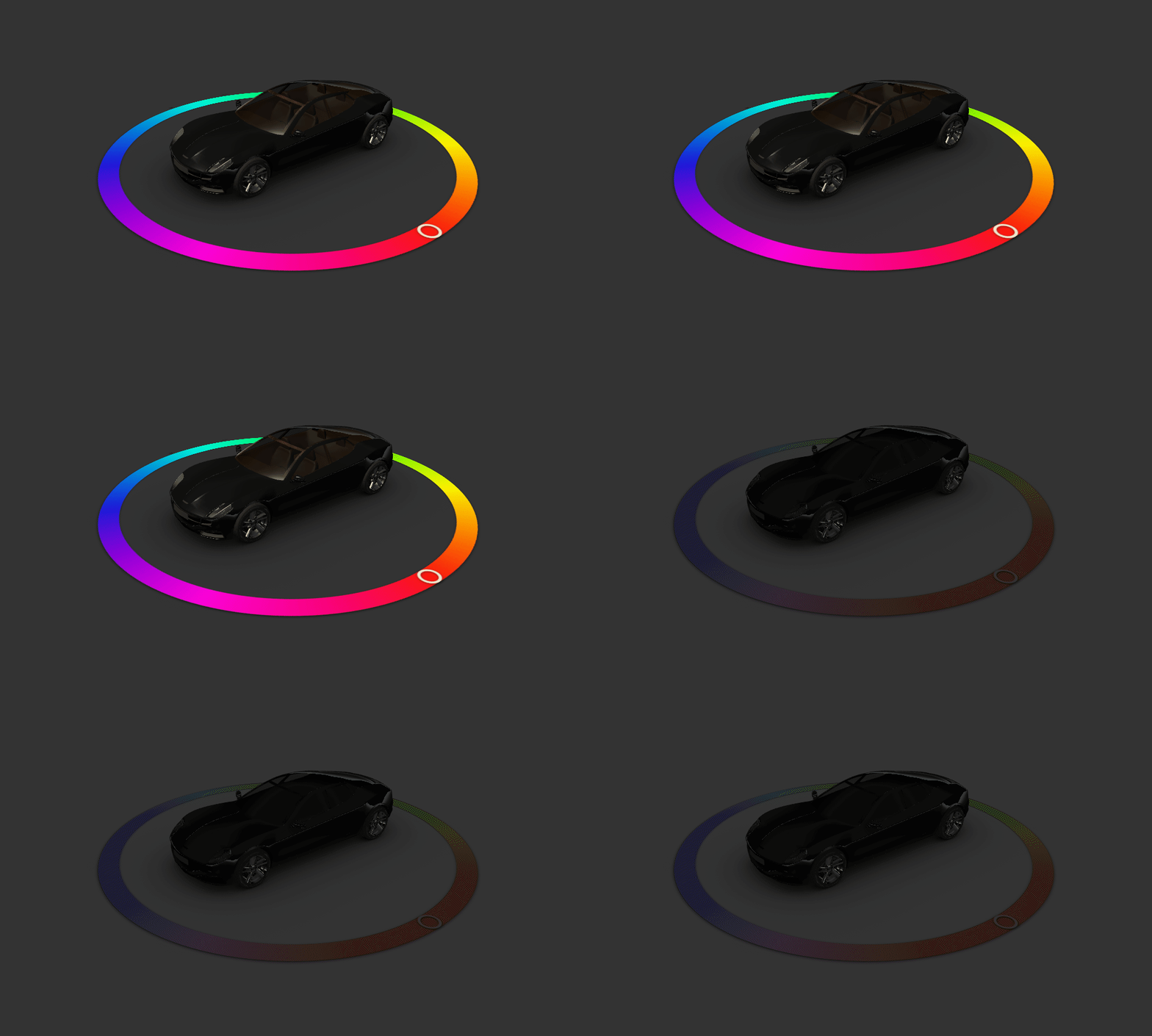
要访问 Viewport 3D 节点渲染的 2D 预设的属性,使用绑定。
例如,如果您的颜色选择器预设具有一个保存所选颜色的属性,要使用该颜色为汽车模型的车身上色:
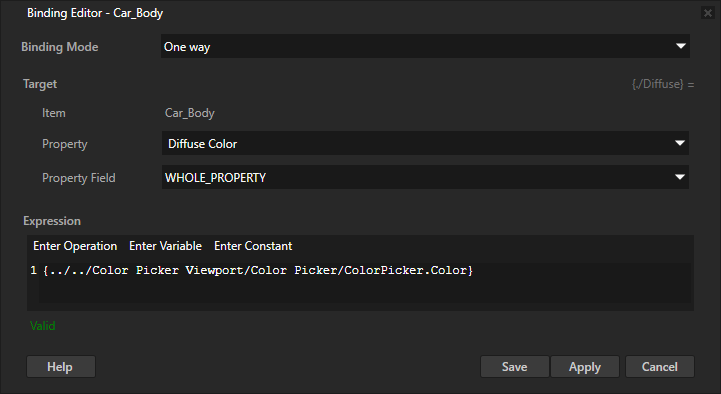
选择渲染汽车车身的3D节点。在 Properties 中,添加绑定并设置:
Property 到 Diffuse Color
此属性设置材料在被照亮时的颜色。
Expression 指向在颜色选择器中包含当前选定颜色的属性。
例如,设置为指向
{../../Color Picker Viewport/Color Picker/ColorPicker.Color}
单击 Save。
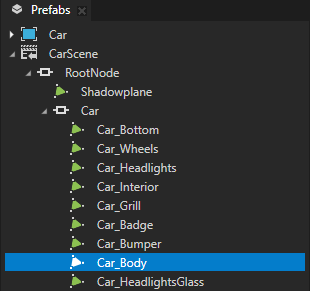
对 Ambient Color 属性重复上一步,该属性在没有光源时设置材质的颜色。
例如,将绑定表达式设置为
{../../Color Picker Viewport/Color Picker/ColorPicker.Color} * Color4(0.2, 0.2, 0.2, 1)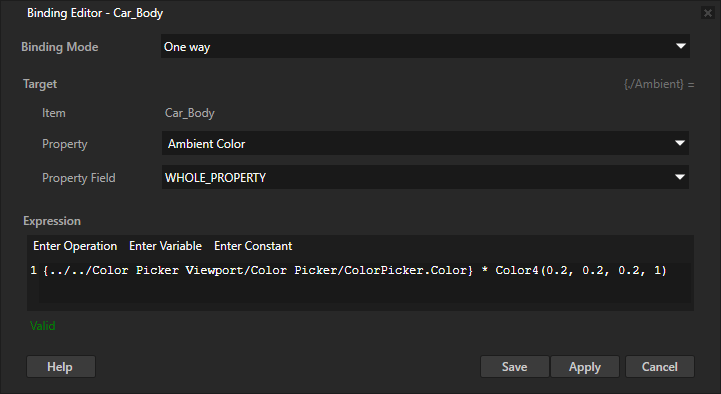
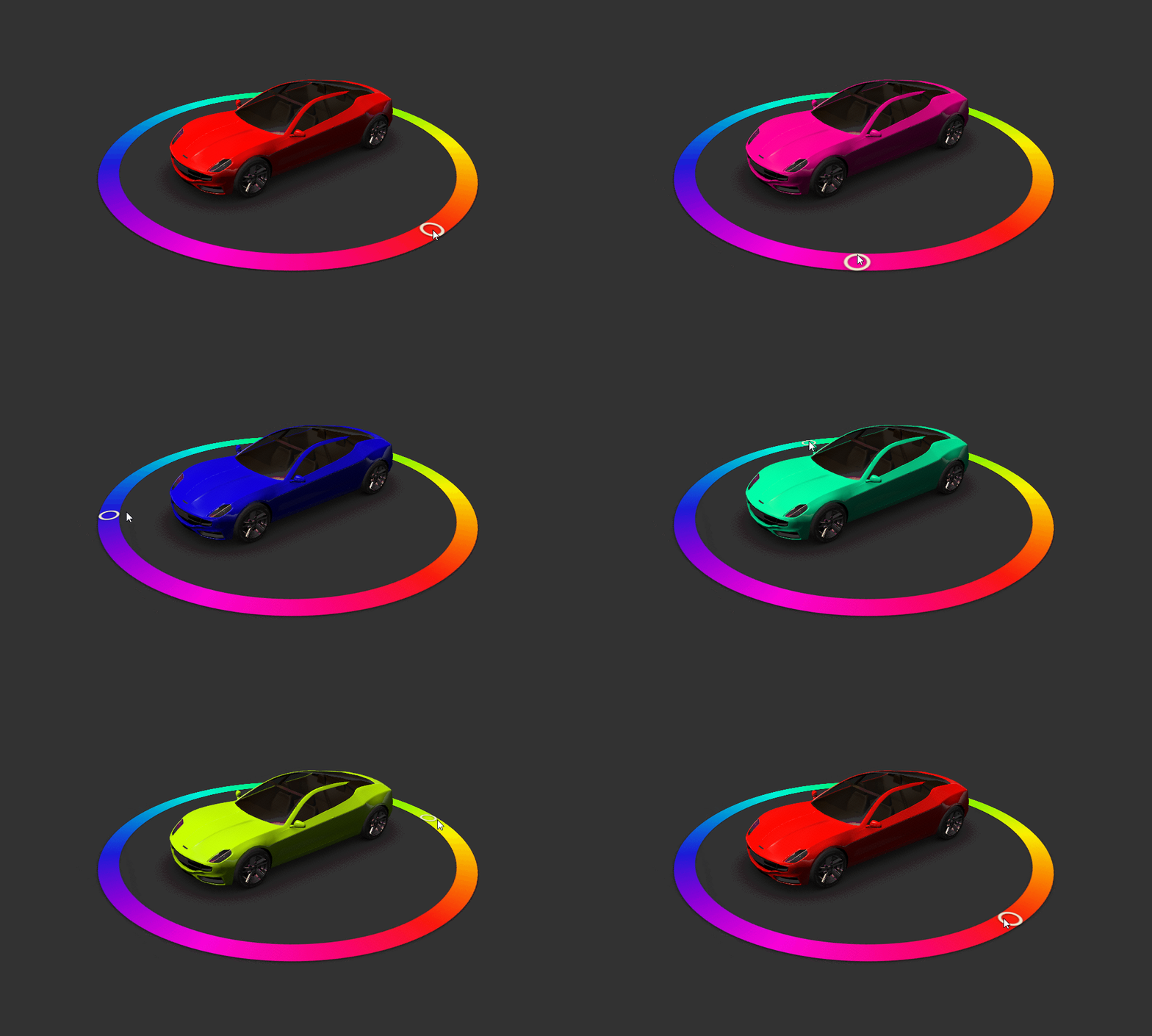
在 Preview 中,当您使用颜色选择器选择颜色时,汽车的油漆会更改为使用该颜色。
使用 API 中的 Viewport 3D 节点
要使用 Viewport 3D 节点,请创建一个 2D 预设,并设置 Viewport 3D 节点以在 3D 场景中渲染该预设:
// Create a Viewport 3D named Viewport 3D and add it to the Scene.
Viewport3DSharedPtr viewport3d = Viewport3D::create(domain, "Viewport 3D");
scene->addChild(viewport3d);

// Create an image that acts as a model for the prefab template.
// This can be any Node2D node or a tree of Node2D nodes.
Image2DSharedPtr image = Image2D::create(domain, "Image");

// Create a prefab template node based on the image.
PrefabTemplateNodeSharedPtr templateNode = PrefabTemplateNode::create(domain, Image2D::getStaticMetaclass(), "Prefab root node");

// Create a prefab template and set the prefab template node as its root.
PrefabTemplateSharedPtr prefabTemplate = PrefabTemplate::create(domain, templateNode, "PrefabForViewport3D");

// Use the prefab template in the Viewport3D node.
viewport3d->setPrefab(prefabTemplate);
要从 Viewport 3D 节点外部的节点绑定到 Viewport 3D 节点使用的 2D 预设中的节点:
// Create a prefab template node from a 2D scene graph.
PrefabTemplateNodeSharedPtr templateNode = PrefabTemplateNode::create(domain, EmptyNode2D::getStaticMetaclass(), "Empty Node 2D");
templateNode->addProperty(Node::WidthProperty, Variant(320.0f));
templateNode->addProperty(Node::HeightProperty, Variant(240.0f));
templateNode->addProperty(Node::OpacityProperty, Variant(0.8f));

// Create a prefab template and set the prefab template node as its root.
PrefabTemplateSharedPtr viewport3DPrefab = PrefabTemplate::create(domain, templateNode, "Empty Node 2D");

// Create a Viewport3D node and add it to the Scene.
Viewport3DSharedPtr viewport3D = Viewport3D::create(domain, "Viewport 3D");
scene->addChild(viewport3D);

// Set the Viewport3D node to use the prefab template.
viewport3D->setPrefab(viewport3DPrefab);

// Create a node that is a sibling of the Viewport3D node.
EmptyNode3DSharedPtr sibling = EmptyNode3D::create(domain, "Sibling");
scene->addChild(sibling);

// In the sibling node, add a binding that binds a property in the sibling node to a property
// in a node in the 2D scene graph that the Viewport3D node shows. Use a relative path to refer
// to the scene graph that Kanzi instantiates in the Viewport 3D node.
sibling->setBinding(Binding::create("../Viewport 3D/Empty Node 2D", Node::OpacityProperty),
    StandardMaterial::BlendIntensityProperty);
要从 Viewport 3D 节点使用的 2D 预设中的节点绑定到 Viewport 3D 节点外部的节点:
// Create a Viewport3D node and add it to the Scene.
Viewport3DSharedPtr viewport3D = Viewport3D::create(domain, "Viewport 3D");
scene->addChild(viewport3D);

// Create a node that is a sibling of the Viewport3D node.
EmptyNode3DSharedPtr sibling = EmptyNode3D::create(domain, "Sibling");
sibling->setProperty(StandardMaterial::BlendIntensityProperty, 0.6f);
scene->addChild(sibling);

// Create a prefab template node from a 2D scene graph.
PrefabTemplateNodeSharedPtr templateNode = PrefabTemplateNode::create(domain, EmptyNode2D::getStaticMetaclass(), "Empty Node 2D");
templateNode->addProperty(Node::WidthProperty, Variant(320.0f));
templateNode->addProperty(Node::HeightProperty, Variant(240.0f));

// In the prefab template node, add a binding that binds a property in the prefab to a property
// in the sibling node of the Viewport3D node.
templateNode->addBinding(BindingLoadInfo(Binding::create("../../Sibling", StandardMaterial::BlendIntensityProperty),
    Node::OpacityProperty));

// Create a prefab template and set the prefab template node as its root.
PrefabTemplateSharedPtr viewport3DPrefab = PrefabTemplate::create(domain, templateNode, "Empty Node 2D");

// Set the Viewport3D node to use the prefab template.
viewport3D->setPrefab(viewport3DPrefab);
有关详细信息,请参阅 Viewport3D 类。
Viewport 3D 属性类型和消息
有关 Viewport 3D 节点的可用属性类型和消息的列表,请参阅 Viewport 3D。