步骤 5 - 为小部件描述面板创建交互。
在本教程的这一步骤中,您将实现在应用程序描述面板中处理交互的功能:
为 Widget Description Layer 节点中的 Back button 创建一个事件处理程序,该程序以相反的顺序运行小部件高亮动画。
当用户点击 Back button 时,使表示小部件描述面板的 Widget Description Layer 不可见。
为小组件描述面板创建交互:
在
Application::onProjectLoaded函数中添加 Back button 的事件处理程序。void onProjectLoaded() override { ... // Add the handler for the Back button. m_backButton->addMessageHandler(Button3D::PressedMessage, bind(&ProgrammerTutorialApplication::onBackButtonClicked, this, placeholders::_1)); }
在
ProgrammerTutorialApplication类中,在onListBoxItemSelected()函数之后实现 Back button 点击消息的事件处理程序。当用户点击 Back button 时,事件处理程序以相反的顺序运行相机和小部件高亮动画,并隐藏 Widget Description Layer 节点。
除了作为描述面板的容器之外,Widget Description Layer 节点还在其可见时防止与 Widget Grid List Box 节点的交互。
您首先运行动画,当动画完成时,将节点的可见性设置为
false。接下来,通过将节点的不透明度设置为0.0f来使节点透明。Widget Description Layer 节点被隐藏,但在动画完成之前仍然可见以阻止用户输入。class ProgrammerTutorialApplication : public ExampleApplication { ... // The handler for the Button.Pressed message from the Back button. // Moves the selected list box item back to its position. void onBackButtonClicked(ButtonConcept::PressedMessageArguments& /*messageArguments*/) { // De-select the previously selected list box item. m_widgetList->selectItem(nullopt); // Remove old playbacks to reset the values. removePlaybacks(); // Start the animation for the camera in reverse direction. PropertyAnimationTimelineSharedPtr cameraTimeline = PropertyAnimationTimeline::create(getDomain(), ".", Node3D::RenderTransformationProperty, m_cameraAnimation); cameraTimeline->setDirectionBehavior(Timeline::DirectionBehaviorReverse); SceneGraphTimelinePlaybackContext cameraContext(*m_camera); m_cameraPlayback = cameraTimeline->createPlayback(cameraContext); getDomain()->getRootTimelineClock()->addTimelinePlayback(m_cameraPlayback); // Start the animation for the selected item in reverse direction. PropertyAnimationTimelineSharedPtr selectedItemTimeline = PropertyAnimationTimeline::create(getDomain(), ".", Node3D::LayoutTransformationProperty, m_selectedItemAnimation); selectedItemTimeline->setDirectionBehavior(Timeline::DirectionBehaviorReverse); SceneGraphTimelinePlaybackContext selectedItemContext(*m_selectedItem); m_widgetHighlightPlayback = selectedItemTimeline->createPlayback(selectedItemContext); getDomain()->getRootTimelineClock()->addTimelinePlayback(m_widgetHighlightPlayback); // Start the animation to hide the Widget Description Layer. PropertyAnimationTimelineSharedPtr widgetDescriptionVisibilityTimeline = PropertyAnimationTimeline::create(getDomain(), ".", Node::VisibleProperty, m_widgetDescriptionVisibilityAnimation); SceneGraphTimelinePlaybackContext listBoxContext(*m_widgetDescriptionNode); m_widgetDescriptionVisibilityPlayback = widgetDescriptionVisibilityTimeline->createPlayback(listBoxContext); getDomain()->getRootTimelineClock()->addTimelinePlayback(m_widgetDescriptionVisibilityPlayback); // Make the Widget Description Layer transparent. m_widgetDescriptionNode->setProperty(Node::OpacityProperty, 0.0f); } };
因为在上一步中您将 Widget Description Layer 节点设为透明,请在事件处理程序中将其再次设为不透明,以便用户选择小部件。
void onListBoxItemSelected(ListBoxConcept::itemSelectedMessageArguments& messageArguments)
{
...
    if (selectedItemIndex)
    {
    ...
        // Show the widget description by setting the Widget Description Layer visible.
        if (m_widgetDescriptionVisibilityPlayback)
        {
        ...

        }
        ...
        // Make the Widget Description Layer opaque.
        m_widgetDescriptionNode->setProperty(Node::OpacityProperty, 1.0f);
    }
}
在
onBackButtonClicked()函数之后,添加一个函数,该函数从时间轴时钟中移除旧的播放记录以重置相机值:// Remove old playbacks from the timeline clock. void removePlaybacks() { TimelineClockSharedPtr timelineClock = getDomain()->getRootTimelineClock(); if (m_cameraPlayback) { timelineClock->removeTimelinePlayback(*m_cameraPlayback); m_cameraPlayback.reset(); } if (m_widgetHighlightPlayback) { timelineClock->removeTimelinePlayback(*m_widgetHighlightPlayback); m_widgetHighlightPlayback.reset(); } if (m_backButtonEnablePlayback) { timelineClock->removeTimelinePlayback(*m_backButtonEnablePlayback); m_backButtonEnablePlayback.reset(); } if (m_widgetDescriptionVisibilityPlayback) { timelineClock->removeTimelinePlayback(*m_widgetDescriptionVisibilityPlayback); m_widgetDescriptionVisibilityPlayback.reset(); } }
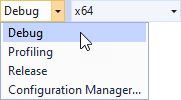
选择您要使用的解决方案配置并运行您的应用程序。
在开发期间,选择 Debug 配置。当您准备好创建生产版本时,选择 Release 配置。
当您单击 Widget Description Layer 节点中的 Back button 时,应用程序将反向播放高亮动画,并启动将 Camera 节点带回以显示整个 Widget Grid List Box 的动画。请注意,本教程不涉及 Buy 按钮的功能。