步骤 2 - 为车身创建新的材料类型和纹理
要使用纹理,您需要支持纹理的材质类型。当您创建一个 Kanzi Studio 项目并在 New Project 窗口中将 Materials 设置为 Import material types manually 时,项目不包含任何材质类型或材质。然而,Kanzi Studio 提供了一组您可以使用和修改的材质类型以满足您的需求。您可以在 <KanziInstallation>/Studio/Asset Library/MaterialTypes 中找到所有可用的材质类型:
Common包含具有通用着色器的材质类型。FragmentPhong包含具有基于像素着色器的高精度低性能材质类型。VertexPhong包含具有基于顶点着色器的低精度快速执行材质类型。PhysicallyBasedRendering包含具有实现基于物理渲染(PBR)原理的着色器的材质类型。
在此步骤中,您使用来自 <KanziInstallation>/Studio/Asset Library/MaterialTypes/VertexPhong 的材质类型。
每当您将3D模型导入到 Kanzi Studio 时,模型中使用的材质也会被导入。您可以在 Library > Materials and Textures 中查看项目中所有可用的材质类型、材质、纹理和画笔。
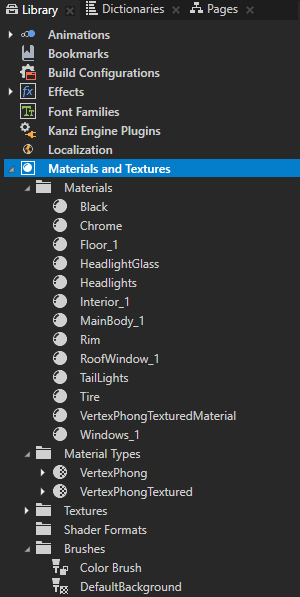
在本步骤中,您首先创建一种新的材质类型,然后为该材质创建一个环境纹理贴图。在本步骤中,为车身使用环境纹理贴图,但在后面的步骤中,将相同的环境贴图分配给其他汽车部件:轮毂、车窗、大灯和镀铬零部件。
创建 VertexPhongTexturedCube 材质类型。
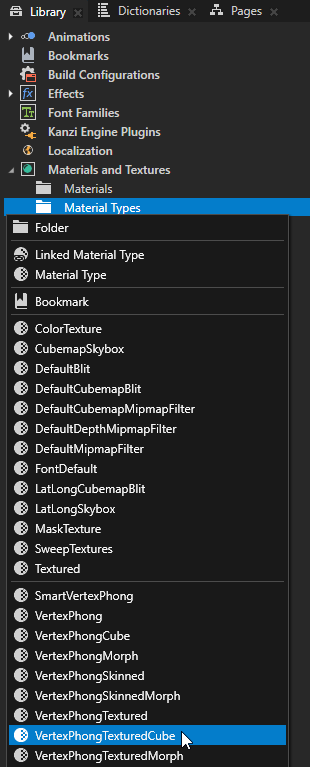
在 Library > Materials and Textures 按 Alt 并右键单击 Material Types 中,选择 VertexPhongTexturedCube。
Kanzi Studio 向 Library 添加了 VertexPhongTexturedCube 材质类型和使用 VertexPhongTexturedCube 材质类型的 VertexPhongTexturedCubeMaterial 材质。
这就是您如何从
<KanziInstallation>/Studio/Asset Library/MaterialTypes向您的 Kanzi Studio 项目中添加任何尚未在项目中的材质类型。小技巧
要将计算机上的任何材质类型加载到您的 Kanzi Studio 项目中,在 Library > Materials and Textures 中右键单击并选择 Load Material Type From Disk。
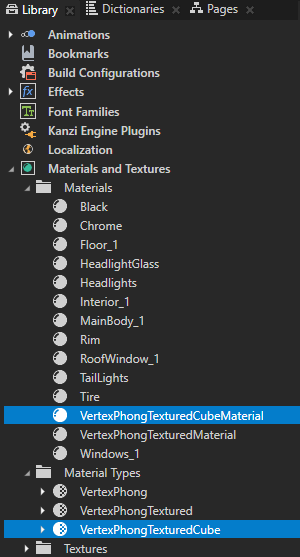
在 Library > Materials and Textures > Materials 中选择 MainBody_1,并在 Properties 中将 Material Type 属性设置为 VertexPhongTexturedCube。
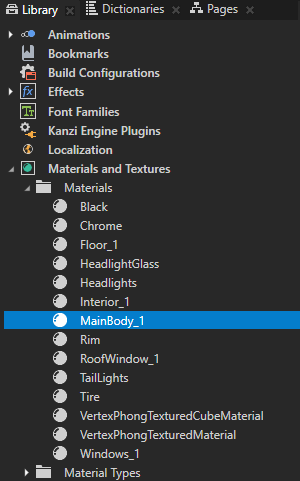
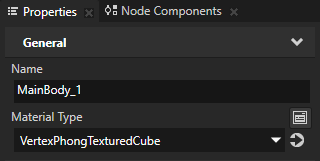
由于您刚刚创建了 VertexPhongTexturedCube 材质类型,因此该类型的任何材质都使用默认纹理。在下一节中,您将为使用 VertexPhongTexturedCube 材质类型的材质创建立方体贴图纹理。
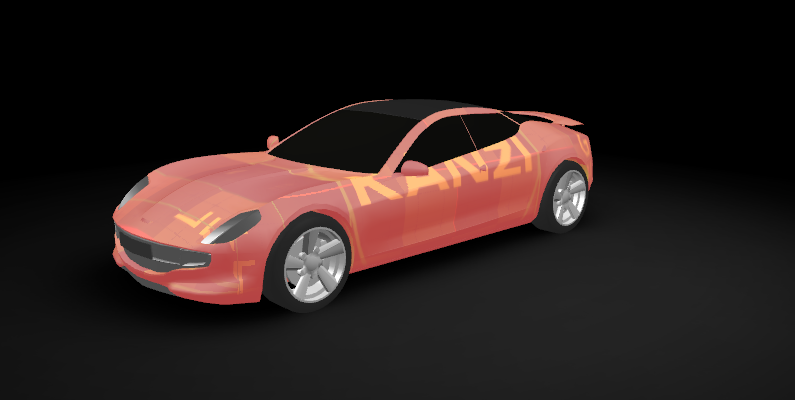
创建车身纹理
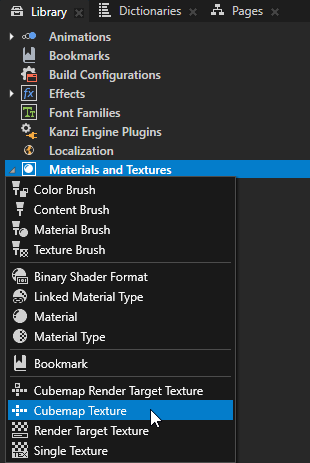
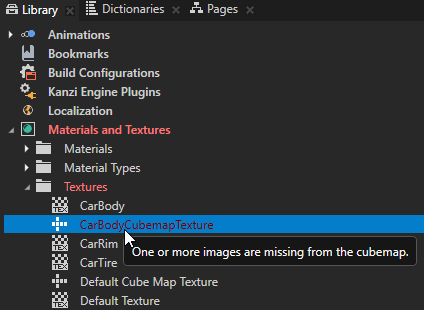
在 Library 按 Alt 并右键单击 Materials and Textures 中,选择 Cubemap Texture,并将纹理命名为 CarBodyCubemapTexture。
当您创建一个立方体贴图纹理时,Kanzi Studio 将其标记为红色类型,因为该纹理尚未为立方体贴图的每个面分配纹理。
您需要在下一步执行操作。
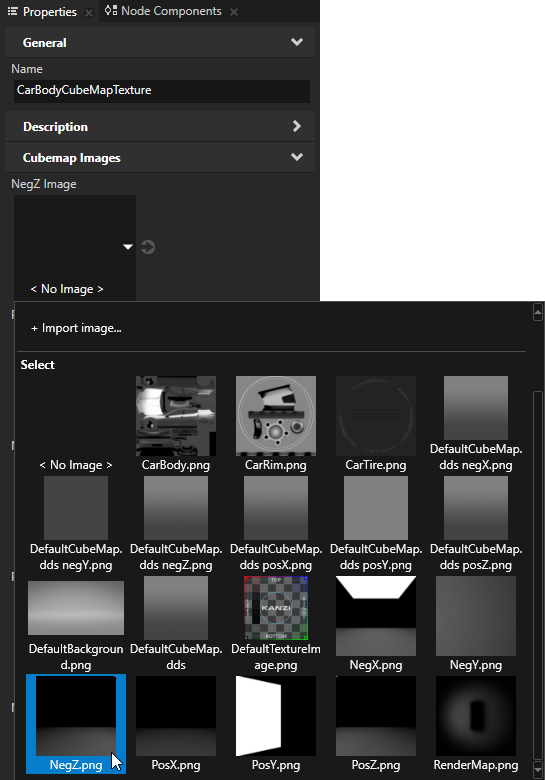
在 Properties 中,将 Cubemap Images 属性设置为其各自的图像。将 NegZ Image 属性设置为图像 NegZ.png,PosZ Image 属性设置为 PosZ.png,依此类推,直到设置完所有图像。
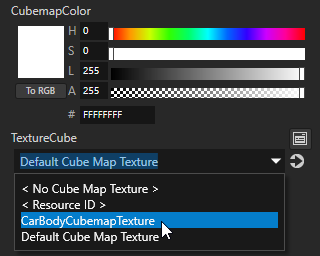
在 Library > Materials and Textures > Materials 中选择 MainBody_1 材质,并在 Properties 中将 TextureCube 属性设置为 CarBodyCubemapTexture。
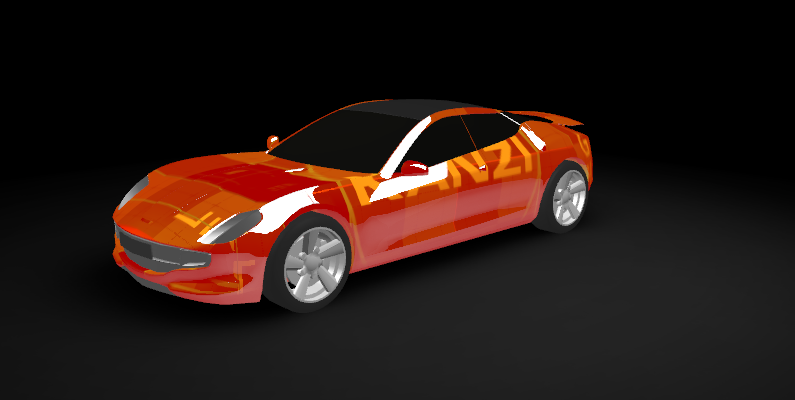
现在,您已将该环境纹理贴图分配到汽车,您可以看到车身上的环境反射。接下来,您将为车身创建纹理。
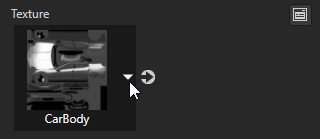
在 MainBody_1 材质的 Properties 中,将 Texture 属性设置为 CarBody 纹理。
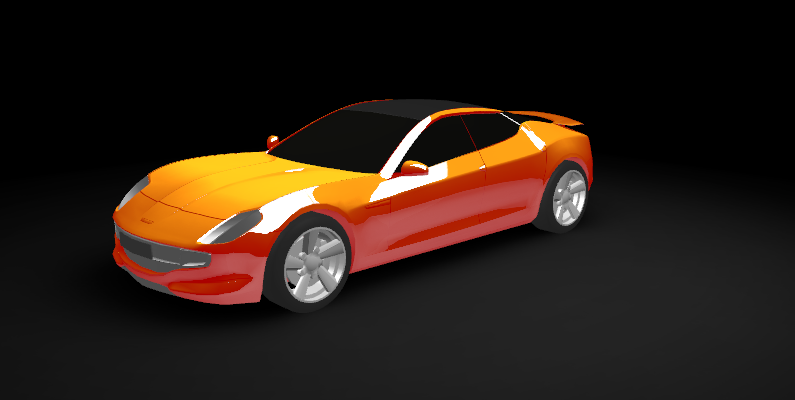
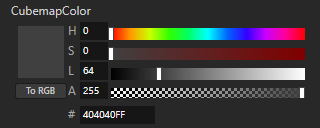
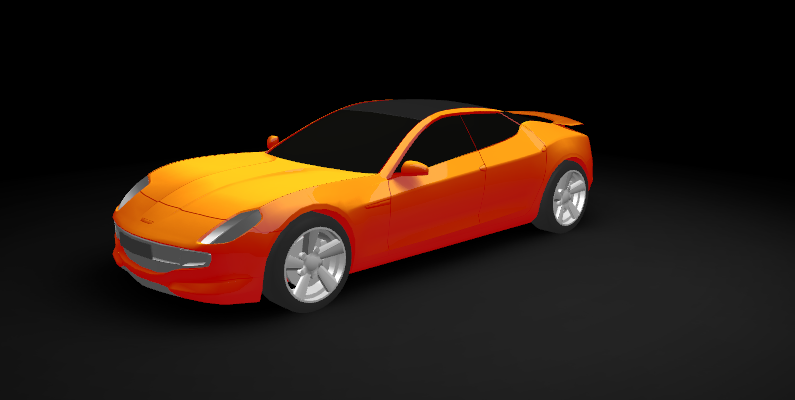
在 MainBody_1 材质的 Properties 中,将 CubemapColor 属性的 Lightness (L) 属性字段设置为 64。
这样可以降低反射亮度以避免颜色加深。
另请参阅
要了解更多关于材质类型的信息,请参阅 使用材料类型。
要详细了解关于材质的信息,请参阅 使用材料。
要了解有关立方体贴图纹理的更多信息,请参阅 使用环境纹理贴图。
要了解有关纹理的更多信息,请参阅 纹理 (Textures)。