步骤 2 - 在帧之间分配渲染
在此步骤中,您创建渲染通道和一个 Progressive Rendering Viewport 2D 节点,以将 Car Scene 节点内容的渲染分配到多个帧中。
将渲染分布到多个渲染通道
在本节中,您将创建渲染通道,并在这些通道中分配 Car Scene 节点内容的渲染。
要将渲染分布到渲染通道,请执行以下操作:
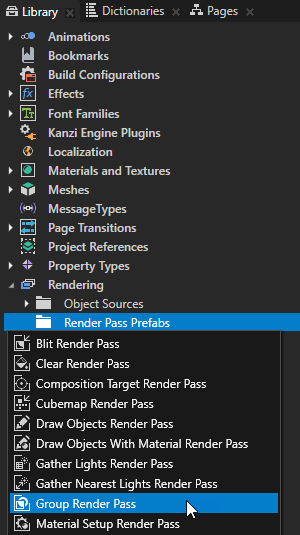
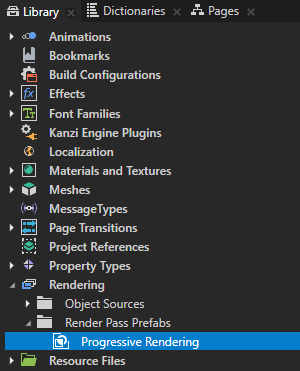
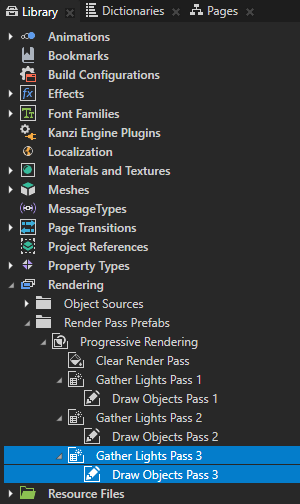
在 Library > Rendering 中,按 Alt 并右键单击 Render Pass Prefabs,选择 Group Render Pass,并将其命名为 Progressive Rendering。
Group Render Pass 允许您收集渲染通道,以便您可以在 Viewport 2D 节点中引用单个渲染通道预设。
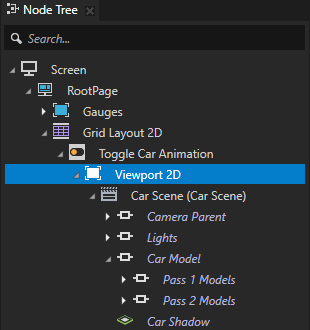
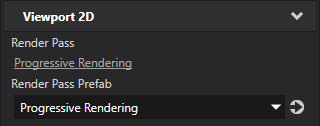
在 Node Tree 中,选择 RootPage > Grid Layout 2D > Toggle Car Animation > Viewport 2D 节点。在 Properties 中,将 Render Pass Prefab 属性设置为 Progressive Rendering。
Kanzi 现在使用 Progressive Rendering 渲染通道渲染 Viewport 2D 节点。渲染通道尚未绘制任何内容,这就是 Preview 未显示汽车的原因。
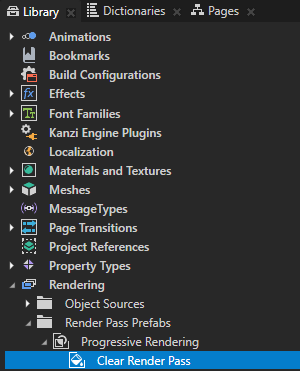
在 Progressive Rendering 渲染通道预设中的 Library 中,创建一个 Clear Render Pass 渲染通道。
此渲染过程清除深度缓冲区。
渲染显示内部、轮胎和窗户模型的节点:
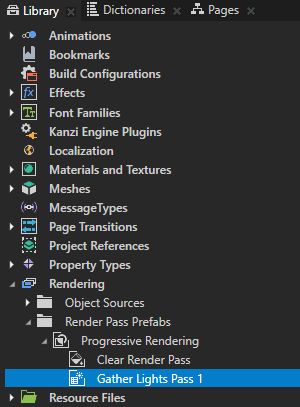
在 Progressive Rendering 渲染通道预设中的 Library 中,创建一个 Gather Lights Render Pass 渲染通道并将其命名为 Gather Lights Pass 1。
此渲染通道在 Viewport 2D 节点中收集 Light 节点,该节点使用 Progressive Rendering 渲染通道预设。
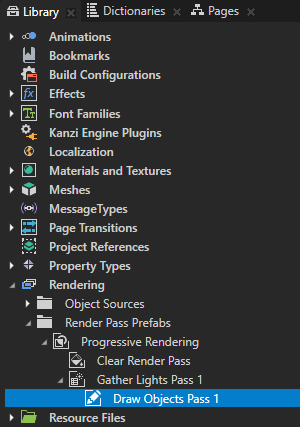
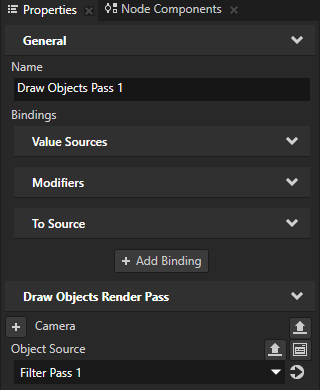
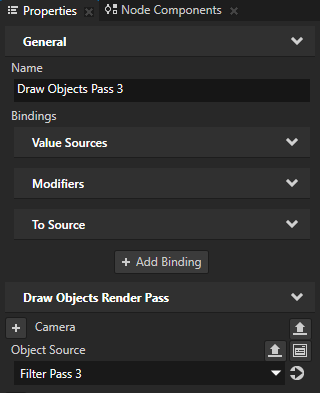
在 Gather Lights Pass 1 中的 Library 中,创建一个 Draw Objects Render Pass 并将其命名为 Draw Objects Pass 1。在 Properties 中,添加 Object Source 属性并将其设置为 Filter Pass 1。
使用 Object Source 属性设置 Draw Objects Pass 1 渲染通道,以渲染由 Filter Pass 1 标签过滤器收集的 Pass 1 Models 节点。
Draw Objects Pass 1 渲染通道使用其父 Gather Lights Render Pass 渲染通道收集的 Light 节点来渲染 Pass 1 Models 节点。
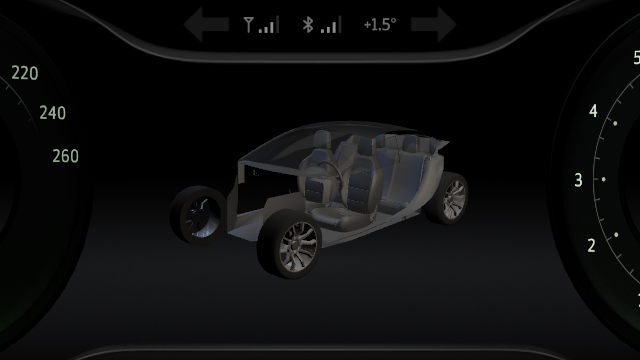
渲染显示汽车模型外部部件的节点:
在 Library 中,选择 Gather Lights Pass 1 渲染通道,按 Ctrl D 以复制渲染通道,并将其重命名为 Gather Lights Pass 2。
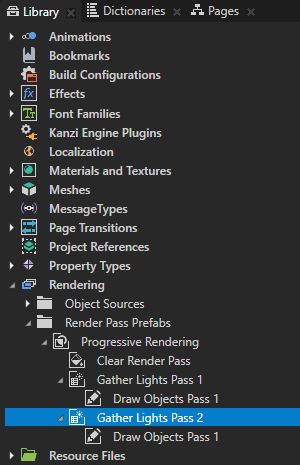
在 Gather Lights Pass 2 渲染通道中,选择 Draw Objects Pass 1 渲染通道,并在 Properties 中设置:
Name 到 Draw Objects Pass 2
Object Source 到 Filter Pass 2
您将 Draw Objects Pass 2 渲染通道设置为渲染由 Filter Pass 2 标签过滤器收集的 Pass 2 Models 节点。
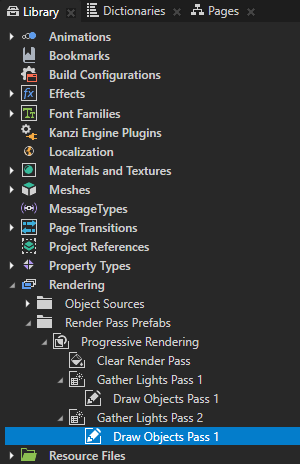
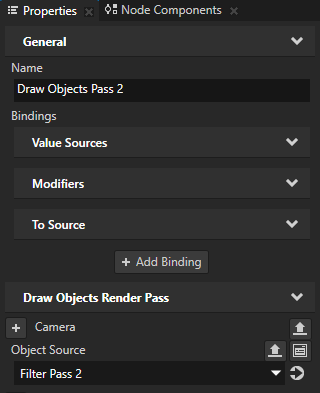
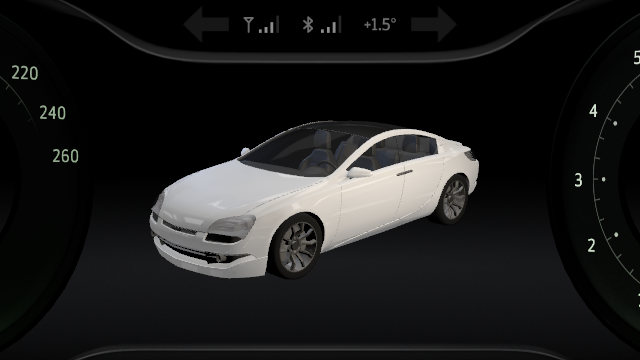
要渲染显示汽车阴影的节点,请重复上一步,但将渲染通道重命名为 Gather Lights Pass 3 和 Draw Objects Pass 3,并将 Object Source 属性设置为 Filter Pass 3。
在帧上分布渲染
在本节中,您将创建一个 Progressive Rendering Viewport 2D 节点,以在多个帧中分配 Car Scene 节点中内容的渲染。
要在帧上分布渲染,请执行以下操作:
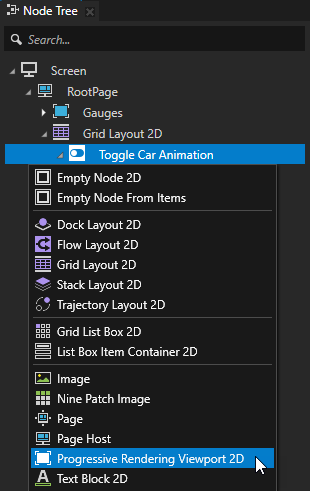
在 Node Tree 中,按 Alt 并右键单击 Toggle Car Animation 节点,并选择 Progressive Rendering Viewport 2D。
Progressive Rendering Viewport 2D 节点将渲染工作负载分配到多个帧中。这减少了在单个帧中渲染内容所需的工作量和时间。Kanzi 在每一帧中更新所有未由 Progressive Rendering Viewport 2D 节点渲染的内容。
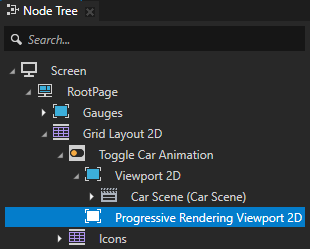
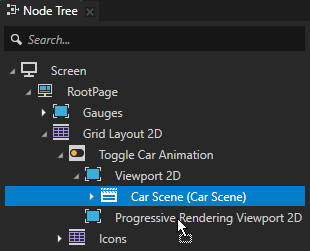
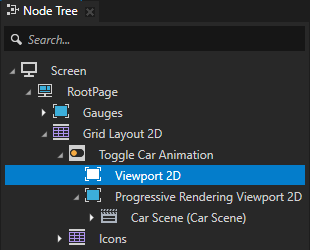
在 Node Tree 中,将 Car Scene 节点从 Viewport 2D 节点拖到 Progressive Rendering Viewport 2D 节点。选择 Viewport 2D 节点并按下 Delete。
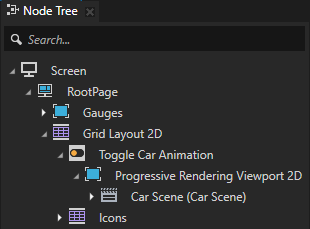
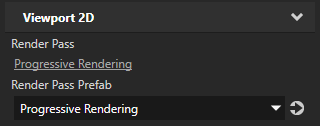
在 Node Tree 中,选择 Progressive Rendering Viewport 2D 节点,并在 Properties 中,将 Render Pass Prefab 属性设置为 Progressive Rendering。
您将 Kanzi 设置为使用 Progressive Rendering 渲染通道预设渲染 Progressive Rendering Viewport 2D 节点。
Kanzi 每 n 帧更新由 Progressive Rendering Viewport 2D 节点渲染的所有内容,其中 n 是 Progressive Rendering Viewport 2D 节点使用的渲染通道预设的子渲染通道数。
由于 Progressive Rendering 渲染通道预设包含一个 Clear Render Pass 和三个 Gather Lights Render Pass 渲染通道,Kanzi 每四帧更新一次 Progressive Rendering Viewport 2D 节点中的内容。
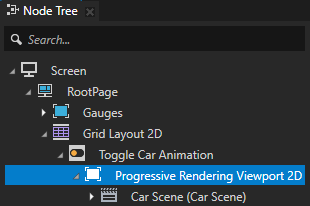
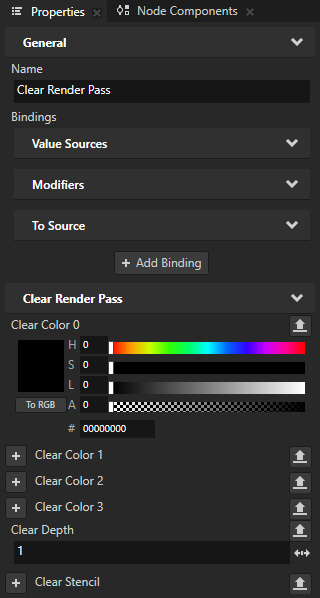
在 Library > Rendering > Render Pass Prefabs > Progressive Rendering 中,选择 Clear Render Pass。在 Properties 中,添加 Clear Color 0 属性,并设置:
将 Lightness (L) 设为 0。
Alpha (A) 到 0
通过这种方式,您通过透明的黑色清除颜色缓冲区。
要在 Preview 中使用这些更改,请在 Preview 中单击 Restart。

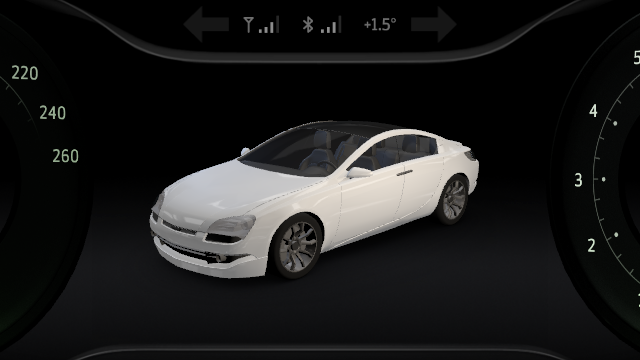
Kanzi 现在使用 Progressive Rendering Viewport 2D 节点在四帧中更新 Car Model 节点中的内容:
清除颜色缓冲区。
收集灯光并渲染 Pass 1 Models 节点。
收集灯光并渲染 Pass 2 Models 节点。
收集灯光并渲染 Car Shadow 节点。
Kanzi 每帧更新 Viewport 2D 节点 Gauges 中的内容。
另请参阅
如需了解有关渐进渲染的更多信息,请参阅 在多个帧之间分配渲染。
要了解有关 Kanzi 中渲染通道的更多信息,请参阅 渲染 (Rendering)。
要详细了解如何在您的 Kanzi 应用程序中使用过滤器,请参阅 过滤器 (Filters)。
要了解有关对象源的更多信息,请参阅 使用对象源。