步骤 3 - 长按以放置一个大头针
使用 Long-Press Manipulator 使用户能够在您的 Kanzi 应用程序中长按节点。
这样可以让应用程序在用户于节点上按下指针并按住达到您在 Long-Press Manipulator 中设定的时长时做出响应。
在 Kanzi Studio 中,您可以使用 Long-Press Manipulator 组件将长按操作器安装到节点,并控制该长按操作器的行为。
在这一步中,您将使用 Long-Press Manipulator 组件和长按操纵器,使用户通过长按地图将别针放置在地图上。例如,这样您可以使用户在地图上标记一个感兴趣的点。
放置别针
在本节中,您将创建和使用 Long-Press Manipulator 组件和长按操纵器,在用户长按地图时放置别针到地图上。
要放置别针:
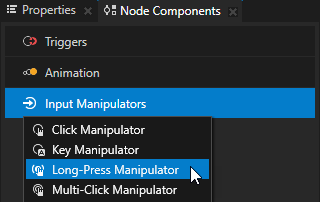
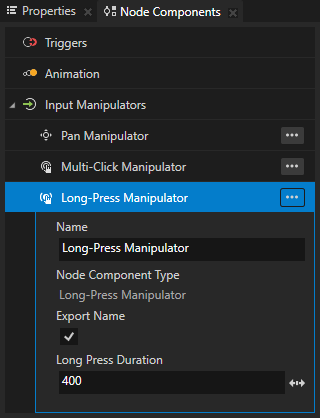
在 Node Tree 中的 Kanzi Studio 中选择 Map 节点,在 Node Components > Input Manipulators 部分创建一个 Long-Press Manipulator 组件,并将 Long Press Duration 属性设置为 400。
通过这种方式,您可以在 Map 节点上安装一个长按操作器,当用户按住 Map 节点 400 毫秒时,该操作器可以识别长按手势。
选择 File > Export > Export KZB。
在 Visual Studio 中的
Application::onProjectLoaded函数中,在获取 Map 节点之后并在订阅输入操控器消息之前,将 Pin 预设实例化为 Map 节点的子节点:void onProjectLoaded() override { ... // Get the reference to the prefab template Pin which shows the pin icon. ResourceManager* resourceManager = domain->getResourceManager(); PrefabTemplateSharedPtr pinPrefabTemplate = resourceManager->acquireResource<PrefabTemplate>("kzb://pan_zoom_tap/Prefabs/Pin"); // Instantiate the Pin prefab. m_pin = pinPrefabTemplate->instantiate<Node2D>("Pin"); // Add to the Map node the instance of the Pin prefab you created. mapNode->addChild(m_pin); // Disable the Visible property of the Pin prefab instance. // You enable the Visible property when the user drops a pin. m_pin->setVisible(false); ... } private: ... // Define a member variable for the Pin prefab instance. Node2DSharedPtr m_pin; };
在
PanZoomTap类的私有部分中定义长按消息的处理程序:// Define the handler for the LongPressManipulator::LongPressMessage message from the nodes // that have an input manipulator which generates the long-press message. void onLongPress(LongPressManipulator::LongPressMessageArguments& messageArguments) { // Get from the message arguments the node that the user long-presses. Node2DSharedPtr mapNode = dynamic_pointer_cast<Node2D>(messageArguments.getSource()); // Get the point where the user long-pressed. Vector2 pointerPosition = messageArguments.getPoint(); // Create a render transformation that contains the translation to the point where the user long-pressed. SRTValue2D pinSRT = SRTValue2D::createTranslation(pointerPosition); // Position the tip of the pin where the user long-pressed. pinSRT.setTranslation(pinSRT.getTranslation() - Vector2(m_pin->getActualWidth() * 0.5f, m_pin->getActualHeight() * 0.8f)); // Apply the transformation to the Pin prefab instance. m_pin->setRenderTransformation(pinSRT); // Enable the Visible property of the Pin prefab instance. m_pin->setVisible(true); }
在
Application::onProjectLoaded函数中,订阅 Map 节点的长按消息:void onProjectLoaded() override { ... // Subscribe to the LongPressManipulator::LongPressMessage message at the Map node. // The LongPressManipulator manipulator generates this message when the user presses the node // for the amount of milliseconds you set in the LongPressManipulator::setPressDuration function. mapNode->addMessageHandler(LongPressManipulator::LongPressMessage, bind(&PanZoomTap::onLongPress, this, placeholders::_1)); }
构建和运行应用程序。
在应用程序中长按地图的任意位置,以放置别针。
保持放置别针的大小和方向
当用户缩放和旋转地图时,放置的图钉会随地图一起改变大小和旋转。这是因为您将显示图钉的 Pin 预设实例化为 Map 节点的子节点。在本节中,您将添加代码以保持图钉的大小和方向不变。
要保持放置别针的大小和方向:
在
PanZoomTap类的私有部分中,创建一个函数,该函数根据 Map 节点的缩放和旋转来更新放置的图钉的缩放和旋转:// Update the scale and rotation of the Pin prefab instance. void updatePinScaleAndRotation(SRTValue2D mapSRT, SRTValue2D pinSRT) { // Set the rotation to be the negative of the rotation of the Map node. pinSRT.setRotation(-mapSRT.getRotation()); // Set the scale to be the inverse of the scale of the Map node. pinSRT.setScale(componentWiseDivide(Vector2(1.0f, 1.0f), mapSRT.getScale())); // Apply the render transformation to the Pin prefab instance. m_pin->setRenderTransformation(pinSRT); }
在您在上一节中添加的
onLongPress函数中,首先获取 Map 节点的渲染变换,然后调用updatePinScaleAndRotation函数。通过这种方式,无论 Map 节点的缩放级别和旋转如何,您都可以保持 Pin 的大小和方向不变。
替换 (Replace)
// Apply the transformation to the Pin prefab instance.
m_pin->setRenderTransformation(pinSRT);
通过
// Get the Render Transformation property of the Map node.
SRTValue2D mapSRT = mapNode->getRenderTransformation();

// Update the scale and position of the Pin prefab instance.
updatePinScaleAndRotation(mapSRT, pinSRT);
在您在本教程的第 2 步中创建的
onPinchMoved函数的末尾,当用户缩放和旋转地图时,更新放置的图钉的缩放和旋转:void onPinchMoved(PinchManipulator::MovedMessageArguments& messageArguments) { ... // Get the Render Transformation property of the Pin prefab instance. SRTValue2D pinSRT = m_pin->getRenderTransformation(); // Update the scale and position of the Pin prefab instance. updatePinScaleAndRotation(*mapWorldSRT, pinSRT); }
在您在本教程的第 2 步中创建的
onNodeDoubleTapped函数的末尾,当用户双击地图时,重置放置的图钉的缩放和旋转:void onNodeDoubleTapped(MultiClickManipulator::MultiClickMessageArguments& messageArguments) { ... // Reset the rotation and scale of the Pin prefab instance. SRTValue2D pinSRT = m_pin->getRenderTransformation(); pinSRT = SRTValue2D(Vector2(1.0f, 1.0f), 0, pinSRT.getTranslation()); m_pin->setRenderTransformation(pinSRT); }
构建应用程序并将其部署到 Android 设备。
在缩放和旋转地图时,放置的别针保持原有大小和方向。
接下来该做什么?
在本教程中,您学习了如何使用 Kanzi 手势组件和输入操控器来启用平移、缩放、旋转、重置位置以及在地图上放置图钉。现在您可以:
学习如何使用拖放操纵器重新排列导航栏中的按钮。请参阅 教程:拖放。
了解如何使用 Kanzi Engine API 从您在 Kanzi Studio 中创建的 kzb 文件中访问节点和资源,获取和设置 Kanzi 节点的属性值,使用自定义属性类型,实例化预设件,加载和播放动画,从 kzb 文件中加载资源,使用 Kanzi 消息定义事件,以及将已完成的应用程序部署到 Android 设备。请参阅 教程:Kanzi Engine API 高级使用。
另请参阅
要详细了解长按操纵器,请参阅 使用 Long-Press Manipulator。
要了解如何将您的 Kanzi 应用程序部署到不同的平台,请参阅 部署 Kanzi 应用程序。