使用 Drag-And-Drop Manipulator
使用 Drag-And-Drop Manipulator 使用户能够在您的 Kanzi 应用程序中拖放节点。
请参阅 启用节点的拖放手势。
使用 Drag-And-Drop Manipulator 触发器对拖放手势做出反应。例如,您可以在用户拖放该节点时设置节点的外观。
请参阅 使用 Drag-And-Drop Manipulator 触发器。
Drag-And-Drop Manipulator 是您可以用来在 Kanzi 应用程序中的节点添加手势识别的输入操控器之一。请参阅 使用输入操纵器。
通过完成教程学习如何使用 Drag-And-Drop Manipulator。请参阅 教程:拖放。
启用节点的拖放手势
要启用节点的拖放手势:
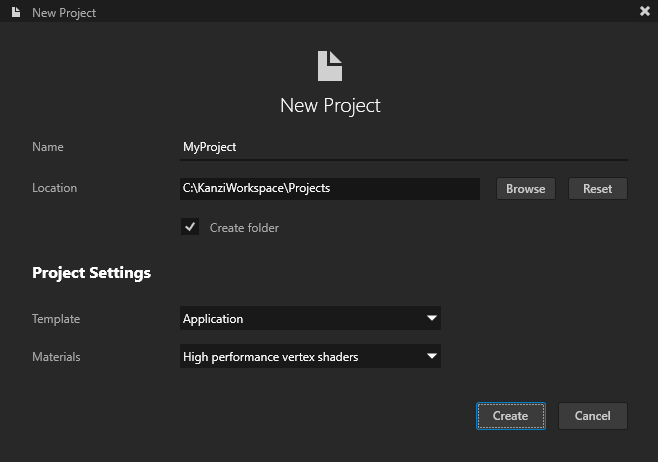
在 Kanzi Studio 中,使用 Application 模板创建一个项目。
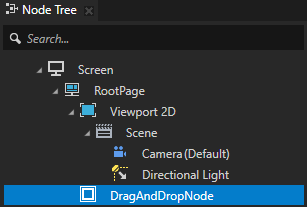
在 Node Tree 中创建一个您想启用拖放手势的节点。
例如,创建一个 Empty Node 2D 节点并将其命名为 DragAndDropNode。
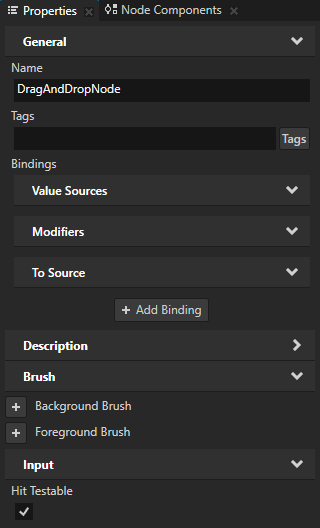
在 Node Tree 中选择您在上一步中创建的节点,在 Properties 中添加 Input > Hit Testable 属性,并将其设置为启用。
当您启用属性时,用户能选取节点。
默认情况下,Button、Toggle Button、List Box Item Container、Scroll View、Slider 和 Text Box 节点启用了命中测试。
请参阅 定义哪个节点接收输入。
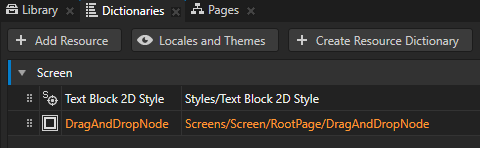
在 Node Tree 按 Alt 并右键单击 中,创建的节点并选择 Alias。
Kanzi Studio 创建一个指向您创建别名的节点的别名,并将其添加到其最近的包含资源字典的祖先节点的资源字典中。
使用
#符号后跟别名名称访问别名目标节点。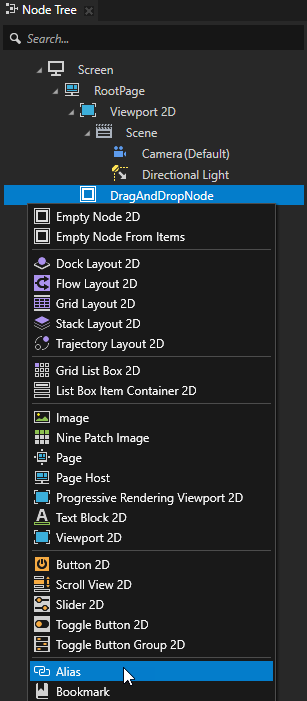
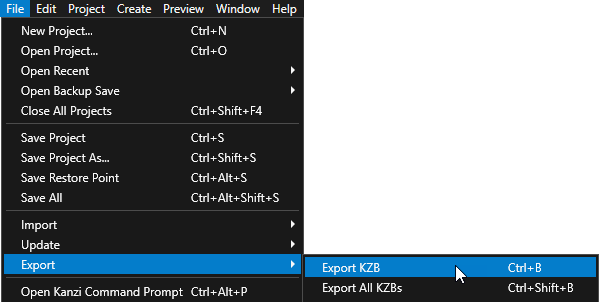
选择 File > Export > Export KZB。
Kanzi Studio creates the kzb file and configuration files from your Kanzi Studio project. Kanzi Studio stores the exported files in the
<ProjectName>/Application/bindirectory or the location that you set in Project > Properties in the Binary Export Directory property. The kzb file contains all nodes and resources from your Kanzi Studio project, except the resources that you mark in a localization table as locale packs.当您从 Visual Studio 运行您的 Kanzi 应用程序时,您的应用程序会加载 kzb 文件和配置文件。
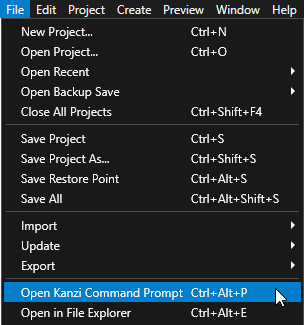
在 Kanzi Studio 中,选择 File > Open Kanzi Command Prompt。
Kanzi Command Prompt 打开 Windows 命令提示符,并为您打开 Kanzi Command Prompt 的 Kanzi 版本设置 Kanzi 环境变量。
使用 Kanzi Command Prompt 访问 Kanzi 实用程序和构建工具,例如 Gradle、SCons 和 CMake,而无需使用绝对路径或设置环境变量。
小技巧
您可以在 Windows 开始菜单的 Rightware 目录中找到 Kanzi Command Prompt。
当您安装了多个版本的 Kanzi 时,确保将您要在该命令提示符下使用的 Kanzi 版本的 Kanzi Command Prompt 启动。
在
<ProjectName>/Application目录中的 Kanzi Command Prompt 中,运行生成应用程序的 Visual Studio 解决方案的脚本。例如,如果您使用 Visual Studio 2019,运行
generate_cmake_vs2019_solution.bat
此脚本在目录
<ProjectName>/Application/build_vs2019中为应用程序生成一个 Visual Studio 解决方案。在 Visual Studio 中,打开
<ProjectName>/Application/build_vs<Version>/<ProjectName>.slnVisual Studio 解决方案,并在实现应用程序逻辑的文件中创建和配置DragAndDropManipulator:为拖放消息定义处理程序。
例如,在实现应用程序逻辑的类的 public 部分后添加:
private:
    // Define the handler for the DragAndDropManipulator::StartedMessage message from 2D nodes
    // that have an input manipulator which generates drag-and-drop messages.
    // This prepares the 2D node for dragging.
    void onDragStarted(DragAndDropManipulator::StartedMessageArguments& messageArguments)
    {
        // Get from the message arguments the node that the user drags.
        Node2DSharedPtr dragAndDropNode = dynamic_pointer_cast<Node2D>(messageArguments.getSource());

        if (!dragAndDropNode)
        {
            return;
        }

        // Save the point from which the user started dragging the node,
        // relative to the origin (by default the top left corner) of the node.
        m_dragGrabOffset = messageArguments.getPoint();

        // When starting a drag-and-drop gesture on the node, bring the node to front.
        dragAndDropNode->moveToFront();
    }

    // Define the handler for the DragAndDropManipulator::MovedMessage message from 2D nodes
    // that have an input manipulator which generates drag-and-drop messages.
    // This translates (moves) the node by the distance the user drags it.
    void onDragMoved(DragAndDropManipulator::MovedMessageArguments& messageArguments)
    {
        // Get from the message arguments the node that the user drags.
        Node2DSharedPtr dragAndDropNode = dynamic_pointer_cast<Node2D>(messageArguments.getSource());

        if (!dragAndDropNode)
        {
            return;
        }

        // Move the node by traveled distance given by getPoint, relative to the origin of the node.
        // To keep dragging from the same point on the node, subtract the grab offset.
        SRTValue2D transform = dragAndDropNode->getLayoutTransformation();
        transform.translate(messageArguments.getPoint() - m_dragGrabOffset);
        dragAndDropNode->setLayoutTransformation(transform);
    }

    // Offset from the top left corner of the DragAndDropNode where the user pressed down or clicked on it.
    Vector2 m_dragGrabOffset;
在
Application::onProjectLoaded函数中创建一个DragAndDropManipulator并订阅其消息。例如,添加:
void onProjectLoaded() override
{
    ScreenSharedPtr screen = getScreen();
    Domain* domain = getDomain();

    // Get the DragAndDropNode using its alias.
    NodeSharedPtr dragAndDropNode = screen->lookupNode<Node>("#DragAndDropNode");

    // Create an input manipulator that generates drag-and-drop messages.
    DragAndDropManipulatorSharedPtr nodeDragAndDropManipulator = DragAndDropManipulator::create(domain);

    // Add the input manipulator to the DragAndDropNode.
    dragAndDropNode->addInputManipulator(nodeDragAndDropManipulator);

    // Set the duration of the long press before the drag-and-drop starts to 200 ms. The default is 500 ms.
    // This is the amount of time the user has to press the node before they can start dragging it.
    nodeDragAndDropManipulator->setPressDuration(chrono::milliseconds(200));

    // Subscribe to the DragAndDropManipulator::StartedMessage message at the DragAndDropNode node.
    // The DragAndDropManipulator generates this message when the user has pressed the node
    // for the duration set by DragAndDropManipulator::setPressDuration.
    dragAndDropNode->addMessageHandler(DragAndDropManipulator::StartedMessage, bind(&MyProject::onDragStarted, this, placeholders::_1));

    // Subscribe to the DragAndDropManipulator::MovedMessage message at the DragAndDropNode node.
    // The DragAndDropManipulator generates this message when the finger or mouse moves.
    dragAndDropNode->addMessageHandler(DragAndDropManipulator::MovedMessage, bind(&MyProject::onDragMoved, this, placeholders::_1));
}
构建并运行您的应用程序。请参阅 部署 Kanzi 应用程序。
在应用程序中长按并拖动启用拖放手势的节点。

使用 Drag-And-Drop Manipulator 触发器
使用 Drag-And-Drop Manipulator 触发器对拖放手势做出反应。例如,您可以在用户拖放该节点时设置节点的外观。
Drag-And-Drop Manipulator 具有以下触发器:
当用户长时间按住节点以便输入操控器识别拖放手势时,Drag and Drop Started 触发器被激活。
当用户使用拖放手势拖动节点时,Drag and Drop Moved 触发器被触发。
当用户通过抬起手指或释放鼠标按钮结束拖放手势时,Drag and Drop Finished 触发器被激活。
当在拖放手势期间焦点移出节点时,Drag and Drop Canceled 触发器被触发。
要使用 Drag-And-Drop Manipulator 触发器:
为节点启用拖放手势。请参阅 启用节点的拖放手势。
定义您要通过 Drag-And-Drop Manipulator 触发器设置的行为。例如,创建一个状态管理器,在其中定义状态,以便在 Drag and Drop Started、Drag and Drop Moved、Drag and Drop Finished 和 Drag and Drop Canceled 触发器被触发时设置节点的外观。请参阅 创建状态机。
添加和配置 Drag-And-Drop Manipulator 触发器:
在 Node Tree 中选择您要添加触发器的节点,并在 Node Components > Triggers 中添加一个 Drag-And-Drop Manipulator 触发器。
例如:在 Node Tree 中,选择您为其启用了拖放手势的节点,在 Node Components 按 Alt 并右键单击 Triggers 中,选择 Message Trigger > Drag and Drop Manipulator > Drag and Drop Started。
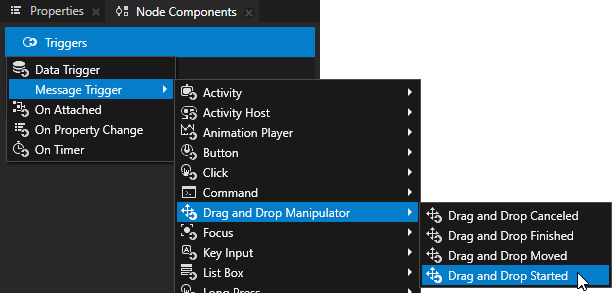
在您上一步创建的触发器中,禁用 Set Message Handled 属性。
当您禁用 Set Message Handled 属性时,此触发器会拦截消息,但不会停止它。这样,您可以让输入操控器处理该消息。
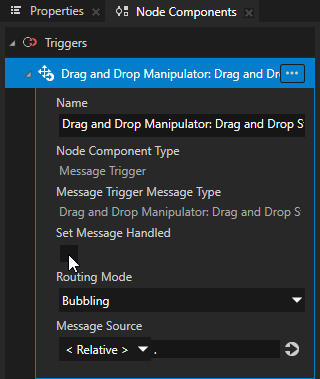
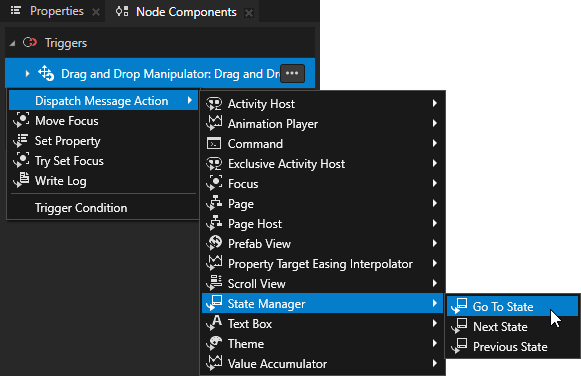
在 Node Components 按 Alt 并右键单击 中,选择您创建的触发器,选择一个操作,并进行配置。
例如,选择 Dispatch Message Action > State Manager > Go to State,然后在操作集中:
将 Target Item 到您启用了拖放手势的节点。
State 到设置节点外观的状态,当 Drag and Drop Started 触发器被触发时。
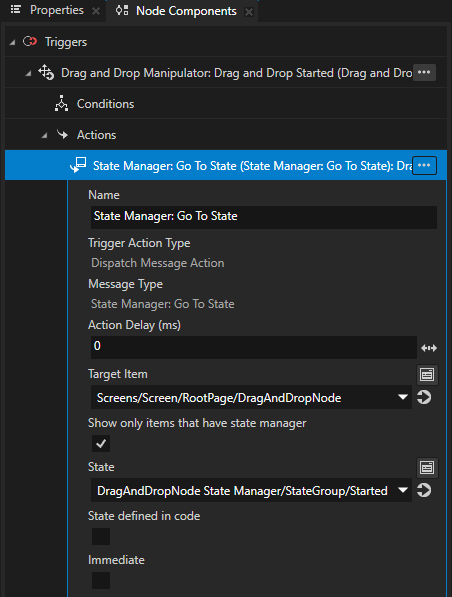
重复上一步,以添加并配置更多 Drag-And-Drop Manipulator 触发器。
例如,添加 Drag and Drop Moved 和 Drag and Drop Finished 触发器。
在每个触发器的 Go to State 操作中,将 State 设置为当该触发器被触发时设置节点外观的状态。
选择 File > Export > Export KZB。
构建并运行您的应用程序。请参阅 部署 Kanzi 应用程序。
在应用程序中长按并拖动启用拖放手势的节点。