使用 Scroll View 节点
Scroll View 节点可用于定义根据用户输入和基于物理的动画生成滚动消息的区域。
例如,您可以使用由 Scroll View 节点生成的滚动消息及其参数来移动地图平面或旋转网格。
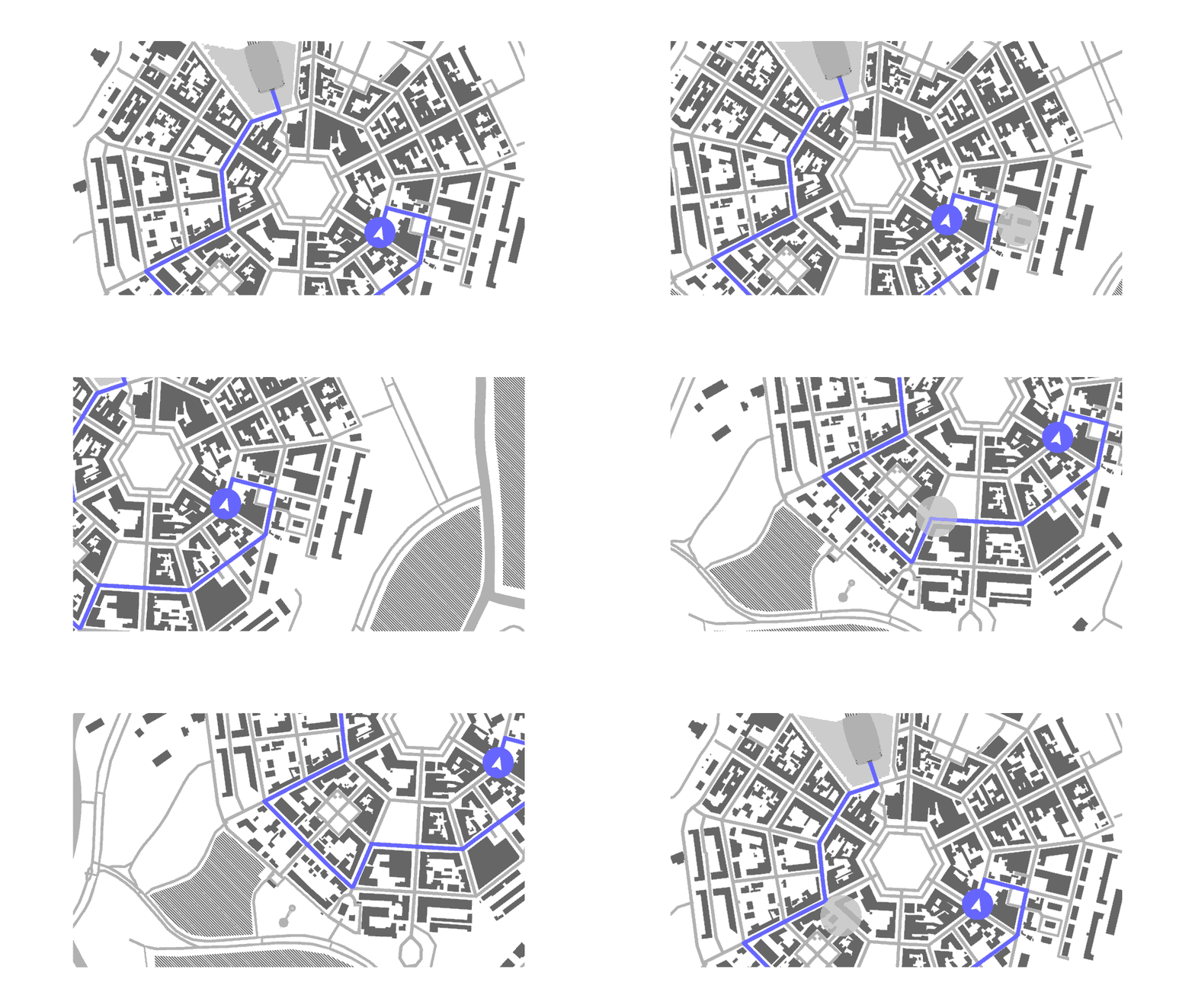
Scroll View 定义了一个交互区域,并发送反映滚动位置变化的消息。Scroll View 节点的位置和大小定义了 Scroll View 注册输入的位置。在创建 Scroll View 节点后,您必须定义对滚动位置变化的响应。例如,您可以使用 Scroll View 节点来移动 3D 对象。请参阅 教程:旋转 3D 模型。
Scroll View 通过 Scrolled 触发器报告其滚动位置的变化。您可以使用操作来响应这些消息。例如,您可以在滚动期间设置节点的外观。
Scroll View 3D 是一个3D控件,因此请注意朝向查看者的方向很重要。Scroll View 节点沿着位于 Scroll View 节点中心的焦点平面跟踪用户输入。确保将此焦点平面不旋转到垂直于或背向查看者的方向。
您可以嵌套 Scroll View 节点以在不同轴上滚动应用程序的各个部分。请参阅 嵌套 Scroll View 节点。
您在 Kanzi Studio 中创建的 Scroll View 节点默认启用 Focusable 属性,并且可以接收焦点。当 Scroll View 节点具有焦点时,要滚动该节点,您可以使用默认的键盘键 ←、→、↑ 和 ↓。
创建一个 Scroll View 节点
要创建 Scroll View 节点:
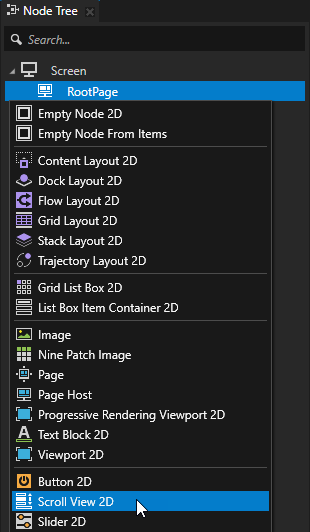
在 Node Tree 中,按 Alt 并右键单击 您要创建 Scroll View 节点的节点,并选择 Scroll View 3D 或 Scroll View 2D。
您只能在 3D 节点中创建 3D 节点,例如 Scene 节点,并且只能在 2D 节点中创建 2D 节点。
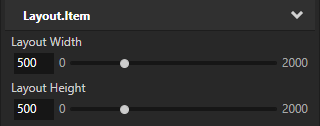
(可选) 如果您创建了一个 Scroll View 2D 节点,在 Properties 中,添加并设置 Layout Width 和 Layout Height 属性。
默认情况下,Scroll View 2D 节点会拉伸以占据所有可用空间。
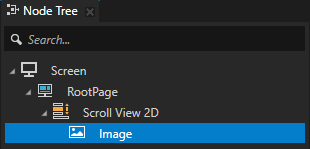
在 Scroll View 节点中,创建一个节点,该节点用作您希望通过滚动手势控制的输入平面。
例如,如果您创建了一个 Scroll View 3D 节点,请创建一个 Plane 节点,如果您创建了一个 Scroll View 2D,请创建一个 Image 节点。
将您在上一步中创建的节点的转换绑定到 Scroll View 节点的滚动位置。
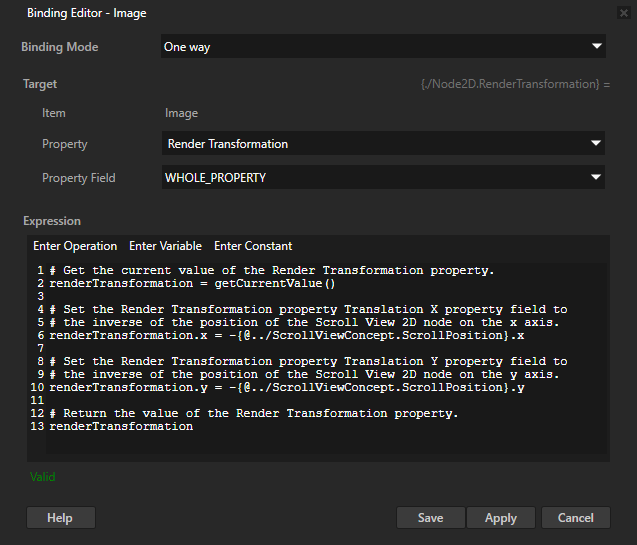
例如:在 Node Tree 中,选择 Image 节点,在 Properties 中,点击 + Add Binding,并在 Binding Editor 中设置:
Property 到 Render Transformation
Expression 到
# Get the current value of the Render Transformation property.
renderTransformation = getCurrentValue()

# Set the Render Transformation property Translation X property field to
# the inverse of the position of the Scroll View 2D node on the x axis.
renderTransformation.x = -{@../ScrollViewConcept.ScrollPosition}.x

# Set the Render Transformation property Translation Y property field to
# the inverse of the position of the Scroll View 2D node on the y axis.
renderTransformation.y = -{@../ScrollViewConcept.ScrollPosition}.y

# Return the value of the Render Transformation property.
renderTransformation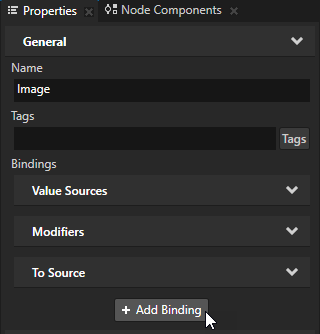
单击 Save。
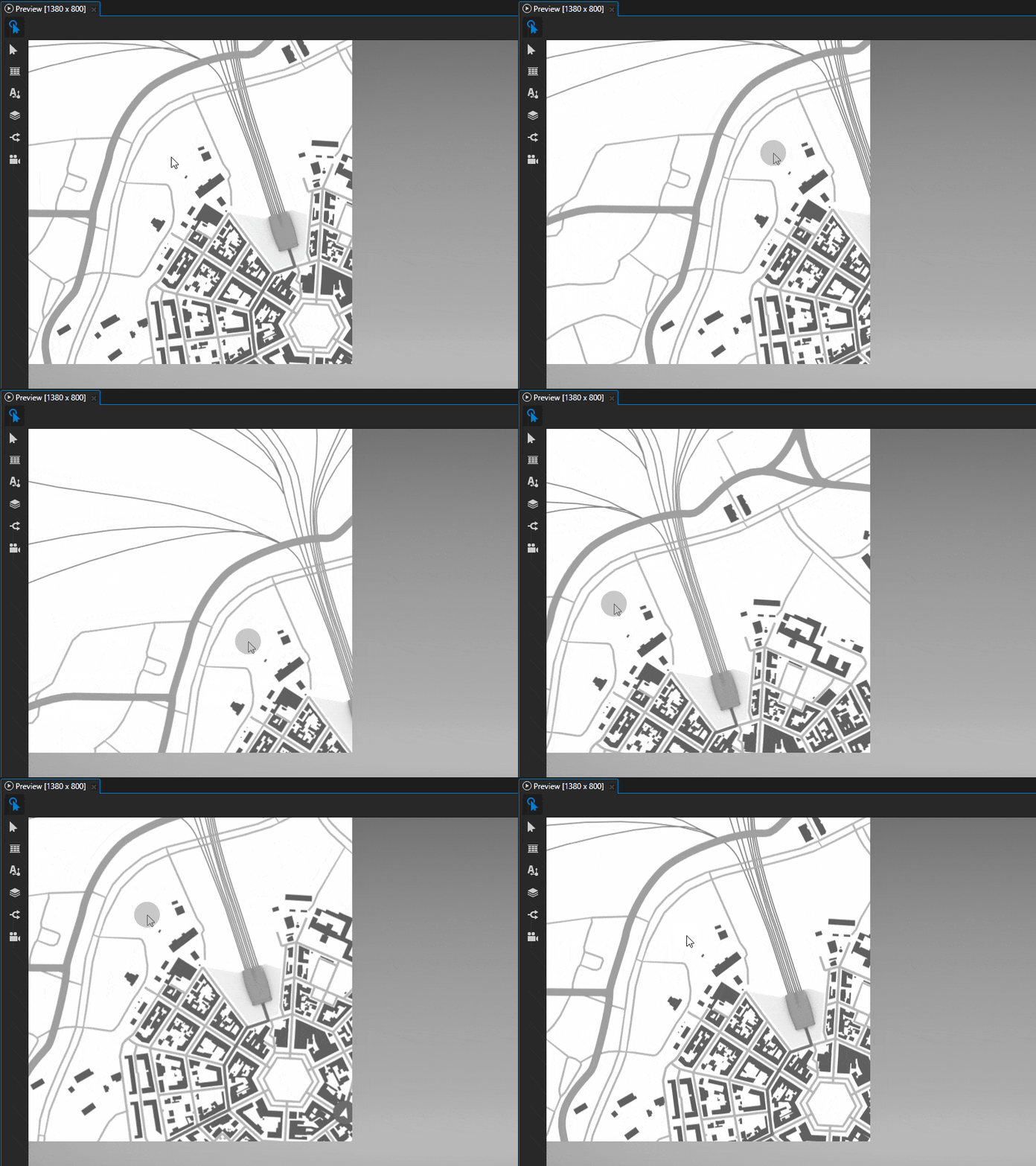
在 Preview 中,当您点击并拖动指针到 Scroll View 节点时,Image 节点会随指针移动。
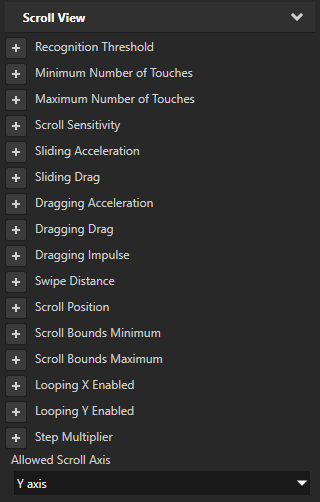
(可选) 在 Node Tree 中,选择 Scroll View 节点。在 Properties 中,添加并设置 Scroll View 属性以控制 Scroll View 节点如何响应用户输入。
例如:
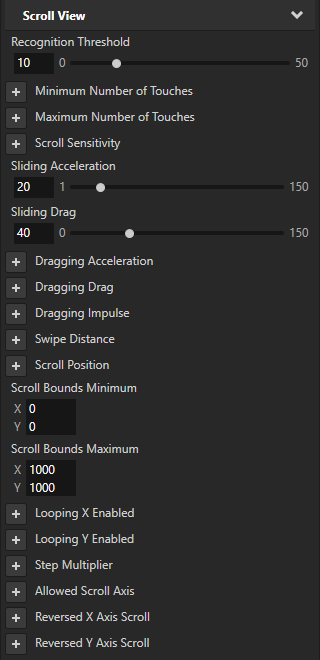
Recognition Threshold 属性设置在 x 和 y 轴上指针必须移动的像素阈值,Kanzi 才会将其识别为滚动手势。默认值是两个轴上均为 5 像素。
Minimum Number of Touches property sets the minimum number of touches required on the node for Kanzi to recognize the scroll gesture. The default value is 1.
Maximum Number of Touches 属性设置在节点上允许的最大触摸次数,以便 Kanzi 识别滚动手势。默认值为 10。
Scroll Sensitivity 属性设置由 Scroll View 节点控制的节点的位置相对于开始滑动的指针移动的变化量。默认情况下,位置的变化量与指针移动的量相同。
Sliding Acceleration 属性设置节点在您释放用于滑动的指针后的加速度。使用低值时,您希望由 Scroll View 节点控制的节点缓慢到达最终位置。使用高值时,您希望节点快速到达最终位置。
Sliding Drag 属性设置在您释放用于滑动的指针后,拖动对节点移动的影响程度。值越低,拖动越大,由 Scroll View 节点控制的节点滑动停止得越快。
Scroll Bounds Minimum 和 Scroll Bounds Maximum 属性设置滚动边界的最小值和最大值。滚动边界定义滚动的开始和结束位置。
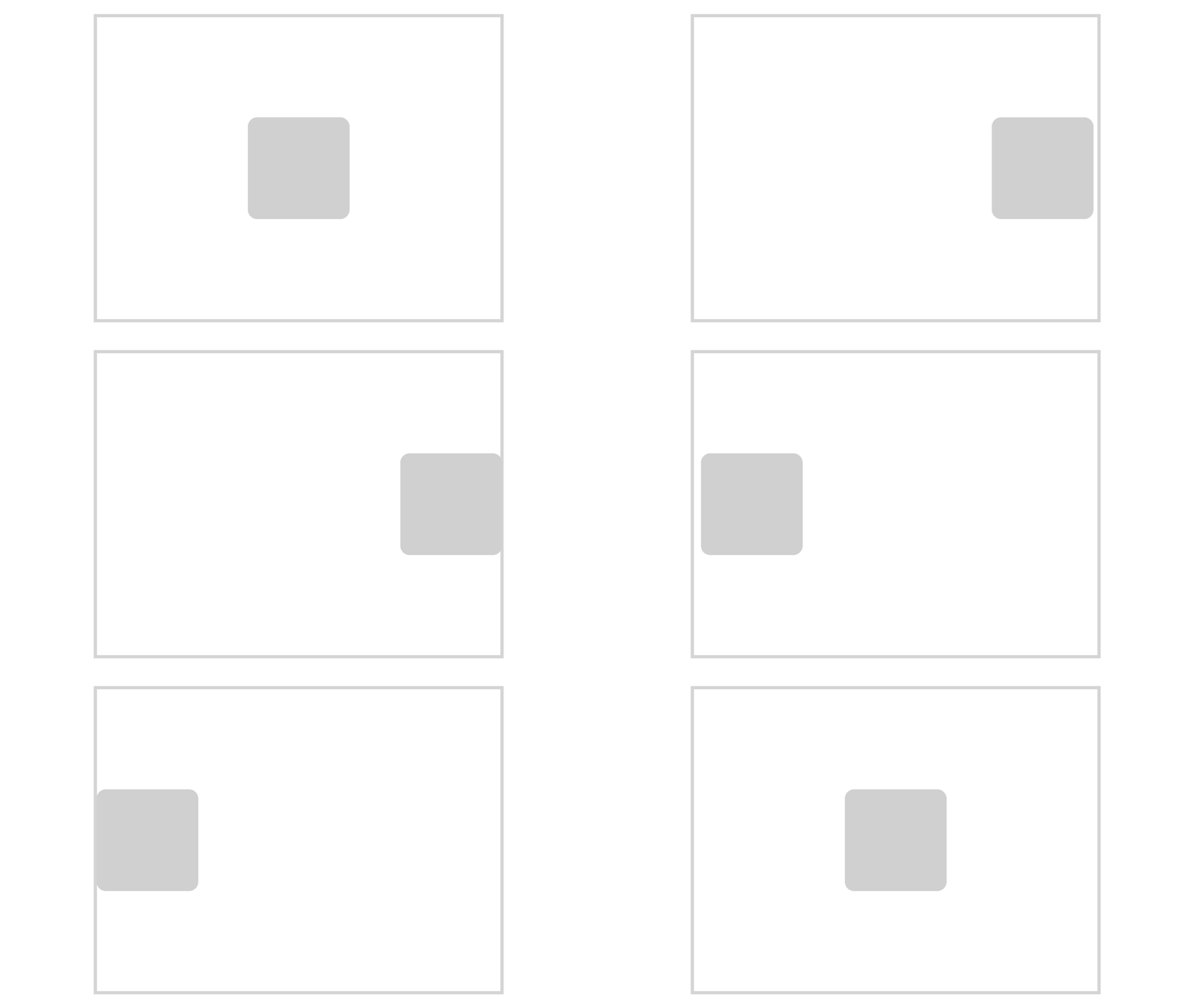
Looping X Enabled 和 Looping Y Enabled 属性将对象设置为当滚动到达 x 或 y 轴上的滚动边界时从头开始滚动。使用 Scroll Bounds Minimum 和 Scroll Bounds Maximum 属性来设置滚动边界。
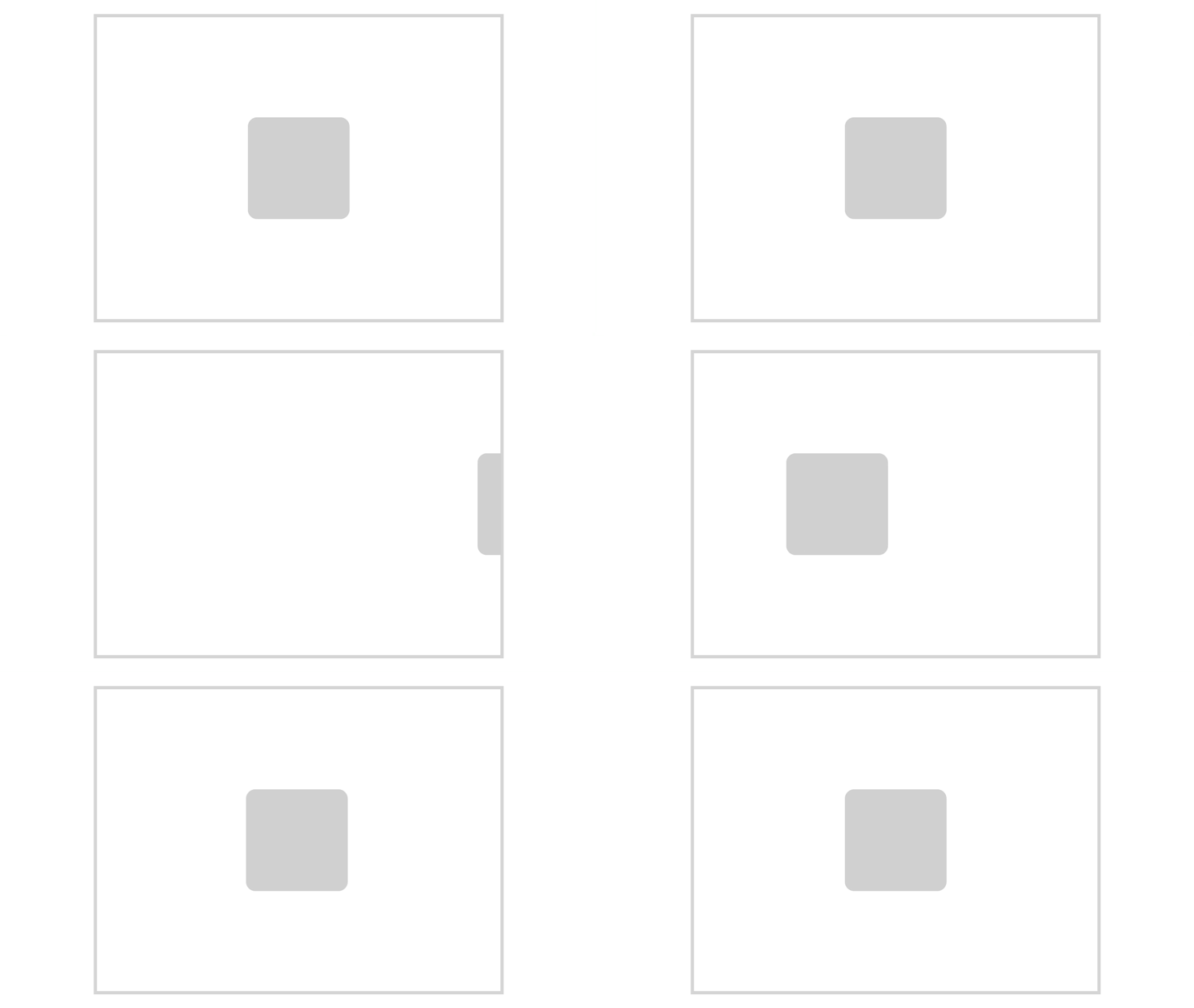
Allowed Scroll Axis 设置 Scroll View 滚动的轴。
例如,您可以嵌套 Scroll View 节点以在不同轴上滚动应用程序的各个部分。请参阅 嵌套 Scroll View 节点。
Reversed X Axis Scroll 和 Reversed Y Axis Scroll 属性设置 Scroll View 在 x 轴或 y 轴上的滚动位置是否随着滚动手势而增加。这将反转滚动方向。
对 Scroll View 滚动作出反应。
Scroll View 通过消息触发器报告其状态和滚动位置的变化。您可以使用操作来响应这些消息。
例如,您可以在用户滚动 Scroll View 节点中的地图时隐藏应用程序菜单。
要响应 Scroll View 滚动:
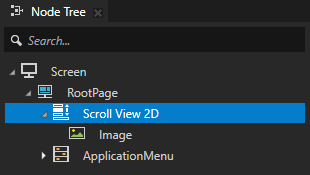
创建一个 Scroll View 节点和一个用作输入平面的节点。创建内容,例如应用程序菜单,并将其渲染在 Scroll View 节点之上。请参阅 创建一个 Scroll View 节点。
例如,创建一个 Scroll View,其中包含一个地图和一个应用程序菜单,当用户滚动地图时隐藏该菜单。
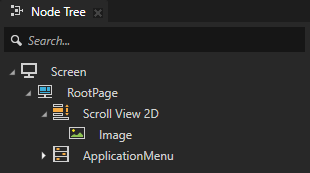
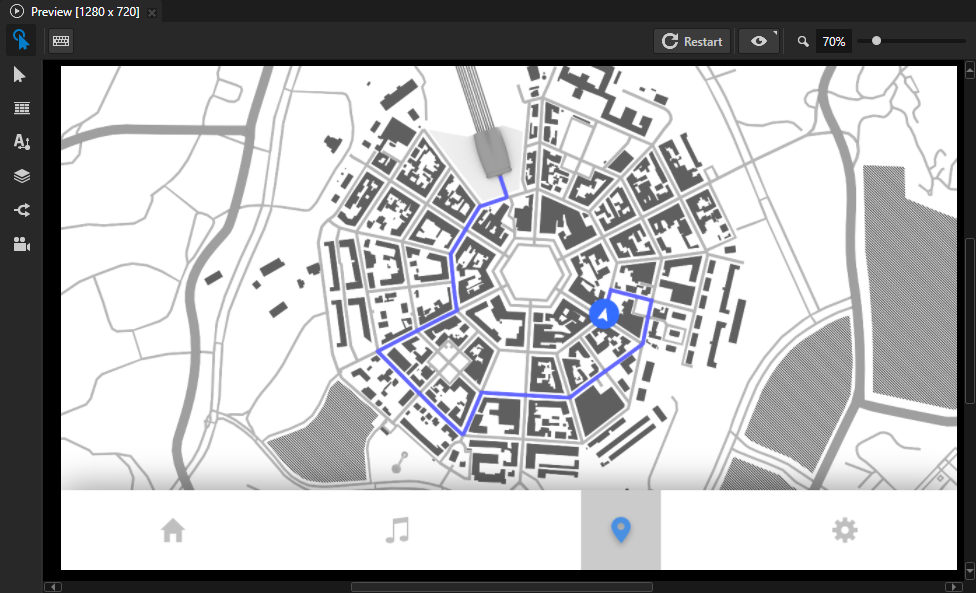
创建一个触发器和一个操作,您想用来响应 Scroll View 的滚动。
例如:
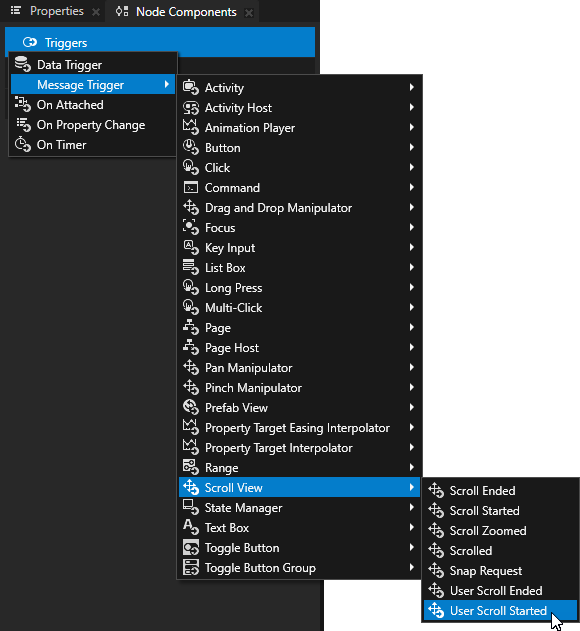
在 Node Tree 中,选择 Scroll View 节点。在 Node Components 中,按 Alt 并右键单击 Triggers,并在 Message Trigger > Scroll View 中选择一个触发器。
例如,要在用户开始滚动 Scroll View 时做出反应,请创建一个 User Scroll Started 触发器。
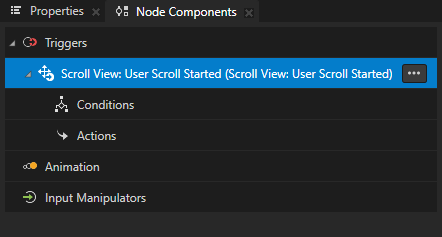
在您创建的触发器中,创建并配置您希望触发器执行的操作。
例如,要在用户开始滚动 Scroll View 时隐藏应用程序菜单,在 User Scroll Started 触发器中,按 Alt 并右键单击 Actions,选择 Set Property 操作,并在操作中设置:
Target Item 到 Screens/Screen/RootPage/ApplicationMenu
Target Property 到 Layout Height
Fixed Value 到 0
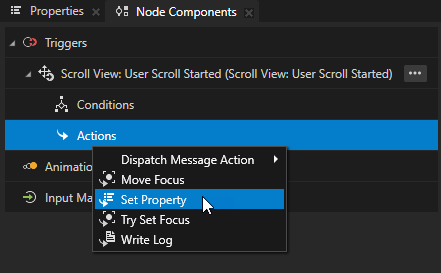
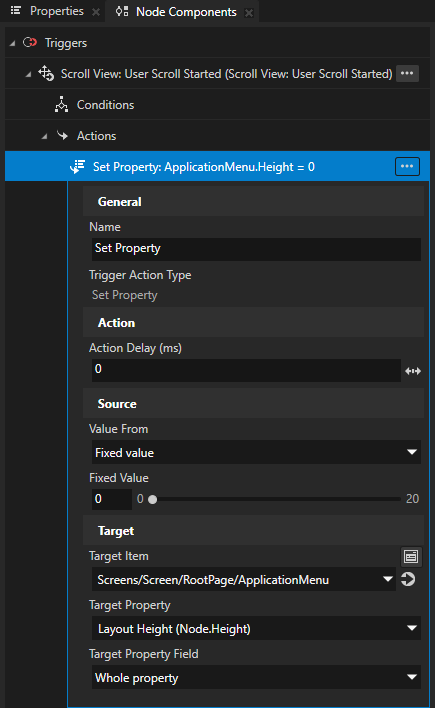
现在,当用户开始滚动时,User Scroll Started 触发器执行 Set Property 操作。该操作将 ApplicationMenu 节点的高度设置为 0,从而隐藏菜单。
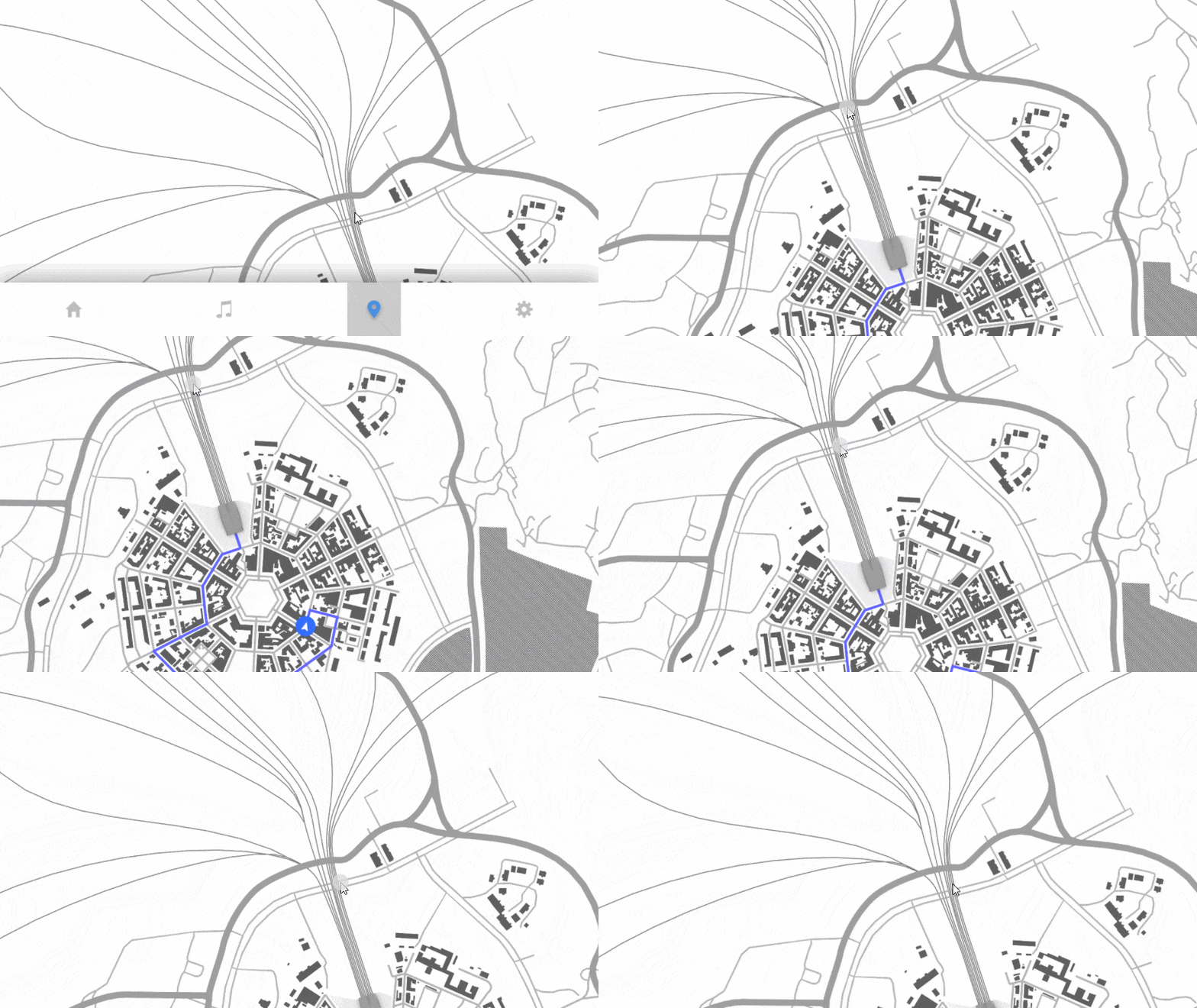
要向 Scroll View 添加功能,请重复上一步。
例如,要在用户停止滚动时显示 ApplicationMenu 节点:
在 Node Components 中,按 Alt 并右键单击 Triggers,并选择 Message Trigger > Scroll View > User Scroll Ended。
Kanzi 在用户停止滚动 Scroll View 节点时触发 User Scroll Ended。
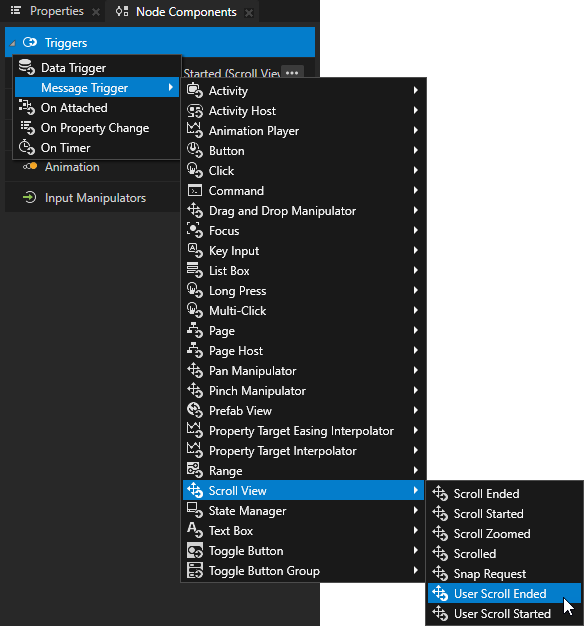
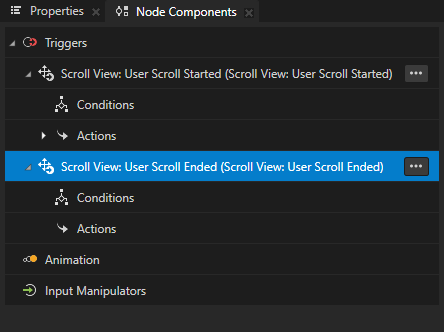
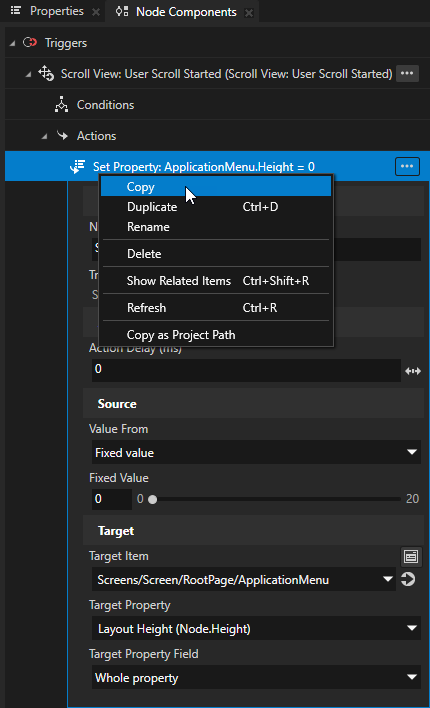
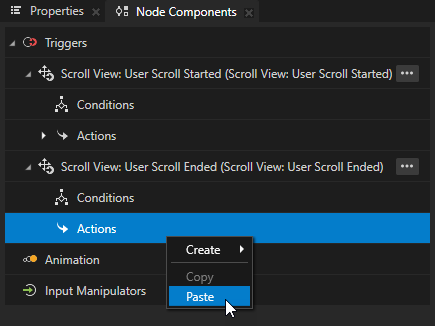
在 User Scroll Started 触发器中,右键单击 Set Property 操作并选择 Copy。在 User Scroll Ended 触发器中,右键单击 Actions 并选择 Paste。
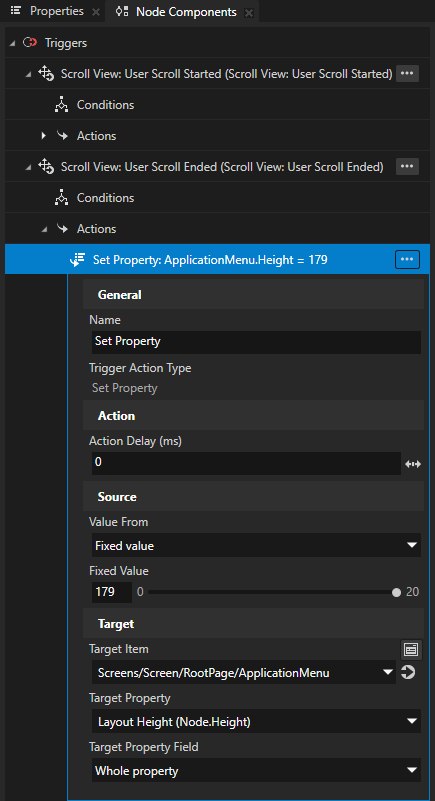
在 User Scroll Ended 触发器中,在 Set Property 操作中,将 Fixed Value 属性设置为 ApplicationMenu 节点的高度。
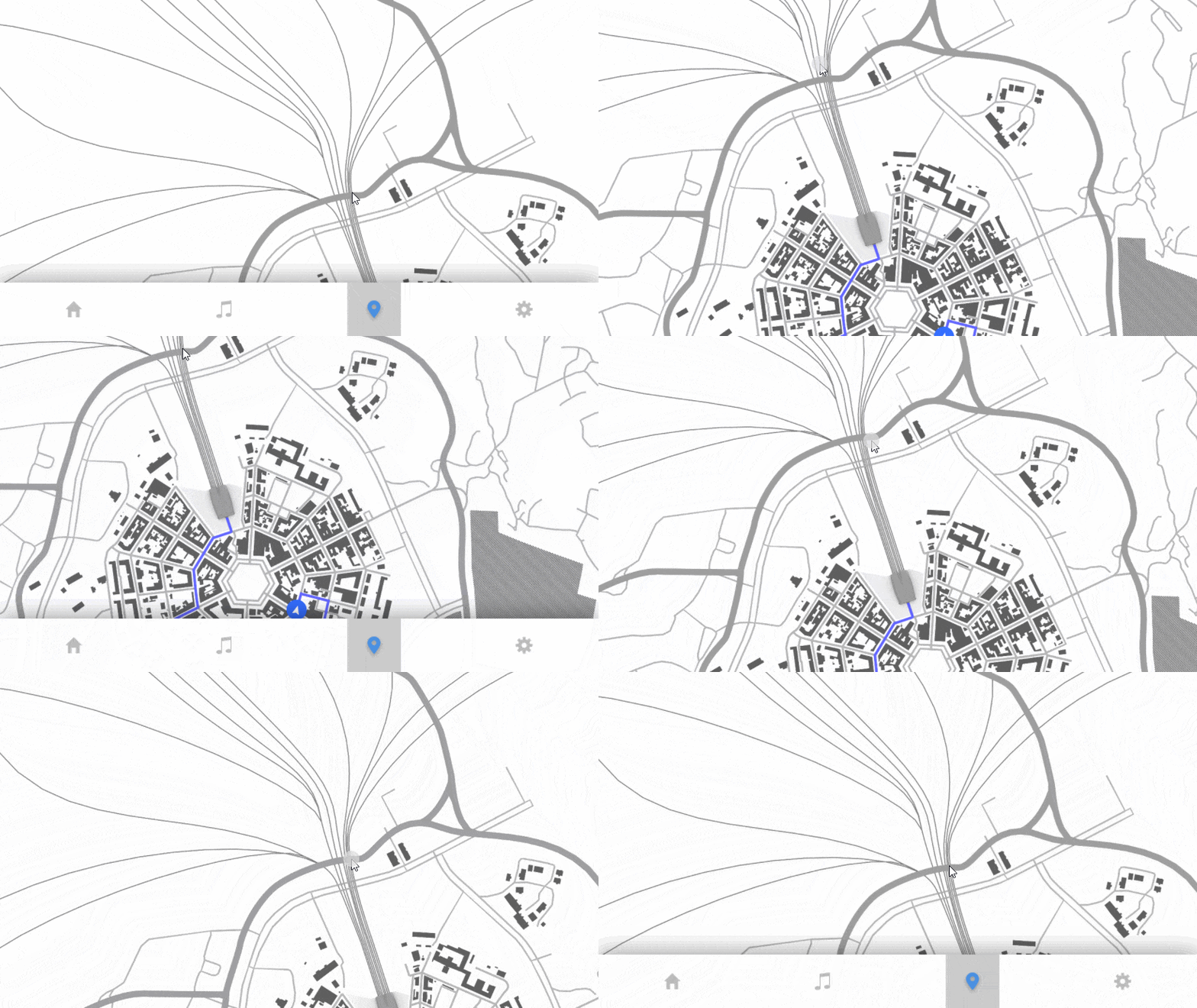
现在,当用户开始滚动时,User Scroll Started 触发器执行 Set Property 操作。该操作将菜单高度设置为 0,从而隐藏菜单。当用户停止滚动时,User Scroll Stopped 触发器执行 Set Property 操作,将 ApplicationMenu 节点的高度设置为其先前的值。
嵌套 Scroll View 节点
您可以嵌套 Scroll View 节点以创建一个滚动视图,您可以设置其在不同轴上滚动。您还可以嵌套 Grid List Box 和 Trajectory List Box 3D 节点。请参阅 嵌套 Grid List Box 节点 和 嵌套 Trajectory List Box 3D 节点。
对于每个 Scroll View 节点,使用 Allowed Scroll Axis 属性设置每个 Scroll View 滚动的轴。
要嵌套 Scroll View 节点:
在 Node Tree 中,创建一个 Scroll View 节点。请参阅 创建一个 Scroll View 节点。
例如,创建一个 Scroll View 2D 节点。在其内部,创建一个 Image 节点。
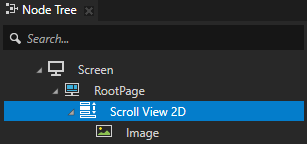
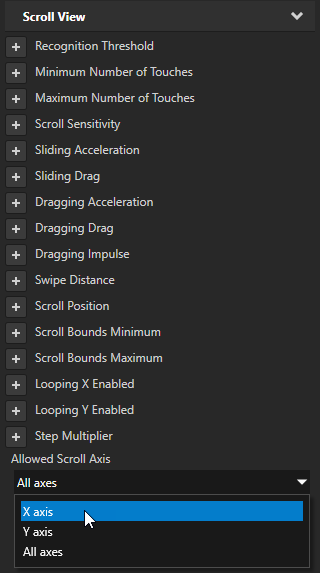
在 Node Tree 中,选择您创建的 Scroll View 节点。在 Properties 中,添加 Allowed Scroll Axis 属性,并将其设置为您希望该节点滚动的轴。
例如,要将 Scroll View 节点设置为在 x 轴上滚动,请将 Allowed Scroll Axis 属性设置为 X axis。
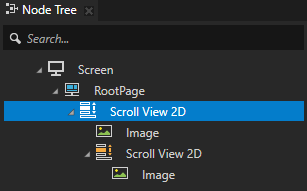
创建您要嵌套在已创建的 Scroll View 节点中的 Scroll View 节点。
例如,要滚动图像中的图像,创建另一个 Scroll View 2D 节点和一个 Image 节点。
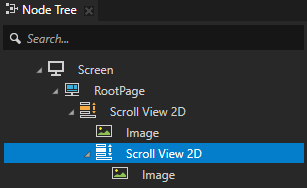
选择嵌套的 Scroll View 节点。在 Properties 中,添加并设置 Allowed Scroll Axis 属性到您希望该节点滚动的轴上。
例如,要在 y 轴上滚动嵌套的 Scroll View,请将 Allowed Scroll Axis 属性设置为 Y axis。
控制 Scroll View 节点是否在使用中
要控制 Scroll View 节点是否在使用中,请使用 Input > Enabled 属性。禁用的 Scroll View 节点不会对用户输入作出反应。当您禁用 Scroll View 节点时,Kanzi 会停止正在进行的手势,并保留该 Scroll View 节点的滚动位置和缩放值。
当您禁用节点的 Enabled 属性时,您实际上禁用了该节点及其在同一覆盖焦点范围内的子节点。
要观察节点是否有效启用,使用状态管理器或绑定中的 Input > Effectively Enabled 属性。例如,要向用户直观地指示节点是否正在使用,创建一个状态管理器并使用 Effectively Enabled 属性作为其控制器属性。
请参阅 控制节点对输入的反应方式。
调试 Scroll View
要测试滚动视图是否正常工作,请将 Write Log 操作添加到您使用的滚动视图触发器中。每次使用滚动视图时,Kanzi Studio 都会向 Log 窗口写入一条消息。请参阅 对 Scroll View 滚动作出反应。。
设置 Scroll View 2D 的外观。
要设置 2D 节点的外观:
您可以使用单色、纹理或材质填充 2D 节点。请参阅 调整 2D 节点的外观。



您可以将后期处理效果应用于2D节点。请参阅 2D 节点的效果。




您可以围绕所有三个轴旋转 2D 节点,以创建 3D 透视效果。请参阅 为2D节点创建3D透视效果。

您可以应用自定义渲染到 2D 节点,以创建后处理效果。请参阅 应用自定义渲染到 2D 节点。
您可以将2D节点渲染为像素完美。请参阅 渲染像素完美的2D节点。
在 API 中使用 Scroll View 3D 节点
要使用 Scroll View 3D 节点平移一个节点,请使用 ScrollViewConcept::ScrolledMessage 消息:
// Declare the variables you use to store the nodes in this example.
ScrollView3DSharedPtr scrollView;
Node3DSharedPtr box;

// Define the handler function for the ScrollView3D.ScrolledMessage message which a Scroll View generates when it scrolls.
void onScrollViewScrolled(ScrollView3D::ScrollMessageArguments& messageArguments)
{
    // Make a 3D vector out of the scroll position x and y axis coordinates of the Scroll View node. Set value for z to 0.
    Vector3 translation = Vector3(-messageArguments.getScrollPositionX(), messageArguments.getScrollPositionY(), 0.0f);

    // Set the above 3D vector as a render translation of the Box node that you pan with a Scroll View node.
    box->setRenderTransformation(SRTValue3D::createTranslation(translation));
}

// Create the Scroll View which uses the ScrollView3D.ScrolledMessage message handler.
void exampleSetupScrollView3D()
{
    // Create a Scroll View 3D node and set its size.
    scrollView = ScrollView3D::create(domain, "Scroll View");
    scrollView->setSize(100.0f, 100.0f, 10.0f);

    // Create a Box node and attach it to the Scroll View 3D node.
    box = Model3D::createBox(domain, "Box", Vector3(2.0f, 2.0f, 2.0f), ThemeOrange);
    scrollView->addChild(box);

    // Add a message handler for the ScrollView3D.ScrolledMessage message from the Scroll View 3D node.
    scrollView->addMessageHandler(ScrollView3D::ScrolledMessage, bind(&ScrollView3DScrollSnippet::onScrollViewScrolled, this, placeholders::_1));
}
要使用 Scroll View 3D 节点缩放节点,请使用 ScrollViewConcept::ZoomedMessage 消息:
// Declare the variables you use to store the nodes in this example.
ScrollView3DSharedPtr scrollView;
Node3DSharedPtr box;
// Declare the variable you use to store the Render Transformation property.
SRTValue3D baseTransform;

// Define the handler function for the ScrollView3D.ZoomedMessage message which a Scroll View generates when it zooms.
void onScrollViewZoomed(ScrollView3D::ZoomedMessageArguments& arguments)
{
    // Get the value for the amount of zoom from the ScrollView3D.ZoomedMessage message arguments.
    float zoom = arguments.getZoom();

    // Make a copy of the saved base Render Transformation of the Box node.
    SRTValue3D transformCopy(baseTransform);

    // Scale the copied transform on every axis for the zoom amount.
    transformCopy.scale(Vector3(zoom, zoom, zoom));

    // Apply the scaled transform to the Render Transformation property of the Box node.
    box->setRenderTransformation(transformCopy);
}

// Create the Scroll View which uses the ScrollView3D.Zoomed message handler.
void exampleSetupScrollView3D()
{
    // Create Scroll View 3D node and set a size for it.
    scrollView = ScrollView3D::create(domain, "Scroll View");
    scrollView->setSize(100.0f, 100.0f, 10.0f);

    // Create a Box node and attach it to the Scroll View 3D node.
    box = Model3D::createBox(domain, "Box", Vector3(2.0f, 2.0f, 2.0f), ThemeOrange);
    scrollView->addChild(box);

    // Get the value of the Render Transformation property of the Box node.
    baseTransform = box->getRenderTransformation();

    // Add a message handler for the ScrollView3D.ZoomedMessage message from the Scroll View 3D node.
    scrollView->addMessageHandler(ScrollView3D::ZoomedMessage, bind(&ScrollView3DZoomSnippet::onScrollViewZoomed, this, placeholders::_1));
}
有关详细信息,请参阅 ScrollView3D 类。
在 API 中使用 Scroll View 2D 节点
要使用 Scroll View 2D 节点平移一个节点,请使用 ScrollViewConcept::ScrolledMessage 消息:
// Declare the variables you use to store the nodes in this example.
ScrollView2DSharedPtr scrollView;
Node2DSharedPtr textNode;

// Define the handler function for the ScrollView2D.ScrolledMessage message which a Scroll View generates when it scrolls.
void onScrollViewScrolled(ScrollView2D::ScrollMessageArguments& messageArguments)
{
    // Make a 2D vector out of the scroll position x and y axis coordinates of the Scroll View node.
    Vector2 translation = Vector2(-messageArguments.getScrollPositionX(), -messageArguments.getScrollPositionY());

    // Set the above 2D vector as a render translation of the Text Block 2D node that you pan with a Scroll View node.
    textNode->setRenderTransformation(SRTValue2D::createTranslation(translation));
}

// Create the Scroll View which uses the ScrollView2D.ScrolledMessage message handler.
void exampleSetupScrollView2DScroll()
{
    // Create a Scroll View 2D node and set its size.
    scrollView = ScrollView2D::create(domain, "Scroll View");
    scrollView->setLayoutSize(100.0f, 100.0f);

    // Create a Text Block 2D node and attach it to the Scroll View 2D node.
    textNode = TextBlock2D::create(domain, "Hello world!");
    scrollView->addChild(textNode);

    // Add a message handler for the ScrollView2D.ScrolledMessage message from the Scroll View 2D node.
    scrollView->addMessageHandler(ScrollView2D::ScrolledMessage, bind(&ScrollView2DSnippet::onScrollViewScrolled, this, placeholders::_1));
}
要使用 Scroll View 2D 节点缩放节点,请使用 ScrollViewConcept::ZoomedMessage 消息:
// Define the handler function for the ScrollView2D.ZoomedMessage message which a Scroll View generates when it zooms.
void onScrollViewZoomed(ScrollView2D::ZoomedMessageArguments& messageArguments)
{
    // Get the value for the amount of zoom from the ScrollView2D.ZoomedMessage message arguments.
    float zoom = messageArguments.getZoom();

    // Scale the Text Block 2D node based on the zoom read from the ZoomedMessage message.
    textNode->setRenderTransformation(SRTValue2D::createScale(Vector2(zoom, zoom)));
}

// Create the Scroll View which uses the ScrollView2D.ZoomedMessage handler.
void exampleSetupScrollView2DZoom()
{
    // Create Scroll View 2D node and set a size for it.
    scrollView = ScrollView2D::create(domain, "Scroll View");
    scrollView->setLayoutSize(100.0f, 100.0f);

    // Create a Text Block 2D node and attach it to the Scroll View 2D node.
    textNode = TextBlock2D::create(domain, "Hello world!");
    scrollView->addChild(textNode);

    // Add a message handler for the ScrollView2D.ZoomedMessage message from the Scroll View 2D node.
    scrollView->addMessageHandler(ScrollView2D::ZoomedMessage, bind(&ScrollView2DSnippet::onScrollViewZoomed, this, placeholders::_1));
}
要设置滚动位置:
// Create the scroll position message arguments.
ScrollViewConcept::SetScrollMessageArguments args;
args.setScrollPosition(Vector2(50.0f, 25.0f));

// Send the message to set the scroll position.
scrollView2D->dispatchMessage(ScrollViewConcept::SetScrollMessage, args);
要设置滚动目标并开始滚动到目标设置的位置:
// Create the scroll target message arguments.
ScrollViewConcept::SetScrollTargetMessageArguments args;
args.setScrollTarget(Vector2(50.0f, 25.0f));

// Send the message to set the scroll target.
scrollView2D->dispatchMessage(ScrollViewConcept::SetScrollTargetMessage, args);
使用 ScrollViewConcept::ScrollPositionProperty 设置滚动位置:
// Set the ScrollViewConcept.ScrollPositionProperty.
scrollView2D->setProperty(ScrollViewConcept::ScrollPositionProperty, Vector2(100.0f, 100.0f));
有关详细信息,请参阅 ScrollView2D 类。
Scroll View 属性类型和消息。
有关 Scroll View 节点的可用属性类型和消息的列表,请参阅 Scroll View 2D 和 Scroll View 3D。