步骤 3 - 创建预设实例并从文件系统加载图像
在本教程的此步骤中,您将创建对 Widget Item Prefab 预设节点的引用。您使用此预设来创建表示 Widget Grid List Box 节点中小部件的预设实例,设置每个小部件的名称、图标和描述,并使用 Widget Item Prefab 预设实例填充 Widget Grid List Box。
要创建预设件实例并从文件系统加载图像:
获取 Widget Item Prefab 预设。您使用预设实例在 Widget Grid List Box 节点中呈现小部件,并使用动画剪辑在用户选择时将焦点带到所选小部件。
要访问 kzb 文件中的资源和节点,您可以使用资源 ID 或 kzb 文件 URL。使用资源 ID 访问资源是首选方式。当您访问资源时,您需要指定您获取的资源类型。
当使用资源 ID 访问资源时,需要使用含有资源字典的节点,该字典包含要获取的资源的 ID。
使用 kzb 文件 URL 访问资源时,需要使用 Kanzi resource manager。
您使用资源的完整路径时,路径以
kzb://开头,后接项目名称和资源的位置。
例如,要访问在 Prefabs 中创建的 Widget Item Prefab,使用路径。
kzb://programmer_tutorial/Prefabs/Widget Item Prefab
您可以在 Kanzi Studio 每次从 Kanzi Studio 项目导出 kzb 文件时生成的 kzb.txt 文件中找到 kzb 文件中所有节点的完整路径。在本教程中,您可以在
<KanziWorkspace>/Tutorials/Programmer tutorial/Start/Application/bin目录中找到该文件。void onProjectLoaded() override { ... // Get the reference to the reusable prefab template for the widget icons. ResourceManager* resourceManager = getDomain()->getResourceManager(); PrefabTemplateSharedPtr widgetItemPrefabTemplate = resourceManager->acquireResource<PrefabTemplate>("kzb://programmer_tutorial/Prefabs/Widget Item Prefab"); ... }
在 Kanzi 中,资源是共享的,因此您可以重用它们。多次调用映射到相同资源 URL 的
ResourceManager::acquireResource会返回相同的资源。Kanzi 中的资源使用共享指针进行引用计数。您将共享指针存储为成员变量,因为您会持续使用这些资源。当应用程序被销毁时,共享指针也会被销毁,Kanzi 会自动释放资源。在
ProgrammerTutorialApplication类中,为定义小部件名称、图标和描述的WidgetDescription结构体创建构造函数,设置小部件的数量,并定义小部件描述的数组。class ProgrammerTutorialApplication : public ExampleApplication { private: // Struct which contains the widget description. struct WidgetDescription { // Constructor. explicit WidgetDescription(const string& widgetName, const string& iconName, const string& description) : widgetName(widgetName), iconName(iconName), description(description) { } // The name of the widget. string widgetName; // The name of the widget icon file. string iconName; // The description of the widget shown in the description panel. string description; }; // The size of the array and the number of items you add to the array // define how many widgets your application contains. typedef array<WidgetDescription, 14> WidgetDescriptionArray; // Create the array of widget descriptions. static const WidgetDescriptionArray widgetDescriptions; ... };
在
ProgrammerTutorialApplication类之后,初始化widgetDescriptions数组,其中每个数组条目包含小部件的名称、图像文件名和描述。// Initialization of the widget description array. const ProgrammerTutorialApplication::WidgetDescriptionArray ProgrammerTutorialApplication::widgetDescriptions = { WidgetDescription("Browser", "Icon001.png", "Browser description"), WidgetDescription("Mail", "Icon002.png", "Mail description"), WidgetDescription("Game", "Icon003.png", "Game description"), WidgetDescription("Time", "Icon004.png", "Time description"), WidgetDescription("Calculator", "Icon005.png", "Calculator description"), WidgetDescription("Camera", "Icon006.png", "Camera description"), WidgetDescription("Movie", "Icon007.png", "Movie description"), WidgetDescription("Calendar", "Icon008.png", "Calendar description"), WidgetDescription("Chat", "Icon009.png", "Chat description"), WidgetDescription("Music", "Icon010.png", "Music player description"), WidgetDescription("Ninja", "Icon011.png", "Ninja description"), WidgetDescription("Splatter", "Icon012.png", "Splatter description"), WidgetDescription("Superstar", "Icon013.png", "Superstar description"), WidgetDescription("Chess", "Icon014.png", "Chess description") };
在
Application::onProjectLoaded函数中的ProgrammerTutorialApplication类中,在存储获取的资源和节点并获取 Widget Item Prefab 之后,添加for循环以使用 Widget Item Prefab 预设实例填充 Widget Grid List Box 节点。请注意,水平滚动是 Grid List Box 节点的内置功能。void onProjectLoaded() override { ... // Populate the widget list. for (WidgetDescriptionArray::const_iterator it = cbegin(widgetDescriptions), end = cend(widgetDescriptions); it != end; ++it) { // Instantiate the Widget Item Prefab prefab. Node3DSharedPtr widgetItem = widgetItemPrefabTemplate->instantiate<Node3D>(it->widgetName); // Add the instance of the Widget Item Prefab prefab to the Widget Grid List Box node. // The Widget Grid List Box takes the ownership of the instance. m_widgetList->addItem(widgetItem); // Apply a translation to all widgets that are in the second row to arrange them // in a honeycomb formation. You arrange the widgets into three rows. // When the Widget Grid List Box arranges its items you tweak the position of the widgets // by applying the render transformation. if (distance(cbegin(widgetDescriptions), it) % 3 == 1) { widgetItem->setRenderTransformation(SRTValue3D::createTranslation(Vector3(2.75f, 0.0f, 0.0f))); } // Apply the texture to the icon by changing the IconTexture resource ID to point // to the image in the file system. The images are located in the working // directory of the application you are running. widgetItem->addResource(ResourceID("IconTexture"), "file://./" + it->iconName); // Set the name and the description for the widget using the same custom property // types you accessed in the previous step of this tutorial. // When you create a prefab in Kanzi Studio, the nodes of which you want // to customize in each instance of the prefab, Kanzi adds to the root of // the prefab the properties you want to edit, and creates a binding to // these properties in the nodes. widgetItem->setProperty(*m_widgetNamePropertyType, it->widgetName); widgetItem->setProperty(*m_widgetDescriptionPropertyType, it->description); } }
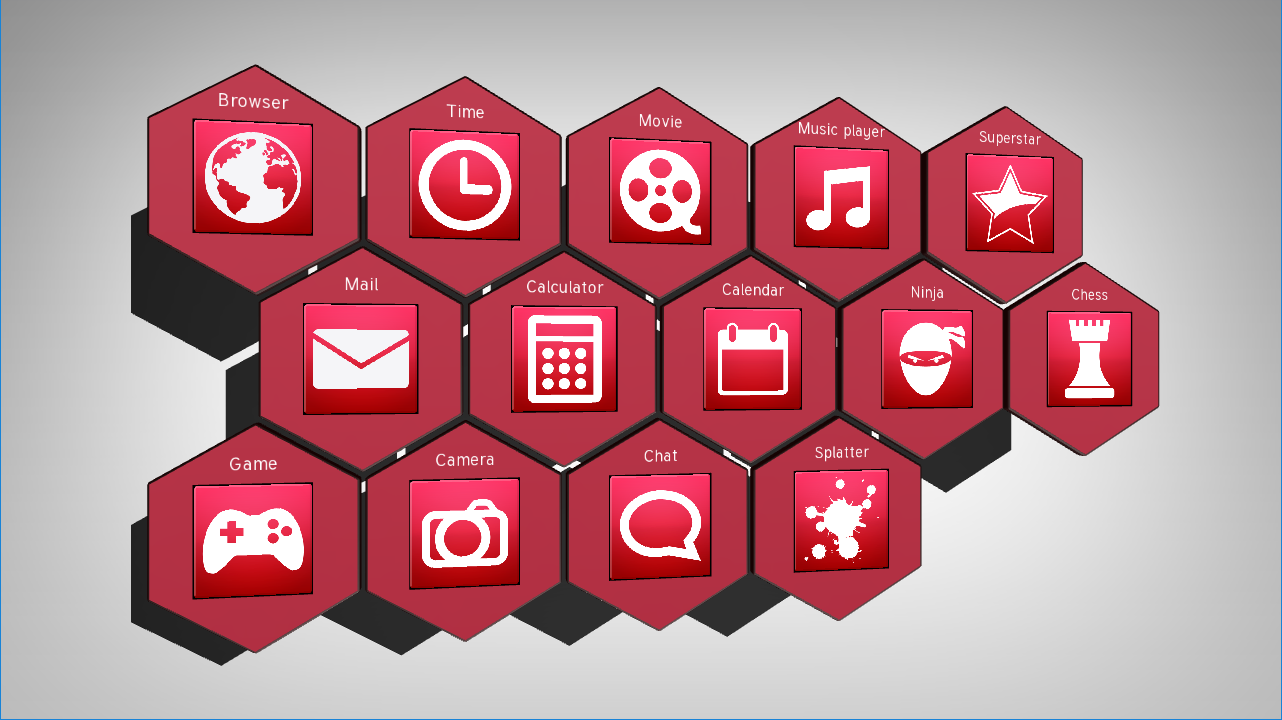
当您运行应用程序时,您可以在 Widget Grid List Box 节点中看到实例化和排列的 Widget Item Prefab 预设。Widget Grid List Box 节点中的每个小部件都有一个名称和一个图标,您可以水平滚动列表框。在本教程的下一步中,您将实现当用户从 Widget Grid List Box 中选择小部件时发生的事件。