设置用于渲染的材质
在 Kanzi 中,您可以使用这些渲染通道来设置渲染材质:
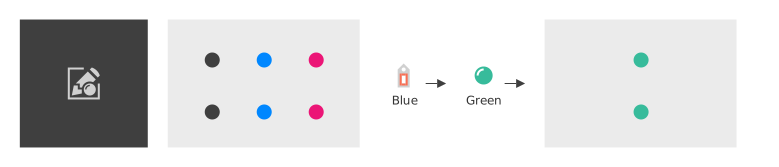
Draw Objects With Material Render Pass 允许您在 Viewport 2D 节点中使用特定材质渲染节点。
Dynamic Batching With Material Render Pass 的工作方式与 Draw Objects With Material Render Pass 类似,但会使用动态批处理渲染兼容的网格。
Dynamic Batching UBO With Material Render Pass 使用 UBO 动态批处理提供相同的功能。
请参阅 选择动态批处理渲染通道。
例如,使用 Draw Objects With Material Render Pass 创建不同的渲染模式。请参阅 创建夜视模式。
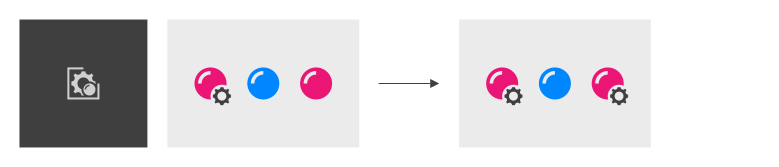
Material Setup Render Pass 允许您为材质设置属性,以便所有后续使用该材质的渲染都使用您在此渲染通道中设置的属性值。
例如,使用 Material Setup Render Pass 将 Composition Target Render Pass 的输出设置为材质的纹理。请参阅 创建无限镜射。
创建夜视模式
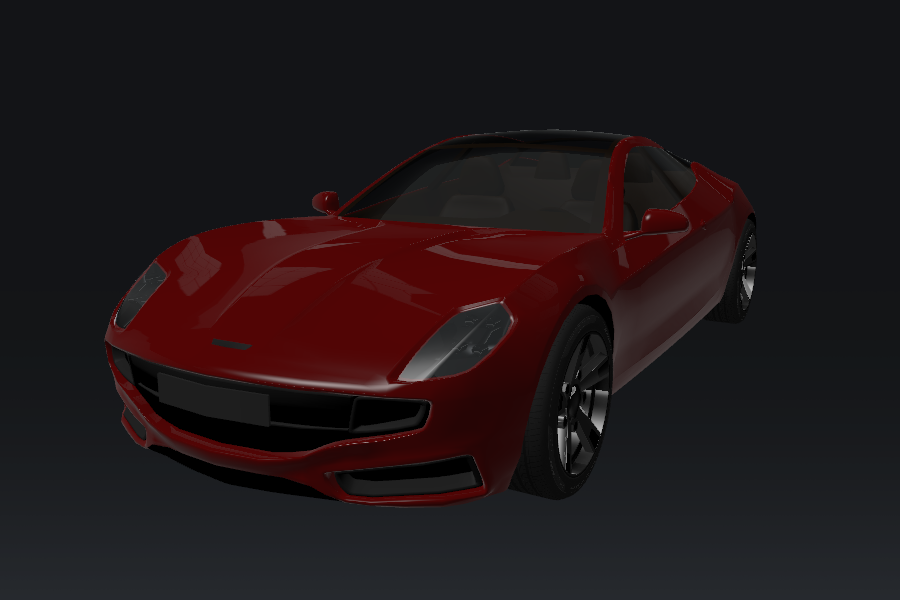
您可以使用 Draw Objects With Material Render Pass 来渲染 Viewport 2D 节点下的所有节点,并使用特定的材质。例如,您可以创建夜视模式。
要创建夜视模式:
创建要在夜视模式下渲染的内容:
例如,使用 Factory Content 中的 Car。
创建并应用您需要用于在夜视模式下渲染内容的渲染通道:
在 Library > Rendering 按 Alt 并右键单击 Render Pass Prefabs 中,选择 Group Render Pass,并将其命名为 Night Vision。
您使用此 Group Render Pass 渲染通道预设来收集将夜视模式应用于内容的渲染通道。
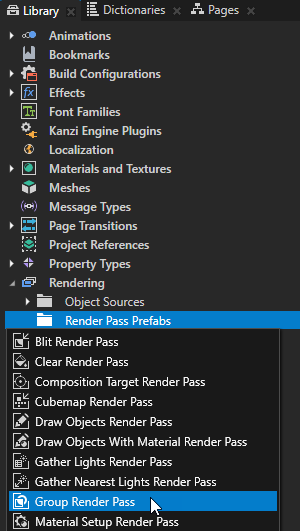
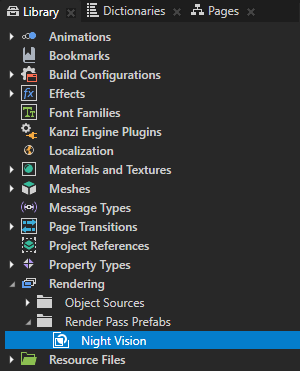
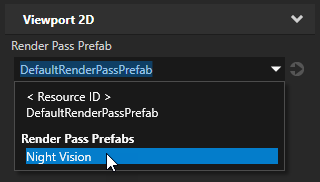
在 Node Tree 中,选择您想要在夜视模式下渲染其内容的 Viewport 2D 节点,并在 Properties 中将 Render Pass Prefab 属性设置为 Night Vision 渲染通道预设。
通过这种方式,您可以设置 Kanzi 使用 Night Vision 渲染通道预设来渲染 Viewport 2D 节点。Night Vision 渲染通道预设没有任何子渲染通道,这就是 Preview 不显示任何内容的原因。
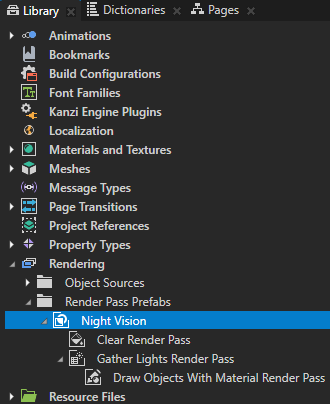
在 Night Vision 渲染通道预设创建中:
Clear Render Pass
此渲染过程清除深度缓冲区。
Gather Lights Render Pass
Gather Lights Render Pass 允许您从节点列表中收集用于照亮场景中3D节点的光节点。
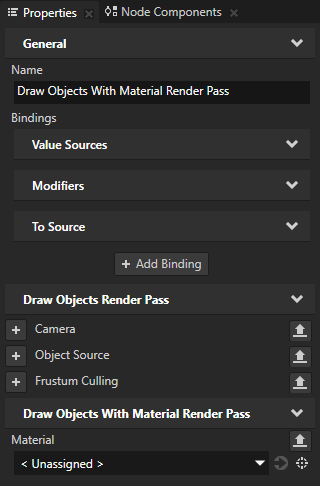
在 Gather Lights Render Pass 中创建一个 Draw Objects With Material Render Pass。
您可以使用 Draw Objects With Material Render Pass 渲染通道来渲染 Viewport 2D 节点下的所有节点,并在 Draw Objects With Material Render Pass 中设置特定的材质。
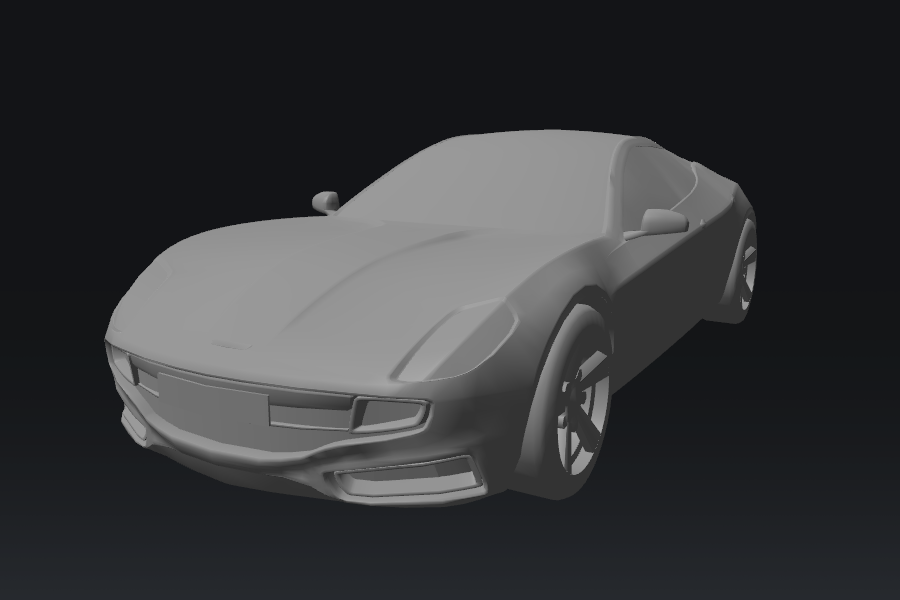
因为您尚未在 Draw Objects With Material Render Pass 中设置 Material 属性,Kanzi 使用默认材质在使用 Night Vision 渲染通道的 Viewport 2D 节点中渲染内容。
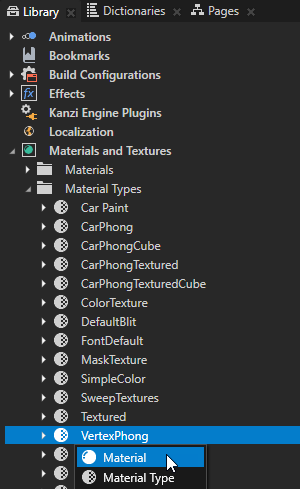
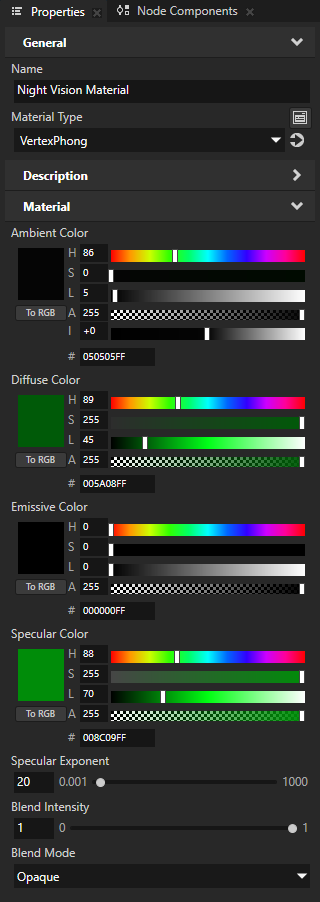
创建用于夜视模式的材质。
例如:在 Library > Materials and Textures > Material Types 按 Alt 并右键单击 VertexPhong 中,选择 Material,并将材质命名为 Night Vision Material。
这样即可创建使用 VertexPhong 材质类型的材质。
小技巧
如果您的项目不包含 VertexPhong 材质类型,请在 Library > Materials and Textures 按 Alt 并右键单击 Material Types 中,选择 VertexPhong。
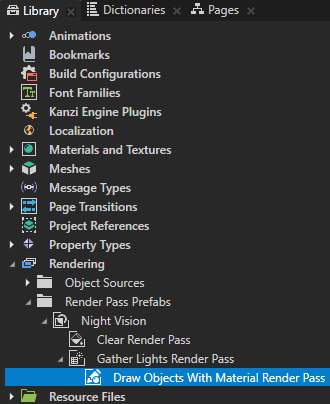
在 Library > Rendering > Render Pass Prefabs 中选择 Draw Objects With Material Render Pass,并在 Properties 中将 Material 属性设置为您在上一步中创建的材质。
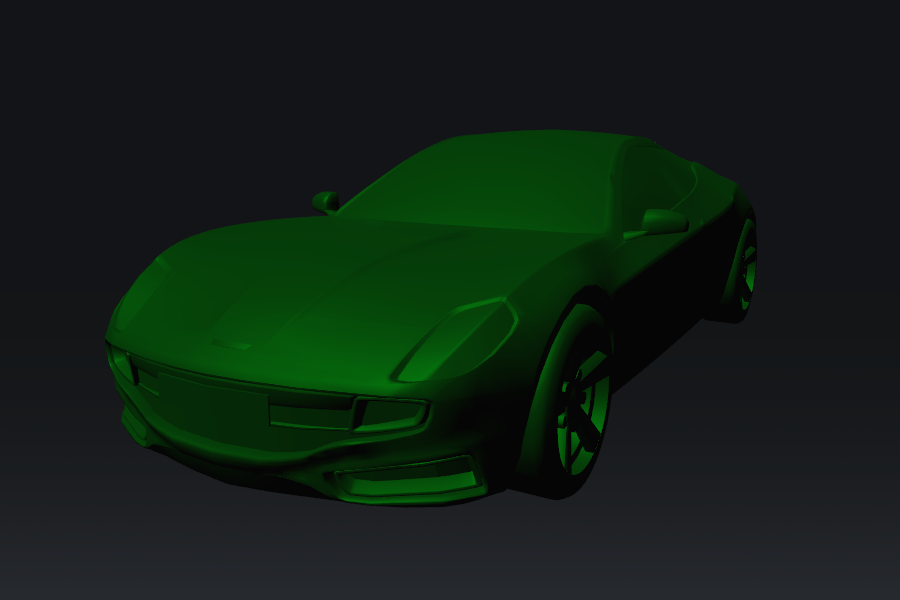
Kanzi 现在在 Viewport 2D 节点中渲染所有节点,该节点使用 Night Vision 渲染通道预设,以及您创建的材质。
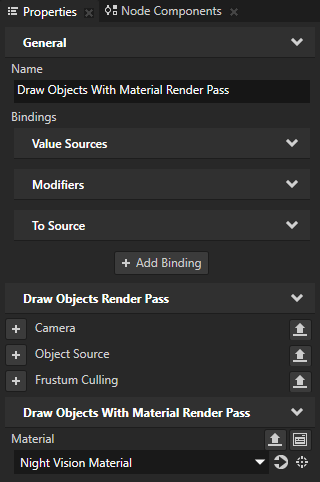
在 Properties 中,单击 Material 属性旁边的
 以打开您创建的材质的属性,并设置材质的属性以实现您想要的外观。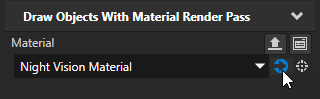
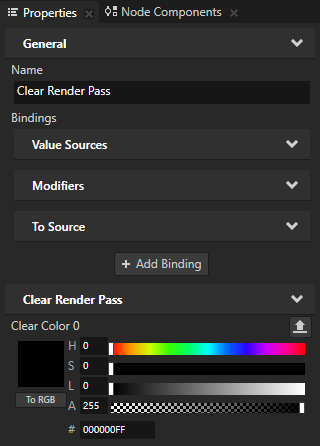
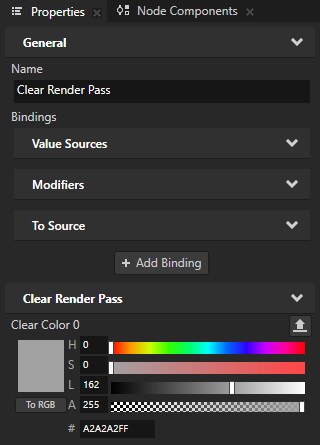
在 Library > Rendering > Render Pass Prefabs 中选择 Clear Render Pass,在 Properties 中添加 Clear Color 0 属性,并将 Lightness (L) 属性字段设置为 0。
这样即可用黑色清除颜色缓冲区,让您的场景背景在夜视模式下成为黑色。
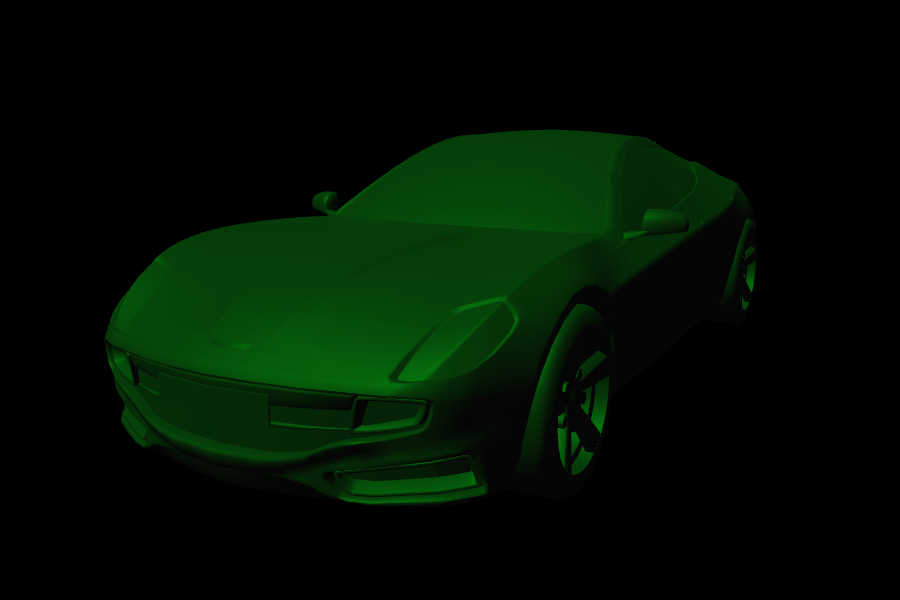
控制白天和夜视模式之间的切换。
例如,创建一个 State Manager,您可以在其中定义以下状态:
白天模式,在您的 Viewport 2D 节点中将 Render Pass Prefab 属性设置为 DefaultRenderPassPrefab。
夜视模式会在您的 Viewport 2D 节点中将 Render Pass Prefab 属性设置为 Night Vision 渲染通道预设。
请参阅 创建状态机。
现在,当您在创建的状态之间切换时,Kanzi 会在正常渲染内容和夜视模式之间交替。
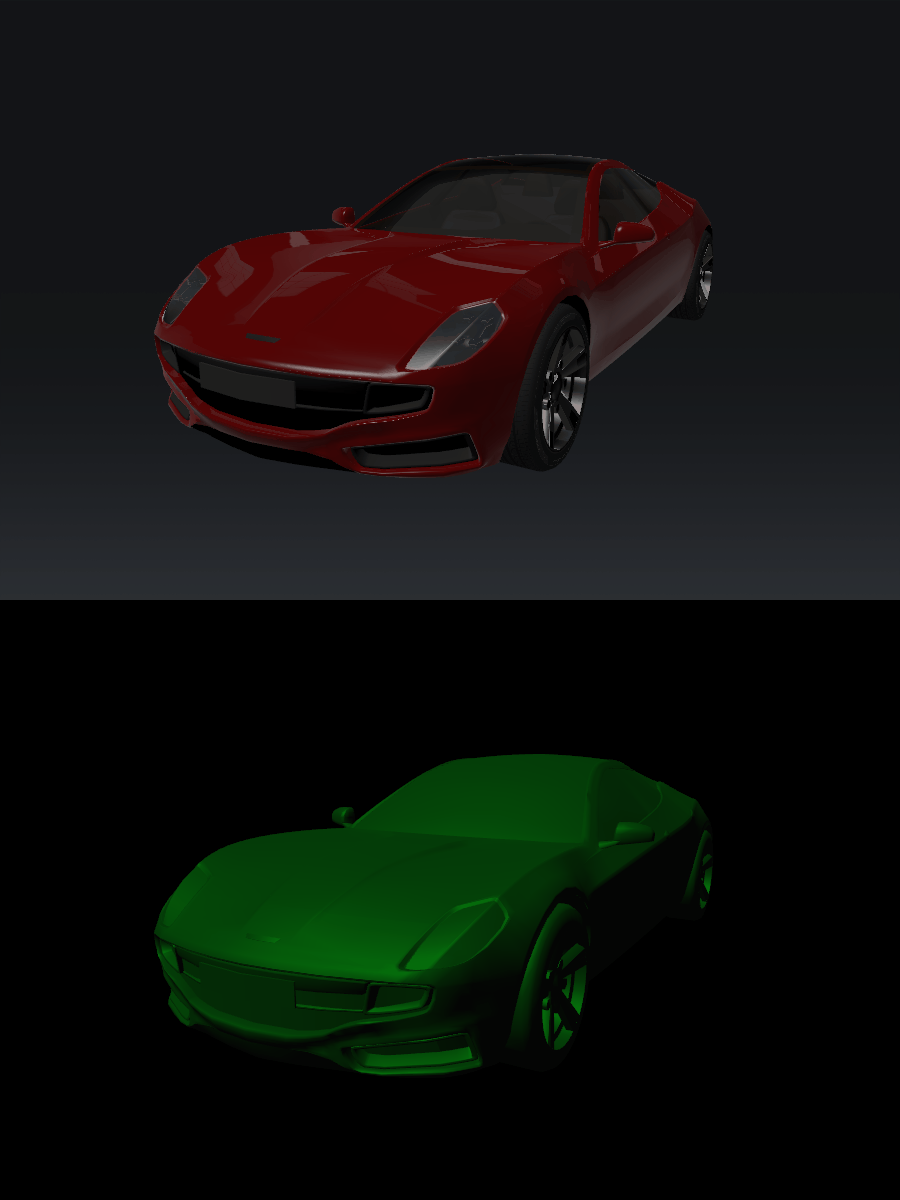
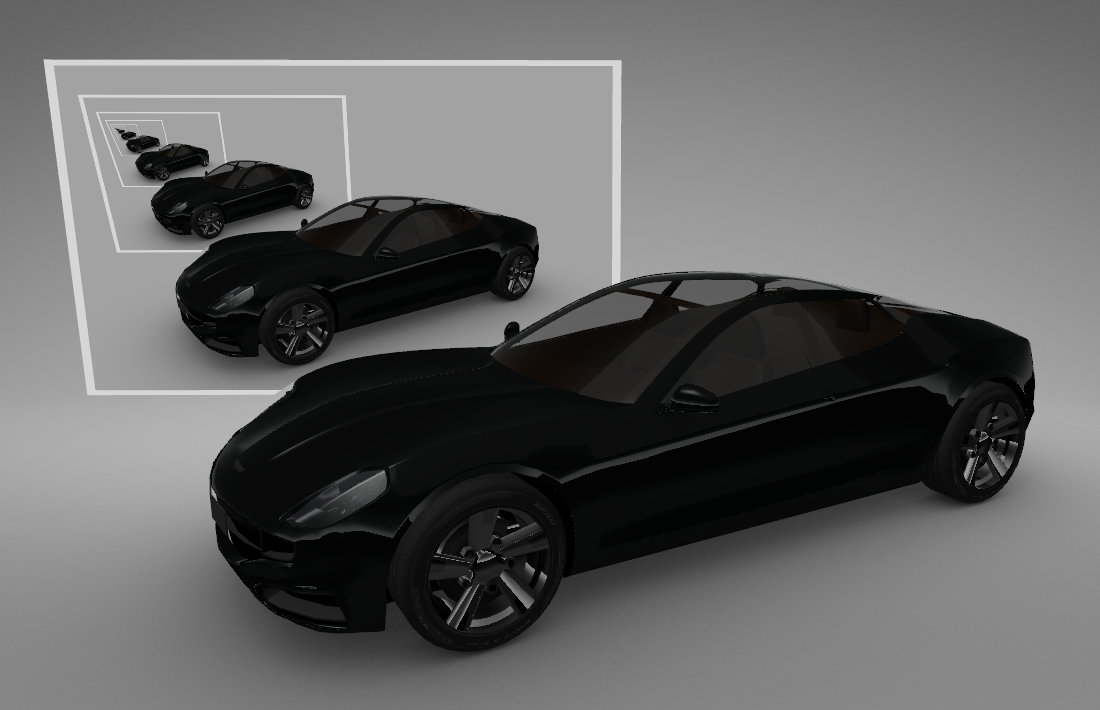
创建无限镜射
Material Setup Render Pass 允许您为材质设置属性,以便所有后续使用该材质的渲染都使用您在此渲染通道中设置的属性值。
例如,您可以使用 Material Setup Render Pass 创建无限镜效果。
要创建无限镜射:
在 Node Tree 中创建:
一个 Viewport 2D 节点,其中包含您要镜像的 3D 内容。
例如,使用 Factory Content 中的 Car。
您用作镜子的节点。
例如:在与您要镜像的内容相同的 Scene 节点中,创建一个 Plane 节点。
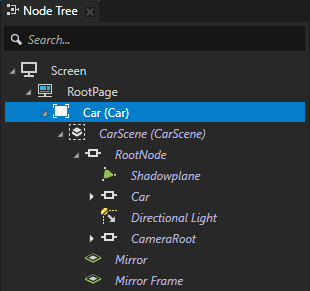
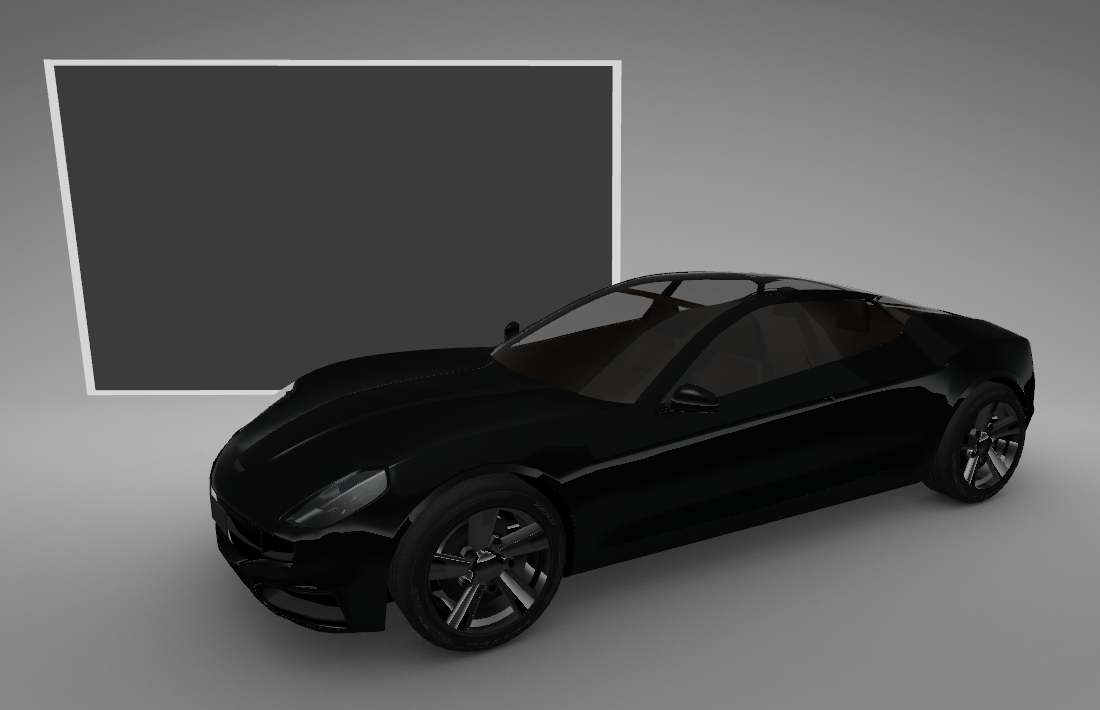
创建您用于渲染镜子中的 3D 内容的材质:
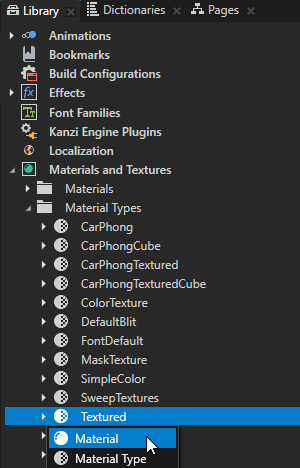
创建纹理材质。
例如:在 Library > Materials and Textures > Material Types 按 Alt 并右键单击 Textured 中,选择 Material,并将材质命名为 Mirror Material。
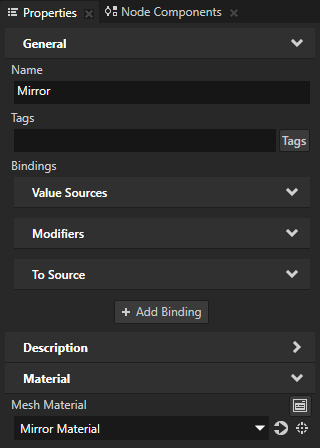
在 Node Tree 中选择您要用作镜像的节点,并在 Properties 中将 Mesh Material 属性设置为您在上一步中创建的材质。
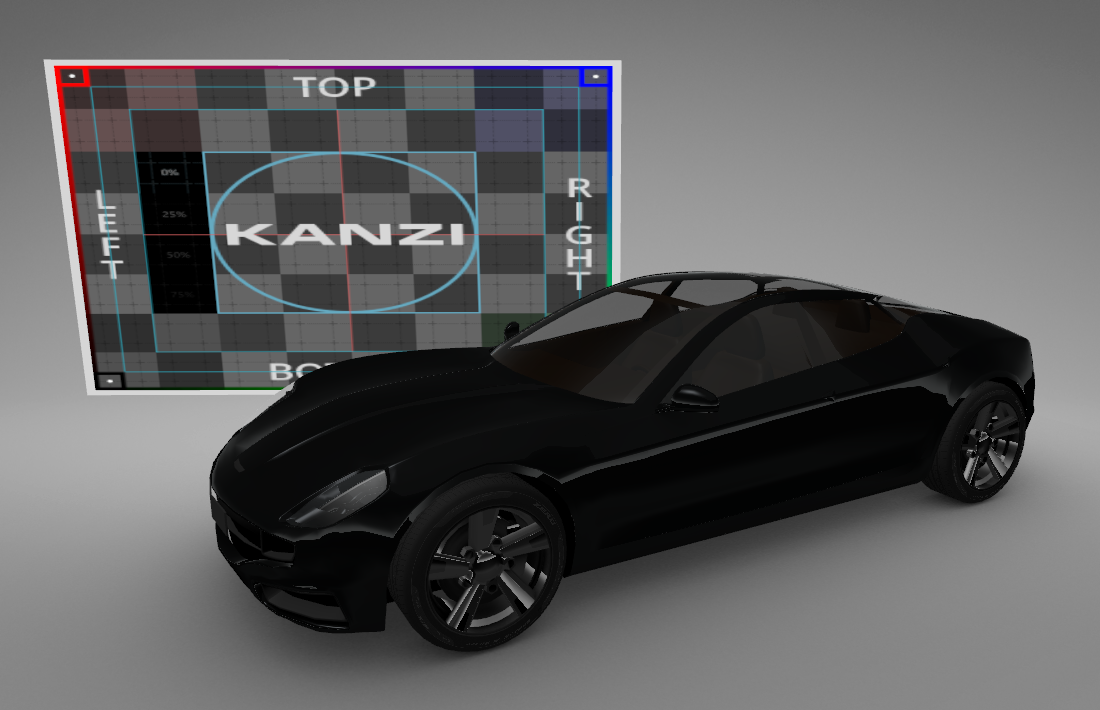
渲染镜子中的 3D 内容:
在 Library 中,按 Alt 并右键单击 Rendering,并选择 Compose and Blit Pass。
Compose and Blit Pass 包含渲染通道结构,使您能够使用特定材质将 Composition Target Render Pass 渲染通道或纹理传输到屏幕。
Compose and Blit Pass 渲染通道预设包含以下渲染通道:
Composition Target Render Pass 将自身及其后代渲染通道渲染到一个或多个合成目标。
Clear Render Pass 清除当前渲染背景的若干或所有缓冲区。
默认情况下,Compose and Blit Pass 中的 Clear Render Pass 使用透明黑色清除第一个颜色缓冲区,并使用值 1 清除深度缓冲区。
例如,要使用不同的颜色清除第一个颜色缓冲区,请将 Clear Color 0 属性设置为您希望用作 Kanzi 渲染到 Composition Target Render Pass 的内容背景颜色的颜色。
Gather Lights Render Pass 收集您设置为使用 Compose and Blit Pass 的 Viewport 2D 节点中的 Light 节点,并将它们传递给其子 Draw Objects Render Pass 渲染通道。
Draw Objects Render Pass 名为 Draw Objects 允许您设置一个 Camera 节点来渲染特定的节点列表,过滤这些节点,并控制视锥体裁剪。默认情况下,Draw Objects Render Pass 使用其最近的祖先 Gather Lights Render Pass 提供的灯光来渲染节点。默认情况下,Draw Objects Render Pass 使用默认的 Camera 节点来渲染 Viewport 2D 节点中的所有节点。
Blit Render Pass 使用一种特定材质将一个或多个单一纹理或立方体贴图纹理位块传送到屏幕。
默认情况下,该 Blit Render Pass 在屏幕上绘制 Composition Target Render Pass 渲染其内容的第一个颜色纹理。
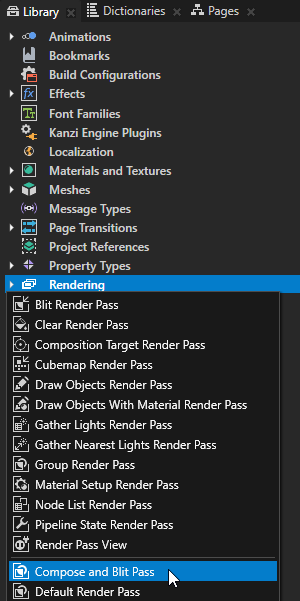
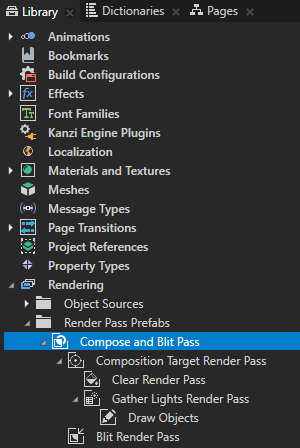
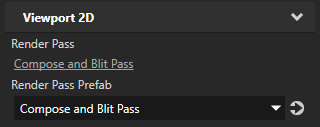
在 Node Tree 中,选择您想在镜像中渲染其内容的 Viewport 2D 节点,并在 Properties 中将 Render Pass Prefab 属性设置为 Compose and Blit Pass。
您设置 Kanzi 以使用 Compose and Blit Pass 渲染 Viewport 2D 节点。
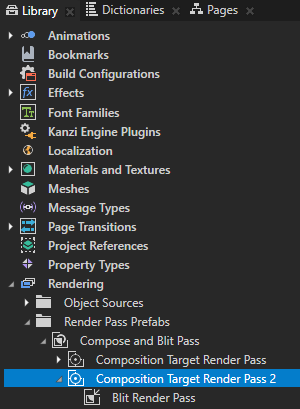
在 Compose and Blit Pass 的 Library 中创建第二个 Composition Target Render Pass,并将 Blit Render Pass 拖到该 Composition Target Render Pass。
您使用第二个 Composition Target Render Pass 将第一个 Composition Target Render Pass 渲染到合成目标。
您创建两个 Composition Target Render Pass 渲染通道,因为如果同时对同一个渲染通道进行读写,渲染行为将是未定义的。
在 Compose and Blit Pass 中创建一个 Default Render Pass。
Default Render Pass 包含一组基本的渲染通道,首先渲染不透明节点,然后渲染透明节点。
您使用此渲染通道在屏幕上渲染 Viewport 2D 节点的内容。
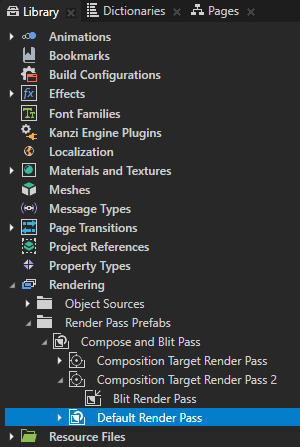
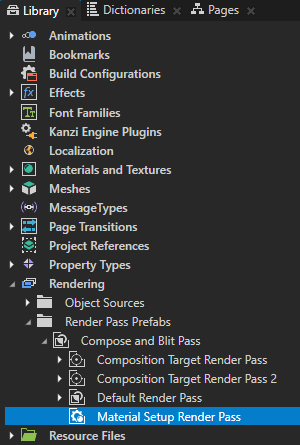
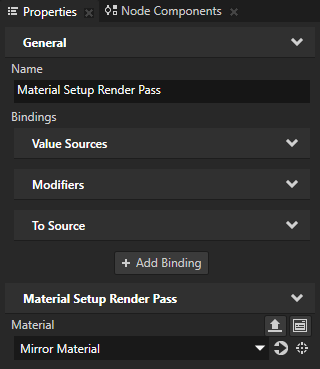
在 Compose and Blit Pass 中创建一个 Material Setup Render Pass,并在 Properties 中将 Material 属性设置为您在此过程的早期步骤中创建的材质。
例如,将其设为 Mirror Material。
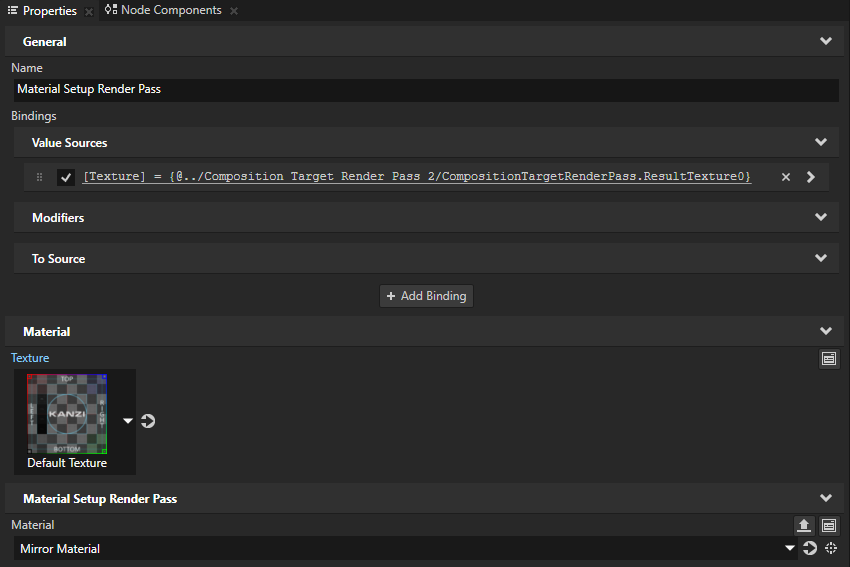
在 Properties 中添加 Texture 属性,从 Library 中将第二个 Composition Target Render Pass 拖到 Properties 窗口,并将其放在 Material Setup Render Pass 的 Texture 属性上。
在这里,您为创建的材质设置 Texture 属性的值,以便 Kanzi 在使用 Compose and Blit Pass 渲染内容时使用该值。通过这种方式,您将 Kanzi 设置为在使用 Mirror Material 的节点中渲染 Composition Target Render Pass 2。
在 Library 中,选择 Compose and Blit Pass > Composition Target Render Pass > Clear Render Pass,并在 Properties 中将 Clear Color 0 属性设置为您想用作镜中场景背景颜色的颜色。
Kanzi 现在递归渲染镜子中 Viewport 2D 节点的内容。