使用 Slider 节点
使用 Slider 节点,可以让用户使用视觉指针在最小值与最大值之间更改数值。
当您沿轨迹移动旋钮时,滑块会生成消息:拖动开始、拖动结束和值更改。
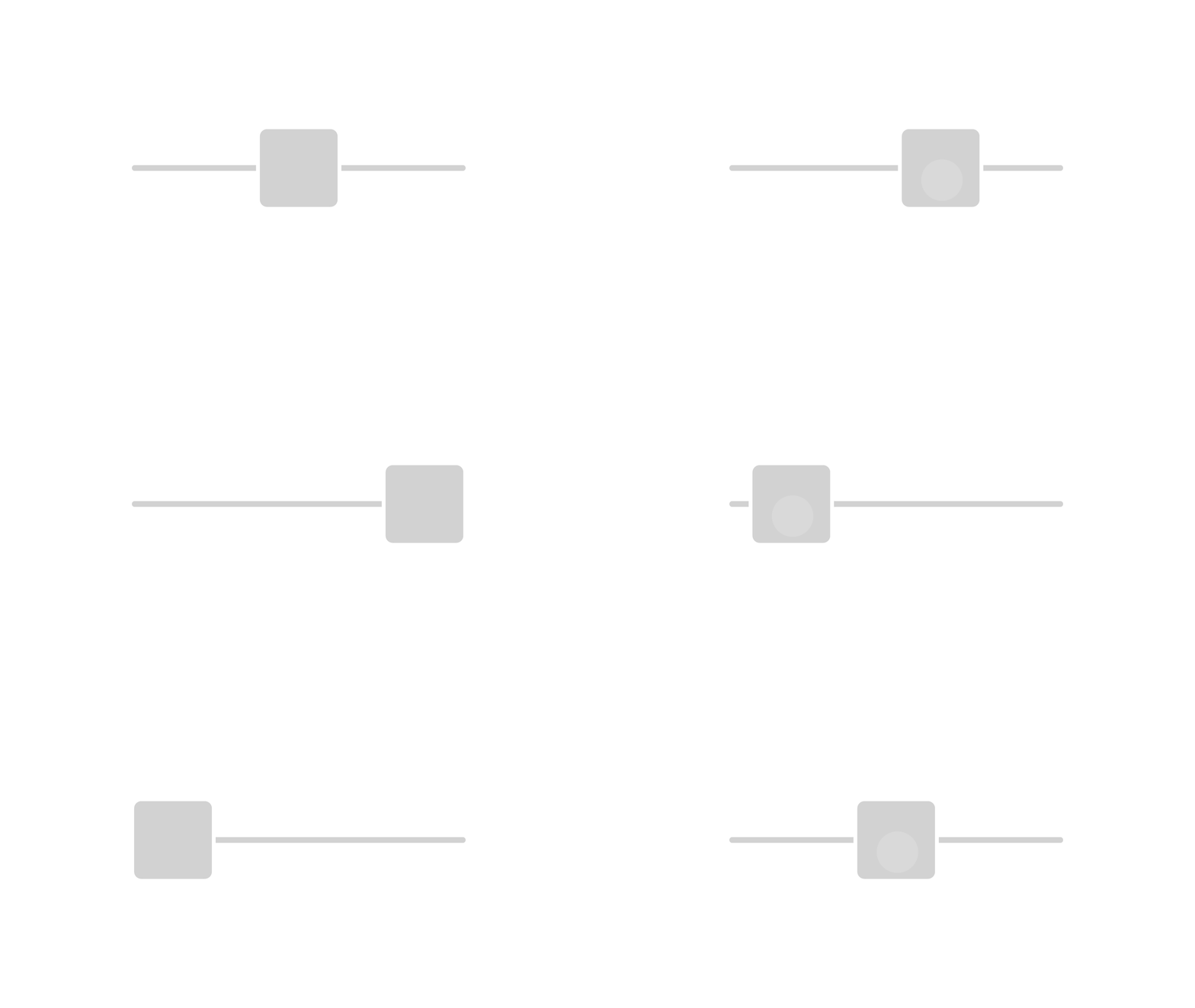
要通过完成教程来了解如何创建滑块,请参阅 教程:创建滑块。
Slider 节点启用了 Focusable 属性,并且默认情况下可以接收焦点。当 Slider 节点具有焦点时,要移动该滑块的旋钮,您可以使用这些默认键盘键:
Home 将滑块旋钮移动到轨道的起始位置。
End 将滑块旋钮移动到轨道的末端。
← 和 → 用于移动水平滑块的旋钮。
↑ 和 ↓ 用于移动垂直滑块的旋钮。
要使用箭头键盘键移动滑块旋钮,请在该 Slider 节点中使用 Step Value 属性设置每次按键时旋钮移动的量。
使用来自 Factory Content 的滑块。
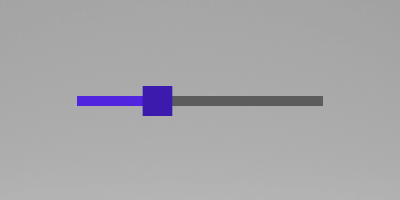
Kanzi Factory Content 资源包包含一个您可以根据需要自定义的2D滑块。
要使用来自 Factory Content 的滑块:
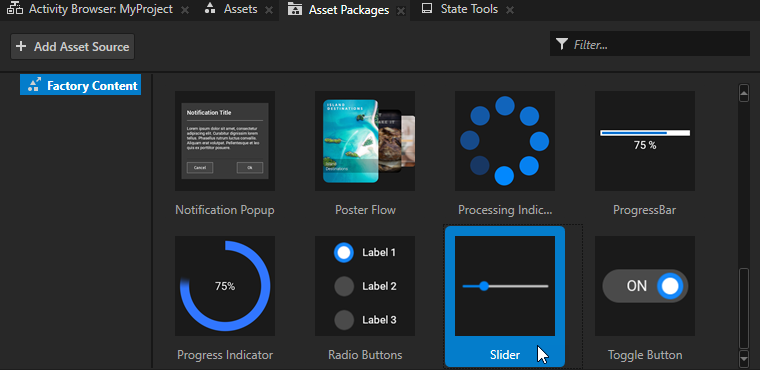
从 Asset Packages > Factory Content 拖动 Slider 并将其放到 Preview 或 Node Tree 中的 2D 节点上。
Kanzi Studio 将 Slider 资源导入到您的项目中,从滑块创建一个预设,并在您的项目中实例化该预设。
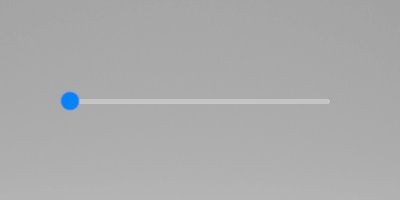
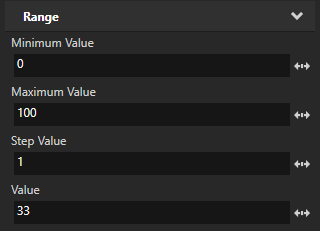
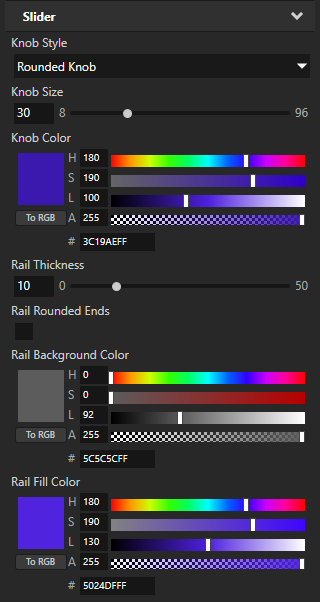
(可选) 要设置滑块的外观和行为,请在 Node Tree 或 Prefabs 中选择 Slider,并在 Properties 中添加和设置:
Maximum Value 用于设置滑块的最高值。默认值为 100。
Minimum Value 设置滑块的最低值。默认值为 0。
Step Value 用于设置旋钮在轨道上移动的增量。默认值为 1。
Value 用于设置旋钮在轨道上的初始位置。您可以使用绑定通过滑块的位置来控制另一个属性。请参阅 使用绑定。
Knob Style 用于将旋钮的形状设置为方形或圆形,或不显示旋钮。
Knob Size 设置旋钮的大小。
Knob Color 设置旋钮的颜色。
Rail Thickness 设置导轨的厚度。
Rail Rounded Ends 用于设置是否对轨道的末端进行圆角处理。
Rail Background Color 用于设置从旋钮到轨道末端的轨道颜色。
Rail Fill Color 用于设置从轨道起始位置到旋钮的轨道颜色。
创建您自己的滑块
当 Kanzi 附带的滑块不符合您的要求时,您可以创建自己的滑块。
要创建您自己的滑块:
在 Prefabs 中,点击
 并选择 Slider 3D 或 Slider 2D。
右键点击您创建的滑块预设件,并创建:
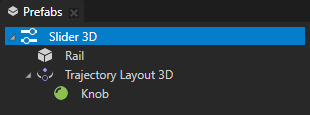
对于 3D 滑块:
该节点可视化呈现滑块旋钮沿其移动的导轨。
例如,如果您想可视化滑块移动的轨迹,则使用网格。
Trajectory Layout 3D 作为您希望移动滑块旋钮的轨道。
Kanzi Studio 默认情况下创建并使用圆形轨迹。您可以使用角度、弧、圆、椭圆、直线、矩形、螺旋、样条或梯形轨迹。请参阅 轨迹 (Trajectories)。
在 Trajectory Layout 3D 内创建一个您想用作滑块旋钮的节点。
例如,创建一个 Sphere。
对于 2D 滑块:
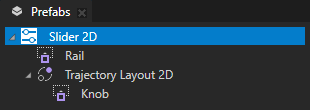
一个视觉上表示滑块旋钮移动的轨道的节点。例如,要创建轨道的视觉表示,可以使用一个 Content Layout 2D 节点、一个 Image 节点,或在布局中使用多个 Image 或 Empty Node 2D 节点。
例如,创建一个 Content Layout 2D 节点并将其命名为 Rail。
一个 Trajectory Layout 2D 节点,作为您希望移动滑块旋钮的轨道。
Kanzi Studio 默认情况下创建并使用圆形轨迹。您可以使用角度、弧、圆、椭圆、直线、矩形、螺旋、样条或梯形轨迹。请参阅 轨迹 (Trajectories)。
在 Trajectory Layout 2D 节点内创建一个您想用作滑块旋钮视觉表示的节点。
例如,创建一个 Content Layout 2D 节点并将其命名为 Knob。
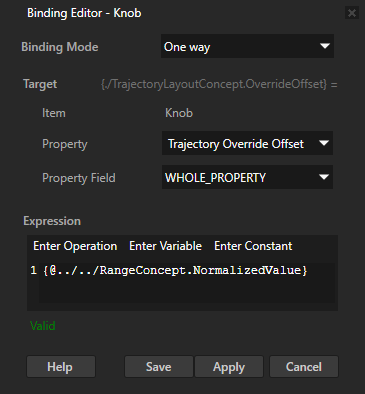
选择您要用作旋钮的节点,在 Properties 中单击 + Add Binding,并在 Binding Editor 中设置:
Property 到 Trajectory Override Offset
Expression 到
{@../../RangeConcept.NormalizedValue}
单击 Save。请参阅 使用绑定。
创建一个别名,Kanzi 用于告诉滑块使用哪个轨迹作为滑块的轨道:
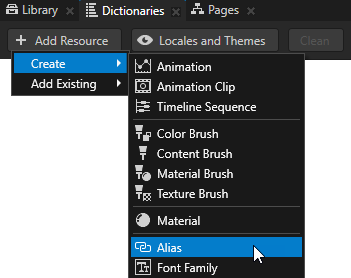
在 Prefabs 中选择 Slider 2D 预设,在 Dictionaries 窗口中点击 + Add Resource,并选择 Create > Alias。
将别名命名为 $layout,并将其设置为指向 Slider 2D 预设中的 Trajectory Layout 2D 节点。
Kanzi 使用此别名来指示滑块沿哪个轨迹移动滑块旋钮。

设置充当滑块旋钮移动轨道的大小:
对于 3D 滑块:在 Library > Trajectories 中选择滑块中 Trajectory Layout 3D 节点使用的轨迹,并设置 Line Trajectory 的 Length 属性或 Circle Trajectory 的 Radius 属性。
对于二维滑块:在 Prefabs 中选择 Trajectory Layout 2D,并在 Properties 中设置 Layout Width 属性。
(可选) 选择滑块,并在 Properties 中通过添加和设置来设置滑块参数:
Maximum Value 定义了滑块的最高值。
Minimum Value 定义了滑块的最低值。
Step Value 定义旋钮在轨道上移动的增量。
Value 属性设置旋钮在轨道上的初始位置。如果您不设置 Minimum Value 和 Maximum Value 属性,则范围在 0 到 1 之间。
将您从 Prefabs 创建的滑块拖到 Node Tree 上,并将其放在您要使用滑块的节点上。
使用属性更新滑块值
您可以通过将滑块的 Value 属性绑定到其他属性来控制其值。例如:
要在其他某个属性的值更改时更改滑块值,请使用到源绑定。
要在其他属性的值发生变化时更改滑块值,反之亦然,使用双向绑定。请参阅 使用滑块滚动 Grid List Box 节点。
当您移动滑块旋钮时,滑块会在内部覆盖任何以 Value 属性为目标的单向绑定。请参阅 绑定 (Bindings)。
要在其他某个属性的值更改时更改滑块值:
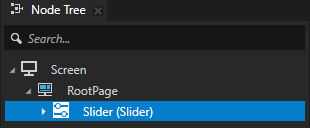
创建一个 Slider。
例如:从 Asset Packages > Factory Content 中,将 Slider 拖到 Node Tree 上,并将其放置在 2D 节点上。
在 Node Tree 中,选择您要用来控制滑块值的节点。
例如,选择您创建的 Slider。
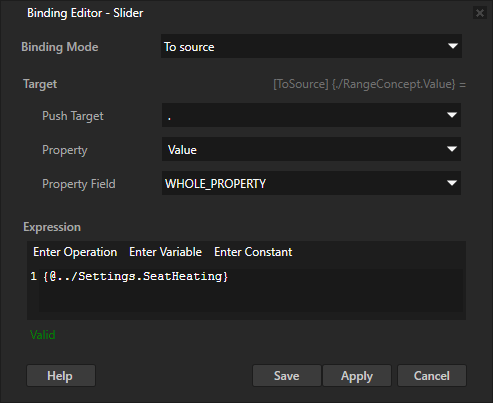
在 Properties 中,点击 + Add Binding,并在 Binding Editor 中设置:
Binding Mode 到 To source
Push Target 到指向 Slider 节点的路径。
例如,如果您将绑定添加到 Slider 节点,请将其设置为 .。
Property 到 Value
将 Expression 到获取您要用于设置滑块值的属性值的表达式。
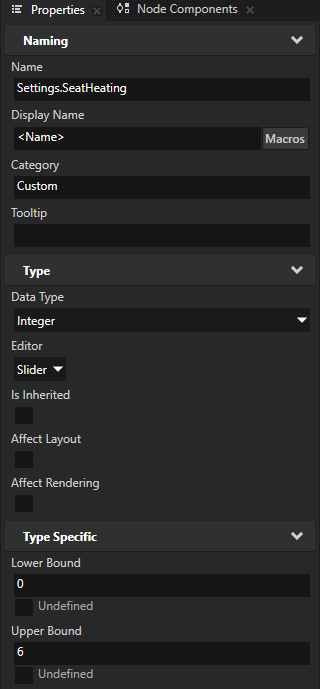
例如,使用自定义属性。请参阅 创建属性类型。
在 Node Tree 中,选择 Slider 节点。在 Properties 中,添加并设置:
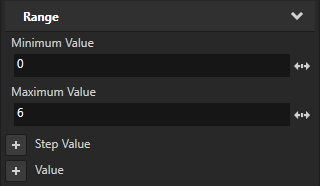
将 Minimum Value 设置为与自定义属性的 Lower Bound 相同的值。
将 Maximum Value 设置为与自定义属性的 Upper Bound 相同的值。
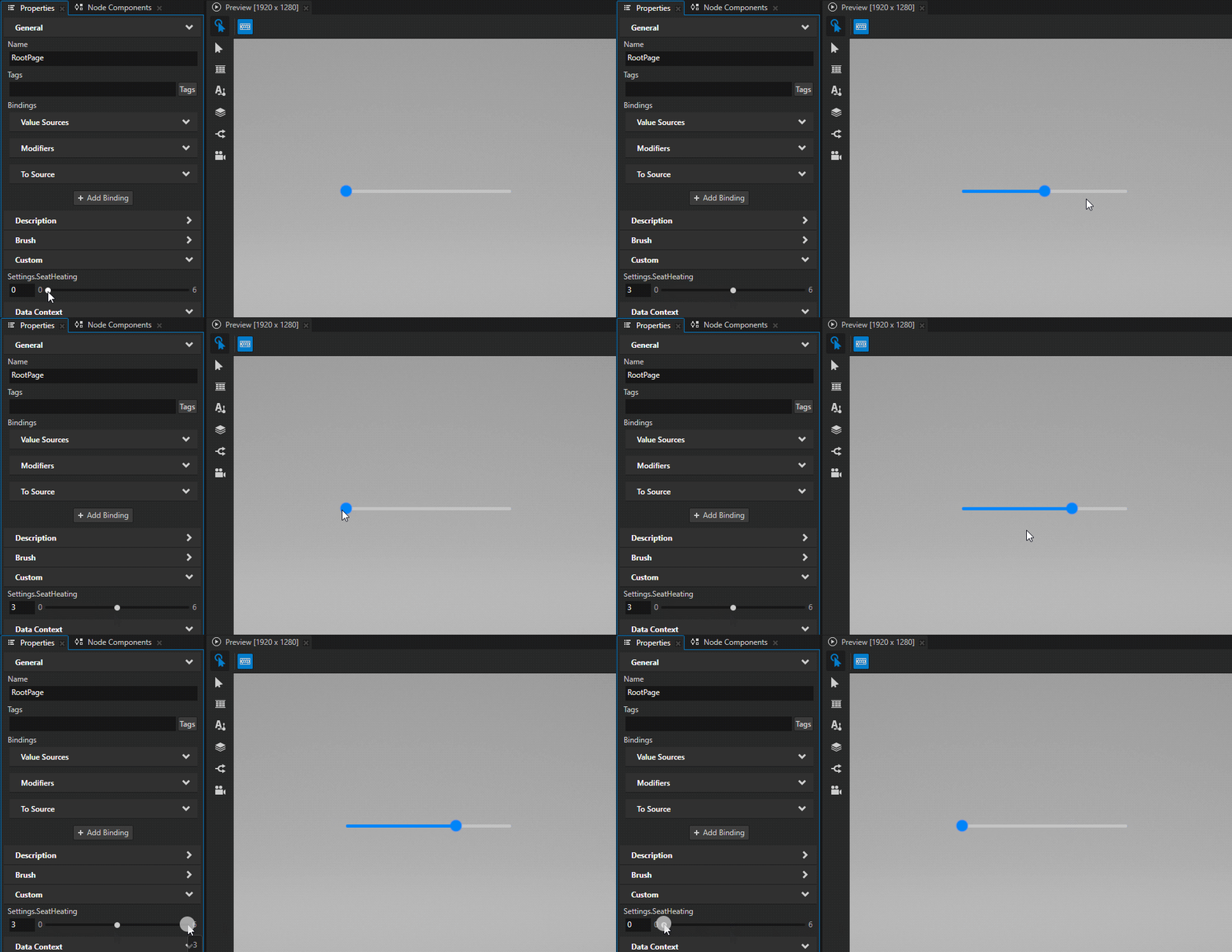
要调整滑块值:
在 Preview 中,移动滑块旋钮。
在 Properties 中,调整自定义属性的值。
使用滑块滚动 Grid List Box 节点
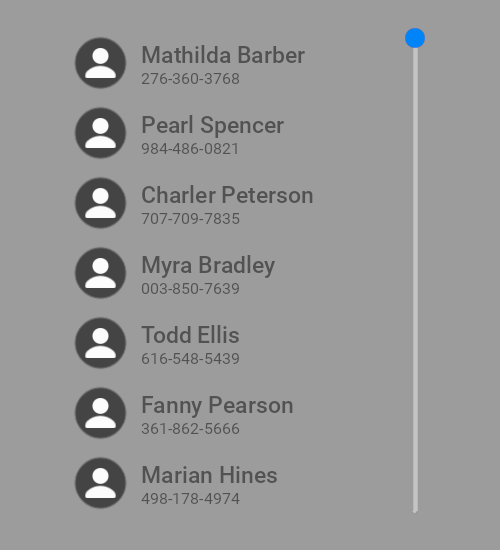
您可以使用 Slider 节点滚动 Grid List Box 节点。在此示例中,您使用滑块滚动垂直联系人列表。
要使用滑块滚动 Grid List Box 节点:
创建您想要滚动的 Grid List Box 节点。
例如:
在 Node Tree 中创建一个 Stack Layout 2D 节点。
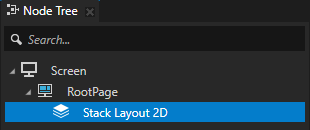
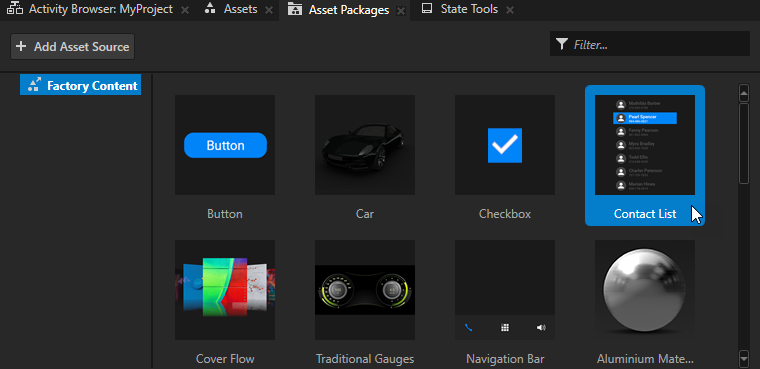
从 Asset Packages > Factory Content 拖动 Contact List 到 Node Tree 并将其放在 Stack Layout 2D 节点上。请参阅 出厂内容资产。
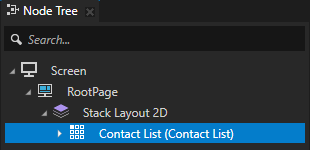
创建用于滚动 Grid List Box 节点的 Slider 节点,并设置 Slider 节点的大小和方向以匹配 Grid List Box 节点。
例如:
从 Asset Packages > Factory Content 将 Slider 拖到 Node Tree 上,并将其放在 Stack Layout 2D 节点上。
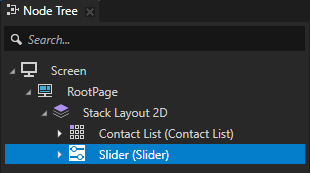
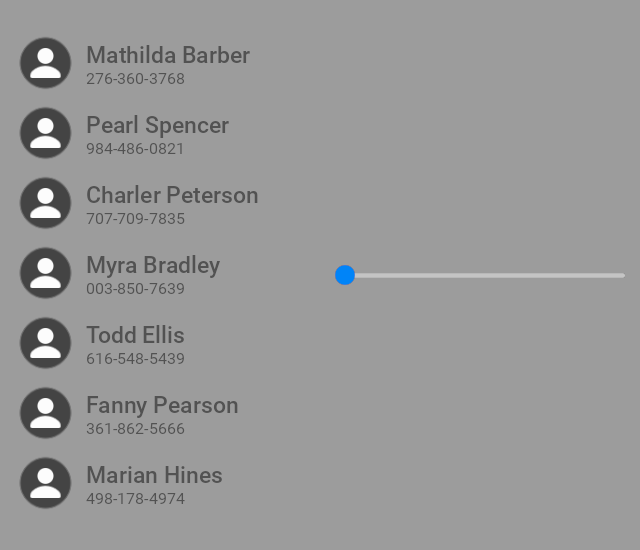
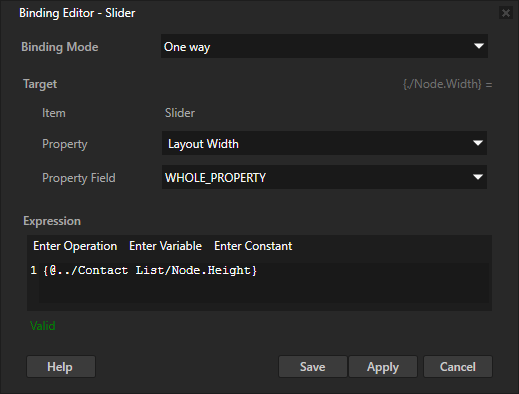
在 Node Tree 中选择 Slider 节点,在 Properties 中点击 + Add Binding,并在 Binding Editor 中设置:
Property 到 Layout Width
Expression 到
{@../Contact List/Node.Height}
这样您可以使滑块轨道的长度匹配 Contact List 节点的高度。
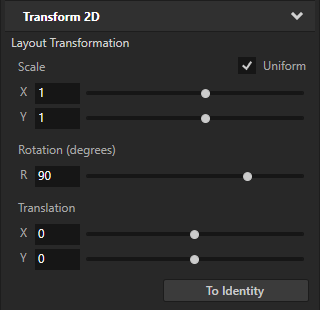
在 Properties 中添加 Transform 2D > Layout Transformation 属性,并将 Rotation 属性字段设置为 90。
通过这种方式,让滑块垂直。
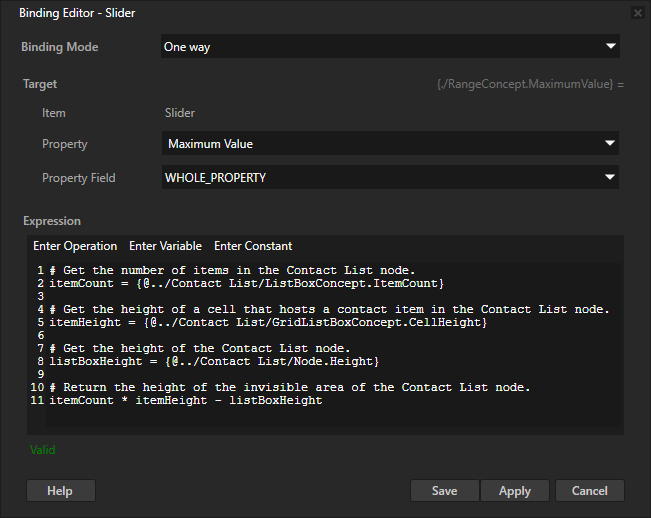
在 Properties 中,单击 + Add Binding,并在 Binding Editor 中设置:
Property 到 Maximum Value
Expression 到
# Get the number of items in the Contact List node.
itemCount = {@../Contact List/ListBoxConcept.ItemCount}

# Get the height of a cell that hosts a contact item in the Contact List node.
itemHeight = {@../Contact List/GridListBoxConcept.CellHeight}

# Get the height of the Contact List node.
listBoxHeight = {@../Contact List/Node.Height}

# Return the height of the invisible area of the Contact List node.
itemCount * itemHeight - listBoxHeight
您将 Slider 节点的最高值绑定到 Contact List 节点的不可见区域的高度。Slider 节点的最低值默认情况下为 0。通过这种方式,您可以设置滑块中的值范围以匹配联系人列表的长度。
在 Node Tree 中选择 Slider 节点,在 Properties 中点击 + Add Binding,并在 Binding Editor 中设置:
Binding Mode 到 Two way
Property 到 Value
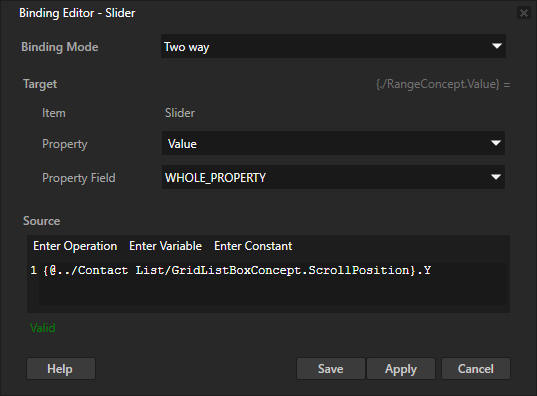
将 Source 到您想要滚动的 Grid List Box 节点的 Scroll Position 属性 X 或 Y 属性字段。
例如,将其设为:
{@../Contact List/GridListBoxConcept.ScrollPosition}.Y
您将 Slider 节点的 Value 属性绑定到 Contact List 节点的 Scroll Position 属性 Y 属性字段。这样,您就在滑块旋钮的位置和列表框的垂直滚动位置之间创建了双向连接。
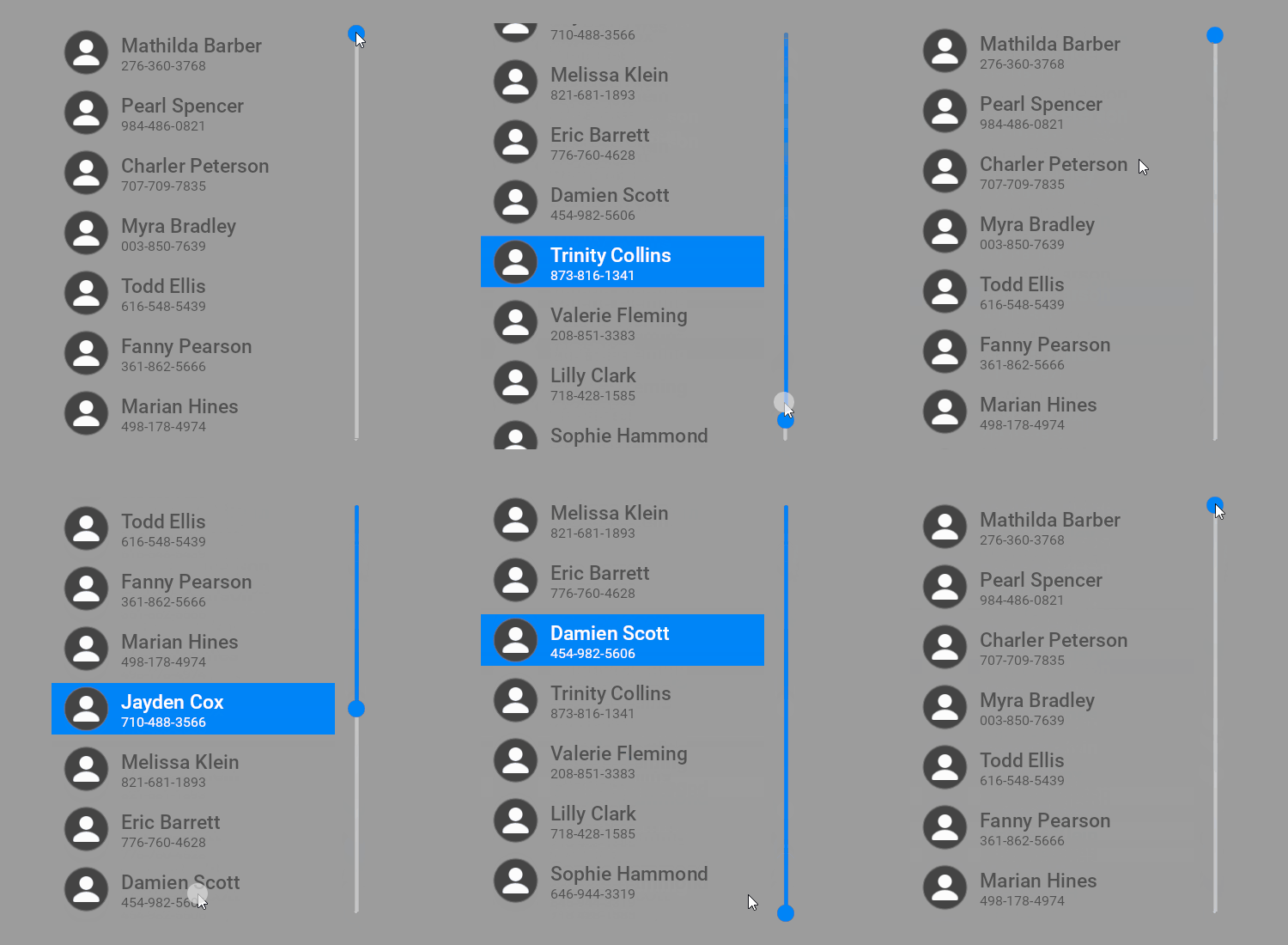
在 Preview 中,当您移动滑块旋钮时,联系人列表会滚动,当您滚动联系人列表时,滑块旋钮会移动。
使用滑块创建颜色选择器
您可以使用 Slider 节点创建一个颜色选择器,其中滑块值设置颜色样本的颜色。
要通过滑块创建颜色选择器:
创建一个滑块,其环形旋钮沿着色轮移动:
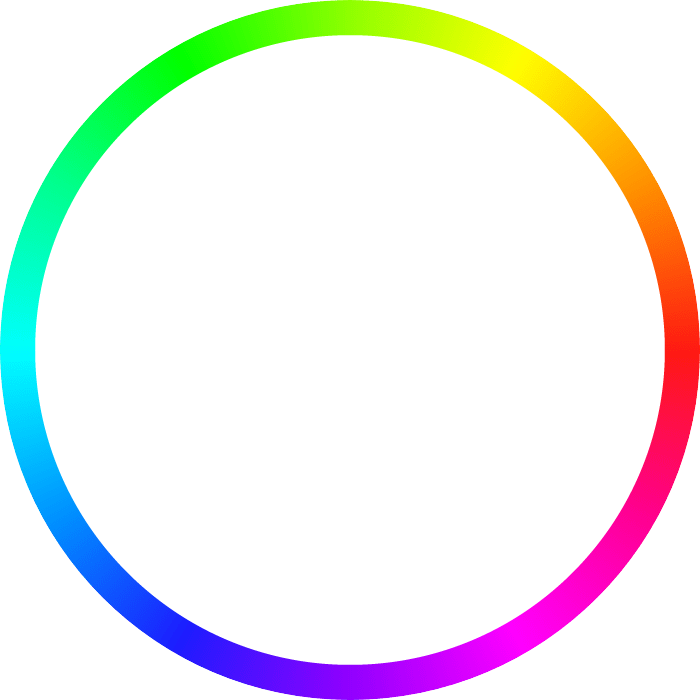
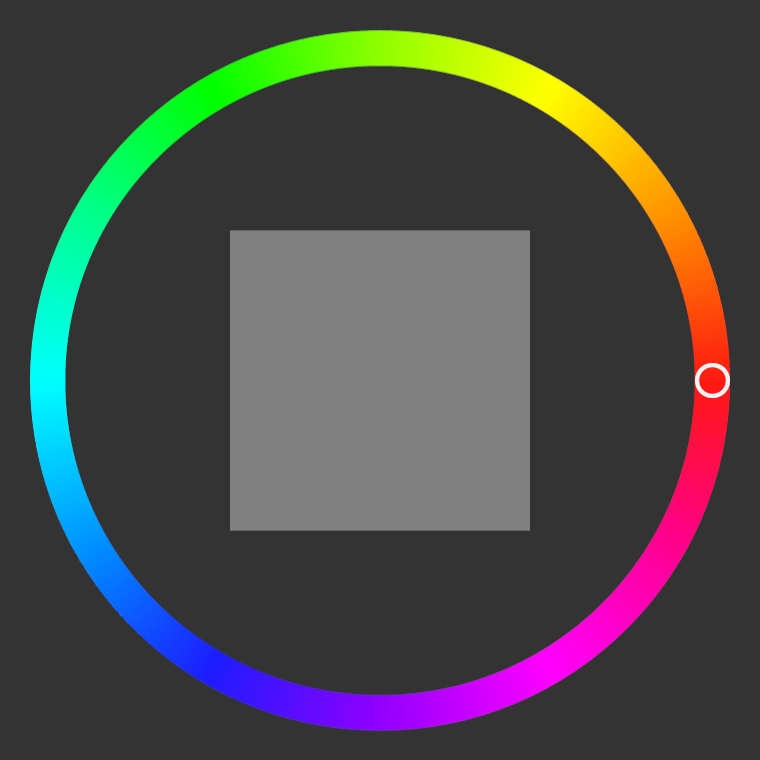
在 Assets 中,单击 Import Assets 并导入显示色轮和环形滑块旋钮的图像。
例如,保存并导入这些图像。


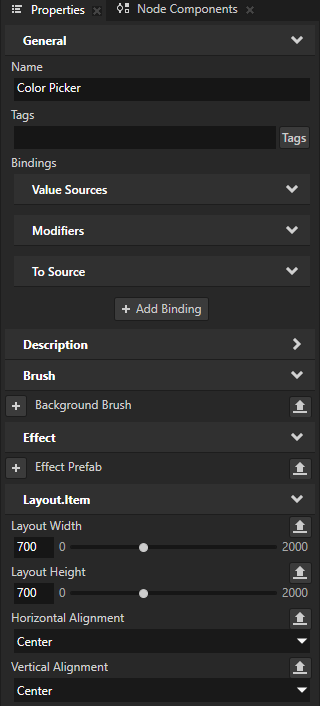
在 Prefabs 中,创建一个 Slider 2D 预设,并将其命名为 Color Picker。在 Properties 中,添加并设置:
Layout Width 和 Layout Height 以匹配显示色轮的图像的尺寸。
例如,将其设为 700。
Horizontal Alignment 和 Vertical Alignment 到 Center

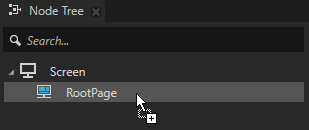
将 Color Picker 预设拖到 Node Tree 上,并将其放在 RootPage 节点上。
通过这种方式,您可以在节点树中实例化预设,以便您可以在 Preview 中跟踪滑块的创建。
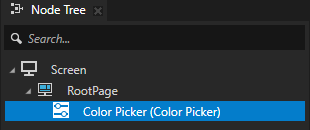
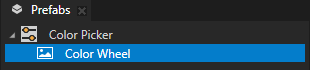
在 Prefabs > Color Picker 预设中:
创建一个 Image 节点,该节点显示色轮并直观地表示滑块旋钮移动的轨道。在 Properties 中,添加并设置 Horizontal Alignment 和 Vertical Alignment 属性为 Center。
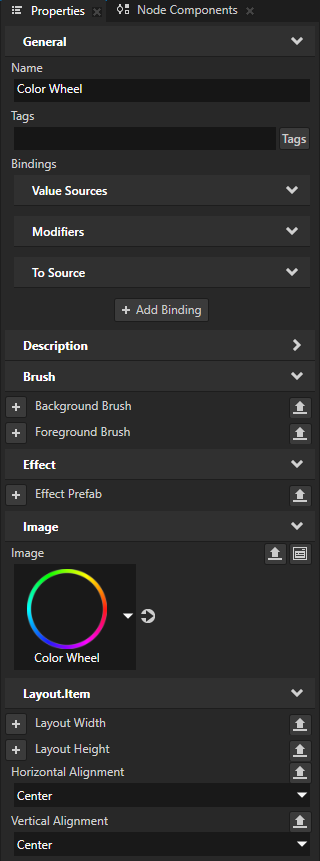
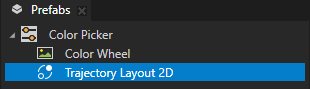
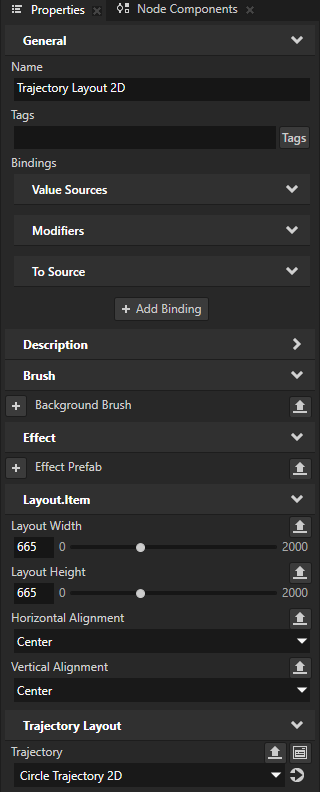
创建一个 Trajectory Layout 2D 节点,作为移动滑块旋钮的轨道。在 Properties 中,添加并设置:
Layout Width 和 Layout Height 之间的差异是显示色轮和滑块旋钮的图像尺寸之间的差异。
例如,将其设为 665。
Horizontal Alignment 和 Vertical Alignment 到 Center
这样即可定位色盘上的轨迹布局。
小技巧
要查看轨迹,在 Preview 中单击
 以进入 Analyze 模式,右键单击
  ,然后选择 Debug objects。
在 Trajectory Layout 2D 节点中,创建一个 Image 节点,您将其用作滑块旋钮的视觉表示。
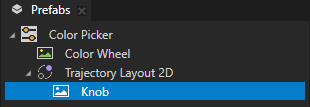
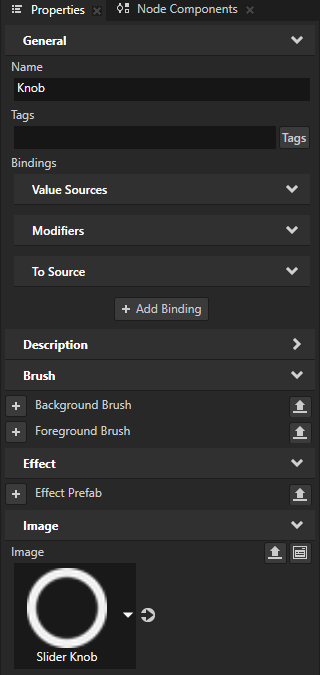
在 Prefabs 中,选择 Trajectory Layout 2D 节点。在 Trajectory 属性旁边的 Properties 中,单击
 以转到该资源并设置:
将 Radius 设置为 Trajectory Layout 2D 节点宽度的一半。
例如,将其设为 332。
Angle 到 180。
将轨迹起点设置为红色,色调为 0。
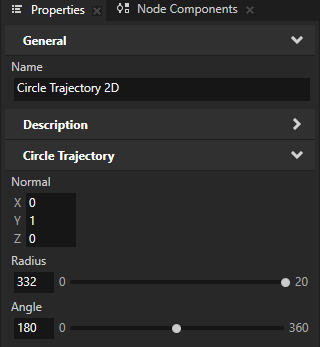
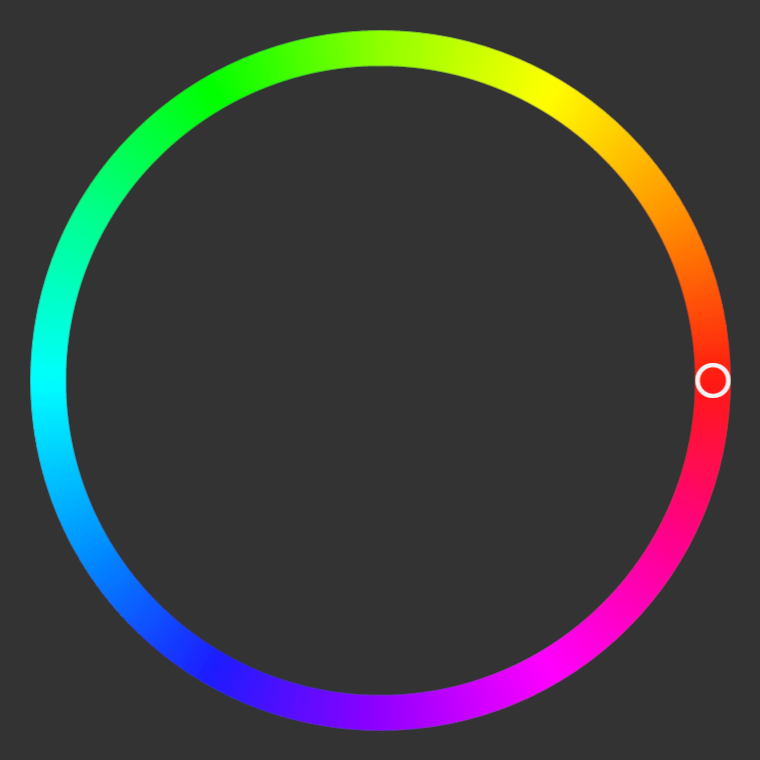
创建一个别名,Kanzi 用于告诉滑块使用哪个轨迹作为滑块的轨道:
在 Prefabs 中,选择 Color Picker 预设。在 Dictionaries 中,点击 + Add Resource,选择 Create > Alias,并将别名命名为 $layout。
将 $layout 别名设置为指向 Color Picker 预设中的 Trajectory Layout 2D 节点。

在 Prefabs 中,选择 Knob 节点。在 Properties 中,点击 + Add Binding,并在 Binding Editor 中设置:
Property 到 Trajectory Override Offset
Expression 到
{@../../RangeConcept.NormalizedValue}
单击 Save。
此绑定使滑块旋钮沿定义滑轨的轨迹移动。
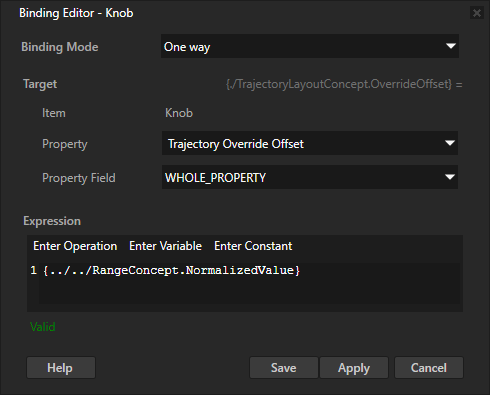
存储用户在色轮上选择的颜色:
在 Library > Property Types 中,创建一个属性类型并设置:
Name 到 ColorPicker.Color
Data Type 到 Color
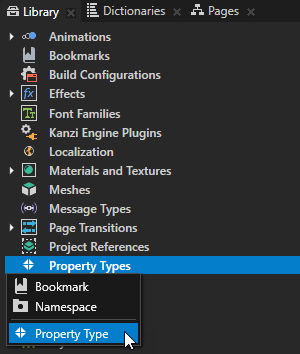
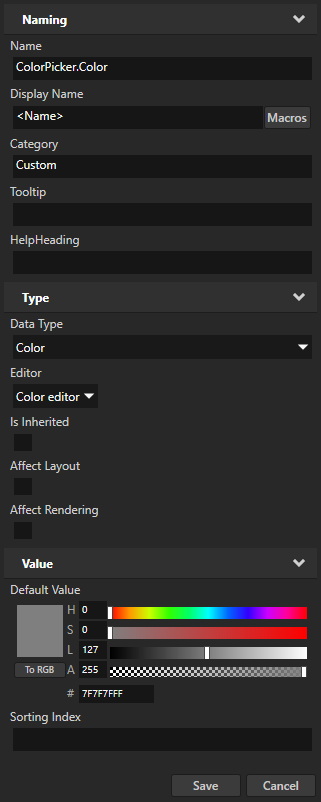
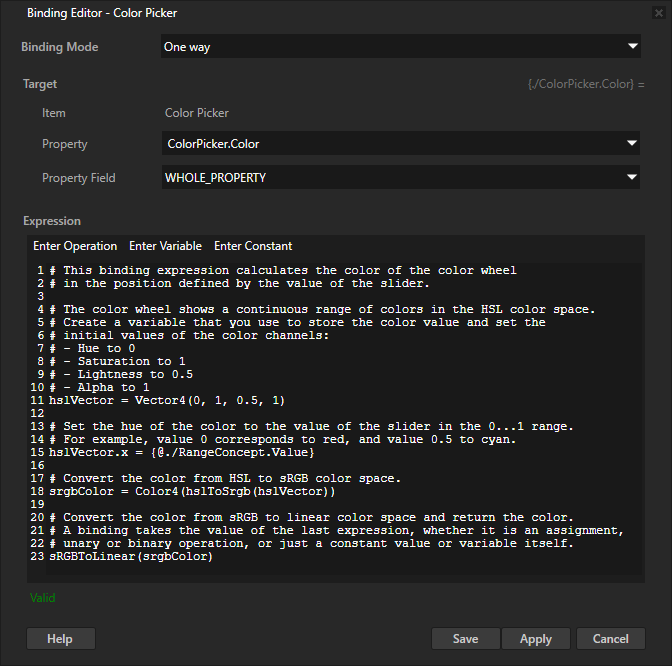
在 Prefabs 中,选择 Color Picker 预设。在 Properties 中,单击 + Add Binding,并在 Binding Editor 中,设置:
Property 到 ColorPicker.Color
Expression 到
# This binding expression calculates the color of the color wheel
# in the position defined by the value of the slider.

# The color wheel shows a continuous range of colors in the HSL color space.
# Create a variable that you use to store the color value and set the
# initial values of the color channels:
# - Hue to 0
# - Saturation to 1
# - Lightness to 0.5
# - Alpha to 1
hslVector = Vector4(0, 1, 0.5, 1)

# Set the hue of the color to the value of the slider in the 0...1 range.
# For example, value 0 corresponds to red, and value 0.5 to cyan.
hslVector.x = {@./RangeConcept.Value}

# Convert the color from HSL to sRGB color space.
srgbColor = Color4(hslToSrgb(hslVector))

# Convert the color from sRGB to linear color space and return the color.
# A binding takes the value of the last expression, whether it is an assignment,
# unary or binary operation, or just a constant value or variable itself.
sRGBToLinear(srgbColor)
单击 Save。
您将 ColorPicker.Color 属性绑定到根据滑块的 Value 属性计算的颜色值。要在颜色空间之间进行转换,使用 hslToSrgb 和 sRGBToLinear 绑定函数。
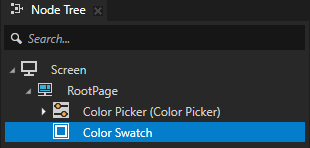
创建显示当前选定颜色的色样:
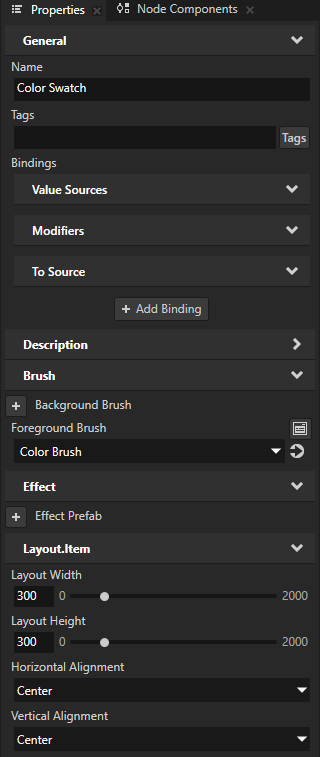
在 Node Tree 中,创建一个 Empty Node 2D 节点并将其命名为 Color Swatch。在 Properties 中,添加并设置:
Foreground Brush 并选择 + Color Brush。
Layout Width 和 Layout Height 到 300。
Horizontal Alignment 和 Vertical Alignment 到 Center
使用此节点显示用户通过滑块在色盘中选择的颜色。
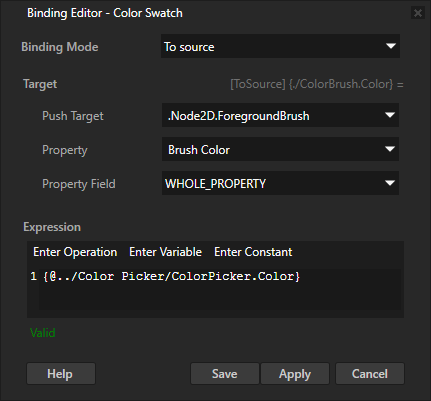
在 Node Tree 中,选择 Color Swatch 节点。在 Properties 中,点击 + Add Binding,并在 Binding Editor 中设置:
Binding Mode 到 To source
Push Target 到 .Node2D.ForegroundBrush
Property 到 Brush Color
Expression 到
{@../Color Picker/ColorPicker.Color}
单击 Save。
通过这种方式,您为 Color Swatch 节点的 Foreground Brush 使用的画笔设置 Brush Color 属性的值。您将 Color Picker 节点中 Brush Color 属性的值绑定到 ColorPicker.Color 属性的值。
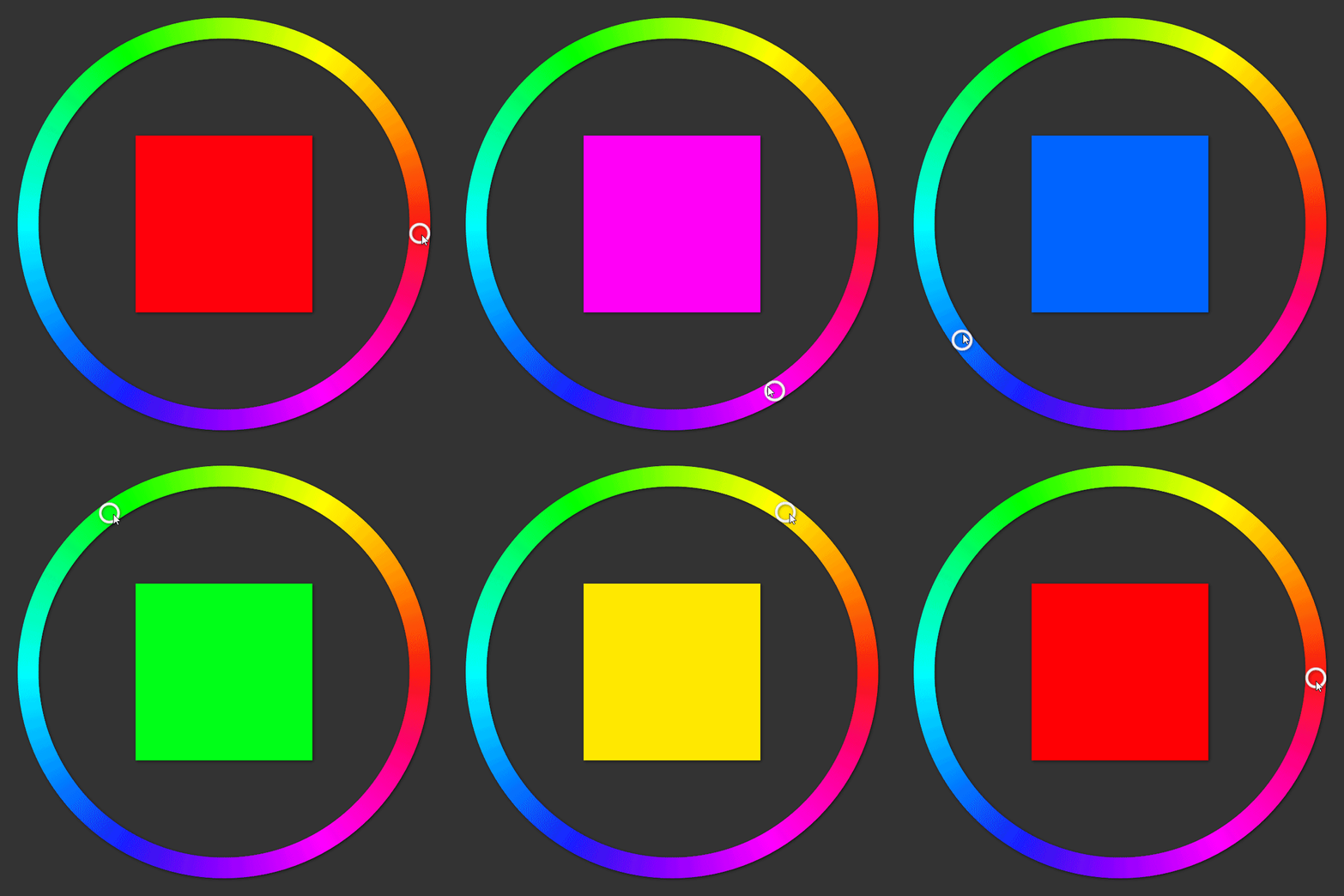
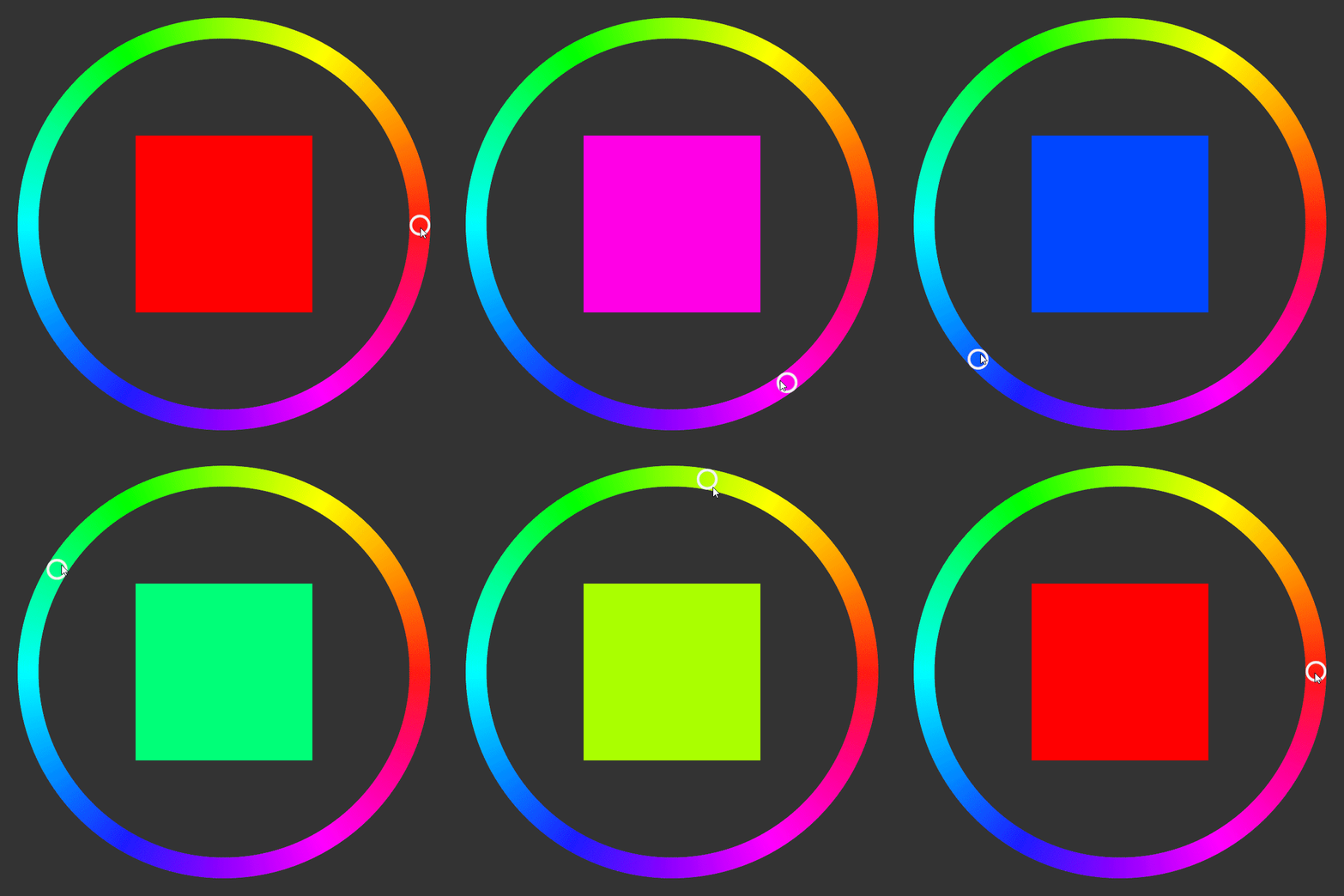
在 Preview 中,当您沿着色轮拖动旋钮时,颜色样本会显示旋钮下的颜色。
(可选) 将阴影应用到色轮、滑块旋钮和颜色样本:
在 Library 中,按 Alt 并右键单击 Effects 并选择 Shadow Effect 2D。
Shadow Effect 2D 效果为 2D 节点中内容的视觉形状应用阴影。请参阅 使用 Shadow Effect 2D 效果。
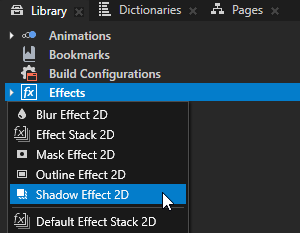
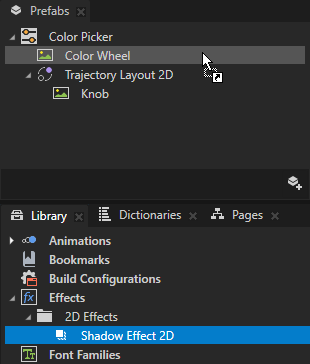
从 Library > Effects > 2D Effects 中,将 Shadow Effect 2D 效果拖到 Prefabs 上,并将其放在显示色轮的节点上。
通过这种方式,您可以在该节点中将 Effect Prefab 属性设置为 Shadow Effect 2D 效果。
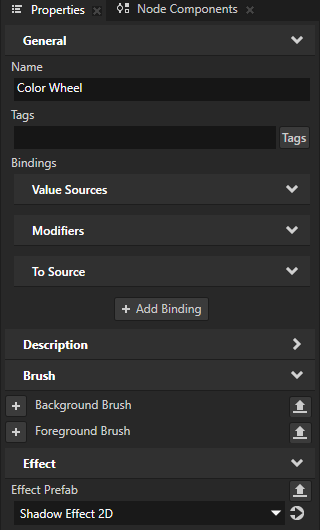
为显示滑块旋钮和颜色样本的节点重复上一步骤。
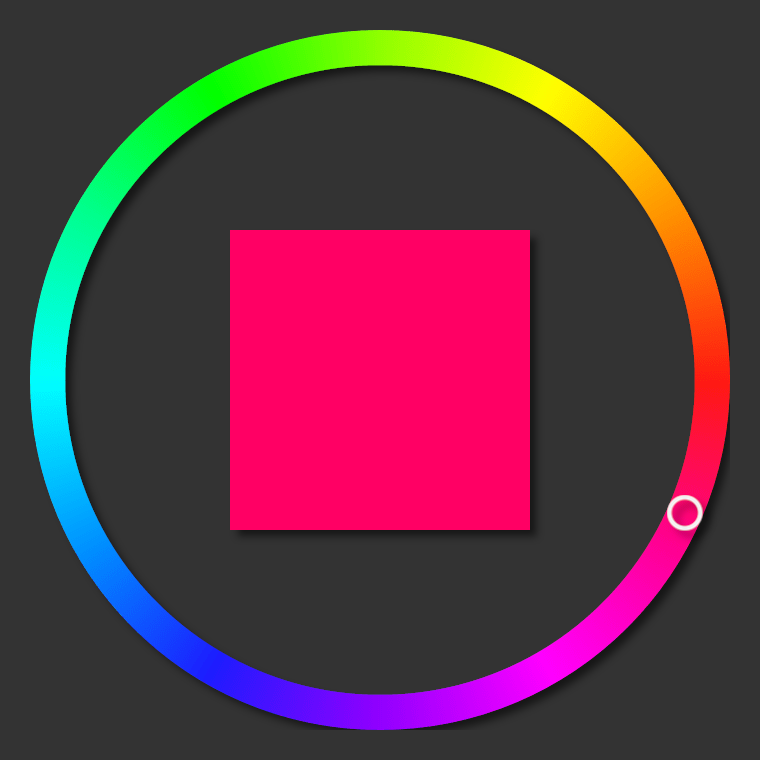
调整阴影效果的外观。
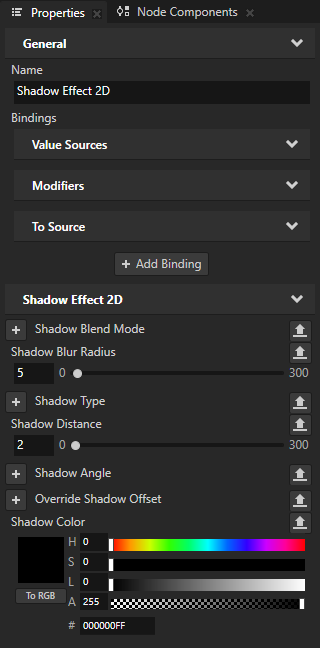
例如:在 Library > Effects > 2D Effects 中,选择 Shadow Effect 2D 效果。在 Properties 中,添加并设置:
Shadow Blur Radius 到 5
Shadow Distance 到 2
Shadow Color 为完全不透明的黑色。
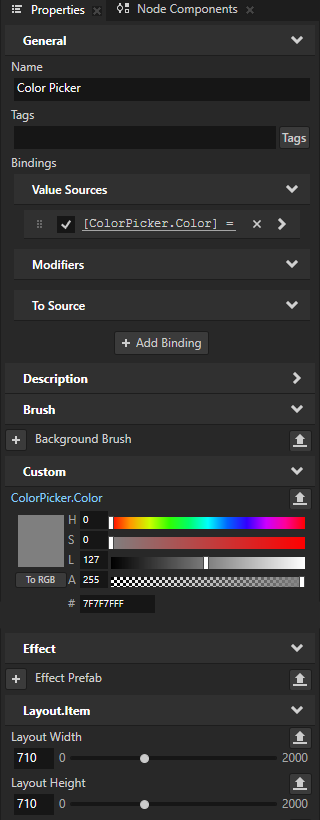
在 Prefabs 中,选择 Color Picker 预设。在 Properties 中,将 Layout Width 和 Layout Height 属性设置为在布局中留出足够空间以容纳阴影的值。
例如,将 Layout Width 和 Layout Height 设置为 710。
控制 Slider 节点是否在使用中
要控制 Slider 节点是否在使用中,请使用 Input > Enabled 属性。禁用的 Slider 节点不会对用户输入做出反应。当您禁用 Slider 节点时,Kanzi 会停止正在进行的手势并保留滑块值。
当您禁用节点的 Enabled 属性时,您实际上禁用了该节点及其在同一覆盖焦点范围内的子节点。
要观察节点是否有效启用,使用状态管理器或绑定中的 Input > Effectively Enabled 属性。例如,要向用户直观地指示节点是否正在使用,创建一个状态管理器并使用 Effectively Enabled 属性作为其控制器属性。
请参阅 控制节点对输入的反应方式。
设置 Slider 2D 节点的外观
要设置 2D 节点的外观:
您可以使用单色、纹理或材质填充 2D 节点。请参阅 调整 2D 节点的外观。



您可以将后期处理效果应用于2D节点。请参阅 2D 节点的效果。




您可以围绕所有三个轴旋转 2D 节点,以创建 3D 透视效果。请参阅 为2D节点创建3D透视效果。

您可以应用自定义渲染到 2D 节点,以创建后处理效果。请参阅 应用自定义渲染到 2D 节点。
您可以将2D节点渲染为像素完美。请参阅 渲染像素完美的2D节点。
在 API 中使用 Slider 3D 节点
要创建具有自定义外观的 Slider 3D 节点:
// Create a Slider 3D node named Custom 3D slider.
Slider3DSharedPtr slider3d = Slider3D::create(domain, "Custom 3D slider");
// Add the Slider 3D node to the Scene node.
scene->addChild(slider3d);

// Set the size of the Slider 3D node to be 4 device independent units wide,
// 2 device independent units high, and 1 device independent unit deep.
slider3d->setWidth(4.0f);
slider3d->setHeight(2.0f);
slider3d->setDepth(1.0f);

// Use the Trajectory Layout 3D node to define the rail along which the knob of the slider moves.
// Create a Trajectory Layout 3D node named Slider rail.
TrajectoryLayout3DSharedPtr trajectoryLayout = TrajectoryLayout3D::create(domain, "Slider rail");

// Use the Sphere node to define the look of the knob that moves on the slider rail.
// Create a blue Sphere node named Slider knob whose radius is 1 device independent unit.
Model3DSharedPtr sliderKnob = Model3D::createSphere(domain, "Slider knob", 1.0f, 20, 20, ThemeBlue);
// Set the Sphere node to be the child of the trajectoryLayout Trajectory Layout 3D node.
trajectoryLayout->addChild(sliderKnob);

// Add the layout as a child node of the Slider 3D node.
// You can place the Trajectory Layout 3D node that defines the rail anywhere
// in the node tree and it does not have to be the direct child of the Slider 3D node.
slider3d->addChild(trajectoryLayout);

// The knob movement on the rail is based on modifying the TrajectoryLayout3D::StaticTrajectoryOffsetProperty
// which is set based on the Slider3D::ValueProperty.
// "../.." is the path from the knob (Sphere node) to the Slider 3D node.
AbstractBindingSharedPtr binding = Binding::create("../..", Slider3D::ValueProperty, PropertyFieldWhole);
// Add to the knob the binding that enables the knob to move on the rail.
sliderKnob->setBinding(binding, TrajectoryLayout3D::OverrideOffsetProperty, PropertyFieldWhole);

// Create an alias pointing to the Trajectory Layout 3D node that defines the slider rail.
ResourceID alias("$layout");
string path("obj:///" + trajectoryLayout->getName());
// Add the alias to the resource dictionary of the Slider 3D node.
slider3d->addResource(alias, path);

// Create the trajectory of the Trajectory Layout 3D node that is used as the rail of the Slider 3D node.
// Create a line trajectory on the x axis, that is 5 device independent units long, and name it Line trajectory.
TrajectorySharedPtr trajectory = Trajectory::createLine(Vector3(), Vector3(1.0f, 0.0f, 0.0f), 5.0f, domain, "Line trajectory");
// Set the Trajectory Layout 3D node to use the line trajectory.
trajectoryLayout->setTrajectory(trajectory);

// Set the Trajectory Layout 3D node so that it sets its size
// based on the size of its parent node (in this case the Slider 3D node).
trajectoryLayout->setHorizontalAlignment(Node::HorizontalAlignmentStretch);
trajectoryLayout->setVerticalAlignment(Node::VerticalAlignmentStretch);
trajectoryLayout->setDepthAlignment(Node::DepthAlignmentStretch);
有关详细信息,请参阅 Slider3D 类。
使用 Slider 2D 节点在 API 中
要创建具有自定义外观的 Slider 2D 节点:
// Create a Slider 2D node named Custom 2D slider.
Slider2DSharedPtr slider = Slider2D::create(domain, "Custom 2D slider");
// Set the size of the Slider 2D node to be 400 pixels wide and 200 pixels high.
slider->setSize(400.0f, 200.0f);

// Use the Trajectory Layout 2D node to define the rail along which the knob of the slider moves.
// Create a Trajectory Layout 2D node named Slider rail.
TrajectoryLayout2DSharedPtr trajectoryLayout = TrajectoryLayout2D::create(domain, "Slider rail");

// Use the Image node to define the look of the knob that moves on the slider rail.
// Create an Image node named Slider knob.
Image2DSharedPtr knob = Image2D::create(domain, "Slider knob");
// Set the Image node to be the child of the trajectoryLayout Trajectory Layout 2D node.
trajectoryLayout->addChild(knob);

// Create an alias pointing to the Trajectory Layout 2D node that defines the slider rail.
ResourceID alias("$layout");
string path("obj:///" + trajectoryLayout->getName());
// Add the alias to the resource dictionary of the Slider 2D node.
slider->addResource(alias, path);

// Add the layout as a child node of the Slider 2D node.
// You can place the Trajectory Layout 2D node that defines the rail anywhere
// in the node tree and it does not have to be the direct child of the Slider 2D node.
slider->addChild(trajectoryLayout);

// Create the trajectory of the Trajectory Layout 2D node that is used as the rail of the Slider 2D node.
// Create a line trajectory on the x axis, that is 350 pixels long, and name it Line trajectory.
TrajectorySharedPtr trajectory = Trajectory::createLine(Vector3(), Vector3(1.0f, 0.0f, 0.0f), 350.0f, domain, "Line trajectory");
// Set the Trajectory Layout 2D node to use the line trajectory.
trajectoryLayout->setTrajectory(trajectory);

// Set the Trajectory Layout 2D node so that it sets its size
// based on the size of its parent node (in this case the Slider 2D node).
trajectoryLayout->setHorizontalAlignment(Node::HorizontalAlignmentStretch);
trajectoryLayout->setVerticalAlignment(Node::VerticalAlignmentStretch);

// The knob movement on the rail is based on modifying the TrajectoryLayout2D::StaticTrajectoryOffsetProperty
// which is set based on the Slider2D::ValueProperty.
// "../.." is the path from the knob (Image node) to the Slider 2D node.
AbstractBindingSharedPtr binding = Binding::create("../..", Slider2D::ValueProperty, PropertyFieldWhole);

// Add the Slider 2D node to the Viewport 2D node.
viewportNode->addChild(slider);

// Get the knob instance from the instance of the prefab template.
Node2DSharedPtr knobInstance = slider->getPresenter()->getLayout()->getChild(0);
// Set to the knob the binding that enables the knob to move on the rail.
knobInstance->setBinding(binding, TrajectoryLayout2D::OverrideOffsetProperty, PropertyFieldWhole);
有关详细信息,请参阅 Slider2D 类。