从文件系统加载图像
您可以在 Kanzi Studio 中从图像创建纹理,或从运行应用程序的设备的文件系统中加载和使用图像到您的 Kanzi 应用程序中。
要从文件系统加载图像:
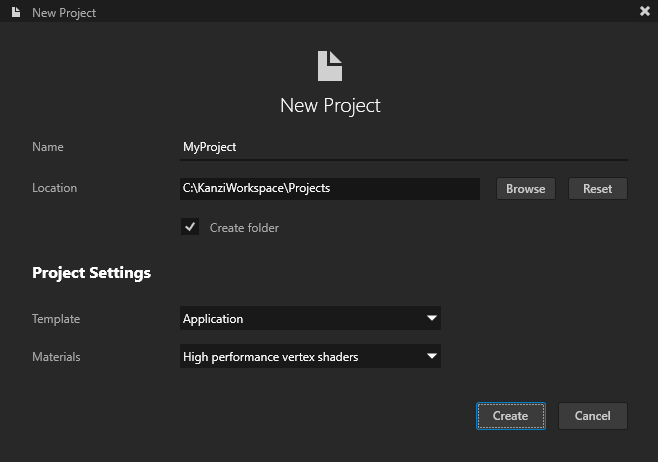
在 Kanzi Studio 中,使用 Application 模板创建一个项目。
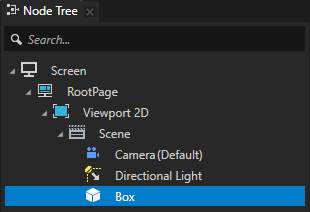
在 Node Tree 中创建一个您想要显示纹理的节点,并在 Properties 中将 Material 属性设置为支持纹理的材质。请参阅 使用材料类型 和 使用材料。
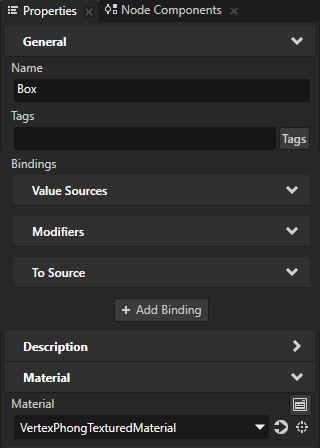
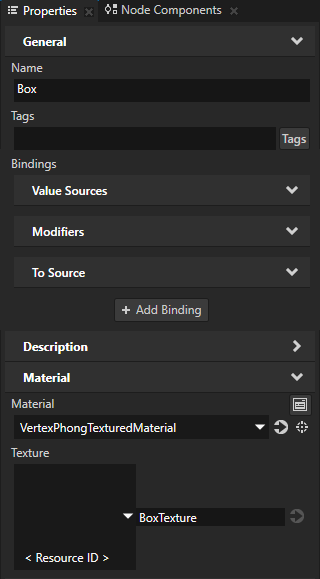
例如:在 Node Tree 中创建一个 Box 节点,并在 Properties 中将 Material 设置为 VertexPhongTexturedMaterial。
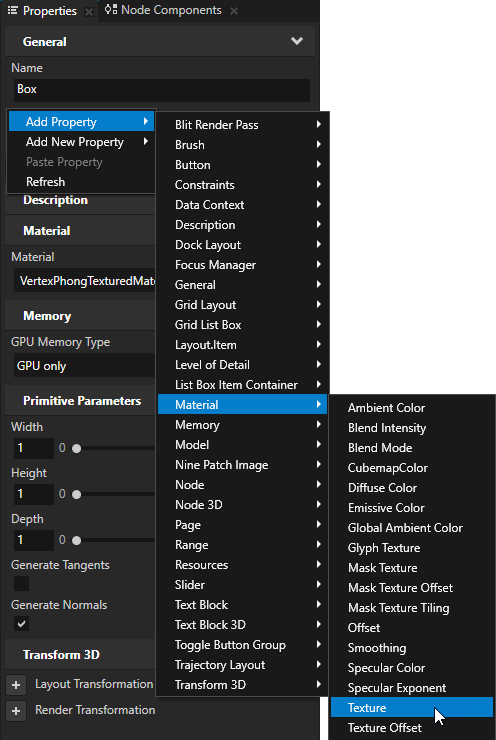
在 Node Tree 中选择您在上一步中创建的节点,在 Properties 中添加 Texture 属性,并将其设置为资源 ID。
例如,将 Texture 属性设置为资源 ID BoxTexture。
通过这种方式,您将资源 ID 分配给 Texture 属性,稍后使用该资源 ID 显示纹理。
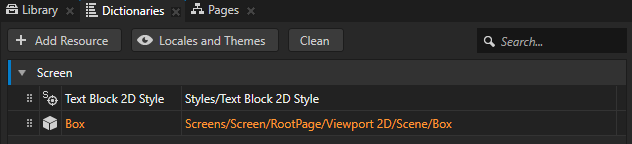
在 Node Tree 按 Alt 并右键单击 中创建的节点并选择 Alias。请参阅 使用别名。
Kanzi Studio 创建一个指向您创建别名的节点的别名,并将其添加到其最近的包含资源字典的祖先节点的资源字典中。
使用 Alias 来获得对 Kanzi 节点的一致访问。您可以使用别名来访问 Kanzi Studio 中的节点,并使用 Kanzi Engine API。
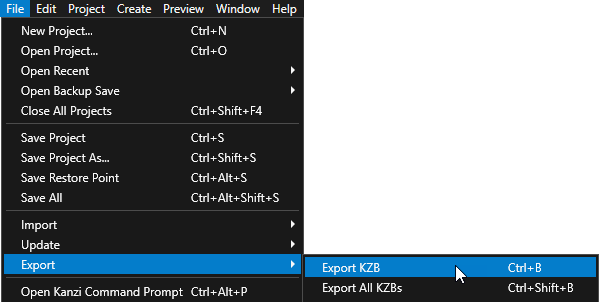
在 Kanzi Studio 中,选择 File > Export > Export KZB。
Kanzi Studio creates the kzb file and configuration files from your Kanzi Studio project. Kanzi Studio stores the exported files in the
<ProjectName>/Application/bindirectory or the location that you set in Project > Properties in the Binary Export Directory property. The kzb file contains all nodes and resources from your Kanzi Studio project, except the resources that you mark in a localization table as locale packs.当您从 Visual Studio 运行您的 Kanzi 应用程序时,您的应用程序会加载 kzb 文件和配置文件。
将您想在纹理中使用的图像放入
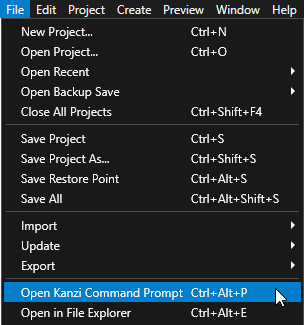
<ProjectName>/Application/bin目录。在 Kanzi Studio 中,选择 File > Open Kanzi Command Prompt。
Kanzi Command Prompt 打开 Windows 命令提示符,并为您打开 Kanzi Command Prompt 的 Kanzi 版本设置 Kanzi 环境变量。
使用 Kanzi Command Prompt 访问 Kanzi 实用程序和构建工具,例如 Gradle、SCons 和 CMake,而无需使用绝对路径或设置环境变量。
小技巧
您可以在 Windows 开始菜单的 Rightware 目录中找到 Kanzi Command Prompt。
当您安装了多个版本的 Kanzi 时,确保将您要在该命令提示符下使用的 Kanzi 版本的 Kanzi Command Prompt 启动。
在
<ProjectName>/Application目录中的 Kanzi Command Prompt 中,运行生成应用程序的 Visual Studio 解决方案的脚本。例如,如果您使用 Visual Studio 2019,运行
generate_cmake_vs2019_solution.bat
此脚本在目录
<ProjectName>/Application/build_vs2019中为应用程序生成一个 Visual Studio 解决方案。在 Visual Studio 中打开
<ProjectName>/Application/build_vs<Version>/<ProjectName>.slnVisual Studio 解决方案。例如,如果您将 Kanzi Studio 项目命名为 MyProject,则 Visual Studio 解决方案将被称为
MyProject.sln。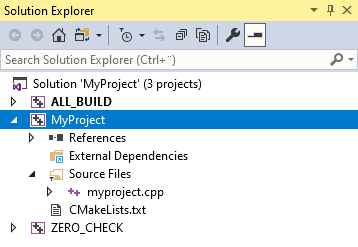
在 Visual Studio 的 Solution Explorer 中,右键点击 MyProject 项目并选择 Set as StartUp Project。
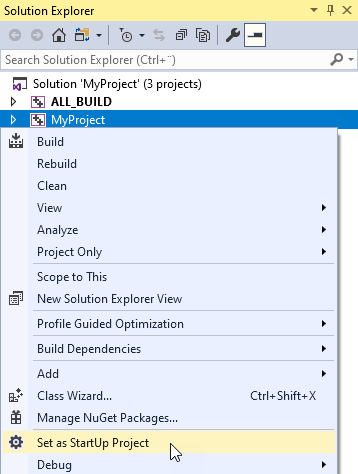
在 C++ 应用程序中加载纹理。
// In the main class of the application use the onProjectLoaded()
// virtual function to load a file from the file system.
virtual void onProjectLoaded()
{
    // Get the Screen node of your application.
    ScreenSharedPtr screenNode = getScreen();
    // Get the Box node using the #Box alias.
    Model3DSharedPtr box = screenNode->lookupNode<Model3D>("#Box");
    // Load the texture from the <ProjectName>/Application/bin directory.
    box->addResource(ResourceID("BoxTexture"), "file://./Red.png");
}
选择您要使用的解决方案配置并运行您的应用程序。
在开发期间,选择 Debug 配置。当您准备好创建生产版本时,选择 Release 配置。
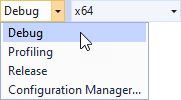
当您启动应用程序时,Kanzi 加载存储在
<ProjectName>/Application/bin中的图像,并从该图像创建纹理。当 Kanzi 加载应用程序 kzb 文件时,它将纹理设置为您在Application::onProjectLoaded函数中获取的节点。