使用 Write Log 操作
使用 Write Log 操作将消息写入 Log 窗口。
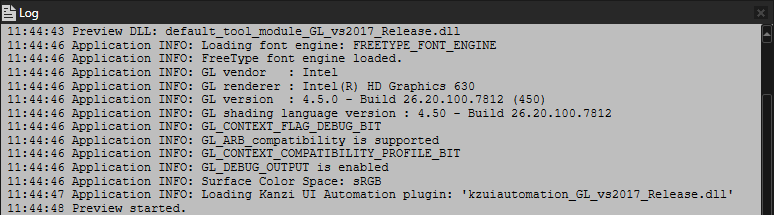
要打开 Log 窗口,在主菜单中选择 Window > Log。
Kanzi 将消息、警告和错误打印到 Log 窗口。
写入 Log 窗口
当您想要向 Log 窗口写入消息时,在任何触发器中使用 Write Log 操作。
要写入 Log 窗口:
在 Node Tree 中,创建或选择一个节点,在该节点中您希望对事件做出反应,并因此希望将消息写入 Log 窗口。
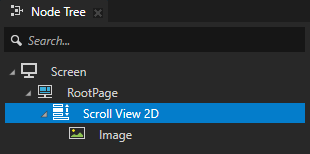
例如:在 Node Tree 中,创建一个包含可滚动内容的 Scroll View 2D 节点。请参阅 创建一个 Scroll View 节点。
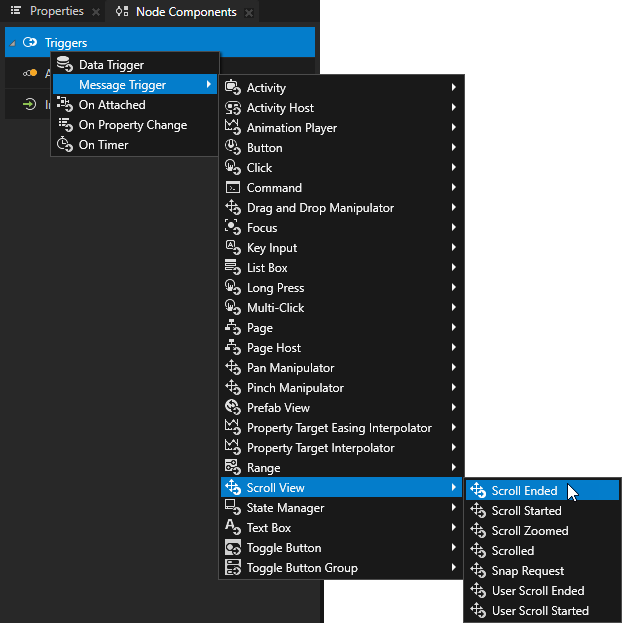
在 Node Components 中,按 Alt 并右键单击 Triggers,并选择一个您想要使用的触发器,以便在该触发器被触发时写入 Log 窗口。请参阅 触发器参考。
例如,创建一个 Message Trigger > Scroll View > Scroll Ended 触发器。当滚动视图的滚动位置改变完成时,Scroll Ended 触发器被触发。
在 Node Components > Triggers 中,应用您在上一步中添加的 按 Alt 并右键单击 触发器,并选择 Write Log 操作。
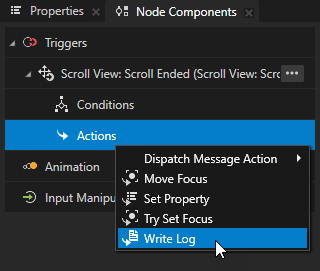
在 Write Log 操作中,将 Log Text 属性设置为您希望在触发器被触发时写入 Log 窗口的消息。
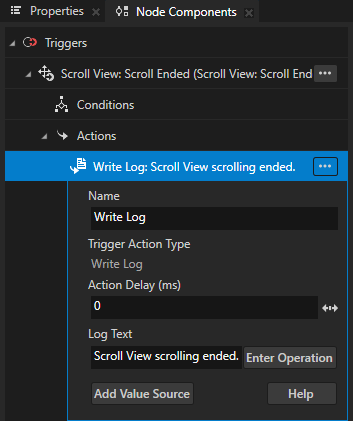
在 Preview 中,当您滚动滚动视图并停止滚动时,Kanzi 会将您在 Log Text 属性中设置的消息打印到 Log 窗口。

小技巧
要打开 Log 窗口,在主菜单中选择 Window > Log。
使用 Write Log 操作宏
使用 Write Log 操作宏将内容添加到您的日志消息中,Kanzi 将其替换为该宏的值。
要使用 Write Log 操作宏:
创建一个 Write Log 操作。请参阅 写入 Log 窗口。
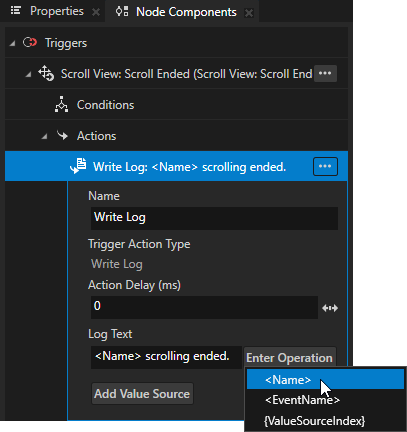
在 Write Log 操作中,点击 Enter Operation 并选择一个宏。
例如,不要手动输入节点的名称,而是使用 <Name> 宏。
<Name> 宏插入包含 Write Log 操作的节点名称。
您可以组合宏和文本。
宏
描述 (Description)
<Name>
插入包含 Write Log 操作的节点名称。
<EventName>
插入执行 Write Log 操作的触发器名称。
{ValueSourceIndex}
在您添加属性值或消息参数后,插入该项的值。请参阅 从属性或消息参数记录值。
在 Preview 中,当您滚动滚动视图并停止滚动时,Kanzi 会将您在 Log Text 属性中设置的消息打印到 Log 窗口。

从属性或消息参数记录值
您可以使用 Write Log 操作将属性或消息参数中的值写入 Log 窗口。
要记录属性或消息参数中的值:
创建一个 Write Log 操作。请参阅 写入 Log 窗口。
在 Write Log 操作中,点击 Add Value Source,并将您要打印值的来源设置为 Log 窗口。
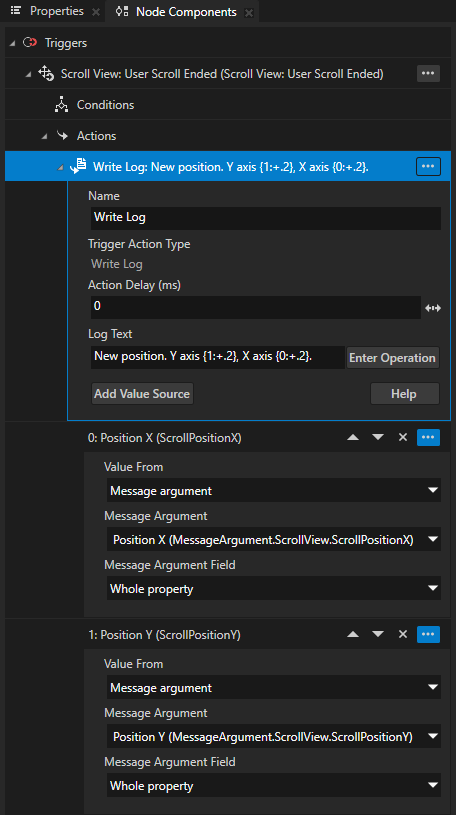
例如,要打印 Scroll View 在 x 轴上的位置,设置:
Value From 到 Message argument
Message Argument 到 Position X
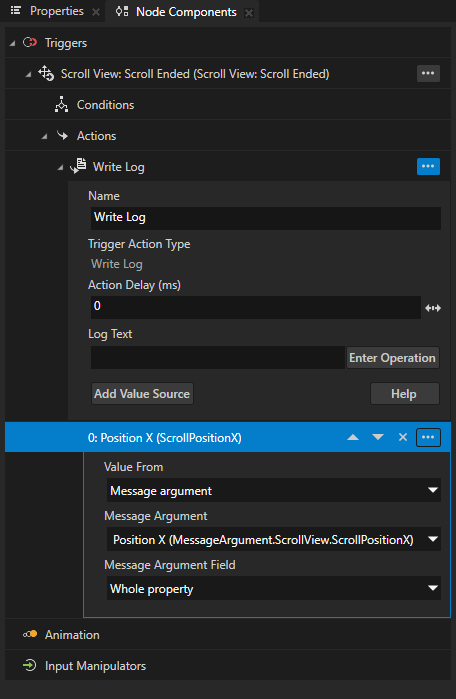
在 Write Log 操作中,点击 Enter Operation 并选择 {ValueSourceIndex}。
此宏插入大括号 (
{}),Kanzi 用您在上一步中添加的值替换。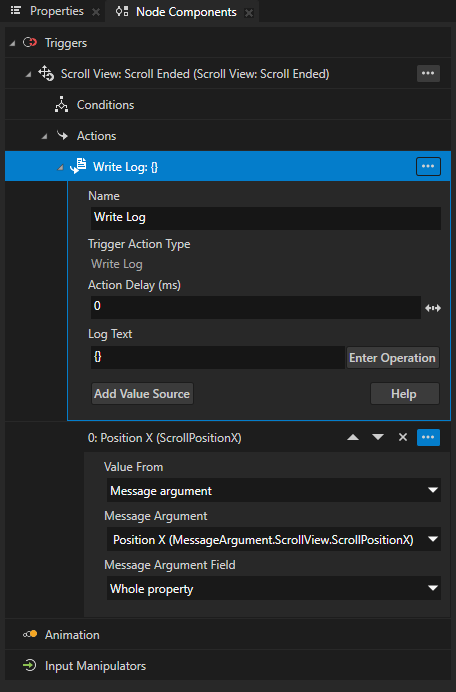
(可选) 当您使用空花括号(
{})引用这些值时,Kanzi 使用这些值在 Write Log 操作中出现的顺序。要设置消息中值的顺序:向 Write Log 操作添加另一个值。
例如,要打印滚动视图在 y 轴上的位置,请单击 Add Value Source 并设置:
Value From 到 Message argument
Message Argument 到 Position Y
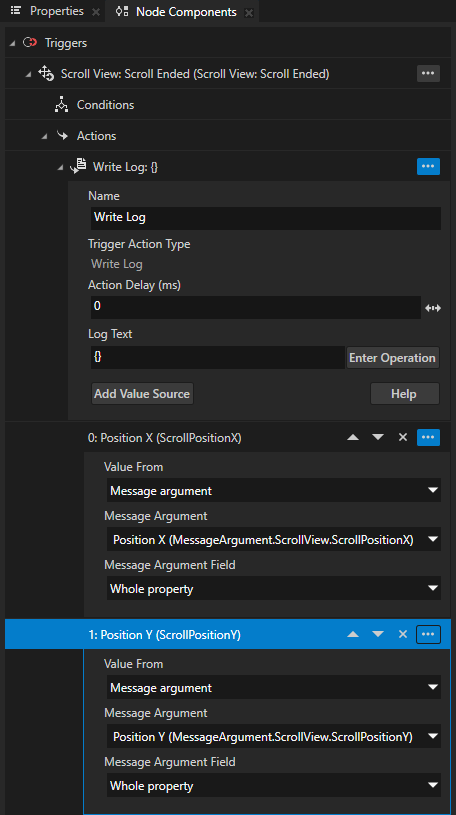
在 Log Text 中,添加另一对大括号,并在大括号中输入您想在该位置使用的值的索引。
例如,将 Log Text 属性设置为:
New position. Y axis: {1}, X axis: {0}.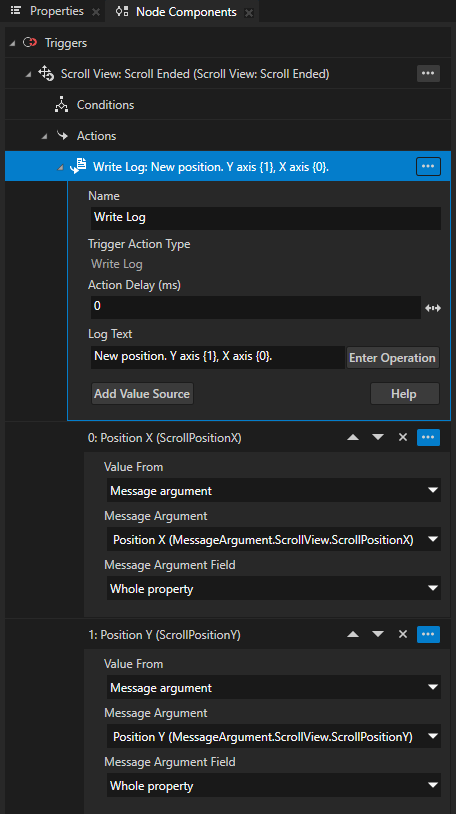

小技巧
要更改 Write Log 操作中值的顺序,请使用值旁边的箭头。

(可选)。您可以将格式应用于属性值。要了解如何格式化日志消息,请参阅 日志消息参数格式规范。
例如,将 Log Text 属性设置为:
New position. Y axis {1:+.2}, X axis {0:+.2}.通过这种方式,您可以将属性值格式化为:
始终显示值的符号。
将值的精度设置为两位数字。