使用 Toggle Button Group 节点

Toggle Button Group 节点可让用户只能从一组相互排斥的选项中选定一个选项。

切换按钮组中切换按钮的行为与单选按钮相似,一次只能有一个切换按钮处于活动状态。

使用 Toggle Button Group 3D 在三维空间中对三维切换按钮进行分组,使用 Toggle Button Group 2D 在二维空间中对二维切换按钮进行分组。
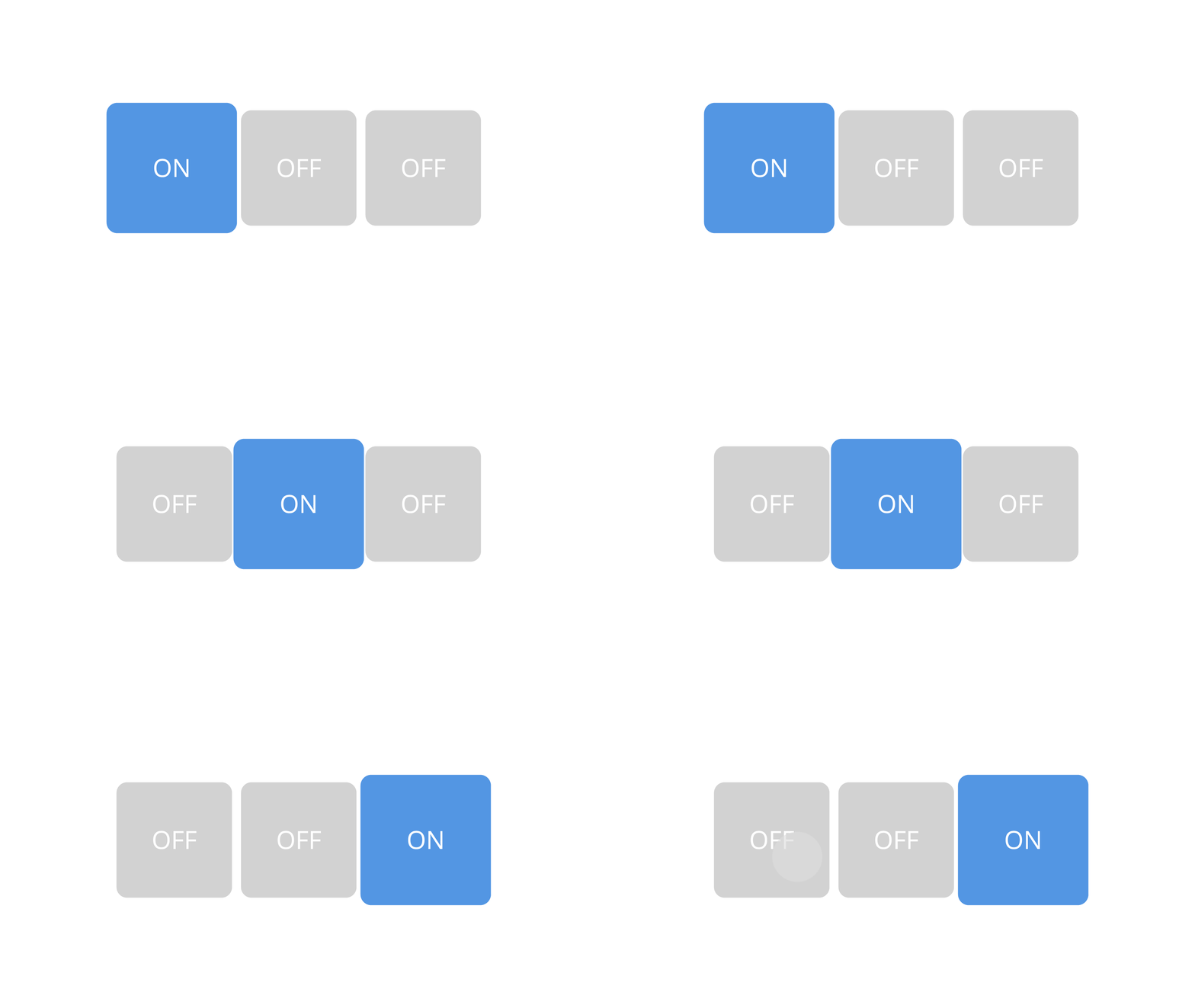
../../_images/toggle-button-group.gif

切换按钮组是一个可以包含 Toggle Button 节点并管理其状态的节点,但不提供可视形状。

当 Toggle Button Group 中的 Toggle Button 节点获得焦点时,默认情况下,它会接收来自数字键盘上的 Space、Enter 和 Enter 键的点击输入。

创建切换按钮组

要创建切换按钮组:

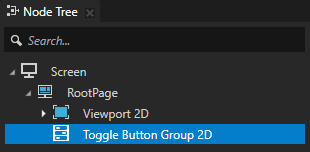
  1. 在 Node Tree 或 Prefabs 按 Alt 并右键单击 中,选择要创建 Toggle Button Group 的节点,并选择 Toggle Button Group 2D 或 Toggle Button Group 3D。

    您只能在 3D 节点中创建 3D 节点,例如 Scene 节点,并且只能在 2D 节点中创建 2D 节点。
    ../../_images/toggle-button-group-2d.png
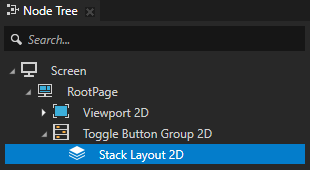
  2. 在 Toggle Button Group 中创建一个布局,将 Toggle Button 节点排列在 Toggle Button Group 节点中。

    例如,如果您创建了一个 Toggle Button Group 2D,请创建一个 Stack Layout 2D 节点,如果您创建了一个 Toggle Button Group 3D,请创建一个 Stack Layout 3D 节点。请参阅 使用 Stack Layout 节点。
    ../../_images/grid-layout-2d.png
  3. 在布局中创建 Toggle Button 节点。

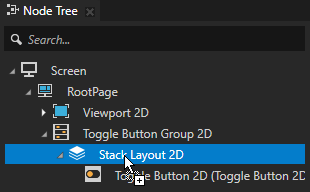
    例如:如果您创建了一个带有 Stack Layout 2D 节点的2D切换按钮组,在 Prefabs 中创建一个 Toggle Button 2D 预设,并在 Stack Layout 2D 节点中添加该预设的多个实例。请参阅 使用 Toggle Button 节点。
    ../../_images/drag-toggle-button-prefabs.png
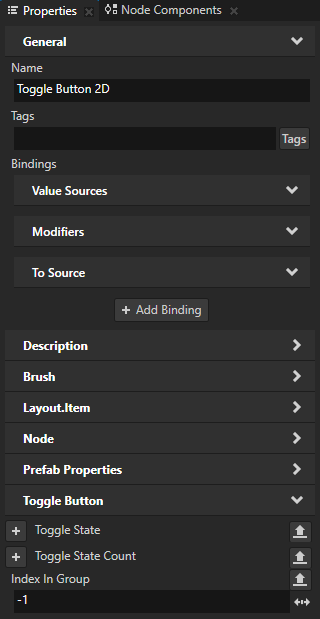
  4. (可选) 要手动设置 Toggle Button Group 节点中 Toggle Button 节点的索引,请在每个 Toggle Button 中将 Index in Group 属性的值设置为不同的值。

    Kanzi 使用 Index in Group 属性来跟踪哪些 Toggle Button 节点属于 Toggle Button Group 节点。

    当您创建一个 Toggle Button 节点时,其 Index in Group 属性的值为 -1,这意味着 Toggle Button:

    • 属于其最近的祖先 Toggle Button Group 节点。

      如果从 Toggle Button 节点中移除 Index in Group 属性,则该 Toggle Button 不属于 Toggle Button Group。

    • 根据其在同一 Toggle Button Group 节点中的 Toggle Button 节点中的位置获取组索引。Toggle Button Group 中的第一个 Toggle Button 获取索引 0,第二个获取索引 1,依此类推。

    小技巧

    使用 Toggle Button Group > Current Button Index 属性来访问在 Toggle Button Group 节点中切换打开的 Toggle Button 节点的索引。

    要使用绑定更新 Current Button Index 属性,请使用到源或双向绑定。当 Toggle Button Group 中的 Toggle Button 的切换状态发生变化时,Kanzi 会在内部覆盖任何针对该属性的单向绑定。请参阅 绑定 (Bindings)。

    例如,您可以创建一个应用程序导航栏,以允许用户在应用程序屏幕之间切换。请参阅 使用 Toggle Button Group 激活活动。
    ../../_images/index-in-group-toggle-button.png
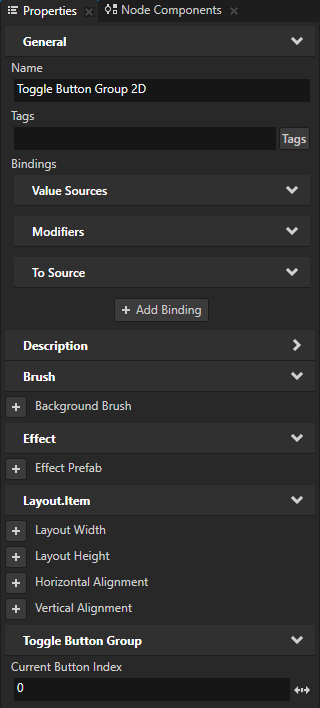
  5. (可选) 要在应用程序启动时将 Toggle Button Group 节点中的一个 Toggle Button 节点设置为切换开启,请选择 Toggle Button Group 节点,在 Properties 中添加 Current Button Index 属性,并将其设置为您想要切换开启的 Toggle Button 节点的索引。

    例如,如果您没有手动设置 Toggle Button 节点的索引,要在应用程序启动时将 Toggle Button Group 中的第一个 Toggle Button 切换为打开状态,请将 Current Button Index 属性设置为 0。
    ../../_images/tbg-current-button-index.png

在 Preview 中,当您单击 Toggle Button Group 节点中的 Toggle Button 节点时,Toggle Button Group 节点会切换 Toggle Button 节点中的状态。

../../_images/toggle-button-group1.gif

当 Toggle Button Group 中的任何 Toggle Button 被切换时做出反应。

当用户切换任何 Toggle Button Group 中的 Toggle Button 状态时,您可以触发一个触发器。要了解如何在用户切换特定 Toggle Button Group 中的 Toggle Button 时做出反应,请参阅 对切换更改做出反应。

当 Toggle Button Group 中的任何 Toggle Button 被切换时做出反应:

  1. 选择您要添加触发器的 Toggle Button Group,当用户切换该 Toggle Button Group 中任何 Toggle Button 的状态时,Kanzi 将触发该触发器。请参阅 创建切换按钮组。

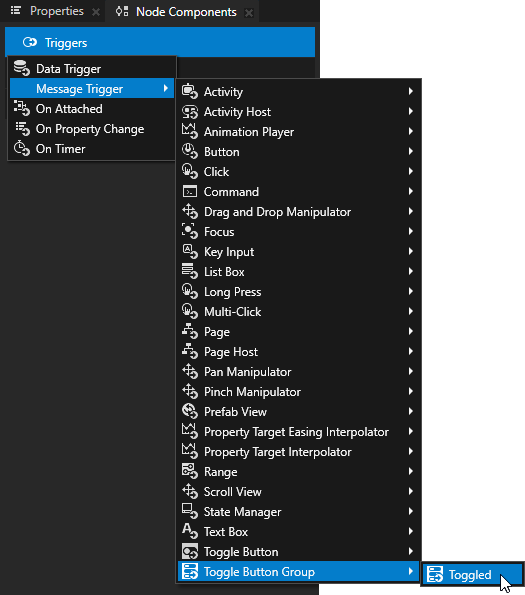
  2. 在 Node Components 按 Alt 并右键单击 Triggers 中,选择 Message Trigger > Toggle Button Group > Toggled。
    ../../_images/add-toggle-button-group-toggled-trigger.png
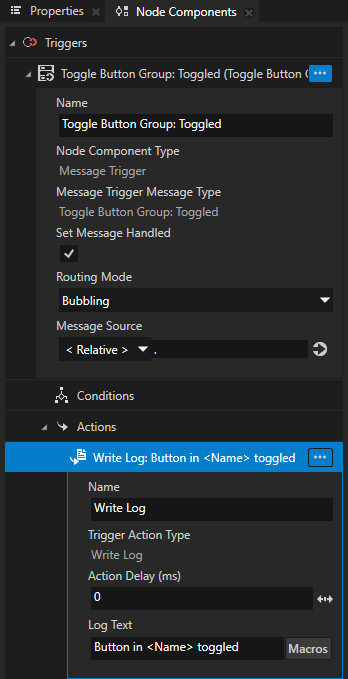
  3. 在 Node Components > Triggers 按 Alt 并右键单击 中,Toggle Button Group: Toggled 触发器,并选择当 Toggle Button Group 中的任何 Toggle Button 的切换状态更改时要触发的操作。

    例如,选择 Write Log 操作,并将 Log Text 设置为您希望在触发器被触发时写入 Log 窗口的消息。Write Log 操作在您想验证节点是否接收到输入时很有用。
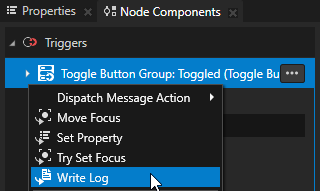
    ../../_images/toggle-button-group-toggled-write-log.png ../../_images/toggle-button-group-toggled-log-message.png

现在,当您更改 Toggle Button Group 中任何按钮的切换状态时,Kanzi 会将您设置为 Log Text 属性值的消息打印到 Log 窗口。

要打开 Log 窗口,在主菜单中选择 Window > Log。

使用 Toggle Button Group 激活活动

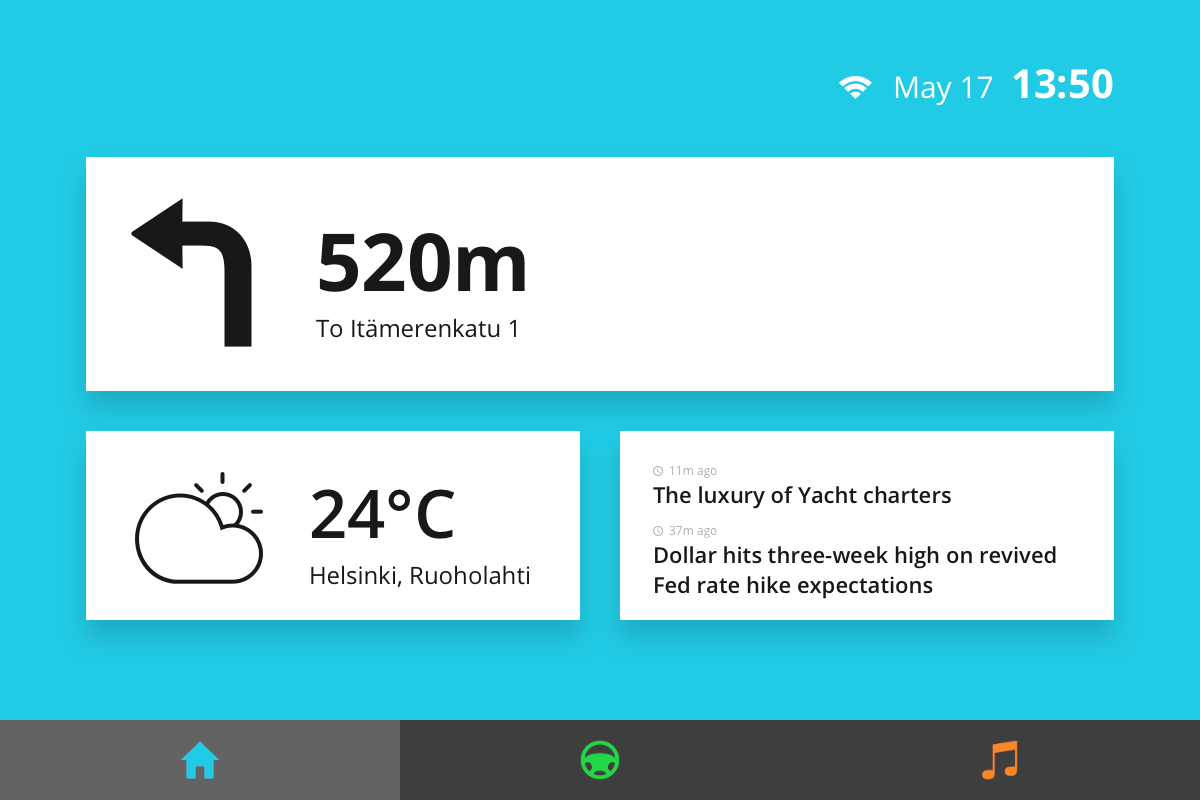
您可以在 Toggle Button Group 中使用 Toggle Button 节点来激活活动主机中的活动。例如,您可以创建一个应用程序导航栏,以允许用户在应用程序屏幕之间切换。

要使用 Toggle Button Group 激活活动:

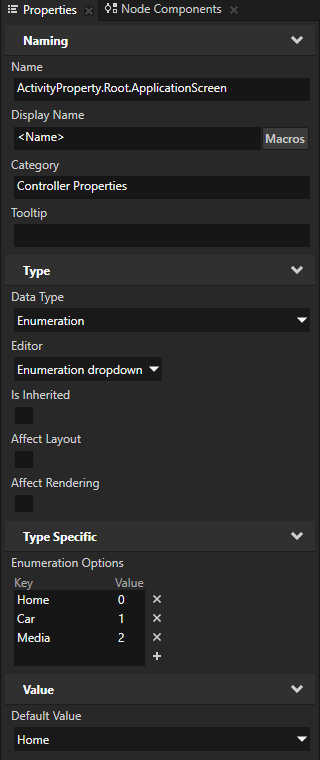
  1. 创建一个活动主机,其中包含多个活动,其激活状态由 Controller Property 控制。

    例如,创建一个具有 Activities 的 Exclusive Activity Host 来显示不同的应用程序屏幕,并使用 Controller Property 来控制哪个 Activity 处于活动状态。请参阅 使用 Exclusive Activity Host。
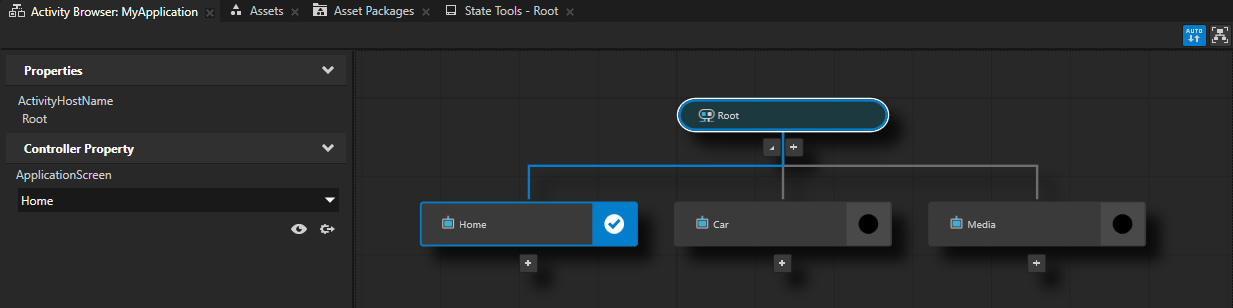
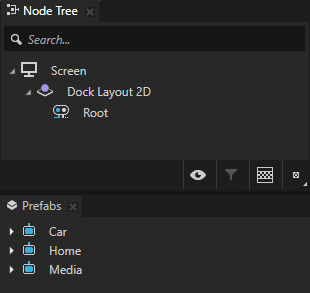
    ../../_images/ab-application-screens.png ../../_images/root-eah.png ../../_images/application-screen-controller-property.png
  2. 为您在上一步中创建的每个 Activity 创建一个 Toggle Button Group,并使用一个 Toggle Button 节点。请参阅 创建切换按钮组。

    在 Toggle Button Group 中,以与用于控制活动的枚举选项相同的顺序排列 Toggle Button 节点。
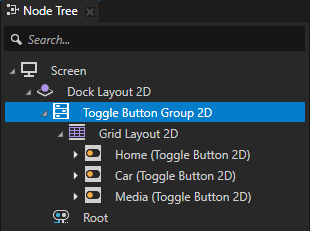
    ../../_images/toggle-button-group-2d-nav-bar.png ../../_images/app-screen.png
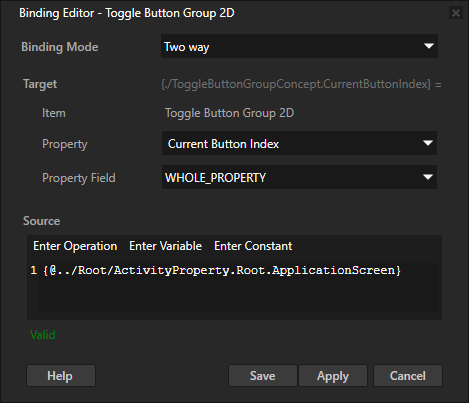
  3. 选择 Toggle Button Group,在 Properties 中点击 + Add Binding,并在 Binding Editor 中设置:

    • Binding Mode 到 Two way

    • Property 到 Current Button Index

      使用 Current Button Index 属性来访问在 Toggle Button Group 中切换开启的 Toggle Button 的索引。

    • 将 Source 设置为 Activity Host 中的控制器属性,以控制在该活动主机中哪个 Activity 处于活动状态。

    单击 Save。

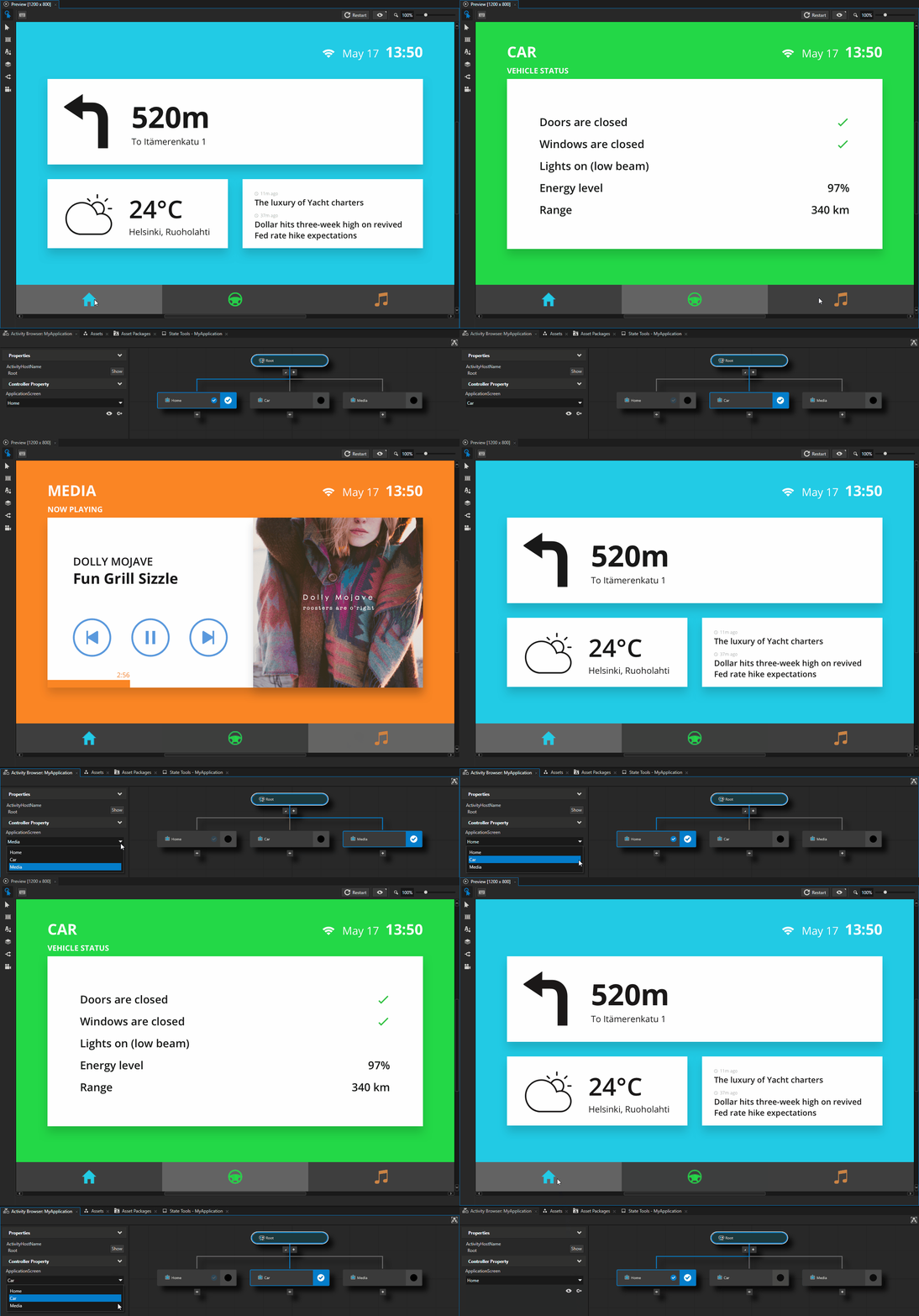
    通过此绑定,您可以在切换按钮组中被切换的切换按钮与 Activity Host 中处于活动状态的 Activity 之间创建双向连接。
    ../../_images/current-button-index-binding.png

现在,当您激活一个活动时,Kanzi 会切换相应的 Toggle Button,当您切换一个 Toggle Button 时,Kanzi 会激活相应的活动。
../../_images/current-button-index-binding.gif

设置 Toggle Button Group 2D 节点的外观

要设置 2D 节点的外观:

在 API 中使用 Toggle Button Group 3D 节点

要创建具有三个 Toggle Button 节点的 Toggle Button Group 3D 节点:

// Create a Toggle Button Group 3D named Toggle button group and add it to the scene.
ToggleButtonGroup3DSharedPtr toggleButtonGroup3D = ToggleButtonGroup3D::create(domain, "Toggle button group");
scene->addChild(toggleButtonGroup3D);
// Create a Stack Layout 3D named Stack layout and add it to the Toggle button group.
// This stack layout is used only for arranging the items in the Toggle button group.
StackLayout3DSharedPtr stackLayout3D = StackLayout3D::create(domain, "Stack layout");
toggleButtonGroup3D->addChild(stackLayout3D);

// Create three Toggle Button nodes and add them to the Stack Layout node.
ToggleButton3DSharedPtr buttons[3];

for (auto i = 0u; i < 3; ++i)
{
    buttons[i] = ToggleButton3D::create(domain, "Toggle button");
    // Set the Button Group Index property to -1, which makes the Toggle Button to register itself to the
    // Toggle Button Group and tells to the Toggle Button Group node to set the index of the Toggle Button node.
    buttons[i]->setIndexInGroup(-1);
    stackLayout3D->addChild(buttons[i]);
}

// Initially all Toggle Buttons in the Toggle Button Group are toggled off.
optional<size_t> currentButtonIndex = toggleButtonGroup3D->getCurrentButtonIndex();
if (!currentButtonIndex)
{
    std::cout << "No toggled Toggle Button in the Toggle Button Group." << endl;
}

// Toggle on the second Toggle Button in the Toggle Button Group.
buttons[1]->setToggleState(1);

// Print the index of the toggled Toggle Button to show that the second Toggle Button is toggled on.
optional<size_t> currentButtonIndexAfterToggle = toggleButtonGroup3D->getCurrentButtonIndex();
std::cout << (currentButtonIndexAfterToggle ? *currentButtonIndexAfterToggle : -1) << endl;

有关详细信息,请参阅 ToggleButtonGroup3D 类。

使用 Toggle Button Group 2D 节点在 API 中

要创建具有三个 Toggle Button 节点的 Toggle Button Group 2D 节点:

// Create a Toggle Button Group 2D named Toggle button group and add it to the scene.
ToggleButtonGroup2DSharedPtr toggleButtonGroup2D = ToggleButtonGroup2D::create(domain, "Toggle button group");
viewportNode->addChild(toggleButtonGroup2D);
// Create a Stack Layout 2D named Stack layout and add it to the Toggle button group.
// This stack layout is used only for arranging the items in the Toggle button group.
StackLayout2DSharedPtr stackLayout2D = StackLayout2D::create(domain, "Stack layout");
toggleButtonGroup2D->addChild(stackLayout2D);

// Create three Toggle Button nodes and add them to the Stack Layout node.
ToggleButton2DSharedPtr buttons[3];

for (auto i = 0u; i < 3; ++i)
{
    buttons[i] = ToggleButton2D::create(domain, "toggle button");
    // Set the Button Group Index property to -1, which makes the Toggle Button to register itself to the
    // Toggle Button Group and tells to the Toggle Button Group node to set the index of the Toggle Button node.
    buttons[i]->setIndexInGroup(-1);
    stackLayout2D->addChild(buttons[i]);
}

// Initially all Toggle Buttons in the Toggle Button Group are toggled off.
optional<size_t> currentButtonIndex = toggleButtonGroup2D->getCurrentButtonIndex();
if (!currentButtonIndex)
{
    std::cout << "No toggled Toggle Button in the Toggle Button Group." << endl;
}

// Toggle on the third Toggle Button in the Toggle Button Group.
buttons[2]->setToggleState(1);

// Print the index of the toggled Toggle Button to show that the third Toggle Button is toggled on.
optional<size_t> currentButtonIndexAfterToggle = toggleButtonGroup2D->getCurrentButtonIndex();
std::cout << (currentButtonIndexAfterToggle ? *currentButtonIndexAfterToggle : -1) << endl;

有关详细信息,请参阅 ToggleButtonGroup2D 类。

Toggle Button Group 属性类型和消息。

有关 Toggle Button Group 节点的可用属性类型和消息的列表,请参阅 Toggle Button Group 2D 和 Toggle Button Group 3D。

另请参阅

使用 Toggle Button 节点

使用 Button 节点

按钮

触发器 (Triggers)

绑定 (Bindings)