教程:旋转 3D 模型
在本教程中,您将了解如何在您的 Kanzi 应用程序中通过滑动手势旋转3D模型。
您创建一个 Scroll View 2D 节点,并将其连接到显示您要旋转的模型的相机的旋转。然后,您使用 Scroll View 2D 节点中的属性来微调 Scroll View 节点如何旋转模型。
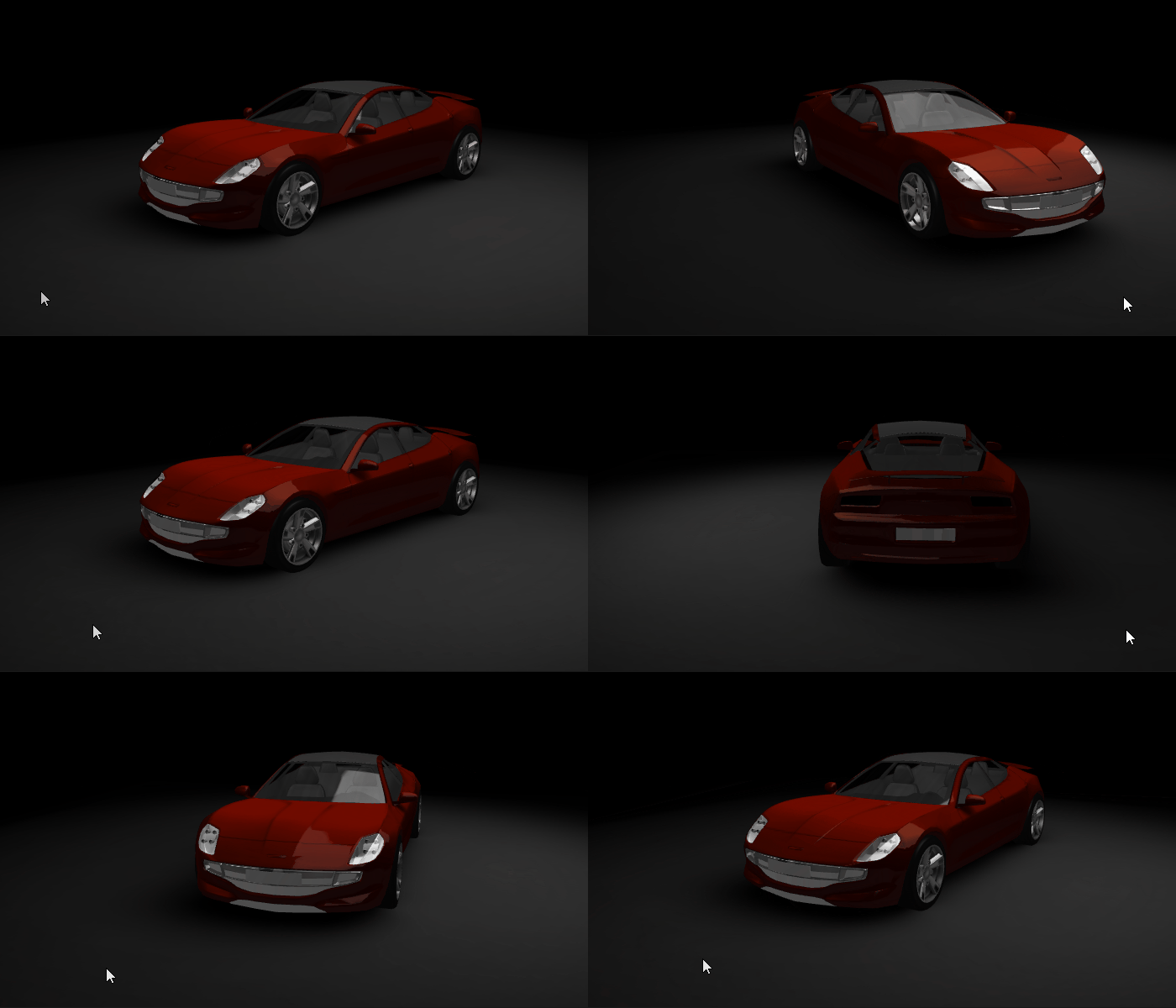
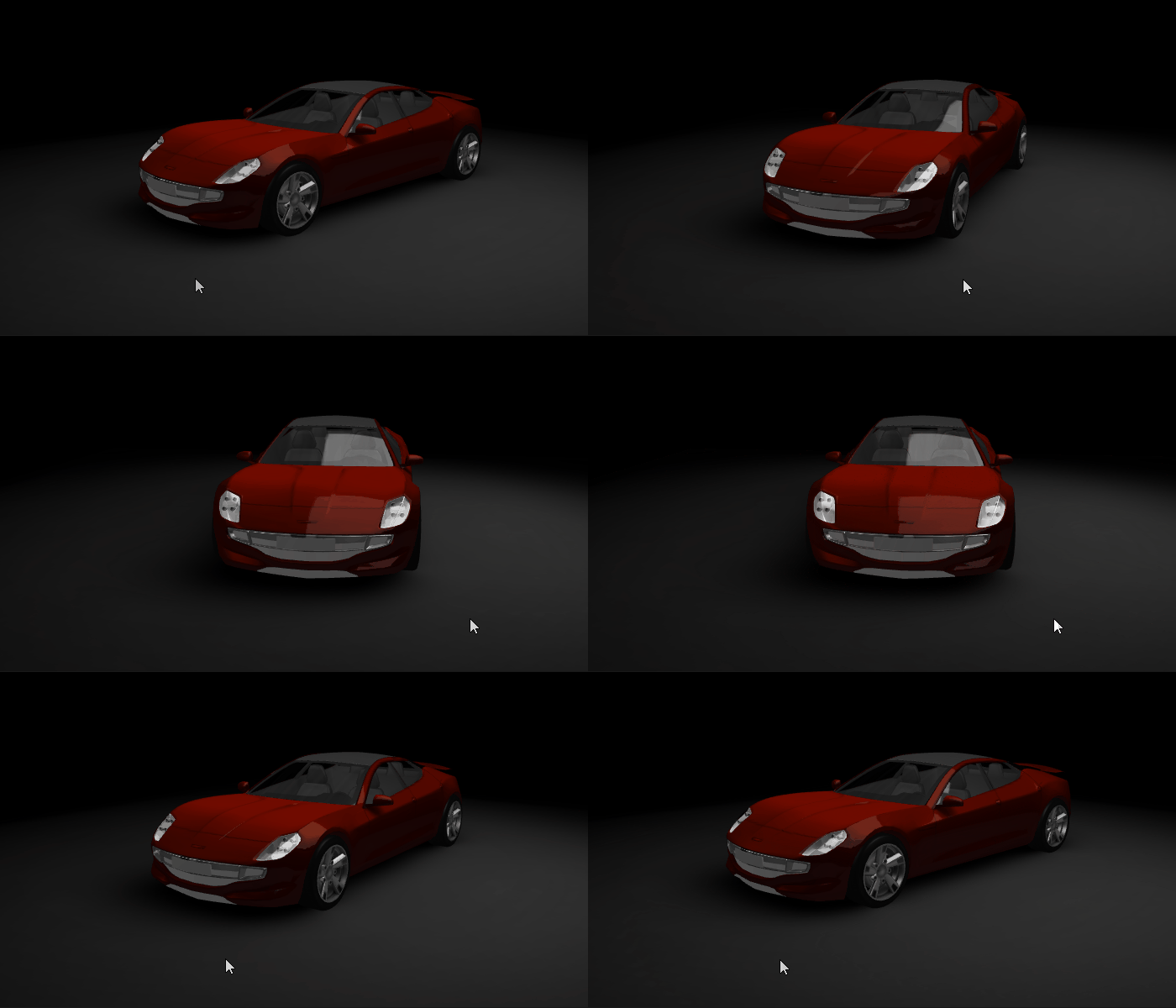
视频显示教程的结果。
本教程假定您了解使用 Kanzi Studio 的基础知识。熟悉 Kanzi Studio 的最佳入门点是:
获取教程
要获取本教程,请在 Kanzi Studio Quick Start 窗口中点击 Examples。在 Rotation 教程旁边,点击  。
。
Kanzi Studio 会将教程下载到 <KanziWorkspace>/Tutorials 目录。您可以找到:
位于
<KanziWorkspace>/Tutorials/Rotation/Start目录中的教程起点工程。位于
<KanziWorkspace>/Tutorials/Rotation/Completed目录中的已完成教程。
旋转 3D 模型
要使用 Scroll View 2D 节点旋转 3D 模型:
在 Kanzi Studio Quick Start 窗口中,点击 Examples。在 Rotation 教程旁边,点击 Open 并选择 Start project。
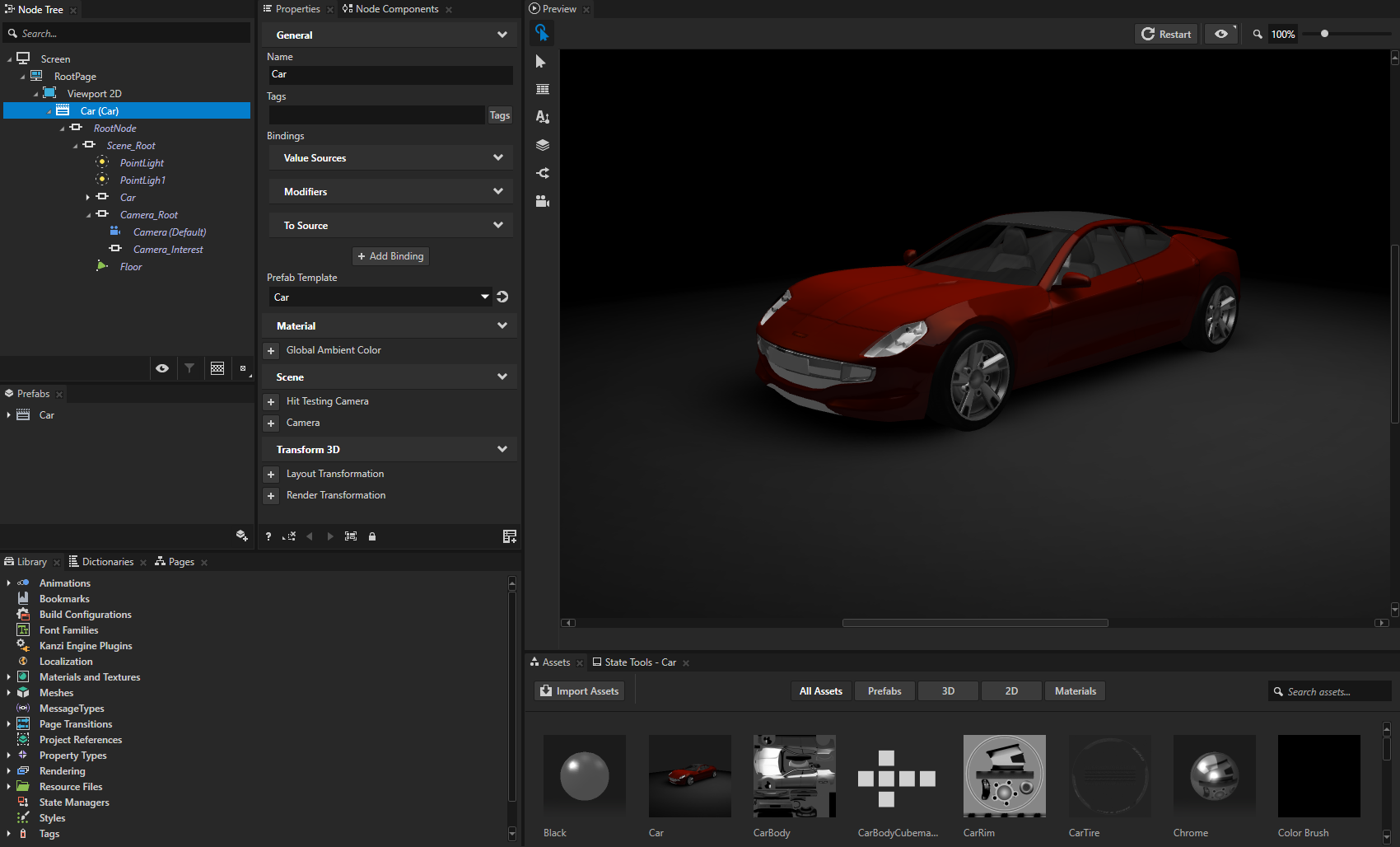
该项目包含 Car 预设,其中包含汽车模型、灯光、摄像机以及汽车下方的地板。
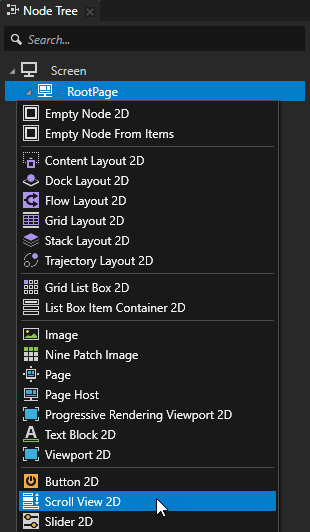
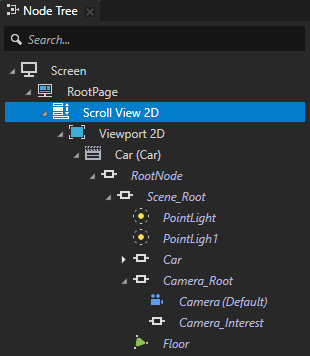
在 Node Tree 按 Alt 并右键单击 中,RootPage 并选择 Scroll View 2D。
Scroll View 节点可用于定义根据用户输入和基于物理的动画生成滚动消息的区域。
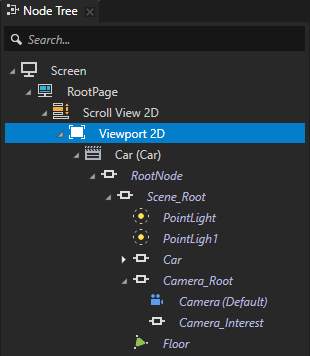
在 Node Tree 中,将 Viewport 2D 节点拖动到 Scroll View 2D 节点。
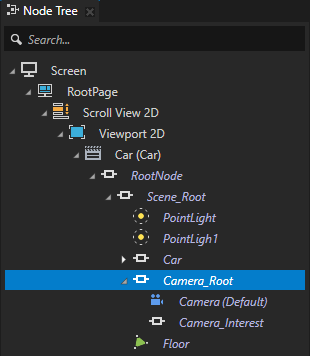
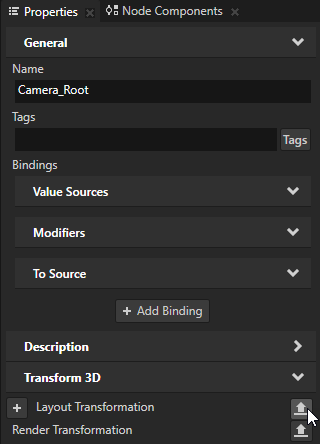
在 Node Tree 中,选择 RootPage > Scroll View 2D > Viewport 2D > Car > RootNode > Scene_Root > Camera_Root 节点,在 Properties 中,在 Layout Transformation 属性旁边点击
 ,将属性类型命名为 Rotation.Car.Camera.LayoutTransformation,然后点击 OK。Kanzi Studio:
从 Layout Transformation 属性创建一个名为 Rotation.Car.Camera.LayoutTransformation 的自定义属性。
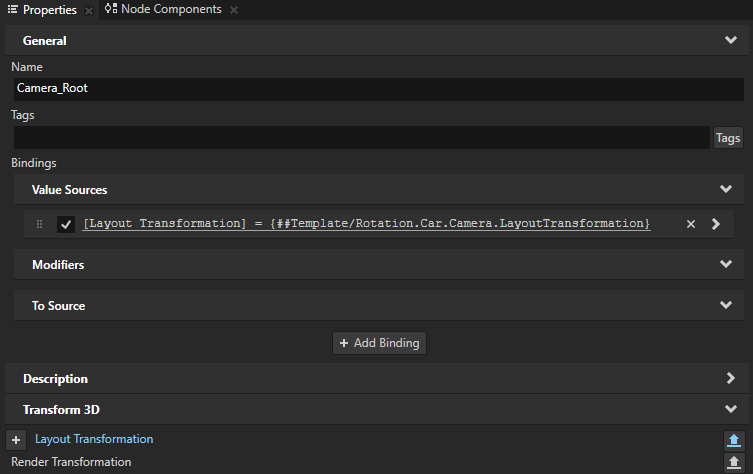
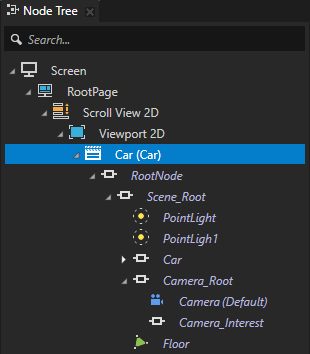
将 Rotation.Car.Camera.LayoutTransformation 属性添加到 Car 节点,该节点是预设的根节点,并在 Camera_Root 节点中创建一个
#Template绑定到 Car 节点中的属性。将 Rotation.Car.Camera.LayoutTransformation 属性显示为 Car 节点中经常使用的属性。
现在,您可以通过在 Car 节点中设置 Rotation.Car.Camera.LayoutTransformation 属性的值来设置 Camera_Root 节点的布局转换。
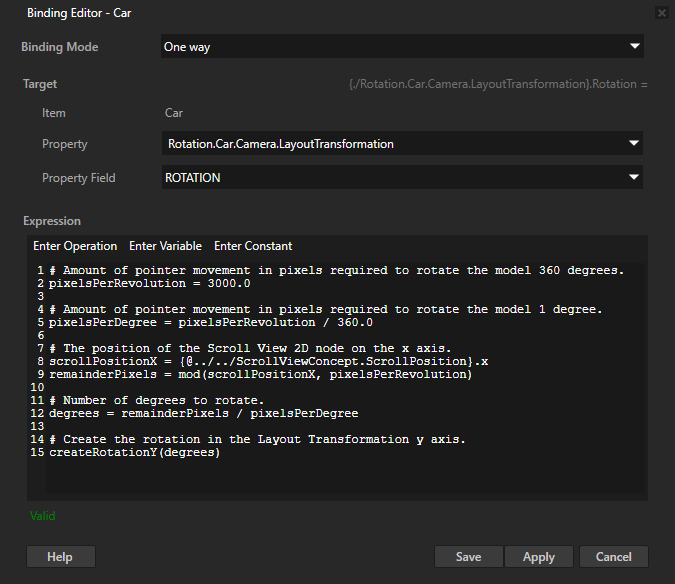
在 Node Tree 中,选择 RootPage > Scroll View 2D > Viewport 2D > Car 节点,在属性中点击 + Add Binding,并在 Binding Editor 中设置:
Property 到 Rotation.Car.Camera.LayoutTransformation
Property Field 到 Rotation
Expression 到
# Amount of pointer movement in pixels required to rotate the model 360 degrees.
pixelsPerRevolution = 3000.0

# Amount of pointer movement in pixels required to rotate the model 1 degree.
pixelsPerDegree = pixelsPerRevolution / 360.0

# The position of the Scroll View 2D node on the x axis.
scrollPositionX = {@../../ScrollViewConcept.ScrollPosition}.x
remainderPixels = mod(scrollPositionX, pixelsPerRevolution)

# Number of degrees to rotate.
degrees = remainderPixels / pixelsPerDegree

# Create the rotation in the Layout Transformation y axis.
createRotationY(degrees)
在此绑定表达式中,
pixelsPerRevolution变量设置了汽车模型完成一次完整旋转所需的指针移动量。拖动指针 3000 像素会使汽车模型旋转完整的 360 度。您可以使用 Scroll Position 属性来找出 Scroll View 2D 节点的 x 和 y 轴的当前值。在此绑定表达式中,您获取 Scroll View 2D 节点在 x 轴上的位置,以便在 y 轴上旋转相机。
您使用 创建绕 Y 轴的旋转 绑定函数在 Layout Transformation y 轴上创建旋转。
单击 Save。
小技巧
当您在 Binding Editor 中为绑定编写表达式时,向表达式中添加节点及其属性的最快且最准确的方法是将它们从 Properties 拖动到 Binding Editor 中的 Expression 编辑器。
例如,要绑定到 Scroll View 2D 节点的 Scroll Position 属性:
在 Node Tree 中选择 Scroll View 2D 节点。
从 Properties 拖动 Scroll Position 属性到 Binding Editor,并将其放在 Expression 字段上。然后输入
.x以绑定到 Scroll Position 属性 X 属性字段。
在 Preview 中,当您在 x 轴上单击并拖动指针时,您现在可以旋转模型。
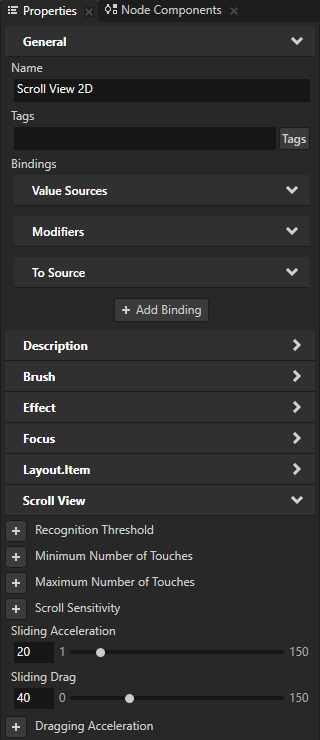
要调整 Scroll View 节点在您释放用于滑动的指针后如何移动对象,请在 Node Tree 中选择 Scroll View 2D 节点,并在 Properties 中添加和设置:
Sliding Acceleration 到 20
Sliding Acceleration 属性设置节点在您释放用于滑动的指针后的加速度。使用低值时,您希望由 Scroll View 节点控制的节点缓慢到达最终位置。使用高值时,您希望节点快速到达最终位置。
Sliding Drag 到 40
Sliding Drag 属性设置在您释放用于滑动的指针后,拖动对节点移动的影响程度。值越低,拖动越大,由 Scroll View 节点控制的节点滑动停止得越快。
现在,当您在 Preview 中点击并拖动指针时,模型会旋转并平滑停止。
接下来该做什么?
在本教程中,您学习了如何使用 Scroll View 控件旋转 3D 模型。您可以进一步调整定义旋转的 Scroll View 2D 节点属性的值,以获得所需的结果。例如,您可以使用 Dragging Acceleration、Dragging Drag 和 Dragging Impulse 来设置在您仍然按住用于滑动模型的指针时模型的移动方式。
您还可以:
要详细了解可通过绑定实现的效果,请参阅 使用绑定。
要了解有关预设的更多信息,请参阅 使用节点预设。
要详细了解有关创建 Kanzi 应用程序的信息,请参阅 教程。
要了解有关 Kanzi Studio 功能的更多信息,请参阅 使用 …。