步骤 3 - 微调由 Progressive Rendering Viewport 2D 节点渲染的内容。
在此步骤中,您首先将抗锯齿应用于由 Progressive Rendering Viewport 2D 节点渲染的汽车,然后对该汽车的旋转进行动画处理。
将抗锯齿应用到由 Progressive Rendering Viewport 2D 节点渲染的内容。
在本节中,您使用多重采样来减少由 Progressive Rendering Viewport 2D 节点渲染的内容中的锯齿。
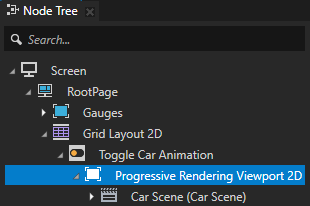
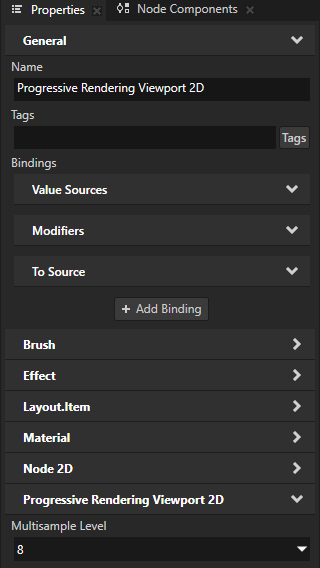
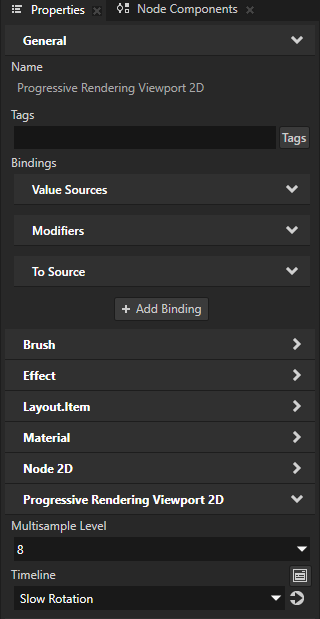
要将抗锯齿应用于由 Progressive Rendering Viewport 2D 节点渲染的内容, 在 Node Tree 中选择 Progressive Rendering Viewport 2D 节点, 在 Properties 中添加 Multisample Level 属性,并将其设置为您要使用的抗锯齿采样数。
例如,将 Multisample Level 设为 8。
请参阅您要在其上运行 Kanzi 应用程序的设备文档以获取支持的值,因为抗锯齿样本的数量取决于设备。如果将 Multisample Level 属性设置为设备不支持的值,Kanzi Engine 会将该值限制为设备驱动程序支持的最大值。
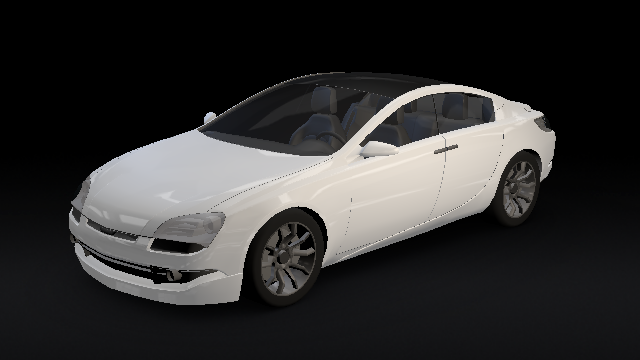
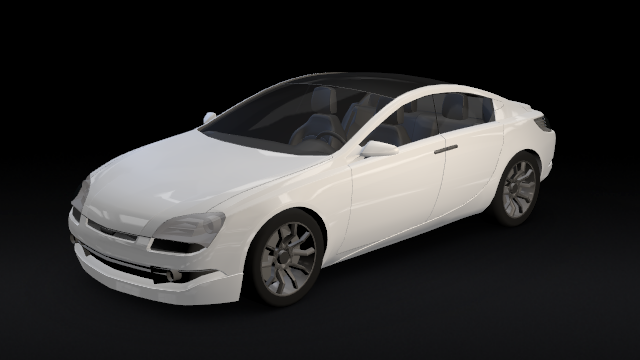
为 Progressive Rendering Viewport 2D 节点渲染的内容设置动画。
在本节中,您将为使用 Progressive Rendering Viewport 2D 节点渲染的汽车的旋转设置动画。
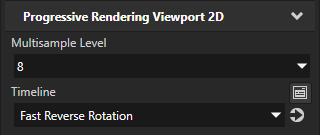
要在 Progressive Rendering Viewport 2D 节点中为节点设置动画,请将节点的 Timeline 属性设置为您要使用的 Animation、Animation Clip 或 Timeline Sequence。您不能使用 Animation Player 在 Progressive Rendering Viewport 2D 节点中为节点设置动画。
要为 Progressive Rendering Viewport 2D 节点渲染的内容设置动画:
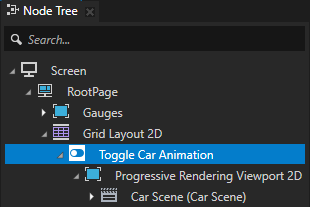
在 Node Tree 中,选择 Toggle Car Animation 节点,并在 State Tools 中,点击 Edit State Manager 以激活 State Tools。
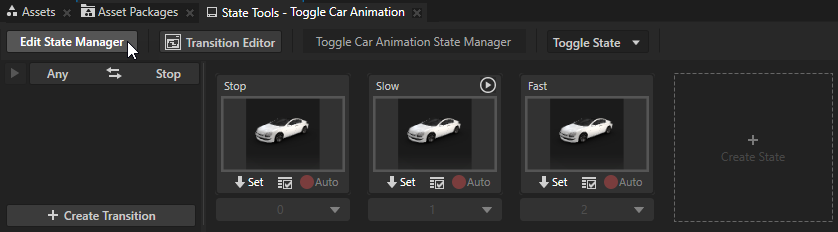
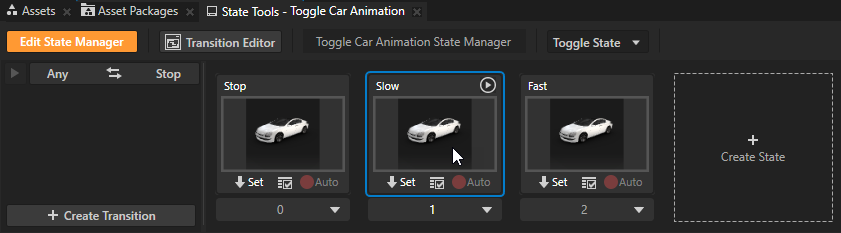
定义汽车缓慢旋转的 Slow 状态:
在 State Tools 中,选择 Slow 状态。
在 Node Tree 中,选择 Progressive Rendering Viewport 2D 节点,并在 Properties 中,将 Timeline 属性设置为 Slow Rotation。
您可以通过将该 Progressive Rendering Viewport 2D 节点的 Timeline 属性设置为您要使用的 Animation、Animation Clip 或 Timeline Sequence 来在 Progressive Rendering Viewport 2D 中为节点设置动画。
在 State Tools 中,在 Slow 状态下点击
 。
。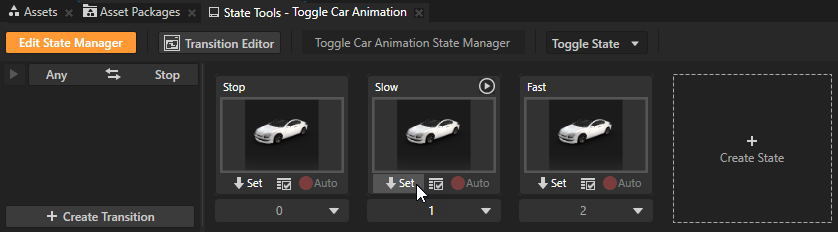
当 Toggle Car Animation 进入 Slow 状态时,Kanzi 在 Progressive Rendering Viewport 2D 节点中播放 Slow Rotation 时间线序列。
要定义 Fast 状态,其中汽车在反方向快速旋转,请重复上一步,但将 Timeline 属性设置为 Fast Reverse Rotation 时间线序列。
当 Toggle Car Animation 进入 Fast 状态时,Kanzi 在 Progressive Rendering Viewport 2D 节点中播放 Fast Reverse Rotation 时间线序列。
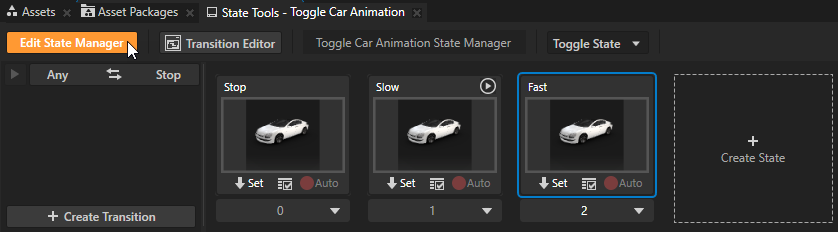
在 State Tools 中,单击 Edit State Manager 以停用 State Tools。
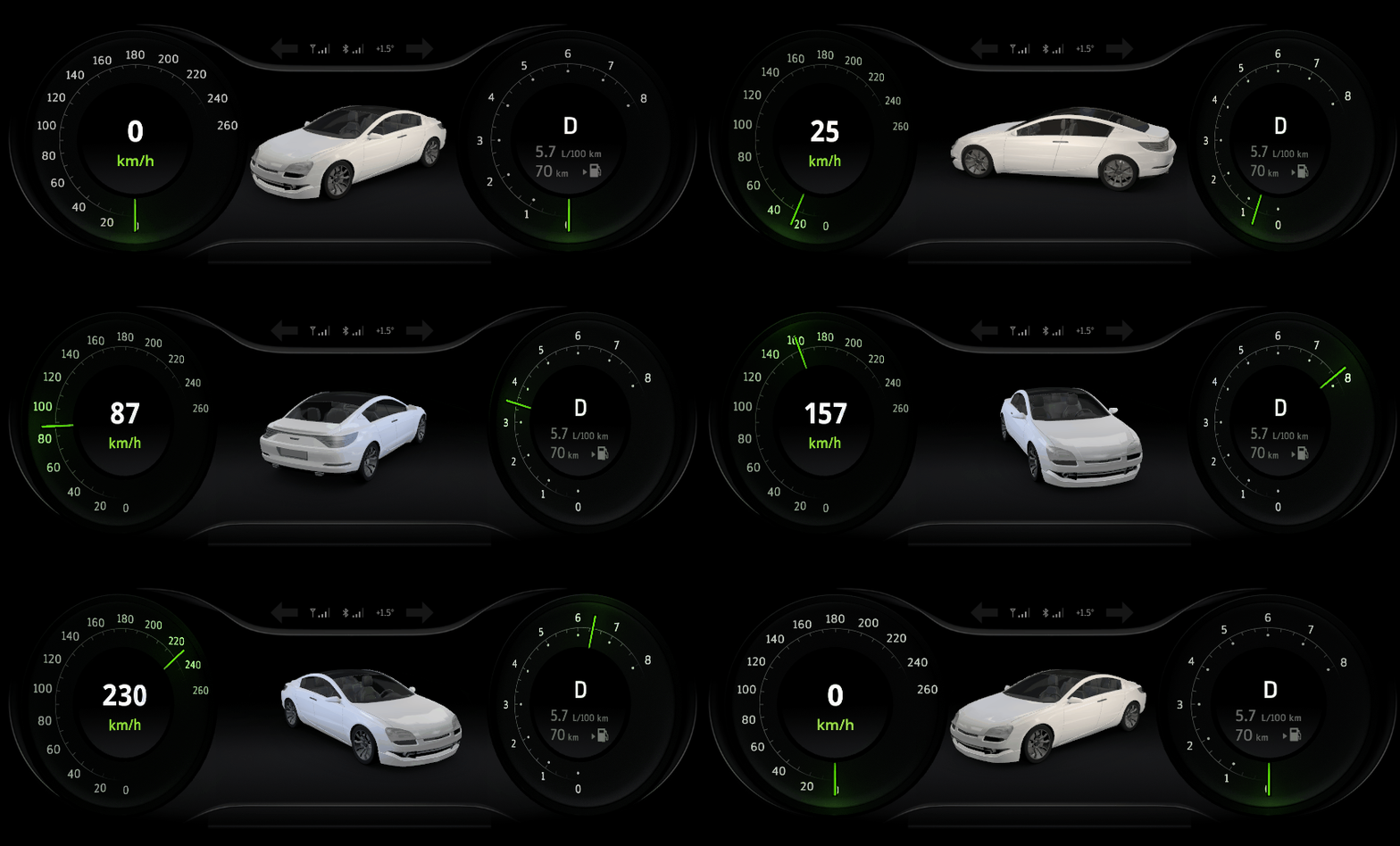
在 Preview 中,当您单击仪表之间的区域时,您可以在 Stop、Slow 和 Fast 状态之间切换。
接下来该做什么?
在本教程中,您学习了如何将渲染工作负载分配到多个帧中,以减少在单个帧中渲染内容所需的工作量和时间。现在您可以:
了解如何使用渲染通道在 3D 内容上应用全屏泛光效果。请参阅 教程:创建一个 bloom 效果。
了解如何将模板应用于3D内容,以便 Kanzi 仅渲染内容的选定区域。请参阅 教程:将模板应用于 3D 内容。
另请参阅
要详细了解如何应用抗锯齿功能,请参阅 应用抗锯齿功能。
要了解有关 Toggle Button 节点的更多信息,请参阅 使用 Toggle Button 节点。
要了解有关 Kanzi 状态管理器的更多信息,请参阅 状态机 (State Manager)。
要了解有关 Kanzi 中动画的更多信息,请参阅 动画 (Animations)。