步骤 1 - 使用 Kanzi Engine API 加载 Kanzi 二进制文件。
在本步骤中,您将学习如何使用 Kanzi Engine API 加载 Kanzi 二进制文件。
获取教程
要获取本教程,请在 Kanzi Studio Quick Start 窗口中点击 Examples。在 Programmer tutorial 教程旁,点击  。
。
Kanzi Studio 会将教程下载到 <KanziWorkspace>/Tutorials 目录。您可以找到:
位于
<KanziWorkspace>/Tutorials/Programmer tutorial/Start/Tool_project目录中的教程起点工程。Tool_project目录包含 Kanzi Studio 项目,其中包含您在本教程中使用的应用程序结构和资源。每当您对该项目进行更改时,要在您的应用程序中查看结果,请将项目导出为 kzb 文件。请参阅 使用 kzb 文件。Application/bin目录包含从 Kanzi Studio 项目生成的Programmer_tutorial.kzb二进制文件,以及您在本教程中创建的应用程序使用的 PNG 图像文件。
位于
<KanziWorkspace>/Tutorials/Programmer tutorial/Completed目录中的已完成教程。
使用 Kanzi Engine API 加载 Kanzi 二进制文件。
要使用 Kanzi Engine API 加载 Kanzi 二进制文件:
在 Kanzi Studio Quick Start 窗口中,点击 Examples。在 Programmer tutorial 教程旁,点击 Open 并选择 Start project。
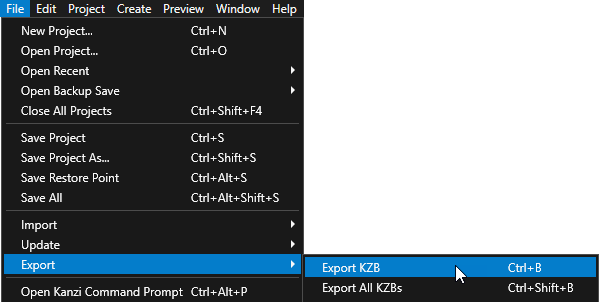
选择 File > Export > Export KZB。
Kanzi Studio creates the kzb file and configuration files from your Kanzi Studio project. Kanzi Studio stores the exported files in the
<ProjectName>/Application/bindirectory or the location that you set in Project > Properties in the Binary Export Directory property. The kzb file contains all nodes and resources from your Kanzi Studio project, except the resources that you mark in a localization table as locale packs.当您从 Visual Studio 运行您的 Kanzi 应用程序时,您的应用程序会加载 kzb 文件和配置文件。
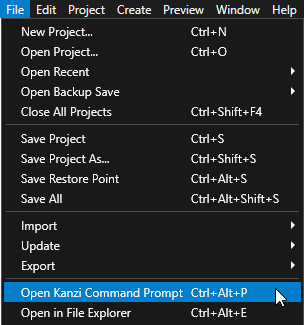
在 Kanzi Studio 中,选择 File > Open Kanzi Command Prompt。
Kanzi Command Prompt 打开 Windows 命令提示符,并为您打开 Kanzi Command Prompt 的 Kanzi 版本设置 Kanzi 环境变量。
使用 Kanzi Command Prompt 访问 Kanzi 实用程序和构建工具,例如 Gradle、SCons 和 CMake,而无需使用绝对路径或设置环境变量。
小技巧
您可以在 Windows 开始菜单的 Rightware 目录中找到 Kanzi Command Prompt。
当您安装了多个版本的 Kanzi 时,确保将您要在该命令提示符下使用的 Kanzi 版本的 Kanzi Command Prompt 启动。
在
<KanziWorkspace>/Tutorials/Programmer tutorial/Start/Application目录中的 Kanzi Command Prompt 中运行生成教程应用程序的 Visual Studio 解决方案的脚本。例如,如果您使用 Visual Studio 2019,运行
generate_cmake_vs2019_solution.bat
此脚本在目录
<KanziWorkspace>/Tutorials/Programmer tutorial/Start/Application/build_vs2019中为应用程序生成一个 Visual Studio 解决方案。在 Visual Studio 中打开
<KanziWorkspace>/Tutorials/Programmer tutorial/Start/Application/build_vs<Version>/Programmer_tutorial_start.slnVisual Studio 解决方案。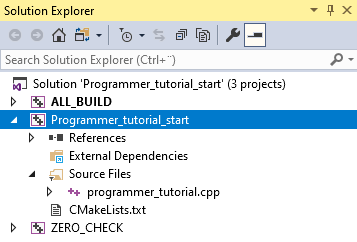
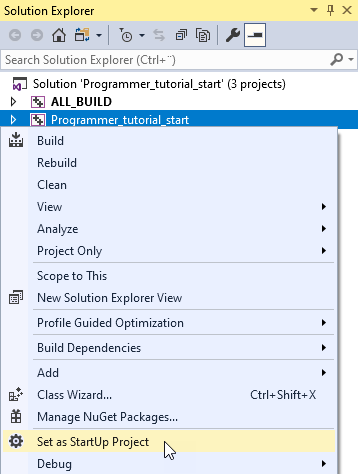
在 Visual Studio 的 Solution Explorer 中,右键点击 Programmer_tutorial_start 项目并选择 Set as StartUp Project。
打开
programmer_tutorial.cpp文件。programmer_tutorial.cpp文件包含加载 Kanzi 应用程序所需的最少代码。在本教程中,您将在此文件中创建应用程序的逻辑。// The kanzi.hpp header includes all Kanzi Engine functionality. // To fine-tune your application you can include only the relevant headers. #include <kanzi/kanzi.hpp> using namespace kanzi; class ProgrammerTutorialApplication: public ExampleApplication { // In the onConfigure function you can tell your Kanzi application which kzb file // to load, enable performance information in your application, and set how many threads // you want to use for loading the application resources. void onConfigure(ApplicationProperties& configuration) override { configuration.binaryName = "Programmer_tutorial.kzb.cfg"; } }; // To work with the main function in the Application framework you need to // return your application in the createApplication function. The main // function then passes the control to the main loop defined in your // Application class. Application* createApplication() { return new ProgrammerTutorialApplication; }
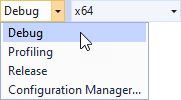
选择您要使用的解决方案配置并运行您的应用程序。
在开发期间,选择 Debug 配置。当您准备好创建生产版本时,选择 Release 配置。
当您构建并运行程序时,Kanzi 加载 kzb 文件并显示应用程序内容。

在应用程序启动 Kanzi:
调用
Application::onConfigure入口点函数,在此函数中指定配置。例如,您希望应用程序加载哪些 Kanzi Studio 项目的 kzb 文件以及应用程序窗口的大小。将该 kzb 文件加载到内存,就使其可供该应用程序使用。
当 Kanzi 完成项目加载时,它会调用
Application::onProjectLoaded函数。在本教程的接下来的步骤中,您将在此函数中添加应用程序功能。
另请参阅
要了解有关开发 Kanzi 应用程序的更多信息,请参阅 应用程序开发。
要了解您的 Kanzi 应用程序的可用配置选项,请参阅 应用程序配置参考。
要了解有关 kzb 文件的更多信息,请参阅 kzb 文件。
要了解如何将您的 Kanzi 应用程序部署到不同的平台,请参阅 部署 Kanzi 应用程序。