使用 Text Block 节点
使用 Text Block 节点在应用程序中显示少量文本。
Text Block 节点使用您选择的字体来渲染文本。使用 Text Block 3D 在 3D 空间中显示文本,使用 Text Block 2D 在 2D 空间中显示文本。
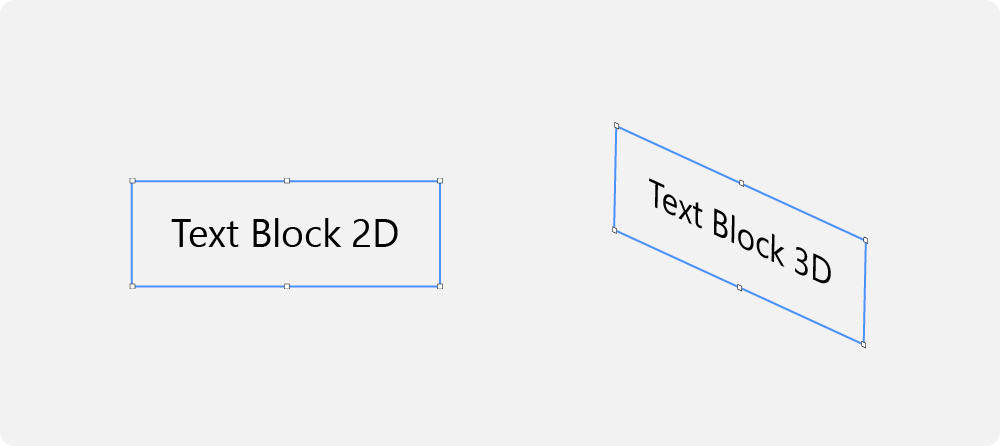
向您的应用程序添加文本
向您的应用程序添加文本:
在 Node Tree 按 Alt 并右键单击 中,选择要显示文本的节点,并选择 Text Block 3D 或 Text Block 2D。
您只能在 3D 节点中创建 3D 节点,例如 Scene 节点,并且只能在 2D 节点中创建 2D 节点。
小技巧
在 Preview 中,使用 Text Block 2D tool
 点击并拖动以创建一个 Text Block 2D 节点。要在布局中定位 Text Block 2D 节点,请点击并拖动该 Text Block 2D 节点,按住 Ctrl,并将节点放置在您想要放置的单元格上方。
在 Text 属性中的 Properties 中输入您想要显示的文本。要添加新行,请按 Shift Enter。
使用 Text Block 节点在应用程序中显示少量文本。
您可以设置 Kanzi 如何换行和截断文本。请参阅 包装和截断文本。
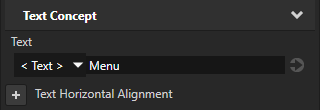
在 Properties 中设置 Font 属性,以使文本看起来符合您的期望。Kanzi 将您在 Text Block 节点中设置的所有设置应用于整个节点。
例如,在 Properties 中添加并设置:
Font Size 用于定义文本的大小。
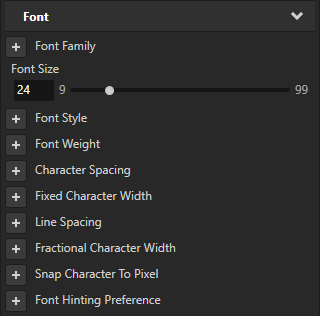
将 Font Family 设置为您要使用的字体系列。
Kanzi 中的默认字体系列是 Fira Sans Regular。字体文件存储在
<KanziInstallation>/Studio/Asset Library/Fonts。 当您想使用自己的字体时,将其导入到您的 Kanzi Studio 项目中。请参阅 导入字体。
Fixed Character Width 将您的字体转换为等宽字体。
包装和截断文本
当您限制 Text Block 节点的宽度时,Kanzi 默认情况下会剪裁超过该 Text Block 节点宽度的文本。您可以:
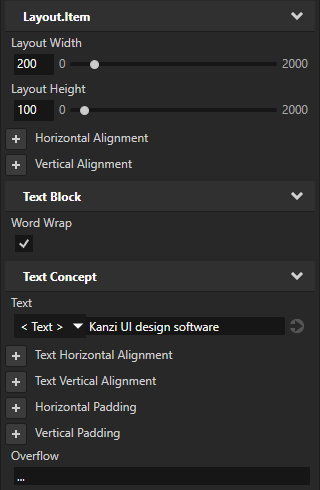
通过添加并启用 Word Wrap 属性,将文本换行。
通过添加以下任一项来截断文本:
Overflow 属性和设置指示截断的字符。
Truncation 属性和设置截断:
At character 逐字符截断文本。
At word 通过整个单词截断文本。
None 禁用截断。
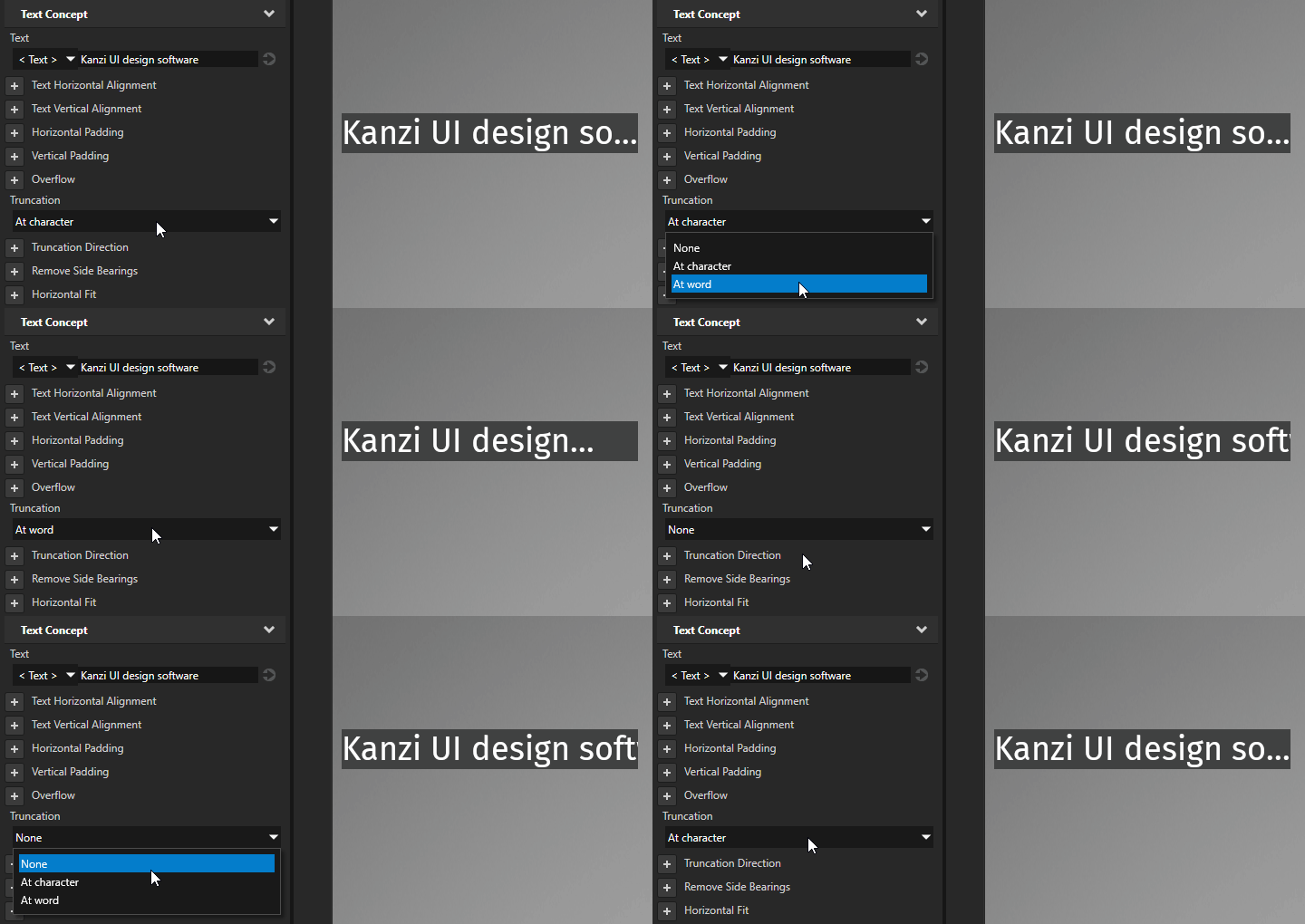
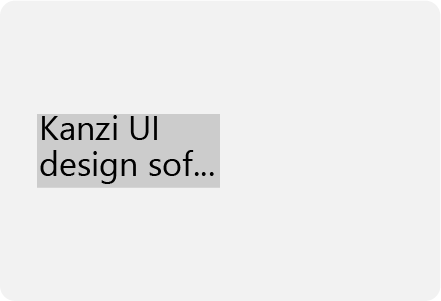
Kanzi 会截断文本以适应 Text Block 节点的垂直和水平限制,并添加 Overflow 属性中的字符。如果垂直空间不足以容纳一行文本,Kanzi 会截断所有文本,并且不显示 Overflow 字符。
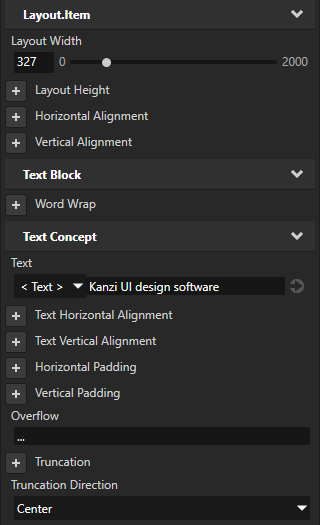
当您启用截断时,您可以设置要截断文本的哪一部分。添加 Truncation Direction 属性并将其设置为:
Trailing 用于截断文本的末尾部分。默认值。
对于多行文本,就像单行文本一样,如果 Word Wrap 属性设置为禁用,Kanzi 会截断不适合水平显示的剩余文本。
Overflow 属性的值表示在被截断行的末尾进行截断。
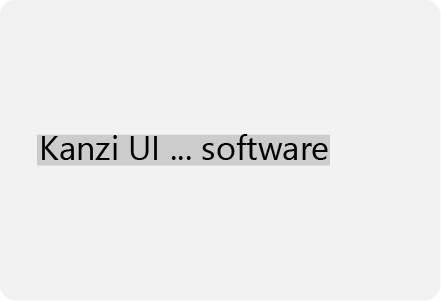
Center 用于截断文本的中间部分。
如果 Word Wrap 属性设置为禁用,Kanzi 会水平裁剪多行文本。Kanzi 会完全截断多行或自动换行文本的中间行。
Overflow 属性的值表示在截断行之前的行末进行截断。
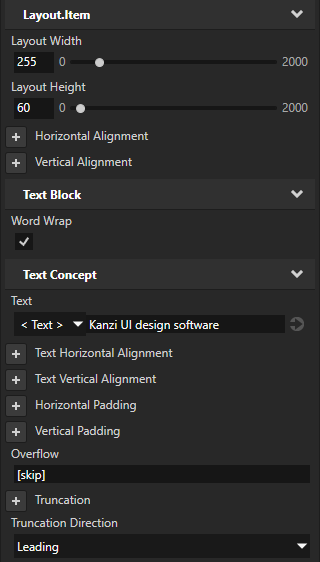
Leading 用于截断文本的开头部分。
如果 Word Wrap 属性设置为禁用,Kanzi 会水平裁剪多行文本。Kanzi 会完全截断多行或自动换行文本的前导行。
Overflow 属性的值表示在第一条可见线的开头进行截断。
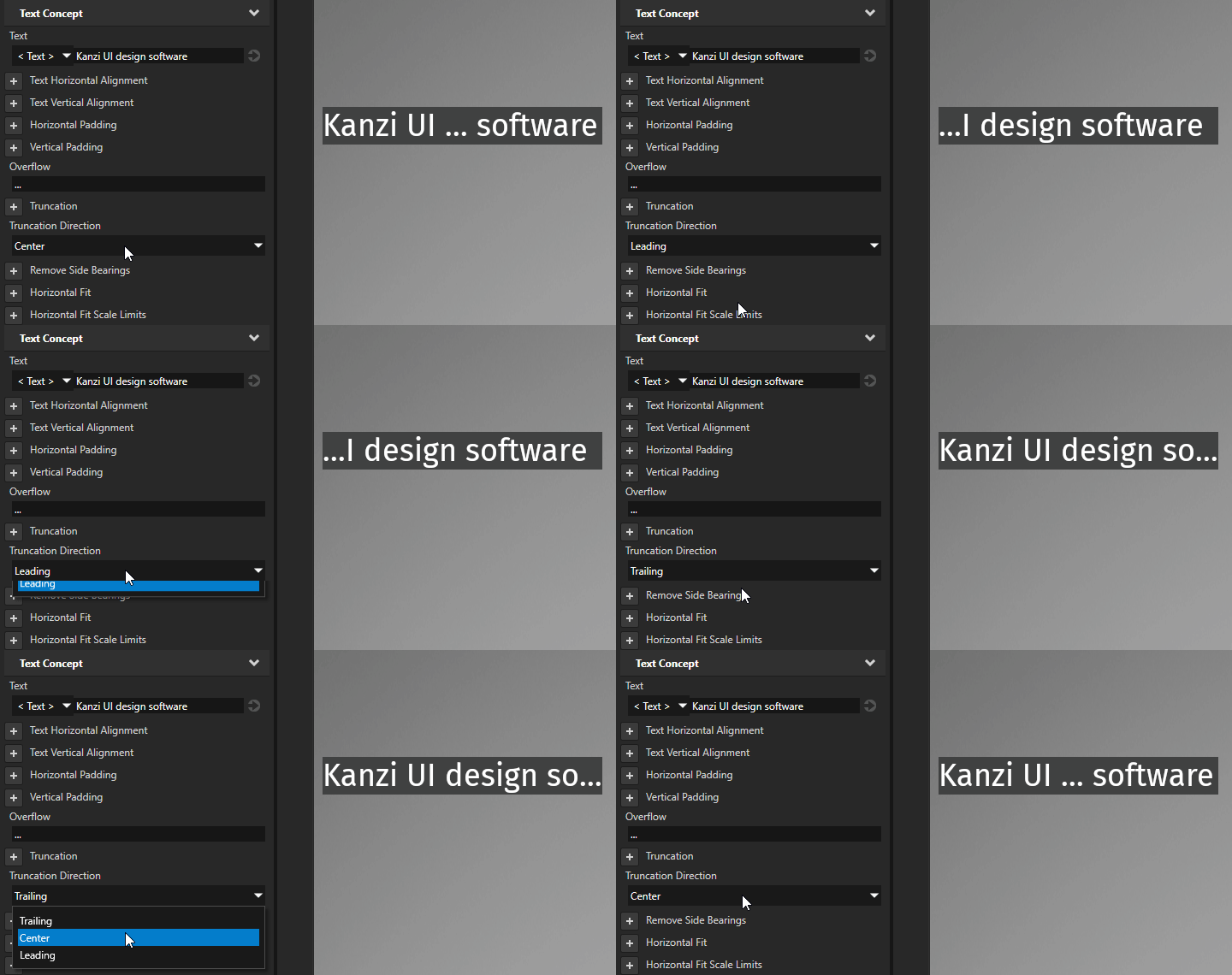
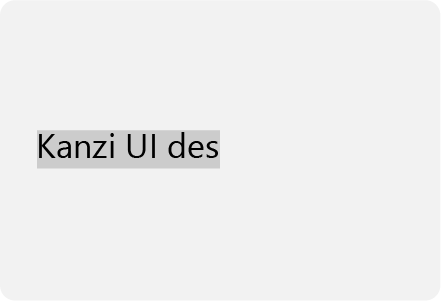
此表显示了一些可用于设置文本布局的选项。
目标 |
必需的属性值 |
结果 |
|---|---|---|
|
默认属性值 |
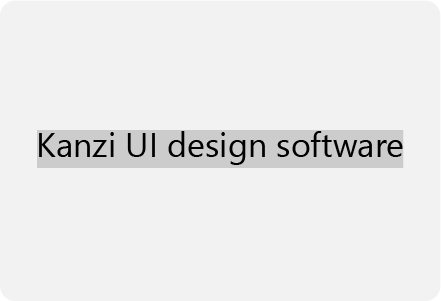
|
|
Layout Width 设置节点的宽度。 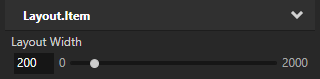
|
|
|
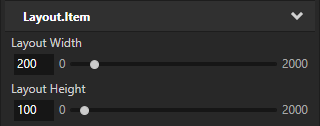
|
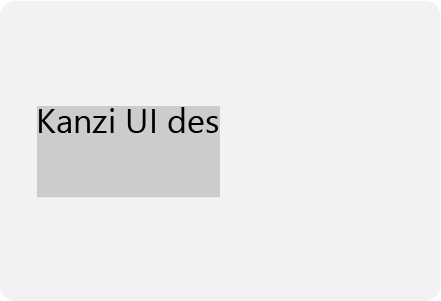
|
|
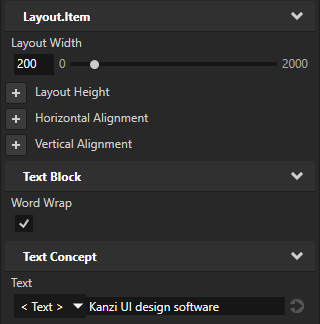
|
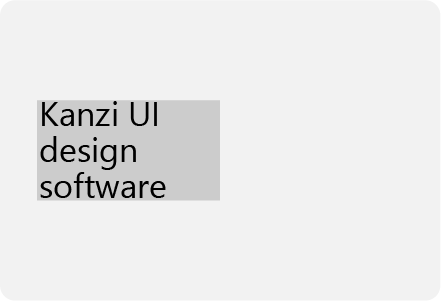
|
将文本截断在单行上。 默认情况下,Kanzi 会截断不适合的文本末尾。 |
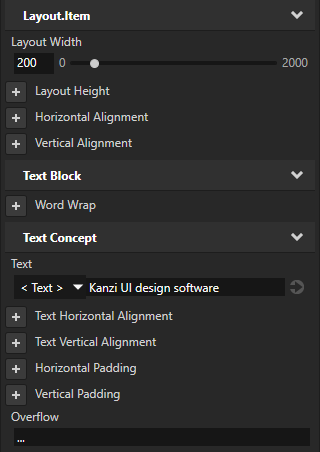
|
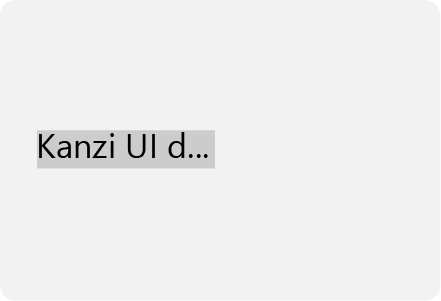
|
在 Text Block 节点中截断文本为单行,并确保仅显示完整的单词。 默认情况下,Kanzi 会截断不适合的文本末尾,并使用省略号来表示被截断的文本。 |
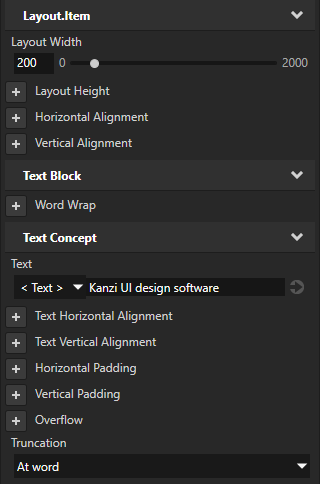
|
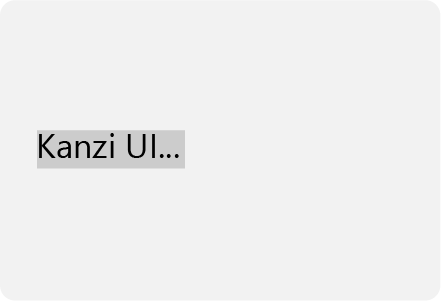
|
包装并截断比 Text Block 节点的宽度和高度更长的文本。 默认情况下,Kanzi 会截断不适合的文本末尾。 |
|
|
当文本长度超过 Text Block 节点的宽度时,截断单行文本的中间部分。 |
|
|
|
|
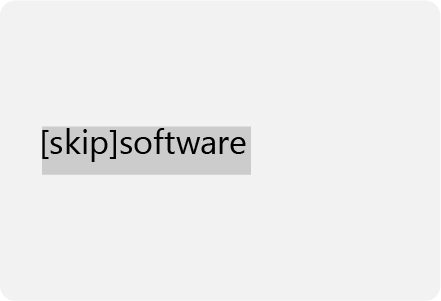
|
将文本放入 Text Block 节点中
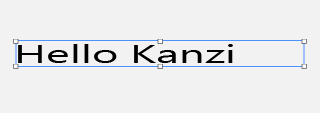
当您想确保 Text Block 节点的整个文本适合该节点的宽度时,使用 Horizontal Fit 和 Horizontal Fit Scale Limits 属性。
要将文本适配到 Text Block 节点中:
在 Node Tree 或 Prefabs 中选择 Text Block,并在 Properties 中添加和设置:
将 Layout Width 设置为您想要用于该 Text Block 节点的宽度。
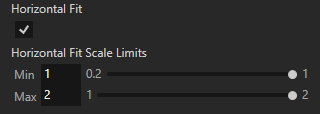
将 Horizontal Fit 设置为 enabled。
当您启用此属性并且文本不符合由 Layout Width 属性设置的 Text Block 节点的宽度时,Kanzi 会自动将字形缩放到其大小的一半。
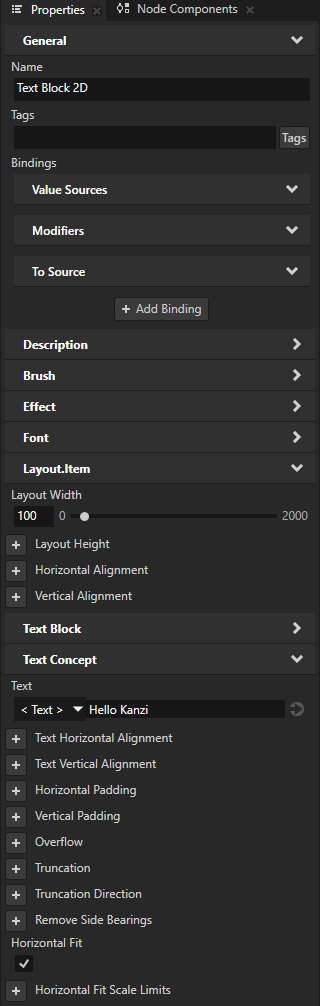
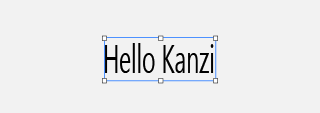
(可选) 要调整字形的缩放比例,请添加 Horizontal Fit Scale Limits 属性,并将其 Min 和 Max 属性字段设置为字形的最小和最大缩放范围。
例如:
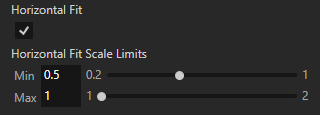
当您将 Min 属性字段设为:
1.0,Kanzi 不压缩字形。
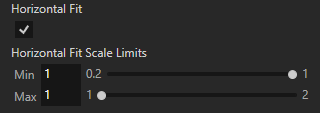
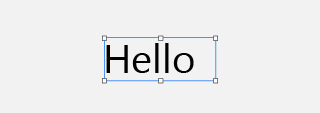
0.5,Kanzi 允许将字形压缩到其大小的一半。
当您将 Max 属性字段设为:
1.0,Kanzi 不会拉伸字形。
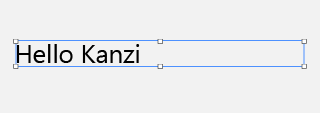
2.0,Kanzi 允许将字形拉伸到其大小的两倍。
设置 Text Block 3D 节点的大小和布局
要渲染 Text Block 3D 节点,Kanzi 首先使用像素将文本准备为2D文本,然后将准备好的文本投影到3D空间。
要设置 Text Block 3D 节点的大小和布局:
使用像素设置 Text Block 3D 节点中文本的大小和布局。
例如:以像素为单位设置 Font Size、Character Spacing 和 Fixed Character Width 属性的值。
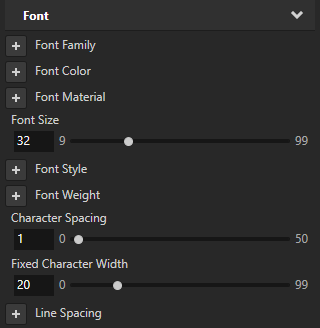
使用 2D to 3D Projection Scale 属性设置 Kanzi 用于将文本从像素缩放到3D单位的因子。2D to 3D Projection Scale 属性的默认值为 0.02。
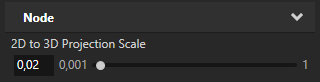
使用 3D 单位设置 Text Block 3D 节点在 3D 空间中的大小。
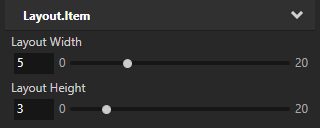
例如,以 3D 单位设置 Layout Width 和 Layout Height 属性的值。
在 Text Block 2D 节点中设置文本的颜色
要设置 Text Block 2D 或 Text Box 2D 节点中文本的颜色:
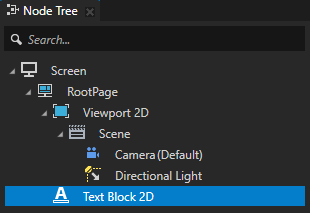
在 Node Tree 中创建或选择一个 Text Block 2D 或 Text Box 2D 节点。
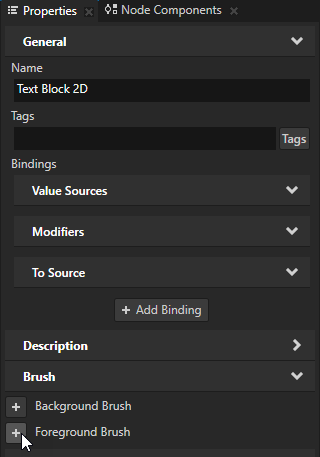
在 Properties 中添加 Foreground Brush 属性。
将 Foreground Brush 属性设置为现有的 Color Brush 或选择 + Color Brush,命名画笔,单击属性旁边的
 ,并设置您创建的 Color Brush 的颜色。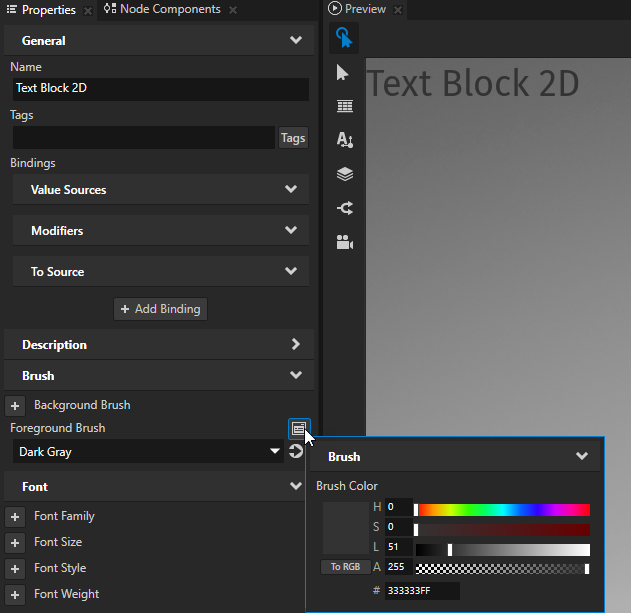
小技巧
要快速编辑画笔,请在 Properties 中,Background Brush 或 Foreground Brush 属性旁边点击
并编辑画笔。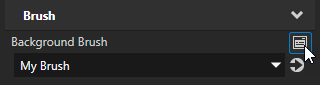
在 Text Block 3D 节点中设置文本的颜色
要设置3D文本节点中文字的颜色:
在 Node Tree 中创建或选择一个 Text Block 3D 或 Text Box 3D 节点。
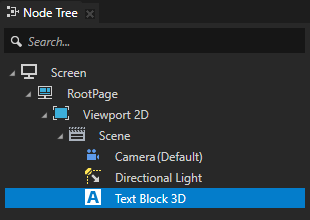
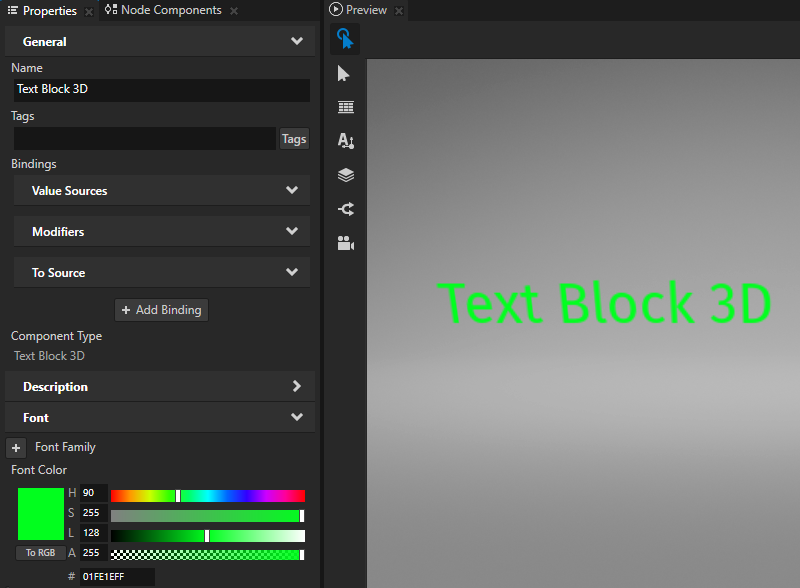
在 Properties 中添加并设置 Font Color 属性。
动态更改文本大小
要动态更改 Text Block 节点中文本的大小,请使用 Render Transformation 或 Layout Transformation 属性的 Scale 属性字段,而不是 Font Size 属性。例如,当您想要在 Text Block 节点中为文本大小设置动画时,请使用此方法。使用 Font Size 属性动态缩放文本时,Kanzi 会为不同的字体大小创建多个纹理,并且不会从内存中释放它们。
在 Text Block 2D 节点中渲染像素完美的文本
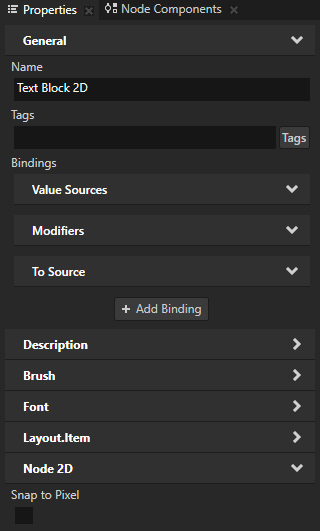
当您在 Kanzi Studio 中创建项目时,Screen 节点在其资源字典中具有 Text Block 2D Style,这为 Kanzi 应用程序中的所有 Text Block 2D 节点启用 Snap to Pixel 属性。
Snap to Pixel 属性将 Text Block 2D 或 Text Box 2D 节点的平移和缩放舍入到完整像素,从而使 Kanzi 能够渲染像素完美的文本。
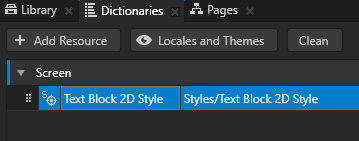
要禁用 Snap to Pixel 属性,选择要为其禁用该属性的 Text Block 2D 节点,并在 Properties 中添加并禁用 Snap to Pixel 属性。
在 Text Block 2D 节点中设置字符的渲染
您可以设置 Kanzi 如何渲染 2D 文本中的每个字符。在 Text Block 2D 节点中,这些属性默认情况下是启用的:
Snap Character To Pixel 属性将每个字符的平移和缩放舍入到完整像素。
这提高了文本的清晰度,但某些字符可能会移动一个像素的分数。
Fractional Character Width 属性使字符之间的间距可以变化,并且可以是像素的一小部分。
在大多数情况下,这提供了最佳的文本渲染结果。分数宽度可能导致小字体大小的字符重叠或间距过大。这可能会使文本更难阅读。
此表列出了您可以使用的选项,以设置 Text Block 2D 节点中字符的渲染。
目标 |
必需的属性值 |
结果 |
|---|---|---|
大多数情况下的最佳文本渲染结果:
|
默认属性值 |
|
按字体设计师的意图渲染字符。 不要将每个字符的平移和缩放四舍五入到完整像素。 根据屏幕分辨率、抗锯齿和字体大小,这可能会使文本看起来更加模糊。 |
Snap Character To Pixel 已禁用 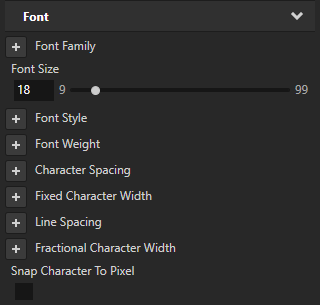
|
|
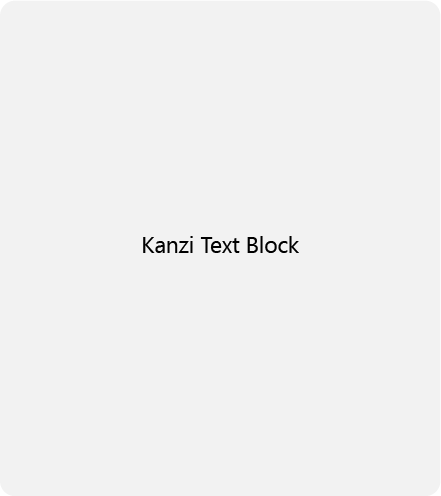
提高小文本的清晰度。 将字符宽度四舍五入到最接近的像素。 这可以防止小字体大小的字符连在一起,并使文本看起来更清晰。 |
Fractional Character Width 已禁用 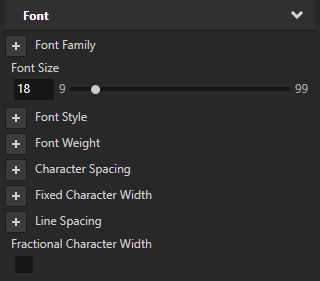
|
|
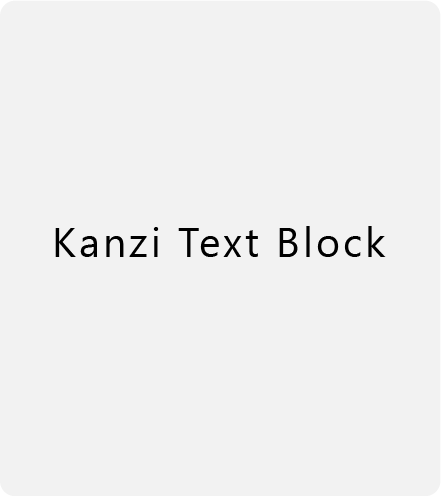
手动设置字符之间的间距。 |
Character Spacing 到您希望字符之间的间距。 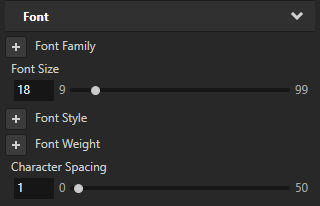
|
|
为 Text Block 节点设置字体提示
字体提示为光栅化提供了指令:将字体的轮廓映射到屏幕像素。字体提示旨在既保持字体的设计美感,又优化字体在不同大小下的可读性。
Kanzi 中的文本节点默认情况下使用字体中包含的字体提示数据。
例如,字体提示可能会影响字符的高度和宽度、线条的宽度、边缘对比度以及字符之间的间距。
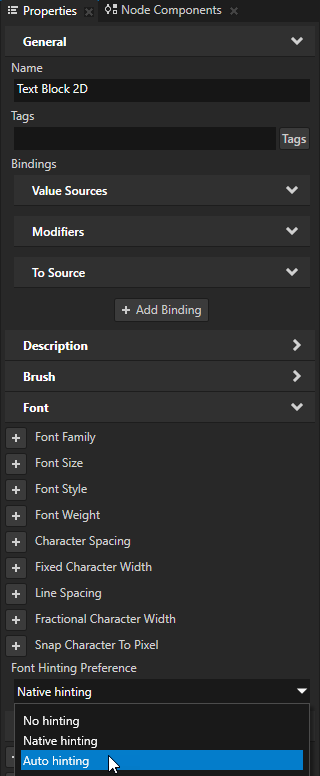
要为 Text Block 或 Text Box 节点设置字体提示,请在 Node Tree 中选择该节点,在 Properties 中添加 Font Hinting Preference 属性,并将其设置为:
No hinting 用于渲染没有字体提示的文本。
Native hinting 使用字体中包含的提示数据来渲染文本。如果字体不包含提示数据,Kanzi 使用字体引擎光栅化器的提示器。这是默认值。
Auto hinting 使用字体引擎光栅化器的提示器来渲染文本。请参阅 为 Preview 设置字体引擎。
将文本拆分为多个 Text Block 节点。
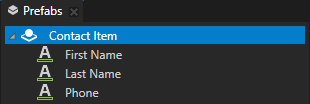
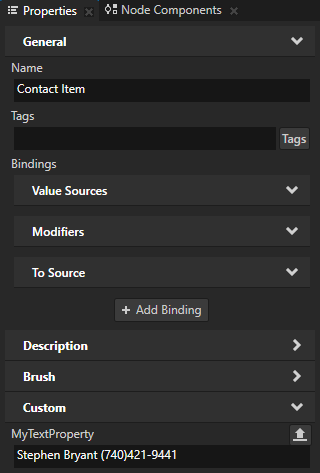
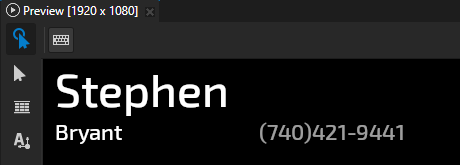
您可以使用绑定将文本拆分为多个部分,并访问文本的每个部分。例如,拆分从数据源获取的运行时数据。请参阅 使用数据源。
您可以选择:
在 Node Tree 中按这些节点的顺序显示多个节点中的文本部分。
您将文本部分的集合存储在一个属性中,并在每个节点中,您希望显示文本的一部分,使用绑定来推进该集合的迭代,并显示迭代器中的第一个元素。
因为绑定按照 Kanzi 执行这些绑定的顺序迭代文本部分的集合,所以 Node Tree 中节点的顺序决定了每个节点显示文本的哪一部分。
当您以这种方式显示文本的各个部分时,如果您在 Kanzi Studio 中更改显示文本部分的节点中的任何属性值,Kanzi Studio Preview 会重新实例化该节点中的绑定,并将迭代推进到您拆分的文本末尾之外。当这种情况发生时,您必须重新启动 Preview 以查看正确的文本。
请参阅 按节点树顺序显示多个节点中的文本部分。。
以任意顺序显示多个节点中的文本部分。
您将文本部分的位置存储在单独的属性中,并在每个节点中,您希望显示文本的一部分,使用绑定从存储在特定属性中的位置显示文本部分。
请参阅 以任意顺序在多个节点中显示文本部分。。
格式化属性值的显示
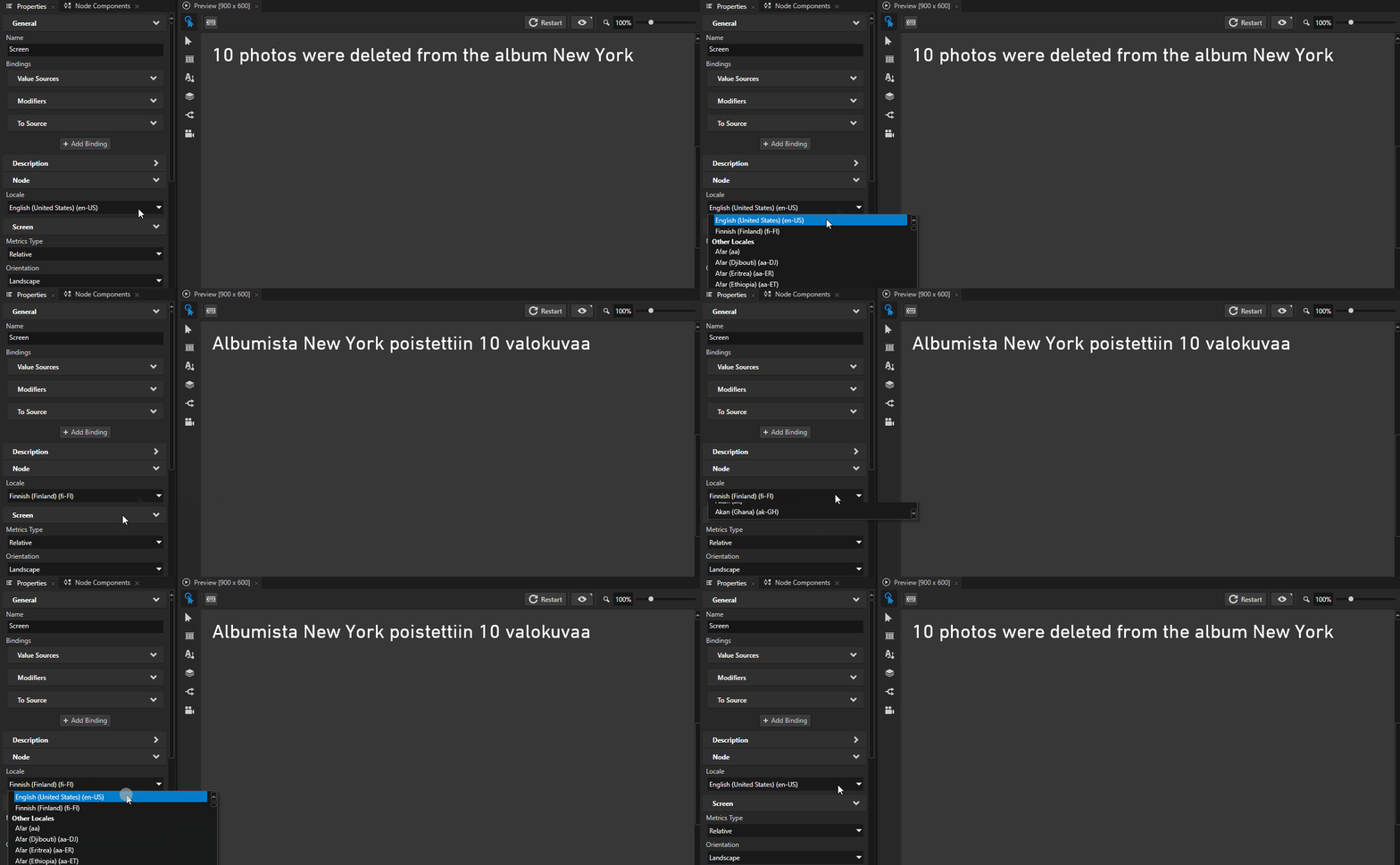
使用 format 绑定函数来设置 Text Block 节点如何显示属性值。请参阅 格式化属性值的显示 和 格式 (Format) 函数参考。
使用 format,您可以:
将节点属性或数据源中的值插入到文本字符串中。
设置传递给函数的值在格式化文本中出现的顺序。请参阅 在本地化字符串中设置文本顺序。
将浮点值截断为特定的小数位数。
为字符串内的格式化文本设置最小宽度。
当内容占用的空间小于最小宽度时,用空格或零填充剩余空间。请参阅 格式化属性值的显示。
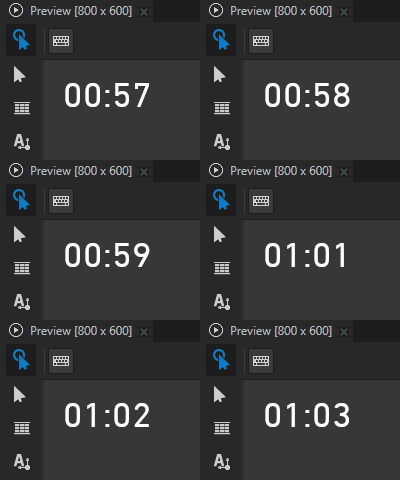
将格式化文本在可用空间内左对齐或右对齐。
在透明背景下渲染文本
当您希望以透明形式显示文本块节点的背景时,您必须按正确顺序渲染 Kanzi 应用程序的节点树中的节点。请参阅 渲染部分透明节点。
设置 Text Block 2D 节点的外观
要设置 2D 节点的外观:
您可以使用单色、纹理或材质填充 2D 节点。请参阅 调整 2D 节点的外观。



您可以将后期处理效果应用于2D节点。请参阅 2D 节点的效果。




您可以围绕所有三个轴旋转 2D 节点,以创建 3D 透视效果。请参阅 为2D节点创建3D透视效果。

您可以应用自定义渲染到 2D 节点,以创建后处理效果。请参阅 应用自定义渲染到 2D 节点。
您可以将2D节点渲染为像素完美。请参阅 渲染像素完美的2D节点。
使用 API 中的 Text Block 3D 节点
要创建 Text Block 3D 节点:
// Create a Text Block 3D node named Text Block.
TextBlock3DSharedPtr textBlock = TextBlock3D::create(this->getDomain(), "Text Block");
要设置 Text Block 3D 节点中文本的字体系列:
// Set the font family used by the Text Block node.
textBlock->setFontFamily(fontFamily);
要添加 Text Block 3D 节点显示的文本:
// Set the text in the Text Block node to Hello world!.
textBlock->setText("Hello\nworld!");
要调整 Text Block 3D 节点中文本的外观:
// Set the style of the text in a Text Block 3D node:
// Set the size of the font to 90 pixels.
textBlock->setFontSize(90.0f);
// Set the color of the font to blue.
textBlock->setFontColor(ThemeBlue);
// Set the width of the text block in 3D space to 4 3D units.
textBlock->setWidth(4.0f);
// Set the height of the text block in 3D space to 5 3D units.
textBlock->setHeight(5.0f);
// To break long text lines to multiple lines to make the text fit within
// the boundaries of the text block, set the Word Wrap property to true.
textBlock->setWordWrap(true);
// Align the text in the text block to the right.
textBlock->setTextHorizontalAlignment(TextFormat::TextHorizontalAlignmentRight);
// Enable hinting. Prefer native hinter of the font over the auto-hinter of the rasterizer.
textBlock->setHintingPreference(FontHintingPreference::NativeHinting);
要调整 2D 到 3D 投影缩放系数:
// To scale the final text in 3D space, set the 2D to 3D projection scaling factor to 0.04.
// The default value of the Node::Projection2DTo3DScaleProperty property is 0.02f.
textBlock->setProjection2DTo3DScale(0.04f);
有关详细信息,请参阅 TextBlock3D 类。
使用 API 中的 Text Block 2D 节点
要创建 Text Block 2D 节点:
// Create a Text Block 2D node named Text node.
TextBlock2DSharedPtr textNode = TextBlock2D::create(this->getDomain(), "Text node");
// Create a Text Block 2D node named Text node.
ObjectRef<TextBlock2D> textNodeRef = TextBlock2D.create(getDomain(), "Text node");
TextBlock2D textNode = textNodeRef.get();
// Create a Text Block 2D node named Text node.
val textNodeRef = TextBlock2D.create(domain, "Text node")
val textNode = textNodeRef.get()
要设置 Text Block 2D 节点中文本的字体系列:
textNode->setFontFamily(fontFamily);
textNode.setProperty(Node.FontFamilyProperty, fontFamily);
textNode.setProperty(Node.FontFamilyProperty, fontFamily)
要添加 Text Block 2D 节点显示的文本:
// Set the text in the Text Block node to Hello world!.
textNode->setText("Hello\nworld!");
// Set the text in the Text Block node to Hello world!.
textNode.setText("Hello\nworld!");
// Set the text in the Text Block node to Hello world!.
textNode.text = "Hello\nworld!"
要调整 Text Block 2D 节点中文本的外观:
// Set the style of the text in a Text Block 2D node:
// Set the line spacing to 1.5f.
textNode->setLineSpacing(1.5f);
// Set the size of the font to 36.0f.
textNode->setFontSize(36.0f);
// Set the color of the font to blue.
textNode->setFontColor(ThemeBlue);
// Align the text in the text block to the right.
textNode->setTextHorizontalAlignment(TextFormat::TextHorizontalAlignmentRight);
// Enable hinting. Prefer native hinter of the font over the auto-hinter of the rasterizer.
textNode->setHintingPreference(FontHintingPreference::NativeHinting);
// Set the style of the text in a Text Block 2D node:
// Set the line spacing to 1.5f.
textNode.setProperty(TextBlock2D.LineSpacingProperty, 1.5f);
// Set the size of the font to 36.0f.
textNode.setProperty(FontStyleConceptMetadata.SizeProperty, 36.0f);
// Set the color of the font to blue.
textNode.setProperty(
    TextConceptMetadata.FontColorProperty, new ColorRGBA(0.0f, 0.0f, 1.0f));
// Align the text in the text block to the right.
textNode.setProperty(TextBlock2D.TextHorizontalAlignmentProperty,
    TextFormatEnums.TextHorizontalAlignment.TextHorizontalAlignmentRight);
// Enable hinting. Prefer native hinter of the font over the auto-hinter of the rasterizer.
textNode.setProperty(
    TextBlock2D.FontHintingPreferenceProperty, FontHintingPreference.NativeHinting);
// Set the style of the text in a Text Block 2D node:
// Set the line spacing to 1.5f.
textNode.setProperty(TextBlock2D.LineSpacingProperty, 1.5f)
// Set the size of the font to 36.0f.
textNode.setProperty(FontStyleConceptMetadata.SizeProperty, 36.0f)
// Set the color of the font to blue.
textNode.setProperty(TextConceptMetadata.FontColorProperty, ColorRGBA(0.0f, 0.0f, 1.0f))
// Align the text in the text block to the right.
textNode.setProperty(TextBlock2D.TextHorizontalAlignmentProperty, TextFormatEnums.TextHorizontalAlignment.TextHorizontalAlignmentRight)
// Enable hinting. Prefer native hinter of the font over the auto-hinter of the rasterizer.
textNode.setProperty(TextBlock2D.FontHintingPreferenceProperty, FontHintingPreference.NativeHinting)
有关详细信息,请参阅 TextBlock2D 类。
Text Block 属性类型和消息。
有关 Text Block 节点的可用属性类型和消息的列表,请参阅 Text Block 2D 和 Text Block 3D。