步骤 2 - 使用 Kanzi Engine API 设置属性值。
在此步骤中,您在 Kanzi Studio 中创建一个 Text Block 2D 节点和一个指向该节点的别名。然后,使用 Kanzi Engine API,您设置定义 Kanzi 应用程序中 Text Block 2D 节点显示内容的属性值。
要使用 Kanzi Engine API 设置属性值:
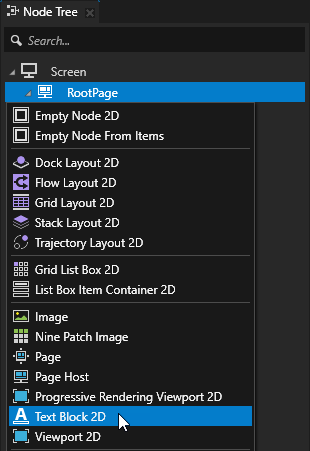
在 Node Tree 中,按 Alt 并右键单击 RootPage 节点并选择 Text Block 2D。
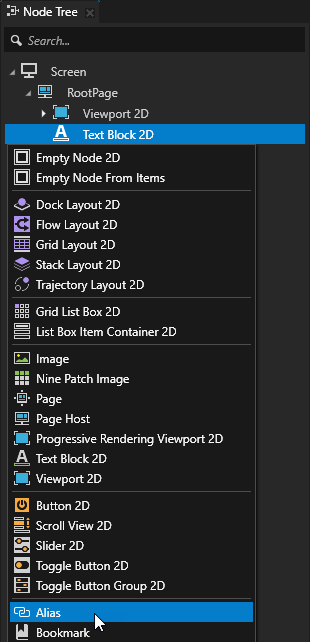
在 Node Tree 中,使用您创建的 按 Alt 并右键单击 Text Block 2D 节点,并选择 Alias。
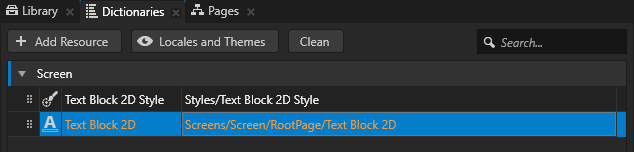
Kanzi Studio 创建一个指向您创建别名的节点的别名,并将其添加到其最近的包含资源字典的祖先节点的资源字典中。
您在应用程序代码中使用别名访问此节点。
在此示例中,具有资源字典的最近节点是 Screen 节点。在此项目的应用程序代码中,您使用别名的名称来查找并获取该 Text Block 2D 节点。
小技巧
您可以使用绑定或 Kanzi Engine API,通过使用井号 (
#) 后跟别名的名称来检索别名目标节点,而不考虑节点在项目中的位置。小技巧
您可以在 Dictionaries 窗口中看到资源字典中的资源列表,Node Tree 中选择的节点可以访问这些资源。
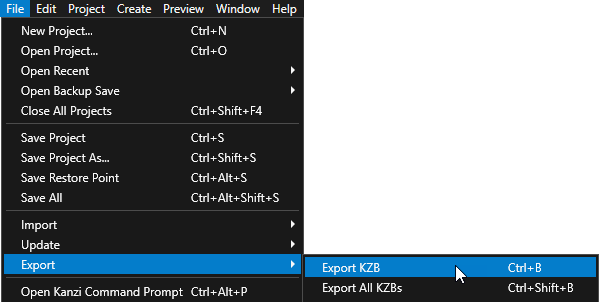
在 Kanzi Studio 中,选择 File > Export > Export KZB。
在
Application::onProjectLoaded函数的开头的hello_world.cpp中,添加:void onProjectLoaded() override { // Get the Screen node whose resource dictionary contains the alias to the // Text Block 2D node. ScreenSharedPtr screenNode = getScreen(); // Get the Text Block 2D node using the alias that you created in the Kanzi Studio // project. The name of the alias is the same as the node name that you used for // the Text Block 2D node in the Kanzi Studio project with the # sign prefix. TextBlock2DSharedPtr textBlock = screenNode->lookupNode<TextBlock2D>("#Text Block 2D"); // Set the value of the Text Block 2D Text property to Hello world!. textBlock->setText("Hello world!"); ... }
当您运行您的 Kanzi 应用程序时,
TextConceptImpl::setText函数将 Text Block 2D 的 Text 属性设置为 Hello world!,以便文本块显示 Hello world!。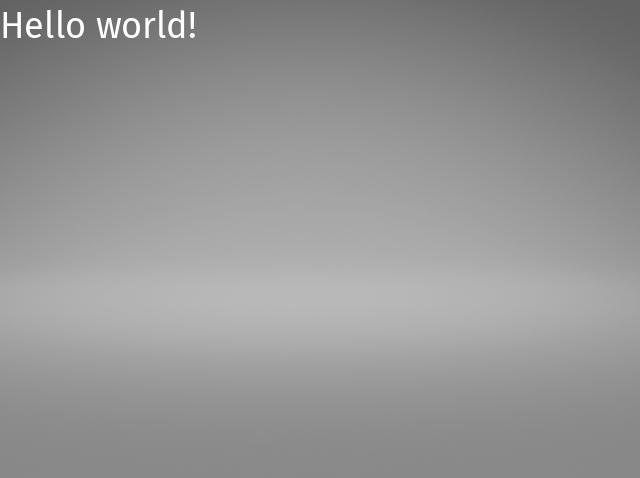
当您完成此步骤时,这就是您的 hello_world.cpp 的样子。
#include <kanzi/kanzi.hpp>
#include <kanzi/core/log/log.hpp>

// [CodeBehind libs inclusion]. Do not remove this identifier.

#if defined(HELLO_WORLD_CODE_BEHIND_API) && !defined(ANDROID) && !defined(KANZI_CORE_API_IMPORT)
#include <Hello_world_code_behind_module.hpp>
#endif

using namespace kanzi;

class HelloWorld : public ExampleApplication
{
public:

   void onConfigure(ApplicationProperties& configuration) override
   {
      configuration.binaryName = "hello_world.kzb.cfg";
   }

   void onProjectLoaded() override
   {
      // Get the Screen node whose resource dictionary contains the alias to the
      // Text Block 2D node.
      ScreenSharedPtr screenNode = getScreen();
      // Get the Text Block 2D node using the alias that you created in the Kanzi Studio
      // project. The name of the alias is the same as the node name that you used for
      // the Text Block 2D node in the Kanzi Studio project with the # sign prefix.
      TextBlock2DSharedPtr textBlock = screenNode->lookupNode<TextBlock2D>("#Text Block 2D");
      // Set the value of the Text Block 2D Text property to Hello world!.
      textBlock->setText("Hello world!");

      // Prints Hello world! to the Kanzi debug console.
      kzLogInfo(KZ_LOG_CATEGORY_GENERIC, ("Hello world!"));
   }

   void registerMetadataOverride(ObjectFactory& factory) override
   {
      ExampleApplication::registerMetadataOverride(factory);

#if defined(HELLO_WORLD_CODE_BEHIND_API) && !defined(ANDROID) && !defined(KANZI_CORE_API_IMPORT)
      HelloWorldCodeBehindModule::registerModule(getDomain());
#endif

      // [CodeBehind module inclusion]. Do not remove this identifier.
   }
};

Application* createApplication()
{
   return new HelloWorld;
}
接下来该做什么?
在本教程中,您学习了如何使用 C++ 应用程序创建一个 Kanzi Studio 项目,并使用 Kanzi Engine API 编辑您在 Kanzi Studio 中创建的节点的属性。要了解有关使用 Kanzi Engine API 的更多信息,请参阅:
另请参阅
要了解基础的 Kanzi 原理,请参阅 Kanzi 基础知识。
要详细了解有关使用 Kanzi Engine API 可以创建的内容,请参阅 Kanzi Engine C++ API 参考。
要了解有关 Kanzi 如何管理资源的更多信息,请参阅 资源管理。
要详细了解有关使用别名的信息,请参阅 使用别名。
要详细了解有关创建 Kanzi 应用程序的信息,请参阅 教程。
要了解有关 Kanzi Studio 功能的更多信息,请参阅 使用 …。