使用 Grid Layout 节点
使用 Grid Layout 节点以网格形式排列节点。
您可以让 Grid Layout 节点自动从左上角排列其子节点到右下角,或者您可以手动将每个子节点分配到网格中的特定行和列。
Grid Layout 3D 节点的深度是该 Grid Layout 3D 节点中所有子节点的最大深度。

创建一个 Grid Layout 节点
要创建 Grid Layout 节点:
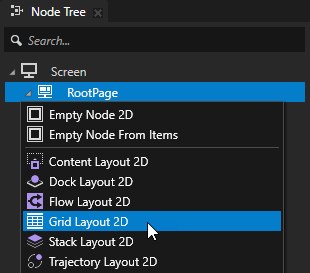
在 Node Tree 中,按 Alt 并右键单击 您要创建 Grid Layout 节点的节点,并选择 Grid Layout 2D 或 Grid Layout 3D。
您只能在 3D 节点中创建 3D 节点,例如 Scene 节点,并且只能在 2D 节点中创建 2D 节点。
小技巧
在 Preview 工具中,使用 Grid Layout 2D tool
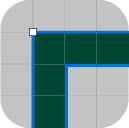
 在 Preview 中单击并拖动以创建 Grid Layout 2D 节点。要缩放列和行,请在 Preview 中单击并拖动这些列和行。
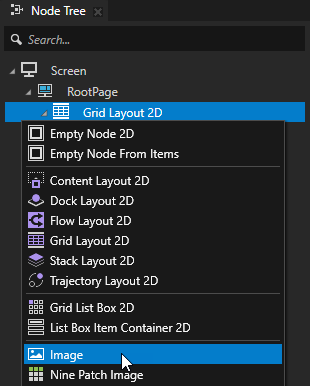
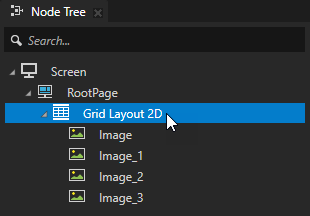
在 Node Tree 中,将子节点添加到您在上一步中创建的布局中。
例如,如果您创建了一个 Grid Layout 2D 节点,请添加几个 Image 节点,如果您创建了一个 Grid Layout 3D 节点,请添加几个 Sphere 节点。
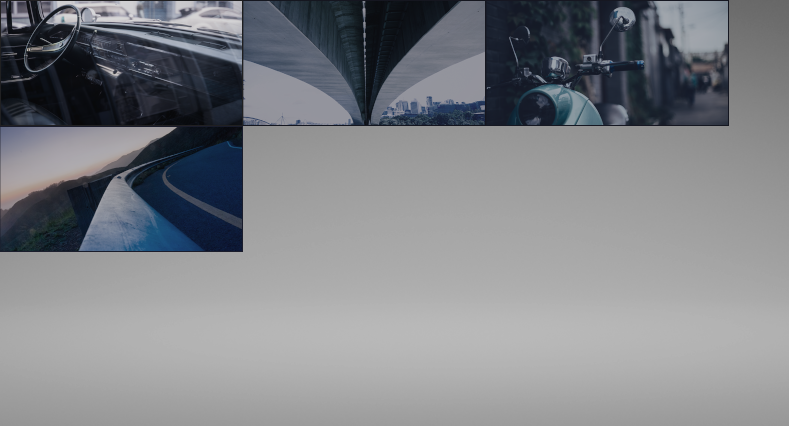
当您添加子节点时,Grid Layout 节点会将它们从网格的左上角定位到网格的右下角。要手动设置每个子节点在 Grid Layout 节点中的位置,请在每个子节点中设置 Column 和 Row 属性。请参阅 在 Grid Layout 节点中将节点分配到单元格中。
设置 Grid Layout 节点排列其子节点的方向
当您让 Grid Layout 节点自动排列其子节点时,您可以设置 Grid Layout 节点排列其子节点的方向。
要设置 Grid Layout 节点排列其子节点的方向:
在 Node Tree 中,选择您要设置方向的 Grid Layout 节点。
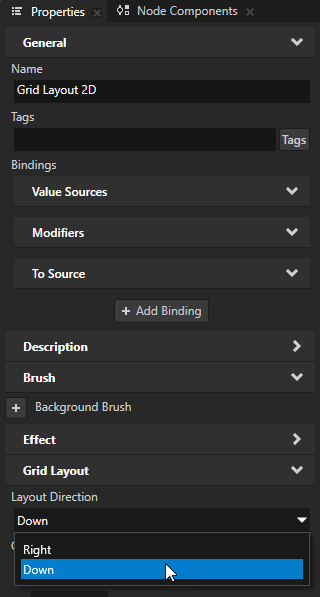
在 Properties 中,添加并设置 Layout Direction 属性为:
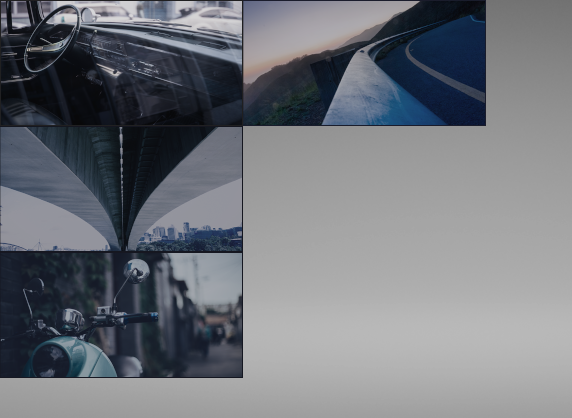
Down 使 Grid Layout 节点首先将其子节点放置在第一列。当第一列满时,Grid Layout 节点开始将其子节点放置在第二列,依此类推。
Right 使 Grid Layout 节点首先将其子节点放置在第一行。当第一行满时,Grid Layout 节点开始将其子节点放置在第二行,依此类推。这是默认值。
在 Grid Layout 节点中将节点分配到单元格中
您可以手动将每个子节点分配到 Grid Layout 节点中的特定行和列。
要在 Grid Layout 节点中将节点分配到单元格:
创建一个 Grid Layout 节点,并向其添加多个子节点。请参阅 创建一个 Grid Layout 节点。
在 Node Tree 中,选择 Grid Layout 节点的子节点。在 Properties 中,添加 Grid Layout > Column 和 Grid Layout > Row 属性。
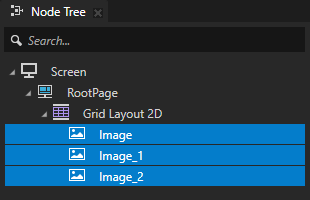
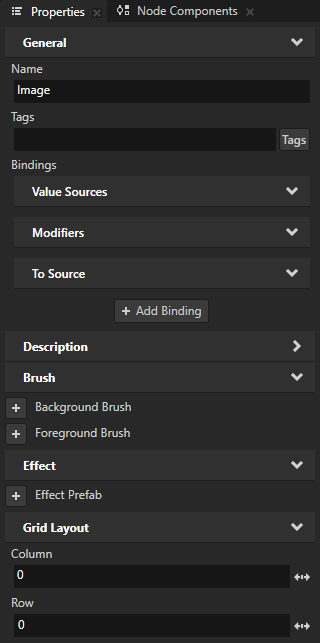
使用 Column 和 Row 属性来指定节点在 Grid Layout 节点中占据的列的从零开始的索引和行的从零开始的索引。
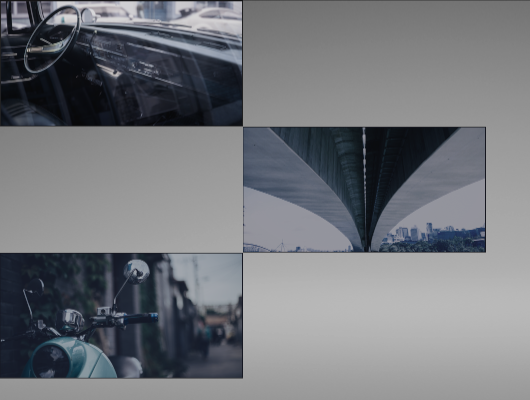
例如,要以棋盘格图案排列三个图像,请设置:
对于第二个子节点:Column 为 1,Row 为 1。
您将此节点分配到第二列和第二行。
对于第三个子节点:Column 为 0,Row 为 2。
您将此节点分配到第一列和第三行。
小技巧
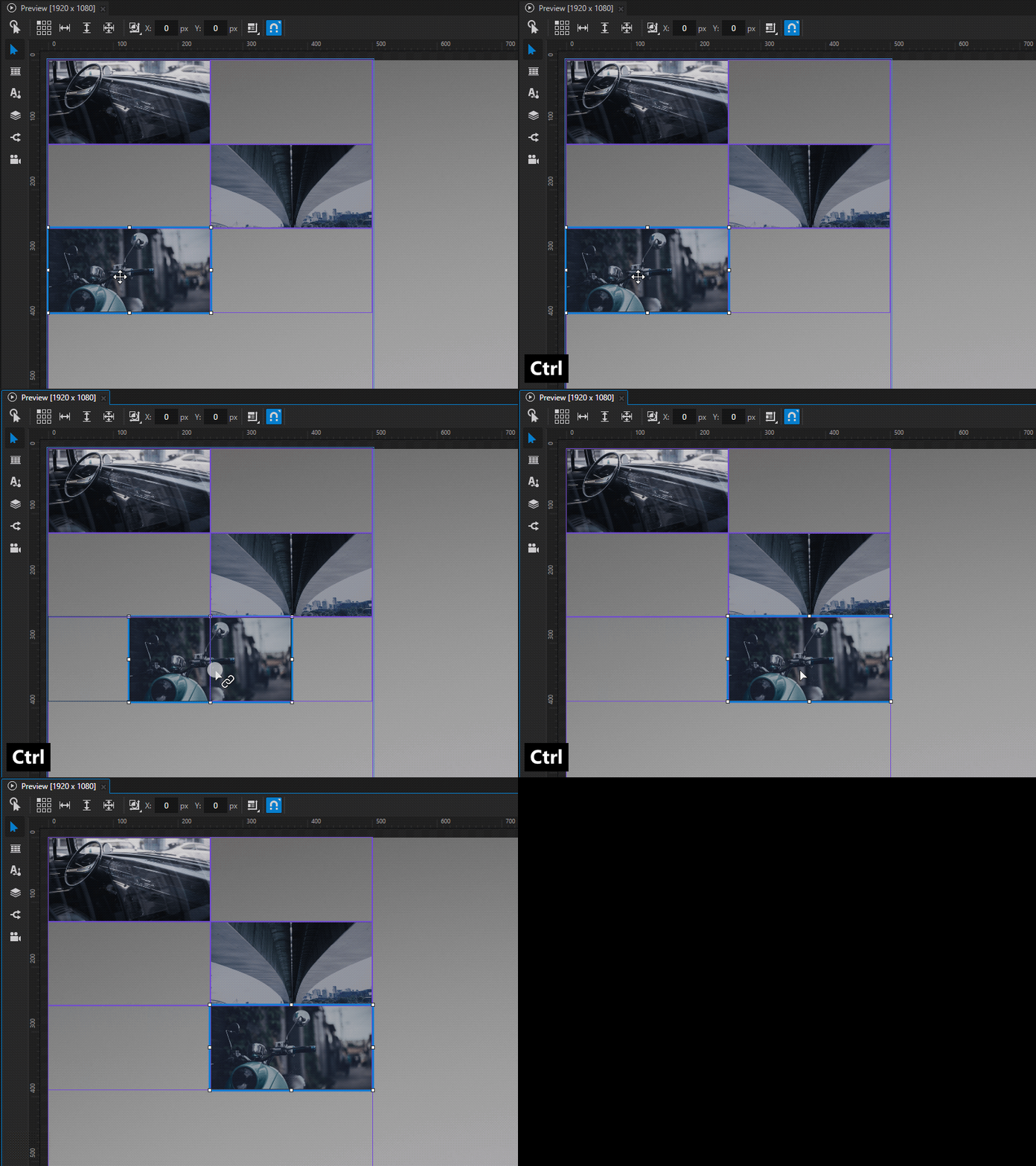
要将节点分配到 Preview 中的另一个 Grid Layout 2D 单元格:
在 Node Tree 中,选择该节点。
按住 Ctrl 键。
在 Preview 中,将节点拖动到您要分配它的单元格。
在 Grid Layout 节点中跨列和跨行。
对于 Grid Layout 节点中的每个单元格,您可以设置该单元格跨越的列数和行数。
要使单元格跨越 Grid Layout 节点的列和行:
创建一个 Grid Layout 节点,并向其添加多个子节点。请参阅 创建一个 Grid Layout 节点。
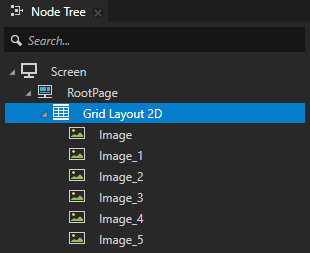
在 Grid Layout 节点的每个子节点中,添加 Grid Layout > Column 和 Grid Layout > Row 属性。请参阅 在 Grid Layout 节点中将节点分配到单元格中。
一个 Grid Layout 节点默认情况下有三列三行。例如,您可以将前五个子节点排列在顶部行和左侧列的网格布局中。第六个子节点可以占据剩余的空间。在 Grid Layout 节点的子节点中,设置这些属性:
子节点 (Child node)
Column
Row
Layout Width
1
0
0
200
2
1
0
200
3
2
0
200
4
0
1
200
5
0
2
200
6
1
1
400
默认情况下,Grid Layout 节点根据该列和行中最大子节点的大小自动计算其列和行的大小。这里,第六个图像比其他图像大,拉伸了 Grid Layout 节点的第二列和第二行。这在布局中留下了空隙。

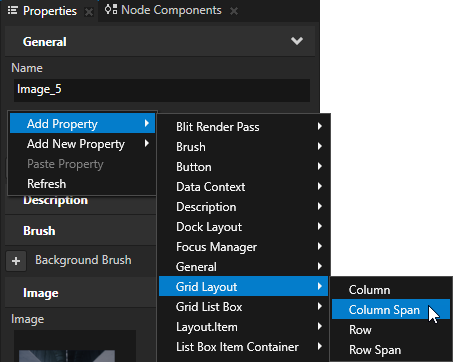
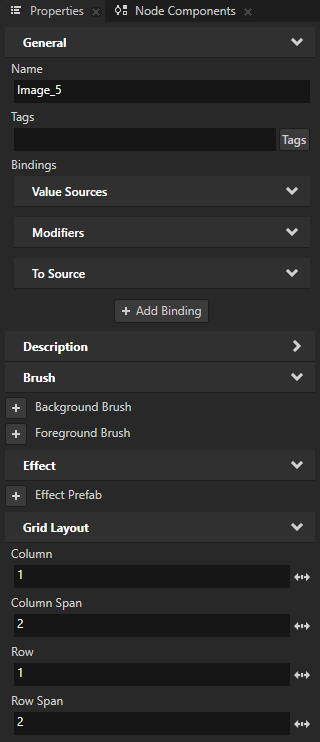
在 Grid Layout 节点中,选择一个您希望跨越多个列和行的子节点。在 Properties 中,添加并设置 Column Span 和 Row Span 属性为您希望该单元格跨越的列数和行数。
单元格向右跨列,向下跨行。
例如,要将最后一张图像设置为跨两行两列,请将 Column Span 和 Row Span 属性设置为 2。

设置 Grid Layout 节点如何计算其列和行的大小。
当您在 Grid Layout 节点中创建列和行时,您可以设置该 Grid Layout 节点如何计算其列和行的大小。 例如,要在 Grid Layout 节点中平均分配内容,您可以对行和列使用比例大小。
要设置 Grid Layout 节点如何计算其列和行的大小:
创建一个 Grid Layout 节点,并向其添加多个子节点。请参阅 创建一个 Grid Layout 节点。
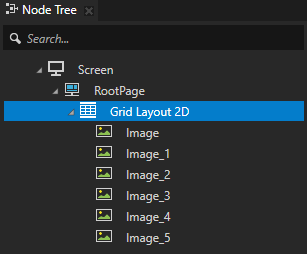
在 Properties 中,通过设置 Grid Layout 节点的 Layout Width 和 Layout Height 属性来设置其大小。
例如,将 Layout Width 设置为 500,将 Layout Height 设置为 300。
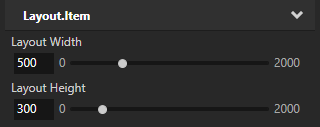
在 Grid Layout 节点中,将 Columns 和 Rows 属性的值设置为:
Automatic 使 Grid Layout 节点能够根据该列和行中最大子节点的大小自动计算其列和行的大小。
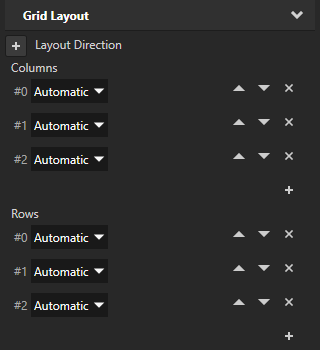

Fixed 用于设置列和行的确切大小,而不考虑该列和行中子节点的大小。
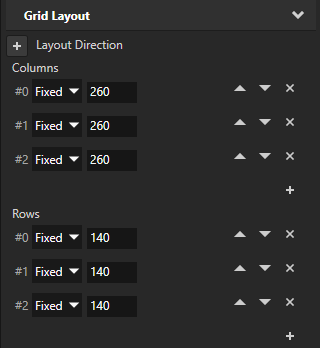

Proportional 用于根据使用此相同设置的其他列和行的剩余大小以及整个 Grid Layout 节点的大小来设置列和行的大小。
例如:
为均匀分配各列的内容,选择 Proportional,并为每列使用相同的值。
如果您有三列,并且希望第一列占据 Grid Layout 节点宽度的一半,请选择 Proportional,使用值 2 作为第一列,其他两列使用值 1。
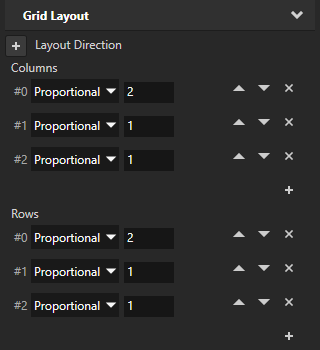
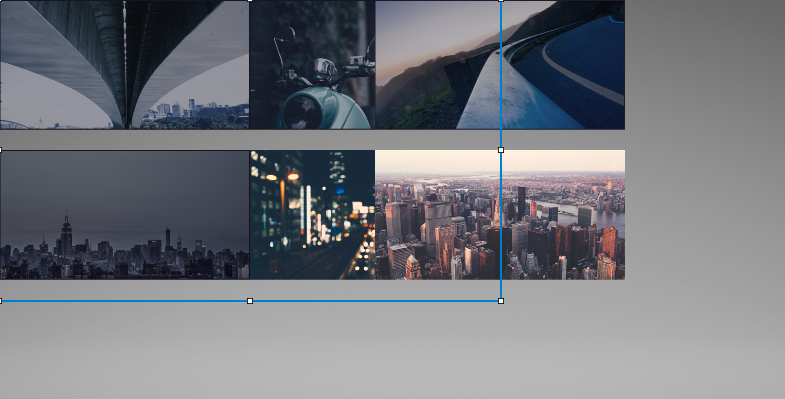
使用 Grid Layout 节点为不同屏幕尺寸创建用户界面。
您可以使用 Grid Layout 节点来创建在不同屏幕尺寸的设备上具有一致用户界面的应用程序。Grid Layout 节点可以分配其子节点,使它们在应用程序界面中占据相同的相对空间,无论屏幕大小或设备方向如何。例如,使用 Grid Layout 节点,您可以将用户界面控件放置在屏幕的左上角和右下角,并与屏幕边缘保持严格定义的距离。
有关创建适用于不同屏幕尺寸的用户界面的更高级方法,请参阅 教程:制作具有动态布局的应用程序。
要使用 Grid Layout 节点为不同屏幕尺寸创建一致的用户界面:
创建一个 Grid Layout 节点,并向其添加多个子节点。请参阅 创建一个 Grid Layout 节点。
选择 Grid Layout 节点。在 Properties 中,设置:
Columns 和 Rows 到 Proportional。
Horizontal Alignment 和 Vertical Alignment 到 Stretch。
为了保持图像像素完美,不要将 Horizontal Alignment 和 Vertical Alignment 属性设置为 Stretch,而是将 Snap to Pixel 属性添加到位置随应用程序布局变化的子节点中。
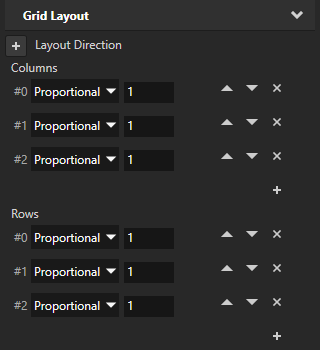
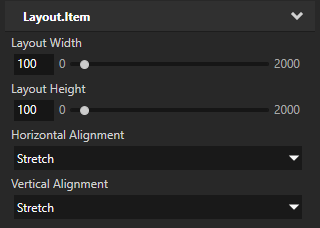

通过这些设置,您可以将 Grid Layout 节点设置为在其整个宽度和高度上均匀分布其内容,并将 Grid Layout 节点设置为拉伸到整个屏幕。
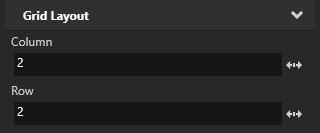
在 Node Tree 中,选择 Grid Layout 节点中的第三个子节点。在 Properties 中,添加并设置:
Column 到 2
Row 到 2
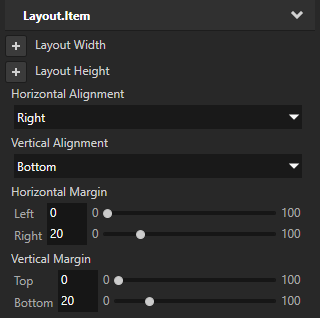
Horizontal Alignment 到 Right
Vertical Alignment 到 Bottom
将 Horizontal Margin 属性 Right 属性字段设置为 20。
将 Vertical Margin 属性 Bottom 属性字段设置为 20。
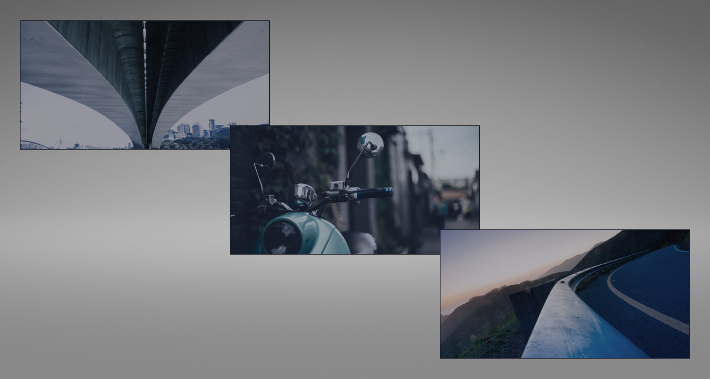
通过这些设置,您可以将 Grid Layout 节点的第三个子节点放置在 Grid Layout 节点的第三列和第三行中,并将其放置在距离屏幕右下角 20 像素的位置。Grid Layout 节点中的第三个子节点无论屏幕大小或方向如何,都会保持在该位置。

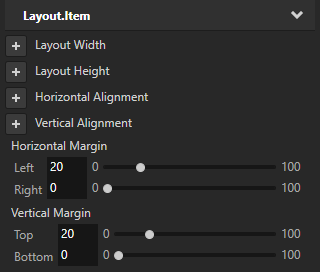
在 Node Tree 中,选择 Grid Layout 节点的第一个子节点。在 Properties 中,添加并设置:
将 Horizontal Margin 属性 Left 属性字段设置为 20。
将 Vertical Margin 属性 Top 属性字段设置为 20。
通过这些设置,您在第一个子节点与屏幕边缘之间设置了 20 像素的边距。
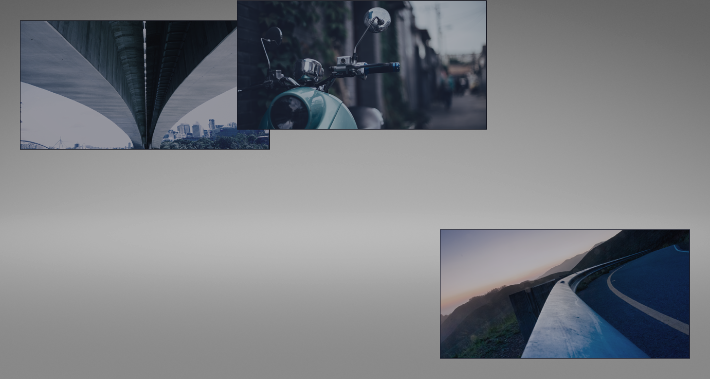
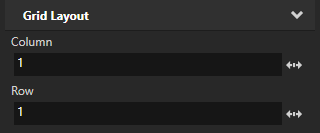
在 Node Tree 中,选择 Grid Layout 节点的第二个子节点。在 Properties 中,添加并设置:
Column 到 1
Row 到 1
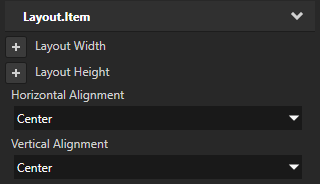
Horizontal Alignment 到 Center
Vertical Alignment 到 Center
通过这些设置,您可以将第二个子节点放置在 Grid Layout 的第二列和第二行中。
设置 Grid Layout 2D 节点的外观
要设置 2D 节点的外观:
您可以使用单色、纹理或材质填充 2D 节点。请参阅 调整 2D 节点的外观。



您可以将后期处理效果应用于2D节点。请参阅 2D 节点的效果。




您可以围绕所有三个轴旋转 2D 节点,以创建 3D 透视效果。请参阅 为2D节点创建3D透视效果。

您可以应用自定义渲染到 2D 节点,以创建后处理效果。请参阅 应用自定义渲染到 2D 节点。
您可以将2D节点渲染为像素完美。请参阅 渲染像素完美的2D节点。
使用 API 中的 Grid Layout 3D 节点
要创建一个具有两列两行且单元格自动调整大小的 Grid Layout 3D 节点,并将网格设置为按照从上到下的顺序排列网格列中的项:
// Create a GridLayout3D named Grid.
GridLayout3DSharedPtr grid = GridLayout3D::create(domain, "Grid");

// Set the grid so that it arranges the items in the grid by first adding them
// in the rows of the first column. When all the rows in the first column are full,
// grid starts adding the items in the rows of the second column, and so on.
grid->setDirection(GridLayoutConcept::GridDirectionDown);

// Set the grid to have two automatic columns and rows that get their size from
// the size of their content.
grid->addAutomaticColumn();
grid->addAutomaticColumn();
grid->addAutomaticRow();
grid->addAutomaticRow();

// Create and add four cubes, one to each cell in the grid. Let the grid
// automatically set which cells the child nodes occupy. Since #GridDirection is
// set to GridDirectionDown, the grid automatically arranges the items in the grid
// by first adding items to both rows in the first column from top to bottom,
// then both rows in the second column from top to bottom.
Model3DSharedPtr child1 = Model3D::createBox(domain, "Box1", Vector3(2.0f, 2.0f, 2.0f), ThemeRed);
grid->addChild(child1);
Model3DSharedPtr child2 = Model3D::createBox(domain, "Box2", Vector3(3.0f, 3.0f, 3.0f), ThemeBlue);
grid->addChild(child2);
Model3DSharedPtr child3 = Model3D::createBox(domain, "Box3", Vector3(1.0f, 1.0f, 1.0f), ThemeOrange);
grid->addChild(child3);
Model3DSharedPtr child4 = Model3D::createBox(domain, "Box4", Vector3(4.0f, 4.0f, 4.0f), ThemeGreen);
grid->addChild(child4);
此示例创建一个具有两列和两行的 Grid Layout 3D 节点,使用固定和自动单元格大小。默认情况下,Grid Layout 3D 节点会自动设置其项目占用的单元格。
// Create a GridLayout3D named Grid.
GridLayout3DSharedPtr grid = GridLayout3D::create(domain, "Grid");

// Set the grid to have two columns and two rows.
// Set the size of the first column to five units, but let the second column adapt
// its size from the size of its content.
grid->addFixedColumn(5.0f);
grid->addAutomaticColumn();
// Set the size of the first row to four units, but let the second row adapt its size
// from the size of its content.
grid->addFixedRow(4.0f);
grid->addAutomaticRow();

// Create and add three cubes to the grid and let the grid automatically set
// which cells the child nodes occupy. In this example, the three child nodes occupy
// the entire first row and the first column of the second row. The last cell (bottom-right)
// of the grid stays empty.
Model3DSharedPtr child1 = Model3D::createBox(domain, "Box1", Vector3(2.0f, 2.0f, 2.0f), ThemeOrange);
grid->addChild(child1);
Model3DSharedPtr child2 = Model3D::createBox(domain, "Box2", Vector3(3.0f, 3.0f, 3.0f), ThemeBlue);
grid->addChild(child2);
Model3DSharedPtr child3 = Model3D::createBox(domain, "Box3", Vector3(1.0f, 2.0f, 1.0f), ThemeGreen);
grid->addChild(child3);
此示例创建一个 Grid Layout 3D 节点,该节点具有两列和三行,其大小由 Grid Layout 3D 节点根据网格中其他列和行的大小按比例计算。该示例手动设置网格中每个项目占据的单元格。
// Create a GridLayout3D named Grid.
GridLayout3DSharedPtr grid = GridLayout3D::create(domain, "Grid");

// Set the width and height of the entire grid to six units.
grid->setWidth(6.0f);
grid->setHeight(6.0f);

// Set the grid to have two weighted columns and three weighted rows.
// The first column gets one third and the second column two thirds
// of the entire grid width.
grid->addWeightedColumn(1.0f);
grid->addWeightedColumn(2.0f);
// Each row gets one third of the entire grid height.
grid->addWeightedRow(1.0f);
grid->addWeightedRow(1.0f);
grid->addWeightedRow(1.0f);

// Create an orange cube named Box1 and add it to the cell in the first row and the first column
// (the upper-left corner of the grid).
Model3DSharedPtr child1 = Model3D::createBox(domain, "Box1", Vector3(2.0f, 2.0f, 2.0f), ThemeOrange);
GridLayout3D::setColumn(*child1, 0);
GridLayout3D::setRow(*child1, 0);
grid->addChild(child1);
// Create a blue cube named Box2 and add it so that it spans the second and third cells in the first column.
Model3DSharedPtr child2 = Model3D::createBox(domain, "Box2", Vector3(3.0f, 3.0f, 3.0f), ThemeBlue);
GridLayout3D::setColumn(*child2, 0);
GridLayout3D::setRow(*child2, 1);
GridLayout3D::setRowSpan(*child2, 2);
grid->addChild(child2);
// Create a green cube named Box3 and add it to the cell in the third row and the second column.
// (the bottom-right corner of the grid).
Model3DSharedPtr child3 = Model3D::createBox(domain, "Box3", Vector3(1.0f, 1.0f, 1.0f), ThemeGreen);
GridLayout3D::setColumn(*child3, 1);
GridLayout3D::setRow(*child3, 2);
grid->addChild(child3);
有关详细信息,请参阅 GridLayout3D 类。
使用 API 中的 Grid Layout 2D 节点
要创建一个具有两列两行且单元格自动调整大小的 Grid Layout 2D 节点,并将网格设置为按照从上到下的顺序排列网格列中的项:
// Create a GridLayout2D named Grid.
GridLayout2DSharedPtr grid = GridLayout2D::create(domain, "Grid");

// Set the grid so that it arranges the items in the grid by first adding them
// in the rows of the first column. When all the rows in the first column are full,
// grid starts adding the items in the rows of the second column, and so on.
grid->setDirection(GridLayoutConcept::GridDirectionDown);

// Set the grid to have two automatic columns and rows that get their size from
// the size of their content.
grid->addAutomaticColumn();
grid->addAutomaticColumn();
grid->addAutomaticRow();
grid->addAutomaticRow();

// Create and add four empty nodes, one to each cell in the grid. Let the grid
// automatically set which cells the child nodes occupy. Since #GridDirection is
// set to GridDirectionDown, the grid automatically arranges the items in the grid
// by first adding items to both rows in the first column from top to bottom,
// then both rows in the second column from top to bottom.
EmptyNode2DSharedPtr child1 = EmptyNode2D::create(domain, "Empty1", 128.0f, 128.0f, ThemeRed);
grid->addChild(child1);
EmptyNode2DSharedPtr child2 = EmptyNode2D::create(domain, "Empty2", 256.0f, 256.0f, ThemeBlue);
grid->addChild(child2);
EmptyNode2DSharedPtr child3 = EmptyNode2D::create(domain, "Empty3", 128.0f, 128.0f, ThemeOrange);
grid->addChild(child3);
EmptyNode2DSharedPtr child4 = EmptyNode2D::create(domain, "Empty4", 128.0f, 128.0f, ThemeGreen);
grid->addChild(child4);
此示例创建一个具有两列和两行的 Grid Layout 2D 节点,使用固定和自动单元格大小。默认情况下,Grid Layout 2D 节点会自动设置其项目占用的单元格。
// Create a GridLayout2D named Grid.
GridLayout2DSharedPtr grid = GridLayout2D::create(domain, "Grid");

// Set the grid to have two columns and two rows.
// Set the size of the first column to 200 units, but let the second column adapt
// its size from the size of its content.
grid->addFixedColumn(200.0f);
grid->addAutomaticColumn();
// Set the size of the first row to 100 units, but let the second row adapt its size
// from the size of its content.
grid->addFixedRow(100.0f);
grid->addAutomaticRow();

// Create and add three empty nodes to the grid and let the grid automatically set
// which cells the child nodes occupy. In this example, the three child nodes occupy
// the entire first row and the first column of the second row. The last cell (bottom-right)
// of the grid stays empty.
EmptyNode2DSharedPtr child1 = EmptyNode2D::create(domain, "Empty1", 128.0f, 128.0f, ThemeRed);
grid->addChild(child1);
EmptyNode2DSharedPtr child2 = EmptyNode2D::create(domain, "Empty2", 256.0f, 256.0f, ThemeBlue);
grid->addChild(child2);
EmptyNode2DSharedPtr child3 = EmptyNode2D::create(domain, "Empty3", 128.0f, 128.0f, ThemeOrange);
grid->addChild(child3);
此示例创建一个 Grid Layout 2D 节点,该节点具有两列和三行,其大小由网格根据网格中其他列和行的大小按比例计算。对于网格中的每个项目,示例设置该项目占据的单元格。
// Create a GridLayout2D named Grid.
GridLayout2DSharedPtr grid = GridLayout2D::create(domain, "Grid");

// Set the width and height of the entire grid to six hundred units.
grid->setWidth(600.0f);
grid->setHeight(600.0f);

// Set the grid to have two weighted columns and three weighted rows.
// The first column gets one third and the second column two thirds
// of the entire grid width.
grid->addWeightedColumn(1.0f);
grid->addWeightedColumn(2.0f);
// Each row gets one third of the entire grid height.
grid->addWeightedRow(1.0f);
grid->addWeightedRow(1.0f);
grid->addWeightedRow(1.0f);

// Create an empty node named Empty1 and add it to the cell in the first row and the first column
// (the upper-left corner of the grid).
EmptyNode2DSharedPtr child1 = EmptyNode2D::create(domain, "Empty1", 128.0f, 128.0f, ThemeRed);
GridLayout2D::setColumn(*child1, 0);
GridLayout2D::setRow(*child1, 0);
grid->addChild(child1);
// Create an empty node named Empty1, add it to the cell in the second row and the first column
// and make it span across the second and third rows of the first coloumn in the grid.
EmptyNode2DSharedPtr child2 = EmptyNode2D::create(domain, "Empty2", 256.0f, 256.0f, ThemeBlue);
GridLayout2D::setColumn(*child2, 0);
GridLayout2D::setRow(*child2, 1);
GridLayout2D::setRowSpan(*child2, 2);
grid->addChild(child2);
// Create an empty node named Empty3, add it to the cell in the third row and the second column
// (the bottom-right corner of the grid).
EmptyNode2DSharedPtr child3 = EmptyNode2D::create(domain, "Empty3", 128.0f, 128.0f, ThemeOrange);
GridLayout2D::setColumn(*child3, 1);
GridLayout2D::setRow(*child3, 2);
grid->addChild(child3);
有关详细信息,请参阅 GridLayout2D 类。
Grid Layout 属性类型和消息。
有关 Grid Layout 节点的可用属性类型和消息的列表,请参阅 Grid Layout 2D 和 Grid Layout 3D。