使用 Factory Content 资产
您可以在 Kanzi Studio 中将资产从 Factory Content 资产源添加到您的 Kanzi 应用程序中。有关 Factory Content 的列表,请参阅 出厂内容资产。
在您的项目中使用 Factory Content
要在您的项目中使用 Factory Content:
在 Asset Packages 窗口中选择 Factory Content 资产源。
Factory Content 资产包包含现成的组件和材料,您可以使用它们更快地创建原型项目。
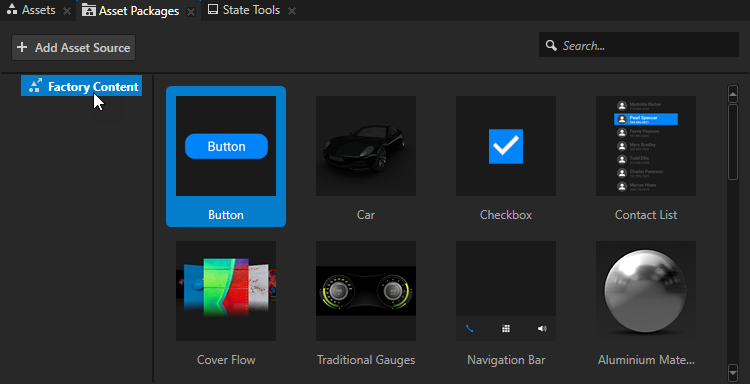
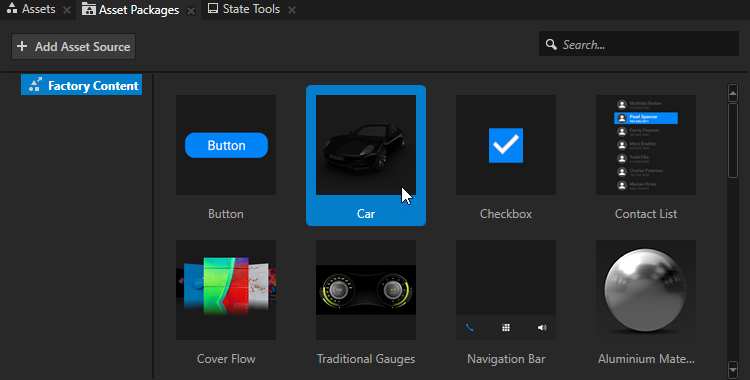
从 Asset Packages 中将您要在项目中使用的项目拖动到 Node Tree 中的节点、Prefabs、Preview 或 Pages 窗口中的 Page 节点。
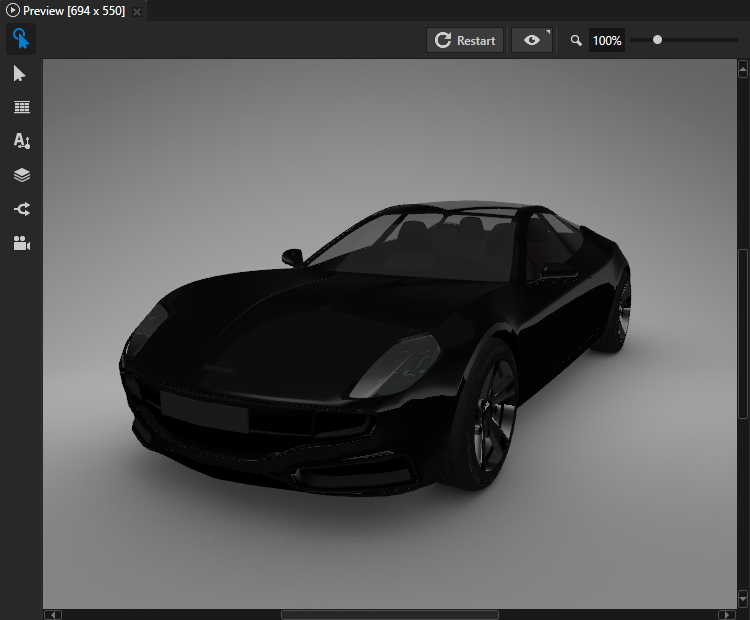
例如,将 Car 拖到 Preview。当您将一个项目从 Asset Packages 拖到 Preview 或 Node Tree 或 Pages 中的一个节点时,Kanzi Studio 会将该项目实例化为预设,并将其添加到 Prefabs。
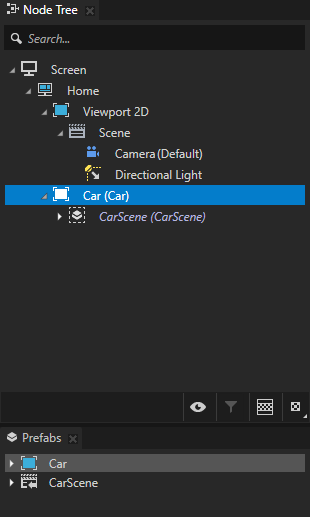
在您的项目中使用 Factory Content 材料。
要在您的项目中使用 Factory Content 材料:
在 Asset Packages 窗口中选择 Factory Content 资产源。
Factory Content 资产包包含现成的组件和材料,您可以使用它们更快地创建原型项目。
从 Asset Packages 中将您想在项目中使用的材质拖到 Preview 中的一个节点,或 Node Tree 中的一个节点。
例如,要使用车身材料,将该材料拖动到以下任一位置:
Preview 并将其放在车身上。
Node Tree 并将其放在显示汽车车身网格的 Model 节点上。
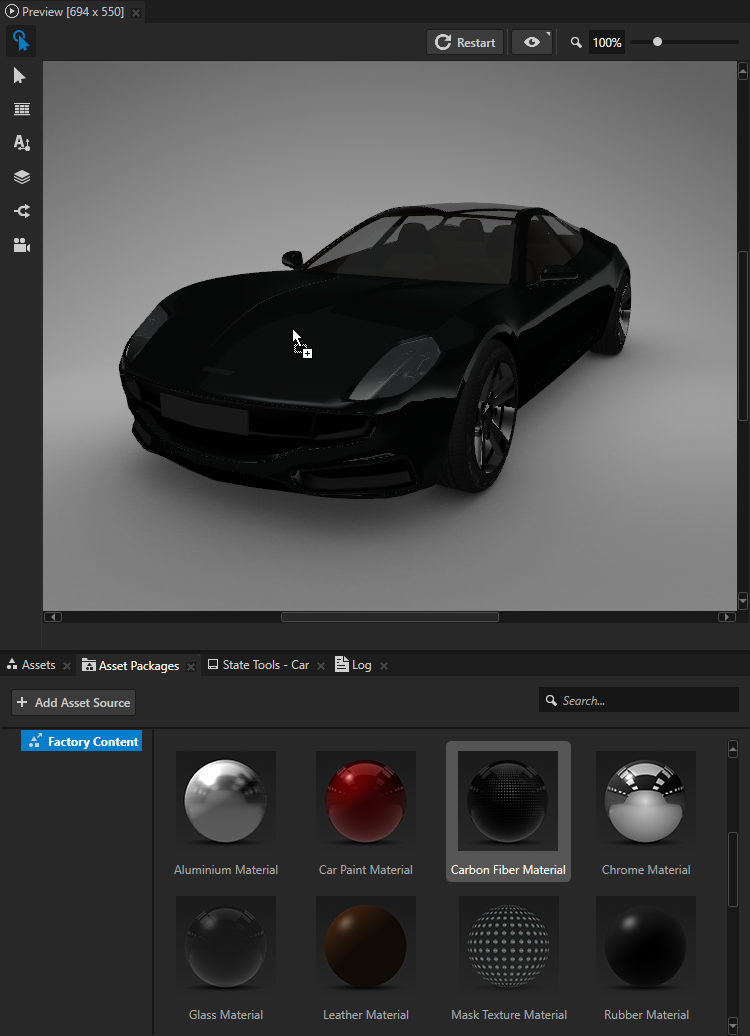
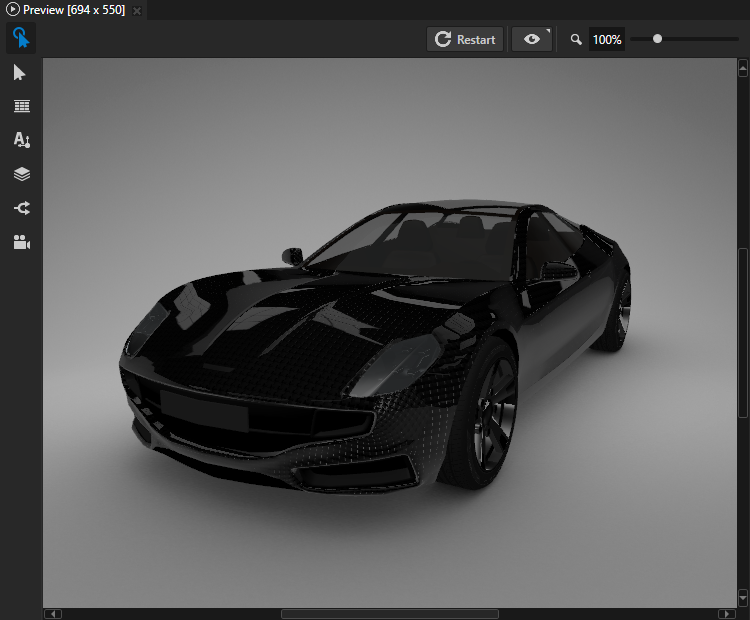
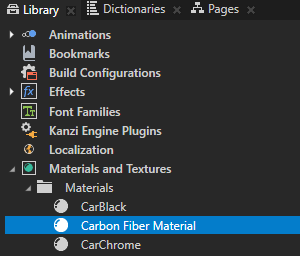
使用 Factory Content 材质时,Kanzi Studio 会将该材质添加到 Library > Materials and Textures > Materials,并将材质使用的着色器添加到 Library > Resource Files > Shaders。
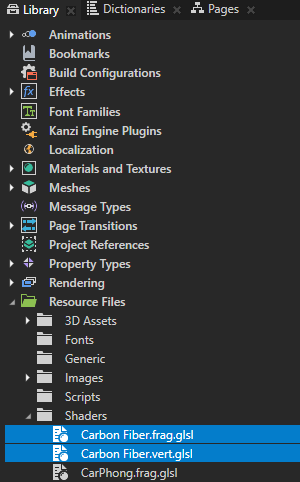
要使用采用标准图纹理的材质,要使用此类材质的 3D 模型必须有切线。这些 Factory Content 材质使用标准图纹理:
Aluminium Material
Carbon Fiber Material
Leather Material
Rubber Material
要在基本网格上使用带有法线贴图纹理的材质,请选择基本网格节点,并在 Properties 中启用 Generate Tangents 属性。
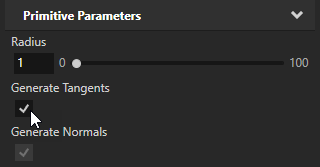
在工程中使用 Skybox Factory Content
要在工程中使用 Skybox Factory Content:
在 Asset Packages 窗口中选择 Factory Content 资产源。
在 Asset Packages > Factory Content 中,右键单击 Skybox 并选择 Import,将该资产包作为预设件导入到您的工程中。
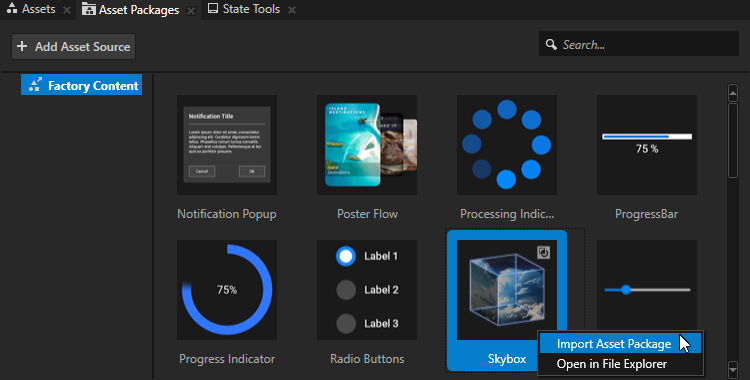
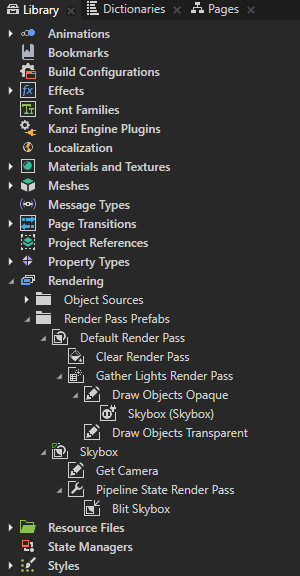
当您将 Skybox 导入到工程中时,Kanzi Studio 会将其添加到 Library > Rendering > Render Pass Prefabs 中。
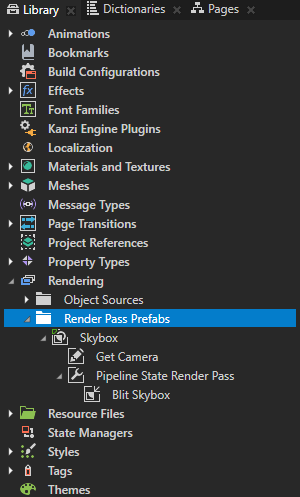
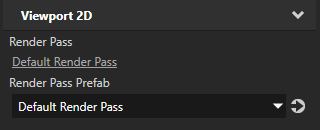
如果您的 Viewport 2D 中没有选定自定义 Render Pass Prefab,请在 Library > Rendering > Render Pass Prefabs 中右键单击并选择 Create > Default Render Pass。
在 Viewport 2D 的 Properties 中,将 Default Render Pass 设置为 Render Pass Prefab 属性的值。
在 Library > Rendering > Render Pass Prefabs 中,将 Skybox 渲染通道从其根节点拖到分配给目标 Viewport 2D 的 Render Pass Prefab 的 Draw Objects Opaque 节点下。
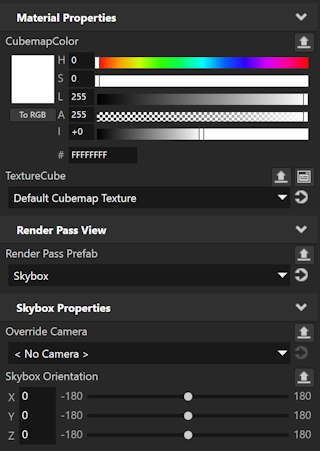
要调整 Skybox 背景,请选择上一步中的 Skybox Render Pass View 并调整其属性。
要调整背景的颜色,请调整 CubemapColor 属性。
要选择背景立方体贴图纹理,请使用 TextureCube 属性。
要覆盖跟踪摄像机,请使用 Override Camera 属性。
要调整背景的方向,请使用 Skybox Orientation 属性。