步骤 3 - 导出并使用 API 设置应用程序主题。
在本教程的此步骤中,您导出烘焙主题(在 Car variant 主题组中定义)和非烘焙主题(在 Cluster theme 主题组中定义)的 kzb 文件,并使用 Kanzi Engine API 使用户能够在应用程序中更改非烘焙主题。
导出 kzb 文件
在本节中,您首先在 Kanzi Studio 项目中设置如何导出项目中的主题,然后导出这些主题。
本节介绍如何将您在 Cluster theme 主题组中定义的主题与您在 Car variant 主题组中定义的主题一起导出为主题包。
Theme 资源包是一个 kzb 文件,其中仅包含所选 Theme 的资源。
当目标设备上的存储空间或内存有限,但您又想在运行时更改应用程序主题,则可使用这种方法,避免加载额外的 kzb 文件。
例如:使用这种方法,您可以从一个 Kanzi Studio 项目创建两个汽车变体(Gasoline 和 Hybrid)的应用程序,其中每个都有两个主题(Classic 和 Modern),您可以在应用程序中进行切换。
这只是从项目中导出主题的方法之一。要找到最适合您的产品和目标硬件的方法,请参阅 导出 Themes。
要导出 kzb 文件:
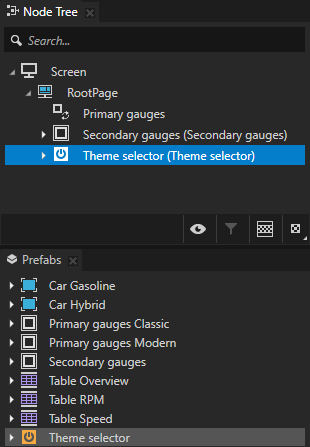
从 Prefabs 拖动 Theme selector 预设到 Node Tree,并将其放在 RootPage 节点上。
在下一节中,您将使用 Kanzi Engine API 创建一个按钮,使用户能够更改应用程序主题。
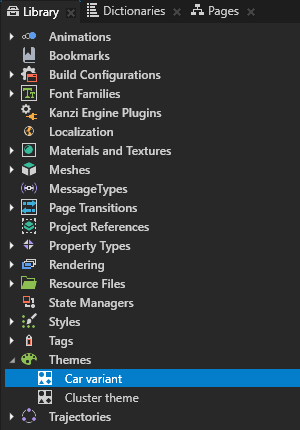
在 Library > Themes 中选择 Car variant 主题组,并在 Properties 中设置:
将 Export Baked Usages 设置为 enabled。
当您启用 Export Baked Usages 属性时,您可以从此主题组中的主题中烘焙资源。
Selected Theme 到 Car variant/DefaultValues。当您使用此设置导出 kzb 文件时,Kanzi Studio 将主 kzb 文件设置为使用该主题组中默认值中设置的资源。
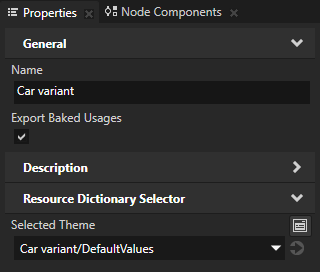
在 Library > Themes 中,选择 Cluster theme 主题组,并在 Properties 中将 Selected Theme 属性设置为 Cluster theme/DefaultValues。
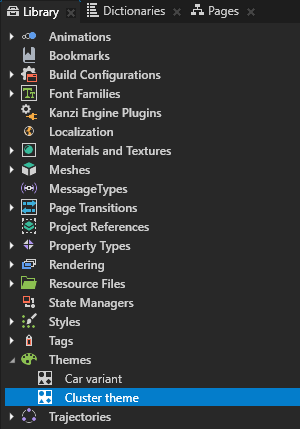
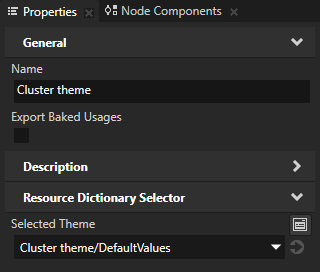
在 Library > Themes 中双击 Cluster theme 主题组以在 Theme Editor 中打开它,然后单击 Classic 和 Modern 主题旁边的
 。
。通过这种方式,您可以标记要导出主题资源的主题。
当您启用导出 Theme 资源时,Theme 列中的
图标变为蓝色  ,并且 Kanzi Studio 导出该 Theme 中使用的资源。
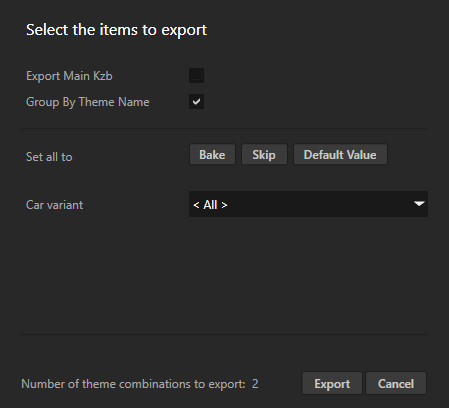
选择 File > Export > Export Baked Theme Binaries,并在 Themes and Locales to Bake on Export 窗口中禁用 Export Main Kzb 设置。
在 Themes and Locales to Bake on Export 窗口中,您可以选择要导出的 Car variant 主题组中的烘焙主题。
单击 Export。
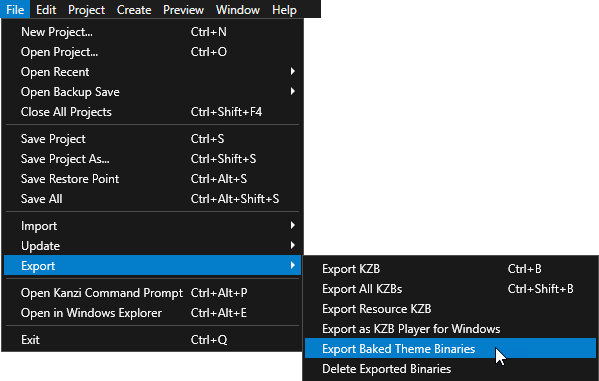
Kanzi Studio 创建:
在 Car variant 主题组中为每个主题提供一个 kzb 文件,并将 kzb 文件导出到
<KanziWorkspace>/Tutorials/Theming/Start/Application/bin/<ThemeGroupName>=<BakedThemeName>目录。该 kzb 文件包含应用程序节点树以及多个主题共用的所有资源(共用资源)。
在 Cluster theme 主题组中的每个主题都有一个kzb文件,并将文件存储在每个
<KanziWorkspace>/Tutorials/Theming/Start/Application/bin/<ThemeGroupName>=<BakedThemeName>目录中的Theme_packs目录中。Kanzi Studio 使用主题名称作为主题包kzb文件的名称。这些 kzb 文件的每一个都仅包括该主题使用的资源,没有通用资源(存储在 Car variant kzb 文件中)。
在文本编辑器中:
打开
Application/bin/Car variant=Gasoline/theming.kzb.cfg并更改theming.kzb
至 (To)
Car variant=Gasoline/theming.kzb
打开
Application/bin/Car variant=Hybrid/theming.kzb.cfg并更改theming.kzb
至 (To)
Car variant=Hybrid/theming.kzb
添加代码以更改组合仪表主题
在本节中,您添加应用程序代码以使用 Classic 主题启动应用程序,并创建一个消息处理程序,将其添加到 Theme selector Button 2D 节点,以在您在 Cluster theme 主题组中创建的两个主题之间切换。
要添加代码以更改组合仪表主题:
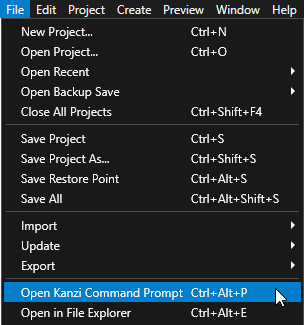
在 Kanzi Studio 中,选择 File > Open Kanzi Command Prompt。
Kanzi Command Prompt 打开 Windows 命令提示符,并为您打开 Kanzi Command Prompt 的 Kanzi 版本设置 Kanzi 环境变量。
使用 Kanzi Command Prompt 访问 Kanzi 实用程序和构建工具,例如 Gradle、SCons 和 CMake,而无需使用绝对路径或设置环境变量。
小技巧
您可以在 Windows 开始菜单的 Rightware 目录中找到 Kanzi Command Prompt。
当您安装了多个版本的 Kanzi 时,确保将您要在该命令提示符下使用的 Kanzi 版本的 Kanzi Command Prompt 启动。
在
<KanziWorkspace>/Tutorials/Theming/Start/Application目录中的 Kanzi Command Prompt 中运行生成教程应用程序的 Visual Studio 解决方案的脚本。例如,如果您使用 Visual Studio 2019,运行
generate_cmake_vs2019_solution.bat
此脚本在目录
<KanziWorkspace>/Tutorials/Theming/Start/Application/build_vs2019中为应用程序生成一个 Visual Studio 解决方案。在 Visual Studio 中打开
<KanziWorkspace>/Tutorials/Theming/Start/Application/build_vs<Version>/Theming_start.slnVisual Studio 解决方案。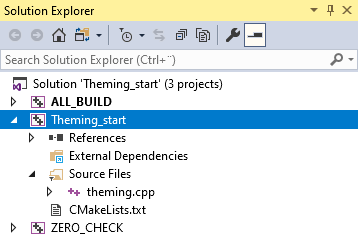
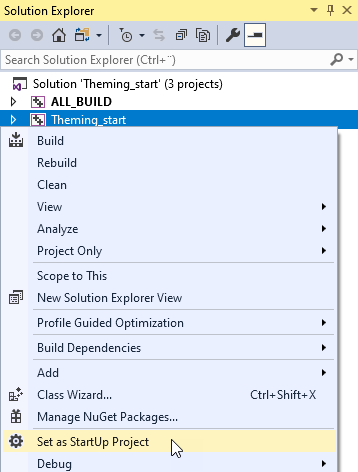
在 Visual Studio 的 Solution Explorer 中,右键点击 Theming_start 项目并选择 Set as StartUp Project。
在
Theming类中的theming.cpp文件中创建:定义主题名称和 kzb 文件 URL 的结构,以及用于存储应用程序主题名称和 kzb 文件 URL 的 vector。
用于跟踪当前活动主题的变量。
用于设置应用程序启动时加载的已烘培主题的常量字符串。
class Theming : public ExampleApplication
{
    // Structure describing a theme.
    struct ThemeDescriptor
    {
        explicit ThemeDescriptor(const string& name, const string& url):
            m_name(name),
            m_url(url)
        {
        }

        // The name of the theme.
        string m_name;
        // The kzb file URL of the theme.
        string m_url;
    };

    // Collection of all theme descriptions.
    vector<ThemeDescriptor> m_themes;

    // The index of the currently active theme.
    int m_activeThemeIndex;

    // The name of the baked theme to load.
    static const string m_carVariant;

...

}
在
Theming类之后,使用您在上一步中创建的m_carVariant变量,设置您希望在应用程序启动时加载的汽车变体。// Select which baked theme to use. // To start the application for the Hybrid car variant, set to 0. // To start the application for the Gasoline car variant, set to 1. #if 1 const string Theming::m_carVariant = "Gasoline"; #else const string Theming::m_carVariant = "Hybrid"; #endif
在
Application::onConfigure函数中,使用 Kanzi Studio 在导出 kzb 文件时创建的 .kzb.cfg 文件来加载应用程序,并应用您在上一步中设置的烘焙主题。void onConfigure(ApplicationProperties& configuration) override { configuration.binaryName = "./Car variant=" + m_carVariant + "/theming.kzb.cfg"; configuration.defaultWindowProperties.width = 1920; configuration.defaultWindowProperties.height = 720; }
在
Application::onProjectLoaded函数中void onProjectLoaded() override { // Add names and URLs for all themes. m_themes.push_back(ThemeDescriptor("Classic", "kzb://theming/Themes/Cluster theme/Classic")); m_themes.push_back(ThemeDescriptor("Modern", "kzb://theming/Themes/Cluster theme/Modern")); // Load metadata from all kzb files which contain theme resources. ResourceManager* resourceManager = getResourceManager(); resourceManager->addKzbFile("./Car variant=" + m_carVariant + "/Theme_packs/Cluster theme=Classic.kzb"); resourceManager->addKzbFile("./Car variant=" + m_carVariant + "/Theme_packs/Cluster theme=Modern.kzb"); // Activate the first theme at application startup. m_activeThemeIndex = -1; changeToNextTheme(); }
在
Application::onProjectLoaded函数之后,创建一个函数,用于激活应用程序中的下一个主题。// Activates the next theme. void changeToNextTheme() { // Get the Text Block 2D node in the Theme selector Button 2D node so that you can change the text to show the name of the next theme. Button2DSharedPtr themeSelectorButton = getRoot()->lookupNode<Button2D>("Theme selector"); TextBlock2DSharedPtr selectorThemeTextBlock = themeSelectorButton->lookupNode<TextBlock2D>("#Next theme name"); // Get the descriptors for the next theme and the theme following the next theme. const int nextThemeIndex = (m_activeThemeIndex + 1) % m_themes.size(); const int followingThemeIndex = (m_activeThemeIndex + 2) % m_themes.size(); const ThemeDescriptor& nextTheme = m_themes.at(nextThemeIndex); const ThemeDescriptor& followingTheme = m_themes.at(followingThemeIndex); // Set the name of the following theme. selectorThemeTextBlock->setText(followingTheme.m_name); // Set the application theme to the next theme. getScreen()->activateTheme(nextTheme.m_url); m_activeThemeIndex = nextThemeIndex; }
在
Theming类中,在Application::onProjectLoaded函数之后,创建onChangeThemeButtonClicked事件处理程序,在其中定义应用程序在用户单击应用程序中的 Theme selector 按钮时的反应方式。// This message handler defines how the application reacts when the user clicks the Theme selector button in the application. void onChangeThemeButtonClicked(ButtonConcept::ClickedMessageArguments& /* messageArguments */) { changeToNextTheme(); }
在
Application::onProjectLoaded函数中,在从主题 kzb 文件加载元数据后,将您在上一步中创建的消息处理程序添加到 Theme selector 节点。void onProjectLoaded() override { ... // Register the message handler for the Button: Click message used by the Theme selector node. Button2DSharedPtr themeSelectorButton = getRoot()->lookupNode<Button2D>("Theme selector"); themeSelectorButton->addMessageHandler(ButtonConcept::ClickedMessage, bind(&Theming::onChangeThemeButtonClicked, this, placeholders::_1)); ... }
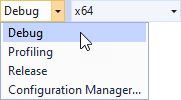
选择您要使用的解决方案配置并运行您的应用程序。
在开发期间,选择 Debug 配置。当您准备好创建生产版本时,选择 Release 配置。
在应用程序中,当您单击 Theme selector 按钮时,您将在 Cluster theme 主题组中定义的 Classic 和 Modern 集群主题之间切换。
接下来该做什么?
在本教程中,您学习了如何为 Kanzi 应用程序设置主题,以创建同一应用程序的不同外观,以及如何使用单个 Kanzi Studio 项目为您的产品创建多个变体。要进一步学习本教程,您可以为其他集群主题和汽车变体创建资源。您还可以:
找到关于为您的 Kanzi 应用程序创建主题的所有详细信息。请参阅 为您的应用程序设置主题。
了解如何使用 Kanzi Data Sources 将用户界面与应用程序数据分离。请参阅 教程:从数据源获取应用程序数据。
了解如何本地化您的应用程序。请参阅 教程:本地化您的应用程序。
另请参阅
要了解有关如何为您的 Kanzi 应用程序创建主题的更多信息,请参阅 为您的应用程序设置主题。
要详细了解从您的 Kanzi Studio 项目中导出主题的不同选项,请参阅 导出 Themes。
要了解如何创建和使用样式,请参阅 使用 styles。
要详细了解有关如何在您的 Kanzi 应用程序中使用状态机的信息,请参阅 使用状态机。
要了解有关 Prefab Placeholder 和 Prefab View 节点及其使用方法的更多信息,请参阅 使用节点预设。